Toolbar
v0.0.10
Mob Toolbar is a strip of related controls for iOS and Android, with clusters of items and separators between them. It comes from Mishka Chelekom and runs on Mob, which renders native Jetpack Compose and SwiftUI views from Elixir. It is the native port of the headless Toolbar.
Overview of the Mob Toolbar component for iOS and Android
On the web, a toolbar is partly a keyboard construct. It makes a row of controls one tab stop and moves focus with the arrow keys. A phone has neither, so that part does not travel. The rest does: four item kinds, clusters of items that share a group, disabled on one item or the whole bar, and separators that follow the orientation.
You write the items as tags inside the toolbar: a button, a link, an input and a separator. Each tag has a builder function that produces the identical node. The Item tags table below lists the four tags, their builders and what each takes.
Write the tags when you write the bar out. Call the builders when the items come from data. Anything that is not a toolbar item passes through untouched, so a Toggle, a Toggle group or an Action icon can sit beside the items.
The screen owns all state. One on_select on the bar serves every button and link, because each item reports its own id. No item tag carries an on_* prop of its own.
Consecutive items that share a group are drawn as one cluster. A separator turns to match the toolbar's axis. A separator that carries the same group as its neighbors sits inside the cluster.
Hold an item to read its label
On the web, an item's label is its aria-label, and a desktop browser shows it on hover. A phone has no hover, so a long press takes its place. An item with an icon draws the glyph. Holding it sends the item id through on_hold. Pass that id back as hint and the toolbar prints the item's label under the strip. A normal tap still does what the button does.
Buttons and links report holds. An input does not, because a text field uses its own long press to place a selection. A disabled item still answers a long press with its label, so you can find out what it is even though you cannot activate it. Set focusable_when_disabled to false to remove that.
How a link is underlined
A link is underlined so it does not read as a button. The rule is the color of a wrapper that shows through one pixel of bottom padding under the label. The label is painted in whatever the item sits on: the strip's background, or the group's group_background inside a labeled group. The rule is therefore exactly as wide as the label.
A rule of its own, a fill_width Box under the label, would be measured against everything the Row has left and take all of it. That would leave the separator and the input after the link zero wide. The cost is that a custom background has to be a color the label can match. A :transparent strip falls back to :background.
Overflow
A row does not wrap, and nothing measures itself, so a toolbar with more controls than fit is clipped. overflow decides what happens instead.
:noneis the default. The toolbar is a plain row.:scrollmakes the strip scroll along its own axis. Every control stays reachable without a second surface.:collapsekeepsvisiblecontrols and ends with a ⋯ button that sendson_overflow. You decide where the rest go: a drawer, a menu or a second bar.
split/2 is the whole collapse policy. It counts controls and not children, so a separator rides along with the items it divides and does not use up a slot. A trailing separator is dropped, and at least one control always stays visible.
Input width
An input item takes the space the buttons leave over. Under overflow: :scroll and in a vertical bar it has a fixed width instead, 160 by default.
Generate the toolbar component
Run this from your Mob app's root to add the component to lib/<app>/components/:
mix mishka.ui.gen.mob toolbarThe generator registers the tag, so you can use it in ~MOB markup. It also copies the shared Event module. The first example also uses Toggle and Action Icon, so generate those too if you follow it. The examples on this page use the mishka_ prefix of the showcase app (--module-prefix mishka_), so the tag is <MishkaToolbar>. Without a prefix, the tag is <Toolbar>.
A strip of your own controls
Anything that is not a toolbar item passes straight through, so a toggle or an action icon sits beside a <MishkaToolbarSeparator> without either noticing. The toggles here come from the toggle/1 function and the undo button from action_icon/1.
A strip of your own controls
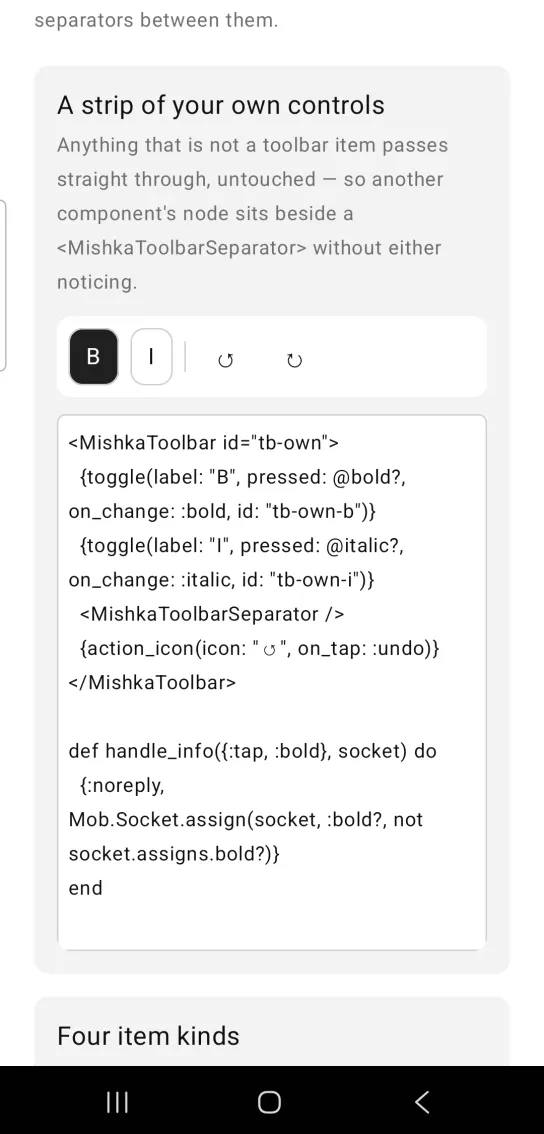
<MishkaToolbar id="tb-own">
  {toggle(label: "B", pressed: @bold?, on_change: :bold, id: "tb-own-b")}
  {toggle(label: "I", pressed: @italic?, on_change: :italic, id: "tb-own-i")}
  <MishkaToolbarSeparator />
  {action_icon(icon: "↺", on_tap: :undo)}
</MishkaToolbar>

def handle_info({:tap, :bold}, socket) do
  {:noreply, Mob.Socket.assign(socket, :bold?, not socket.assigns.bold?)}
end
Four item kinds
A toolbar can hold a button, a link, a separator and a text input, one tag each. A single on_select clause serves every button and link. The input reports edits through on_input, and you echo the value back. Opening the link's URL is the screen's job, because a node tree describes the screen and does not perform effects.
Four item kinds
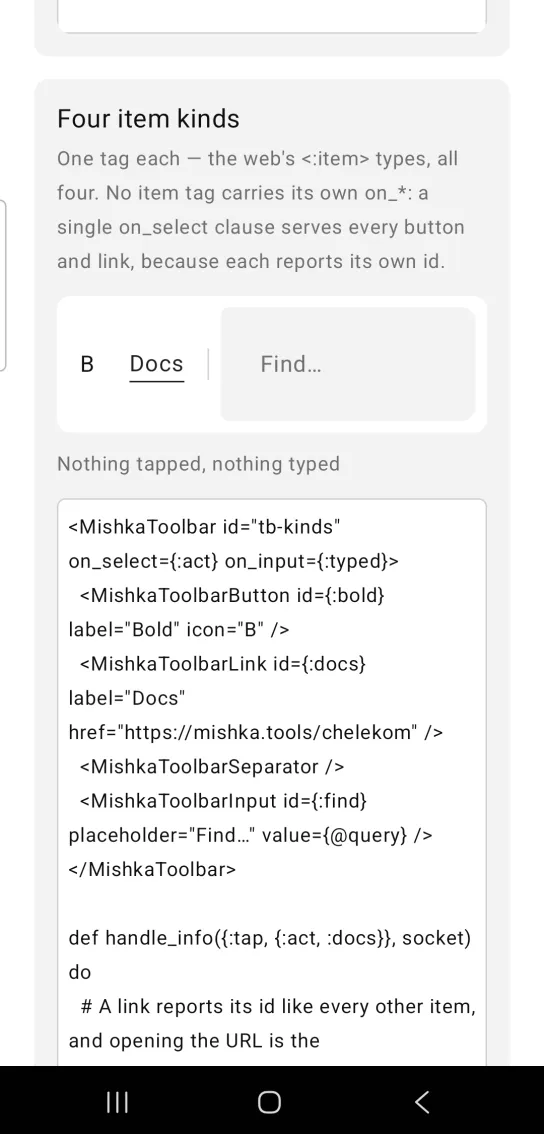
<MishkaToolbar id="tb-kinds" on_select={:act} on_input={:typed}>
  <MishkaToolbarButton id={:bold} label="Bold" icon="B" />
  <MishkaToolbarLink id={:docs} label="Docs" href="https://mishka.tools/chelekom" />
  <MishkaToolbarSeparator />
  <MishkaToolbarInput id={:find} placeholder="Find…" value={@query} />
</MishkaToolbar>

def handle_info({:tap, {:act, :docs}}, socket) do
  # A link reports its id like every other item, and opening the URL is the
  # screen's job — a node tree is a description, not an effect. Written as
  # tags the destination is right there in the markup; when the items come
  # from a list instead, href/2 turns the reported id back into it.
  Mob.Device.open_url("https://mishka.tools/chelekom")
  {:noreply, socket}
end

def handle_info({:change, {:typed, :find}, value}, socket) do
  {:noreply, Mob.Socket.assign(socket, :query, value)}
endToolbar groups
Consecutive items that share a group form one cluster, as the web wraps them in a <div role="group">. The label of a group is invisible on the web, and here it becomes the cluster's test tag. This toolbar has an Align cluster of three buttons and a Lists cluster of two.
Toolbar groups
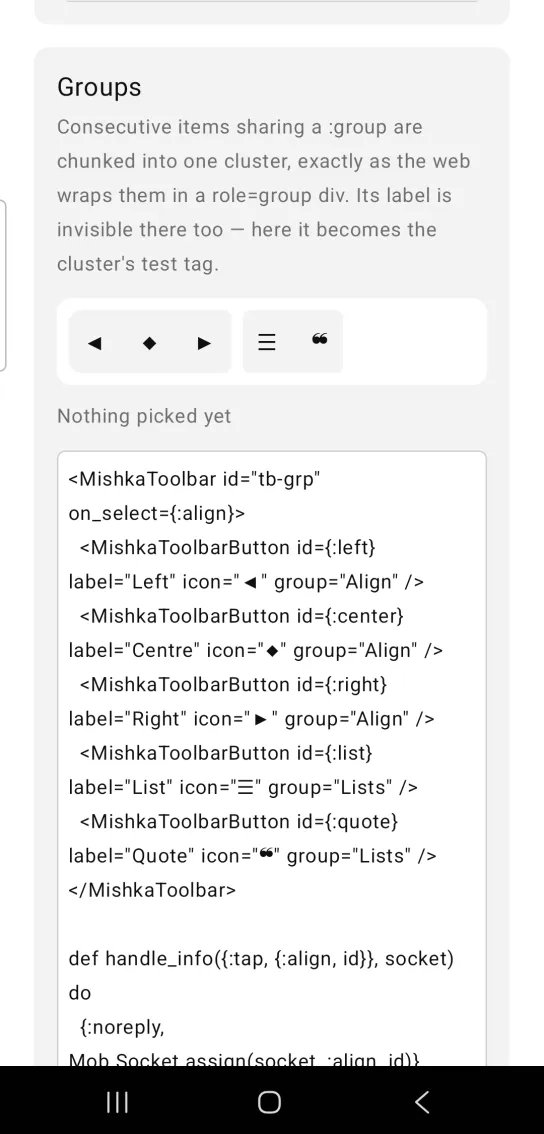
<MishkaToolbar id="tb-grp" on_select={:align}>
  <MishkaToolbarButton id={:left} label="Left" icon="◀" group="Align" />
  <MishkaToolbarButton id={:center} label="Centre" icon="◆" group="Align" />
  <MishkaToolbarButton id={:right} label="Right" icon="▶" group="Align" />
  <MishkaToolbarButton id={:list} label="List" icon="☰" group="Lists" />
  <MishkaToolbarButton id={:quote} label="Quote" icon="❝" group="Lists" />
</MishkaToolbar>

def handle_info({:tap, {:align, id}}, socket) do
  {:noreply, Mob.Socket.assign(socket, :align, id)}
end
Hold an icon to read its label
There is no hover on a phone, so hold the button. on_hold reports the item id, and passing it back as hint prints that item's label under the strip. The plain tap still does whatever the button does, so the hint costs you nothing.
Hold an icon to read its label
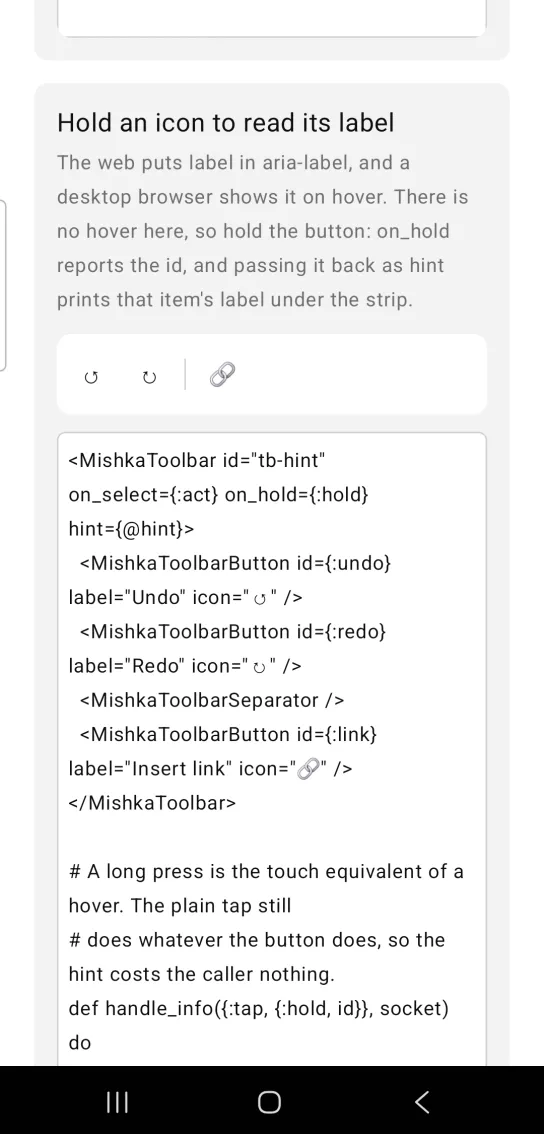
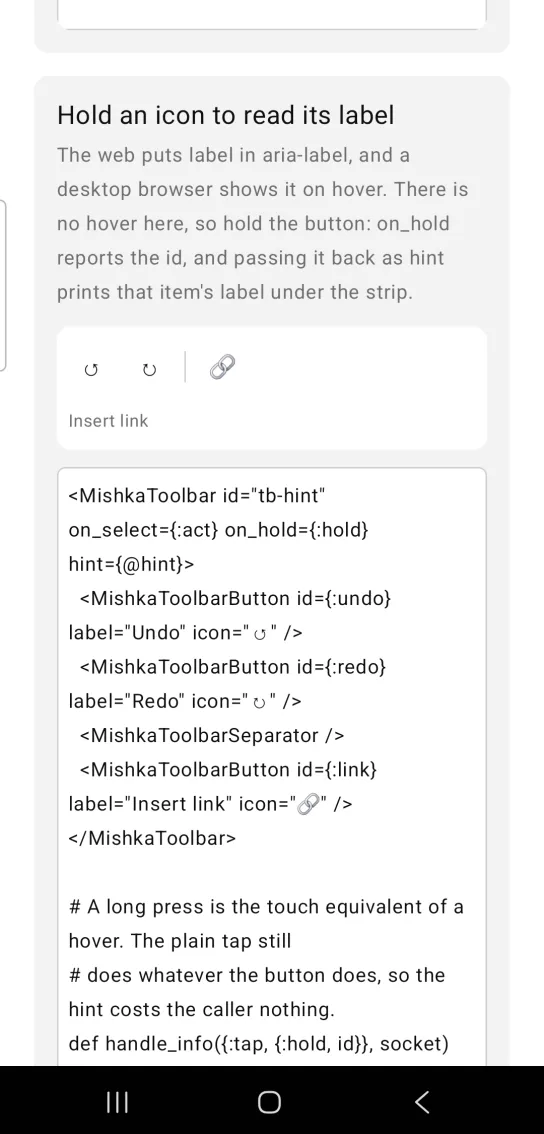
Left: the example as it loads. Right: after a long press. Hold an icon button to read its label.
<MishkaToolbar id="tb-hint" on_select={:act} on_hold={:hold} hint={@hint}>
  <MishkaToolbarButton id={:undo} label="Undo" icon="↺" />
  <MishkaToolbarButton id={:redo} label="Redo" icon="↻" />
  <MishkaToolbarSeparator />
  <MishkaToolbarButton id={:link} label="Insert link" icon="🔗" />
</MishkaToolbar>

# A long press is the touch equivalent of a hover. The plain tap still
# does whatever the button does, so the hint costs the caller nothing.
def handle_info({:tap, {:hold, id}}, socket) do
  {:noreply, Mob.Socket.assign(socket, :hint, id)}
end
Disabled items that stay discoverable
The first bar is disabled as a whole. The second has a single disabled item. Either way, a disabled item still answers a long press, which is how focusable_when_disabled works on a phone. Set it to false to take the long press away as well.
Disabled items that stay discoverable
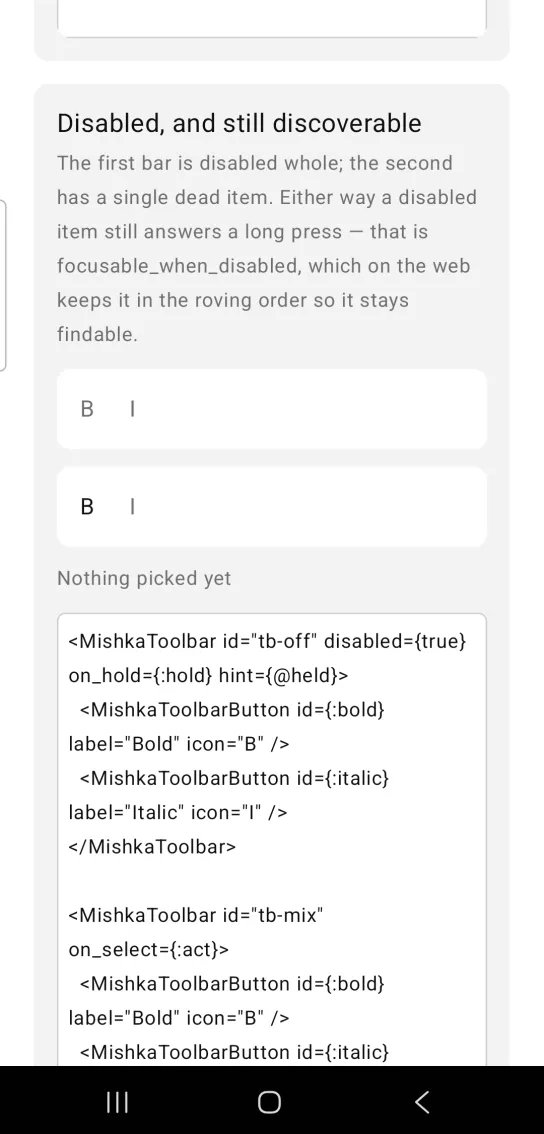
<MishkaToolbar id="tb-off" disabled={true} on_hold={:hold} hint={@held}>
  <MishkaToolbarButton id={:bold} label="Bold" icon="B" />
  <MishkaToolbarButton id={:italic} label="Italic" icon="I" />
</MishkaToolbar>

<MishkaToolbar id="tb-mix" on_select={:act}>
  <MishkaToolbarButton id={:bold} label="Bold" icon="B" />
  <MishkaToolbarButton id={:italic} label="Italic" icon="I" disabled={true} />
</MishkaToolbar>

# focusable_when_disabled={false} takes the long press away as well.
def handle_info({:tap, {:hold, id}}, socket) do
  {:noreply, Mob.Socket.assign(socket, :held, id)}
end
Overflow: scroll
A row does not wrap, so thirteen controls on a phone are clipped. overflow={:scroll} makes the strip scroll along its own axis instead. These items come from a list, so the example builds them with MishkaToolbar.button/3.
Overflow: scroll
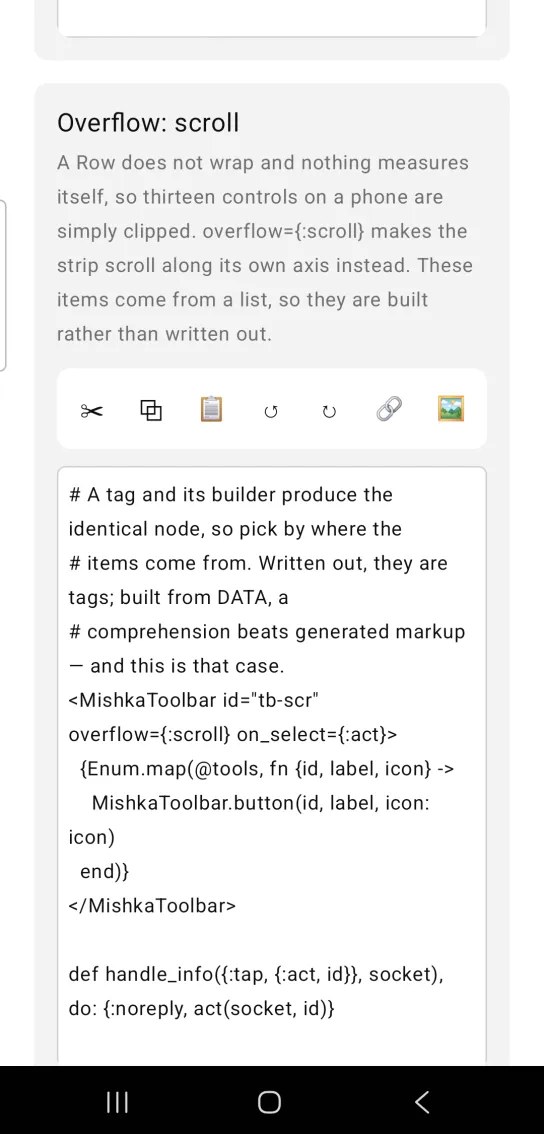
# A tag and its builder produce the identical node, so pick by where the
# items come from. Written out, they are tags; built from DATA, a
# comprehension beats generated markup — and this is that case.
<MishkaToolbar id="tb-scr" overflow={:scroll} on_select={:act}>
  {Enum.map(@tools, fn {id, label, icon} ->
    MishkaToolbar.button(id, label, icon: icon)
  end)}
</MishkaToolbar>

def handle_info({:tap, {:act, id}}, socket), do: {:noreply, act(socket, id)}
Overflow: collapse
The other answer keeps visible controls and puts a ⋯ at the end. The ⋯ sends on_overflow, so the rest can go wherever you decide, such as a drawer, a menu or a second bar.
Overflow: collapse
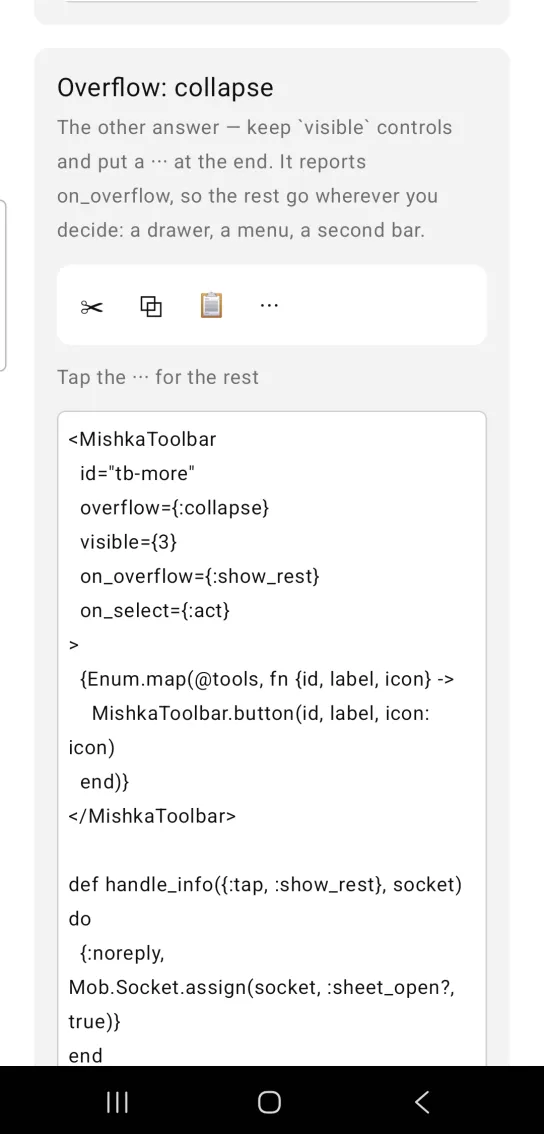
<MishkaToolbar
  id="tb-more"
  overflow={:collapse}
  visible={3}
  on_overflow={:show_rest}
  on_select={:act}
>
  {Enum.map(@tools, fn {id, label, icon} ->
    MishkaToolbar.button(id, label, icon: icon)
  end)}
</MishkaToolbar>

def handle_info({:tap, :show_rest}, socket) do
  {:noreply, Mob.Socket.assign(socket, :sheet_open?, true)}
end
Vertical toolbar
orientation={:vertical} stacks the items in a column. The separator turns to match the toolbar's axis.
Vertical toolbar
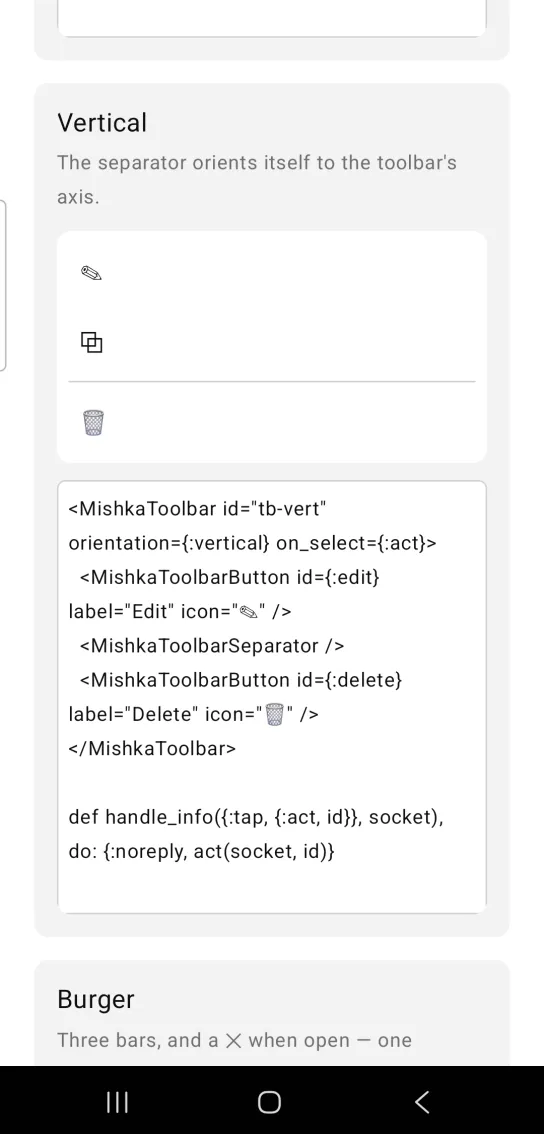
<MishkaToolbar id="tb-vert" orientation={:vertical} on_select={:act}>
  <MishkaToolbarButton id={:edit} label="Edit" icon="✎" />
  <MishkaToolbarSeparator />
  <MishkaToolbarButton id={:delete} label="Delete" icon="🗑" />
</MishkaToolbar>

def handle_info({:tap, {:act, id}}, socket), do: {:noreply, act(socket, id)}
Builders and helpers
The generated MishkaToolbar module exports these functions.
| Function | Description |
|---|---|
button/3, link/3, input/2, separator/1 | The same four nodes as the tags, for when the items come from data. |
href/2 | The href of the link item with a given id, or nil. |
split/2 | Splits items into the shown and hidden lists for overflow: :collapse. |
item_tag/3 | The test tag of an item, given the toolbar's id. |
Props
| Prop | Type | Default | Description |
|---|---|---|---|
id | string | nil | Test tag. Items get <id>-<item_id>, with -disabled added when they are disabled. |
orientation | :horizontal or :vertical | :horizontal | Layout axis. Separators follow it. |
disabled | boolean | false | Disables every item in the bar. |
focusable_when_disabled | boolean | true | A disabled item still answers a long press. |
on_select | event tag | None | {:tap, {tag, item_id}} from a button or link. |
on_hold | event tag | None | {:tap, {tag, item_id}} from a long press, the replacement for hover. |
on_input | event tag | None | {:change, {tag, item_id}, value} from an input item. |
on_overflow | event tag | None | {:tap, tag} from the ⋯ button. |
hint | item id | nil | Prints that item's label under the strip. |
overflow | :none, :scroll or :collapse | :none | What too many controls do. Nothing wraps. |
visible | integer | 3 | Controls kept when overflow is :collapse. |
space | number | 8 | Gap between items. |
height | number | nil | Bounds the strip. A vertical :scroll needs it. |
background | color token or ARGB integer | :surface_raised | Strip fill. A link's rule is painted against it, and a :transparent strip falls back to :background. |
corner_radius | radius token or number | :radius_md | Strip corners. |
padding | spacing token or number | :space_sm | Padding inside the strip. |
group_background | color token or ARGB integer | :surface | Fill behind a labeled group. Links inside the group are painted against it. |
item_color | color token or ARGB integer | :on_surface | Button ink. |
link_color | color token or ARGB integer | :primary | Link ink. |
Item tags
| Tag | Builder | Description |
|---|---|---|
<MishkaToolbarButton> | button/3 | A command. Takes id (what on_select reports), label, icon, disabled and group. |
<MishkaToolbarLink> | link/3 | A destination. Takes the same props plus href. It is tinted with link_color and has a rule under it that is as wide as its label. |
<MishkaToolbarInput> | input/2 | A text field. Takes id, placeholder, value, width, label, disabled and group. |
<MishkaToolbarSeparator> | separator/1 | A divider across the toolbar's other axis. Takes group. |
Events
Your screen receives these messages in handle_info/2.
| Prop | Message the screen receives |
|---|---|
on_select | {:tap, {tag, item_id}} from a button or link |
on_hold | {:tap, {tag, item_id}} from a long press |
on_input | {:change, {tag, item_id}, value} from an input item |
on_overflow | {:tap, tag} from the ⋯ button |
In this example act/2 stands for your own function. Store the typed value and pass it back as the input's value, or the field keeps showing text the screen no longer has.
def handle_info({:tap, {:act, id}}, socket), do: {:noreply, act(socket, id)}

def handle_info({:change, {:typed, :find}, value}, socket) do
  {:noreply, Mob.Socket.assign(socket, :query, value)}
end
A link reports its id like every other item. To open it, call Mob.Device.open_url/1, or Mob.Socket.push_screen/3 for an internal destination. When the items come from a list, href/2 turns the reported id back into the destination.
Differences from the web component
loopis not ported. It moves focus with the arrow keys, and a phone has no arrow keys or focus ring to move.classandgroup_classare not ported. There is no stylesheet, so every visual decision is a prop.labelis not ported as an announced name, because Mob exposes no accessible name. The long-press hint is the workaround.
Attributes
| Name | Type | Default | Values | Required | Description |
|---|---|---|---|---|---|
id
|
string
| — | — | No | Test tag. Items get `<id>-<item_id>`. |
orientation
|
:horizontal :vertical
|
:horizontal
| — | No | Layout axis. Separators follow it. |
disabled
|
boolean
|
false
| — | No | Disables every item in the bar. |
focusable_when_disabled
|
boolean
|
true
| — | No | A disabled item still answers a long press. |
on_select
|
event tag (atom)
| — | — | No | `{:tap, {tag, item_id}}` from a button or link. |
on_hold
|
event tag (atom)
| — | — | No | `{:tap, {tag, item_id}}` from a long press. |
on_input
|
event tag (atom)
| — | — | No | `{:change, {tag, item_id}, value}` from an input. |
on_overflow
|
event tag (atom)
| — | — | No | `{:tap, tag}` from the `⋯`. |
hint
|
item id
| — | — | No | Prints that item's `label` under the strip. |
overflow
|
:none :scroll :collapse
|
:none
| — | No | What too many controls do. |
visible
|
integer
|
3
| — | No | Controls kept when `overflow: :collapse`. |
space
|
number
|
8
| — | No | Gap between items. |
height
|
number
| — | — | No | Bounds the strip — a vertical `:scroll` needs it. |
background
|
color token / ARGB int
|
:surface_raised
| — | No | Strip fill. |
corner_radius
|
radius token / number
|
:radius_md
| — | No | Strip corners. |
padding
|
spacing token / number
|
:space_sm
| — | No | Padding inside the strip. |
group_background
|
color token / ARGB int
|
:surface
| — | No | Fill behind a labelled group. |
item_color
|
color token / ARGB int
|
:on_surface
| — | No | Button ink. |
link_color
|
color token / ARGB int
|
:primary
| — | No | Link ink. |
Options
Each option takes one or more of its values, separated by commas.
| Option | Values |
|---|---|
--type
|
toolbar
|
--module
| A module name of your own |
What it generates
mix mishka.ui.gen.mob toolbar