Loading overlay
v0.0.10
mix mishka.ui.gen.mob loading_overlay
The Mob Loading Overlay in Mishka Chelekom covers a busy region of an iOS or Android screen with a scrim and absorbs the taps aimed at what it covers. It is the native port of the headless Loading Overlay and runs on Mob.
Overview of the Mob Loading Overlay component for iOS and Android
<MishkaLoadingOverlay> covers its region, so the content underneath looks inactive. It also absorbs taps, which makes a double submit impossible while work is running.
Your screen owns the state. Pass visible, and set it from handle_info/2 when the work starts and ends. When visible is false, the component renders an empty Column with no scrim, no indicator and no handler.
The default body is Mob's indeterminate Progress bar with an optional label, drawn on a small panel. The bar is linear because that is the only self-animating indicator the platform offers: LinearProgressIndicator on Android and a linear progress view on iOS. A lone thin bar on a large scrim reads as a stray line, so the panel gives it the look of a loader. The panel has a fixed width and does not resize when the label changes.
Put the overlay last inside the Box it covers. A Box stacks its children, so whatever comes later is drawn on top and takes the taps. For a whole-screen overlay, make it the last child of the outermost Box in render/1.
The web component ships no loader and no styling: you provide the loader in its default slot. The panel and the progress bar are this port's own default.
Generate the loading overlay component
Run this from your Mob app's root to add the component to lib/<app>/components/:
mix mishka.ui.gen.mob loading_overlayThe generator registers the tag, so you can use it in ~MOB markup. The examples on this page use the mishka_ prefix of the showcase app (--module-prefix mishka_), so the tag is <MishkaLoadingOverlay>. Without a prefix, the tag is <LoadingOverlay>.
The overlay absorbs the taps it covers
Tap the card to raise the count. Then start the work and tap the card again. The count does not move, because the scrim takes the tap.
While the overlay is visible, the scrim sends a no-op tag of its own. The catch-all handle_info/2 clause that every screen needs already ignores it.
The overlay absorbs the taps it covers
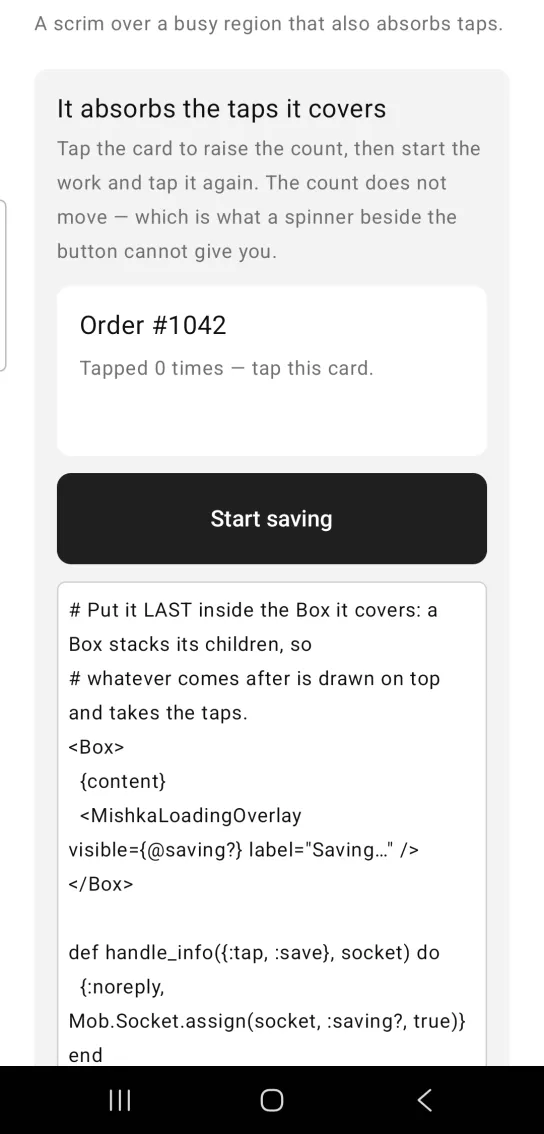
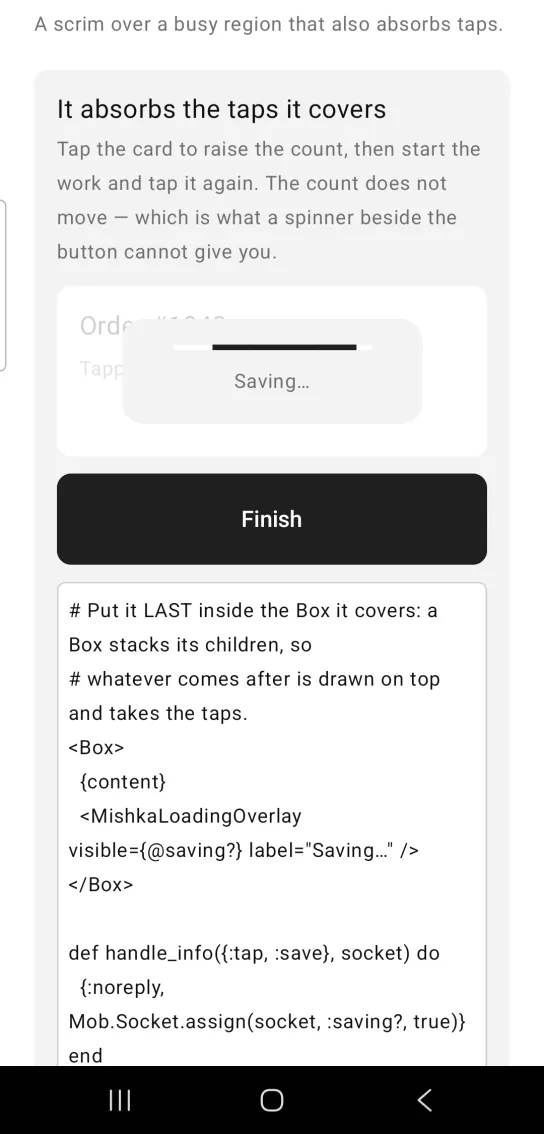
Left: the example as it loads. Right: after a tap. The overlay covers the card and absorbs its taps.
# Put it LAST inside the Box it covers: a Box stacks its children, so
# whatever comes after is drawn on top and takes the taps.
<Box>
  {content}
  <MishkaLoadingOverlay visible={@saving?} label="Saving…" />
</Box>

def handle_info({:tap, :save}, socket) do
  {:noreply, Mob.Socket.assign(socket, :saving?, true)}
end

# The scrim sends a no-op tag of its own while visible. The catch-all
# every screen needs already swallows it — that is the whole mechanism.
def handle_info(_msg, socket), do: {:noreply, socket}
Loading overlay without a label
Leave out label to show the indicator alone, when the rest of the screen already says why it is busy.
Loading overlay without a label
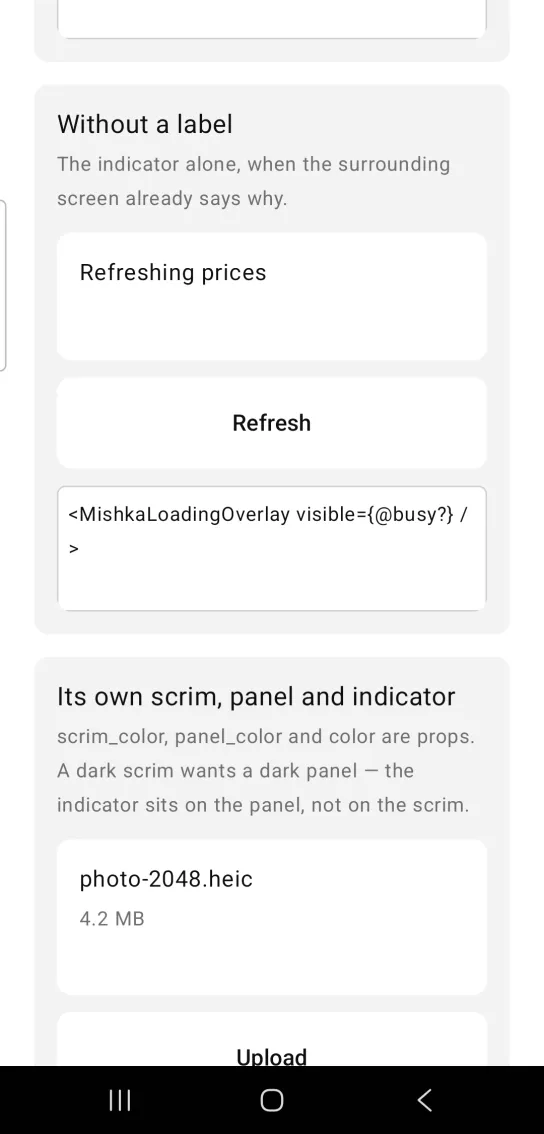
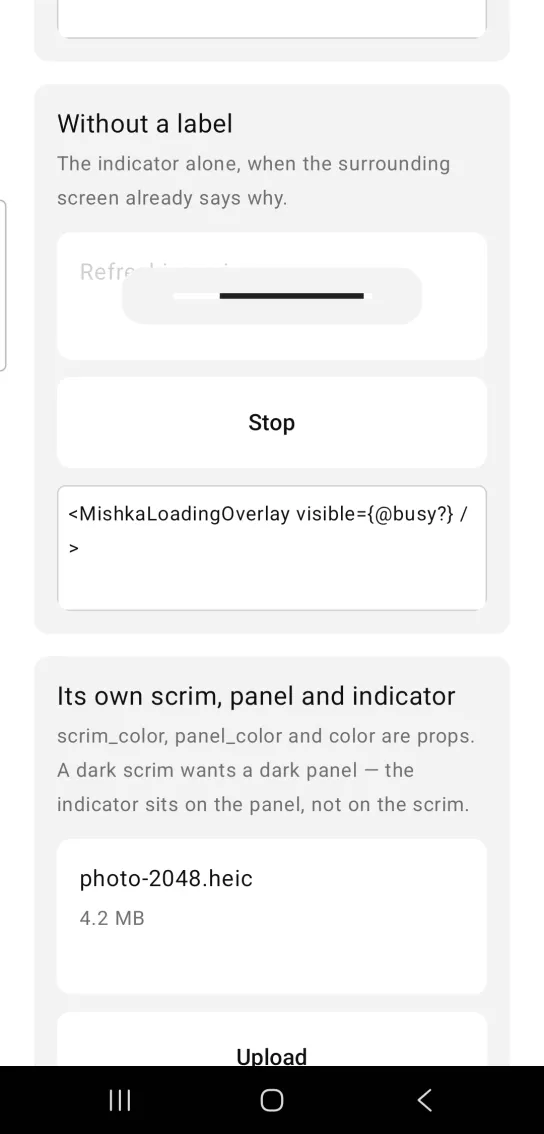
Left: the example as it loads. Right: after a tap. The indicator alone, with no label.
<MishkaLoadingOverlay visible={@busy?} />Set your own scrim, panel and indicator colors
scrim_color, panel_color and color are props. A dark scrim needs a dark panel, because the indicator sits on the panel. Colors are color tokens or ARGB integers such as 0xE6111827.
To supply your own body, pass children. They replace the indicator, the label and the panel.
Set your own scrim, panel and indicator colors
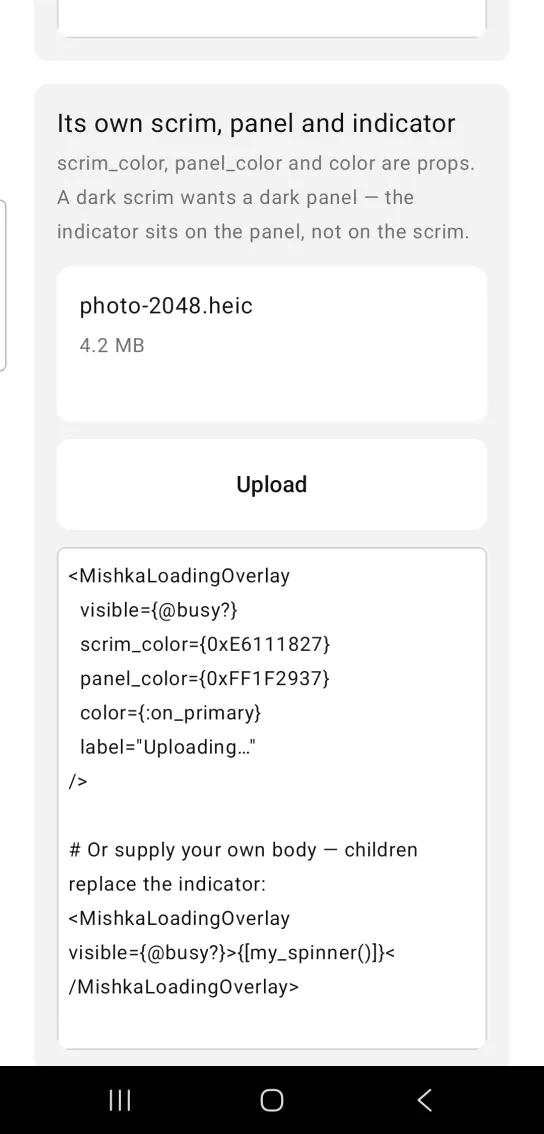
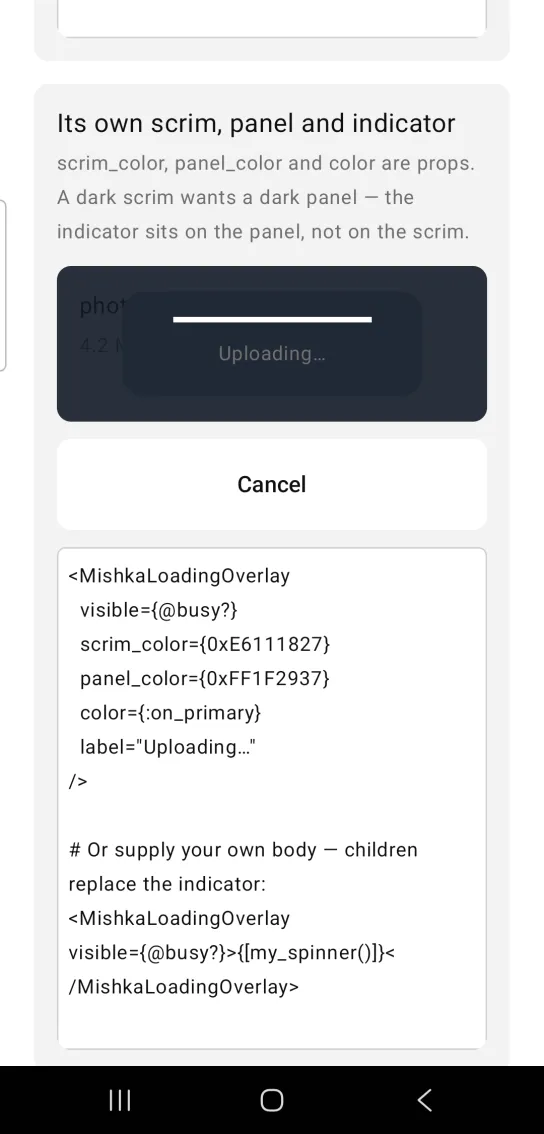
Left: the example as it loads. Right: after a tap. Scrim, panel and indicator colors are props.
<MishkaLoadingOverlay
  visible={@busy?}
  scrim_color={0xE6111827}
  panel_color={0xFF1F2937}
  color={:on_primary}
  label="Uploading…"
/>

# Or supply your own body — children replace the indicator:
<MishkaLoadingOverlay visible={@busy?}>{[my_spinner()]}</MishkaLoadingOverlay>
Loading overlay over the whole page with your own body
A screen-wide overlay goes at the screen root, not inside a card. The showcase does this from its overlay/1 callback. In your app, it is the last child of the outermost Box of render/1.
Children replace the indicator and the panel, so supply your own Progress or nothing on the overlay will move. The body in this example sits straight on the scrim: a cloud glyph, a headline, a progress bar and a Cancel button, with no card of its own.
A control inside the overlay still receives its own taps, because children are hit-tested before the scrim beneath them. To keep a Button flat on the scrim, set background={:transparent}. Without it, Compose draws a filled Material 3 button. A Column cannot center its children, so center each Text with text_align and let the Progress and Button fill the panel.
The last line of the snippet is the showcase app's handle/2 callback. In your own screen, the Cancel tap arrives in handle_info/2 as {:tap, :cancel}.
Loading overlay over the whole page with your own body
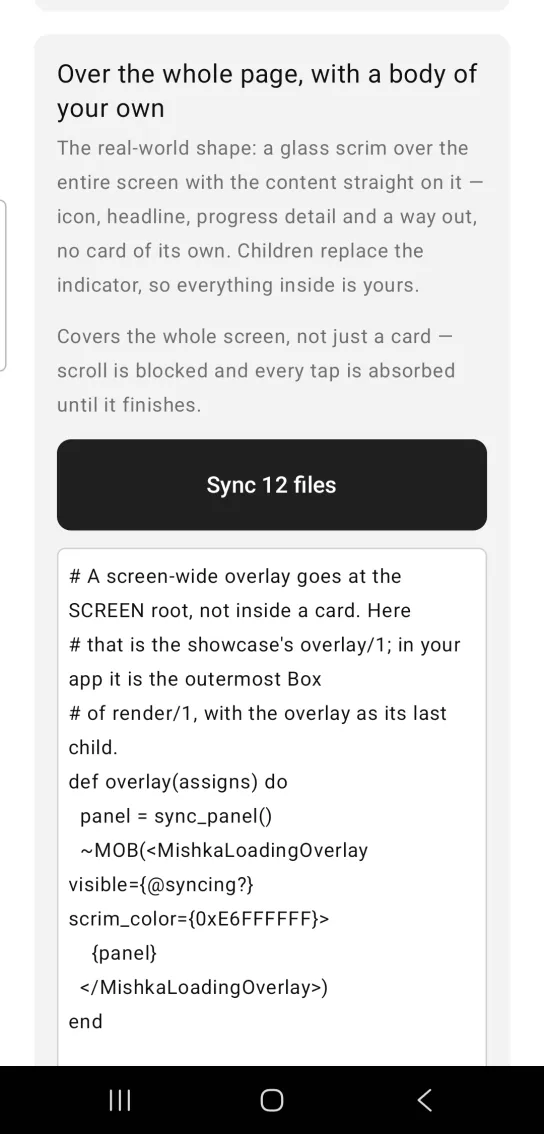
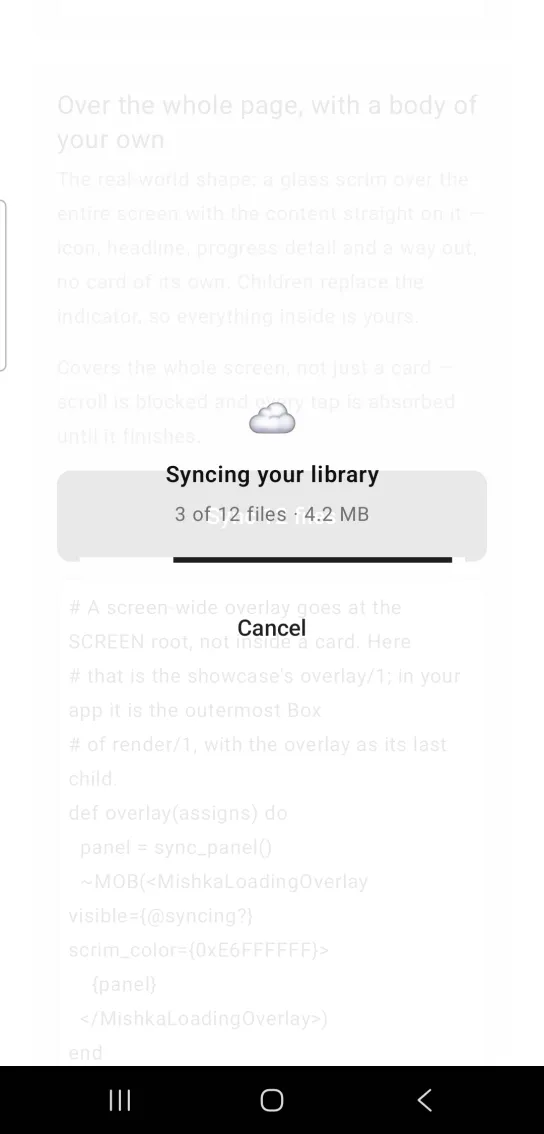
Left: the example as it loads. Right: after a tap. A full page overlay with a body of your own.
# A screen-wide overlay goes at the SCREEN root, not inside a card. Here
# that is the showcase's overlay/1; in your app it is the outermost Box
# of render/1, with the overlay as its last child.
def overlay(assigns) do
  panel = sync_panel()
  ~MOB(<MishkaLoadingOverlay visible={@syncing?} scrim_color={0xE6FFFFFF}>
    {panel}
  </MishkaLoadingOverlay>)
end

# Children replace the indicator entirely — panel and all — so supply
# your own Progress, or nothing on the overlay will move.
#   <Box width={272}>
#     <Text text="☁️" fill_width={true} text_align={:center} />
#     <Text text="Syncing your library" ... />
#     <Progress color={:primary} />
#     <Button text="Cancel" background={:transparent} text_color={:primary}
#             fill_width={true} on_tap={{self(), :cancel}} />
#   </Box>
#
# No background anywhere — the content sits on the glass. The button
# needs background={:transparent} explicitly, or Compose draws a filled
# M3 button in its place.
#
# A Column cannot centre its children, so the Texts centre themselves
# with text_align and the Progress and Button fill the panel instead.

# The scrim absorbs taps, but a control INSIDE it still gets its own —
# children are hit-tested before the scrim beneath them.
def handle(:cancel, socket), do: Mob.Socket.assign(socket, :syncing?, false)An invisible overlay costs nothing
With visible false, the overlay renders an empty Column: no scrim, no indicator and no handler. You can leave it in the tree and do not need to wrap it in an :if.
An invisible overlay costs nothing
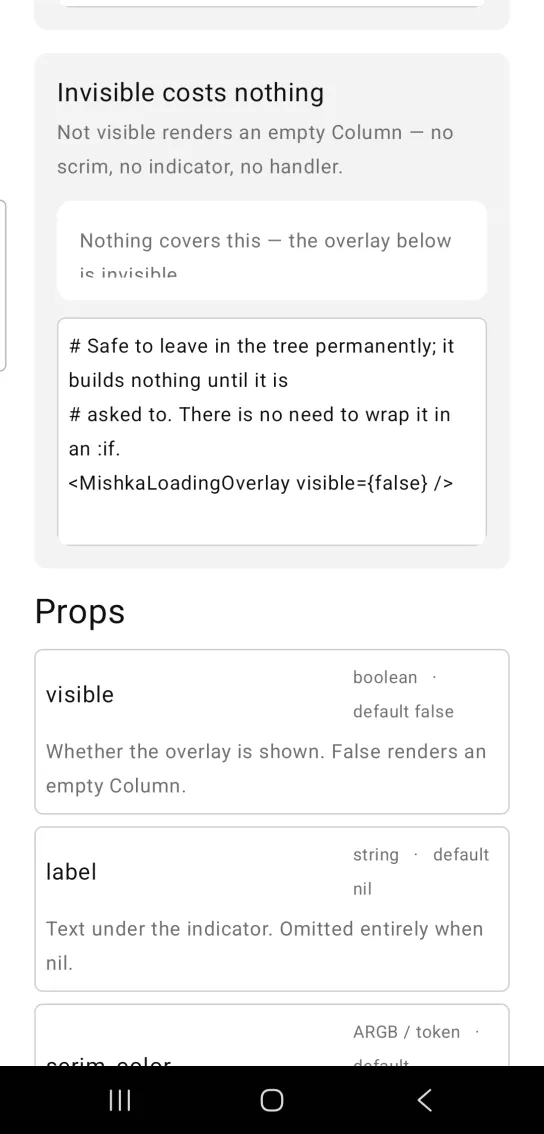
# Safe to leave in the tree permanently; it builds nothing until it is
# asked to. There is no need to wrap it in an :if.
<MishkaLoadingOverlay visible={false} />
Props
| Prop | Type | Default | Description |
|---|---|---|---|
visible | boolean | false | True shows the overlay. False renders an empty Column. |
label | string | nil | Text under the indicator. Left out entirely when nil. |
scrim_color | ARGB integer or token | 0xCCFFFFFF | Scrim fill. It is semi-transparent, so the covered content stays legible. |
panel_color | color or ARGB integer | :surface | The panel the indicator sits on. Use a dark panel with a dark scrim. |
color | color or ARGB integer | :primary | Indicator color. |
corner_radius | radius token or number | nil | Set it to match the region the overlay covers. On iOS the scrim overhangs a rounded card without it. |
children | nodes | None | A body of your own. It replaces the indicator, the label and the panel. |
Events
The overlay has no on_* props. While it is visible, the scrim carries a tap handler that does nothing, and a tap on it sends your screen {:tap, :__mishka_loading_ignore} in handle_info/2. A catch-all clause ignores the message.
def handle_info(_msg, socket), do: {:noreply, socket}Differences from the web component
- The web component ships no loader and no styling. Here the default loader is a linear progress bar on a panel, and children replace it.
labelrenders as visible text instead of anaria-label.idand the*_classattributes are not ported.
Attributes
| Name | Type | Default | Values | Required | Description |
|---|---|---|---|---|---|
visible
|
boolean
|
false
| — | No | Whether the overlay is shown. |
label
|
string
| — | — | No | Text under the indicator. |
scrim_color
|
ARGB int / token
|
0xCCFFFFFF on light surfaces
| — | No | Scrim fill. |
panel_color
|
color token / ARGB int
|
:surface
| — | No | The panel behind the indicator. |
color
|
color token / ARGB int
|
:primary
| — | No | Indicator colour. |
corner_radius
|
radius token / number
| — | — | No | Match the region it covers. |
Options
Each option takes one or more of its values, separated by commas.
| Option | Values |
|---|---|
--type
|
loading_overlay
|
--module
| A module name of your own |
What it generates
mix mishka.ui.gen.mob loading_overlay