Meter
v0.0.10
The Mob Meter in Mishka Chelekom is a gauge for iOS and Android apps built with Mob. It shows a measurement inside a known range, such as disk usage or battery level. It is the native port of the headless Meter.
Overview of the Mob Meter component for iOS and Android
A meter reads a measurement. A progress bar tracks how far a task has got. On the web the two differ mainly in semantics: role="meter" against role="progressbar". Mob exposes no such role, and both components are a proportional fill along a track, so Meter draws the same native bar as Mob Progress and shares its range math.
You pass a value inside [min, max], which is 0 to 100 by default. The component clamps it, so a value outside the range draws a full or empty gauge. The default readout is the rounded percentage of the range. Set value_text to replace it, and show_value to show it beside the label.
A meter always reads something. Leave out value and you get an empty gauge, never the animated indeterminate bar that Progress draws for the same input.
Meter has no events. The screen owns the measurement: change the assign that you pass as value and the gauge follows. The buttons in the examples below belong to the screen.
Generate the meter component
Run this from your Mob app's root to add the component to lib/<app>/components/:
mix mishka.ui.gen.mob meterThe generator registers the tag, so you can use it in ~MOB markup. Meter calls Progress, so the generator also generates the progress component. The examples on this page use the mishka_ prefix of the showcase app (--module-prefix mishka_), so the tag is <MishkaMeter>. Without a prefix, the tag is <Meter>.
Meter gauge
A meter shows a measurement with its own readout. Pass value, a label and show_value. In the showcase app, the Free up and Fill up buttons change the measurement, and the gauge follows.
Meter gauge
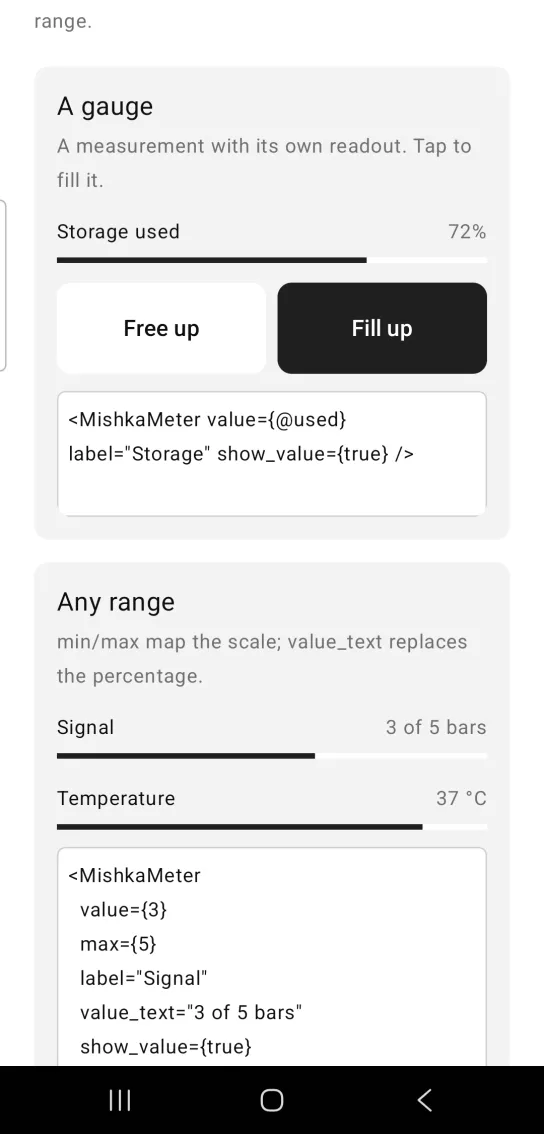
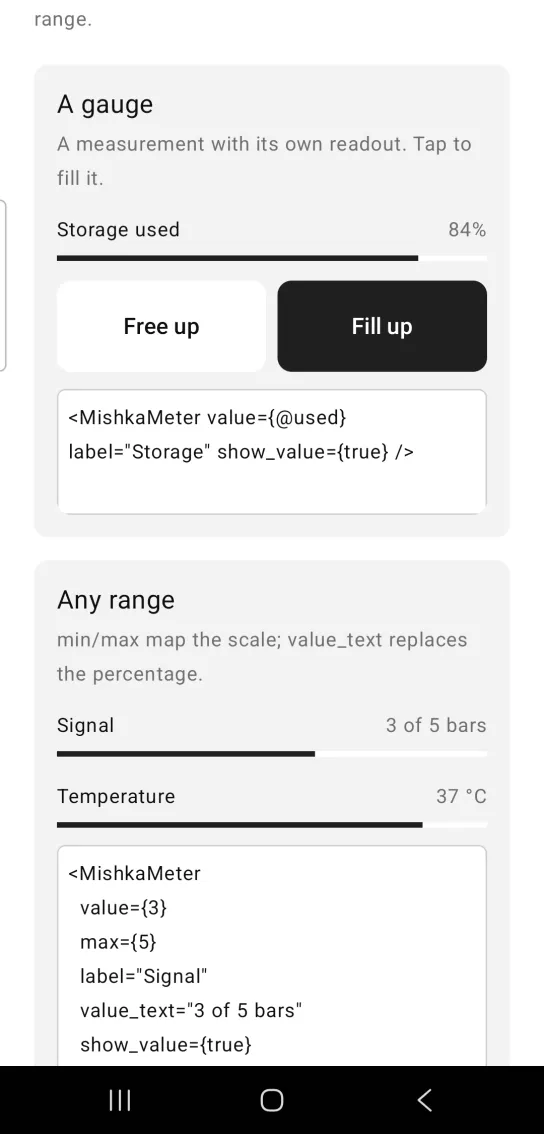
Left: the example as it loads. Right: after a tap. A meter reads a measurement and moves with it.
<MishkaMeter value={@used} label="Storage" show_value={true} />Meter with any range
min and max map the scale onto the gauge, and value_text replaces the percentage, so the signal reads 3 of 5 bars. The screenshot also shows a temperature gauge that runs from 20 to 40.
Meter with any range
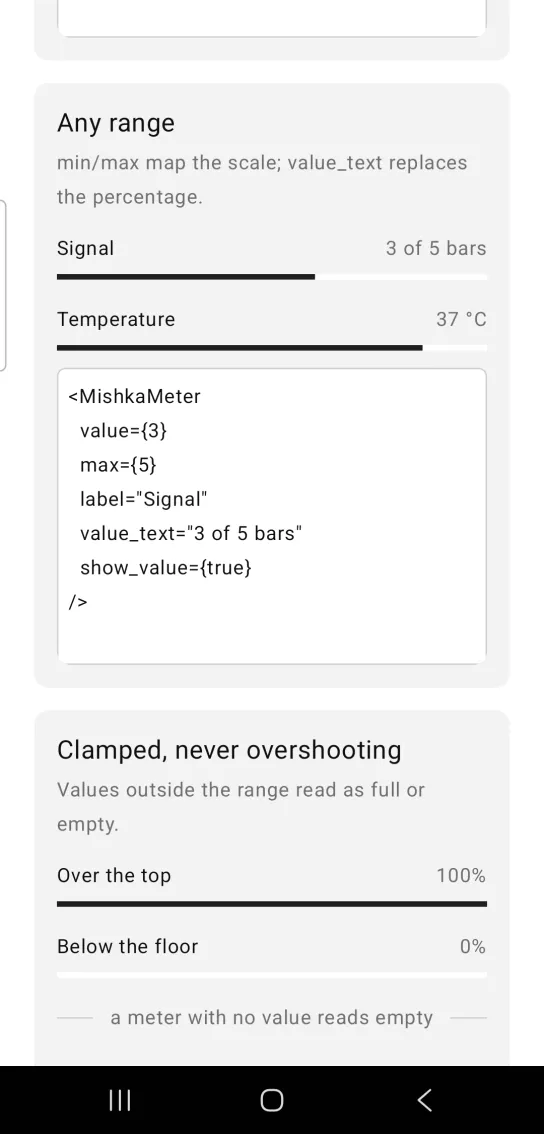
<MishkaMeter
  value={3}
  max={5}
  label="Signal"
  value_text="3 of 5 bars"
  show_value={true}
/>
Meter values outside the range
A value outside the range does not overshoot. A value of 250 draws a full gauge, and a value of -40 draws an empty one. A meter with no value also reads empty. The screenshot shows both clamped gauges and an Unknown gauge with no value.
Meter values outside the range
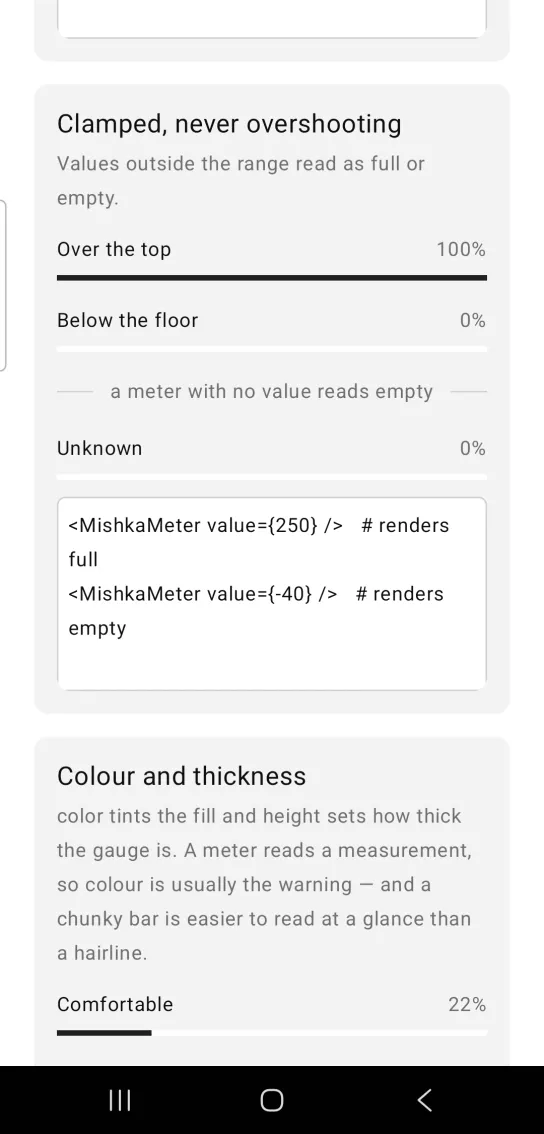
<MishkaMeter value={250} />   # renders full
<MishkaMeter value={-40} />   # renders empty
Meter color and thickness
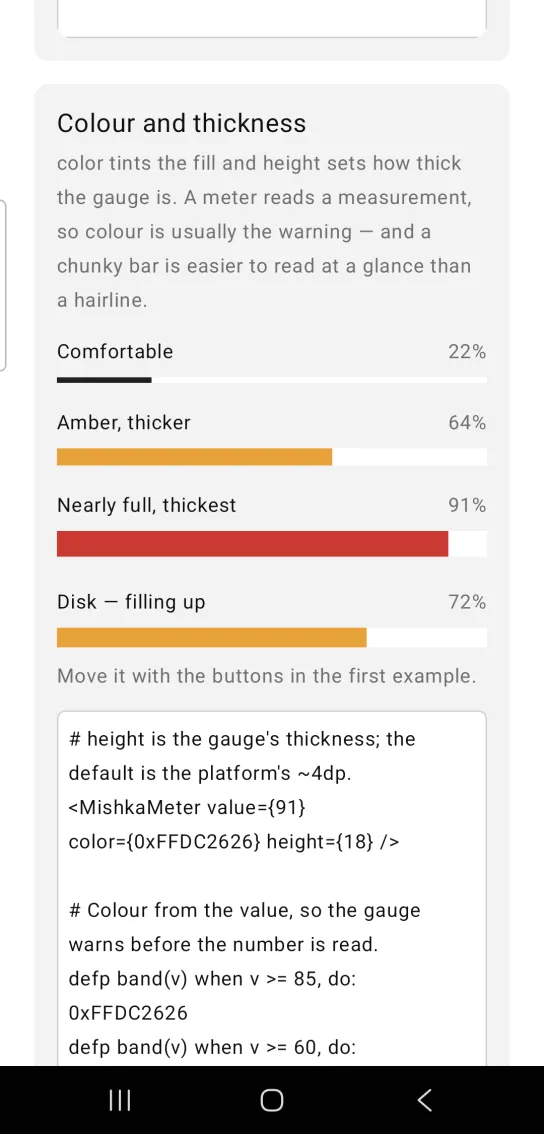
color tints the fill, and height sets how thick the gauge is. A meter reads a measurement, so the color usually carries the warning, and a thick gauge is easier to read at a glance than a thin one. In the snippet, band/1 is a function in your screen that picks red, amber or green from the value, so the gauge warns before the reader sees the number. On iOS the native gauge ignores height. See Draw the meter with render box below.
Meter color and thickness
# height is the gauge's thickness; the default is the platform's ~4dp.
<MishkaMeter value={91} color={0xFFDC2626} height={18} />

# Colour from the value, so the gauge warns before the number is read.
defp band(v) when v >= 85, do: 0xFFDC2626
defp band(v) when v >= 60, do: 0xFFF59E0B
defp band(_v), do: 0xFF16A34A
Draw the meter with render box
Set render={:box} to replace the native bar with a track Box that holds a fill Box. Then width, height, corner_radius, track_color and color describe the gauge exactly, instead of nudging the platform's own bar.
<MishkaMeter value={@used} render={:box}
             width={46} height={6} corner_radius={3}
             track_color={:transparent} color={0xFFFF7A00} />
A meter suits the drawn form well. The one thing a drawn bar cannot do is animate, and the only state that needs animation is the indeterminate bar of Progress. A meter has no such state, because every meter has a value to draw. An empty gauge draws no fill, and a full gauge fills the track.
The drawing props (render, width, track_color, corner_radius and id) pass straight through to Progress, which documents each one in full. :progress stays the default because a drawn gauge inherits none of the platform bar's metrics.
Props
| Prop | Type | Default | Description |
|---|---|---|---|
value | number | min | The measurement. Clamped into [min, max]. A missing value draws an empty gauge. |
min | number | 0 | Lower bound. |
max | number | 100 | Upper bound. |
label | string | nil | Caption above the gauge. |
show_value | boolean | false | Shows a readout beside the label. |
value_text | string | nil | Replaces the readout. The default readout is a rounded percentage. |
color | color token or ARGB integer | Platform default (:primary) | Fill color. |
height | number | Platform default (about 4), or 4 with render={:box} | Gauge thickness. On iOS only render={:box} applies it. |
render | :progress or :box | :progress | The native indicator, or a track Box with a fill Box inside it. |
width | number | nil | Gauge width in dp or pt. nil fills the parent. |
track_color | color token or ARGB integer | :surface_raised | The groove behind the fill. Applies only with render={:box}. :transparent gives a gauge with no track. |
corner_radius | number or radius token | nil (square) | Rounds the track and the fill alike. Applies only with render={:box}. |
id | string | nil | Test tag. With render={:box} the fill is also tagged <id>-fill. |
Differences from the web component
- The
*_classattributes are not ported. They style DOM parts. - There is no
role="meter". Mob exposes no such role. ratio/1returns the fill ratio from 0.0 to 1.0. It is the native equivalent of the web component's--chelekom-metercustom property.
Attributes
| Name | Type | Default | Values | Required | Description |
|---|---|---|---|---|---|
value
|
number
|
min
| — | No | The measurement. Clamped into `[min, max]`. |
min
|
number
|
0
| — | No | Lower bound. |
max
|
number
|
100
| — | No | Upper bound. |
label
|
string
| — | — | No | Caption above the gauge. |
show_value
|
boolean
|
false
| — | No | Render a readout beside the label. |
value_text
|
string
| — | — | No | Overrides the readout (default is a rounded percentage). |
color
|
color token / ARGB int
|
platform default (:primary)
| — | No | Fill colour. |
height
|
number
|
platform default (~4); 4 under render={:box}
| — | No | Gauge thickness. |
render
|
:progress :box
|
:progress
| — | No | Native indicator, or a track `Box` with a fill `Box` in it. |
width
|
number
| — | — | No | Gauge width in dp/pt. `nil` fills the parent, as before. |
track_color
|
color token / ARGB int
|
:surface_raised
| — | No | The groove behind the fill. **`:box` only.** `:transparent` gives a trackless gauge. |
corner_radius
|
number / radius token
|
nil (square)
| — | No | Rounds track and fill alike. **`:box` only.** |
id
|
string
| — | — | No | Test tag. `:box` additionally tags the fill `<id>-fill` (`fill_id/1`). |
Options
Each option takes one or more of its values, separated by commas.
| Option | Values |
|---|---|
--type
|
meter
|
--module
| A module name of your own |
What it generates
mix mishka.ui.gen.mob meter