Set a page's SEO and share card
v0.0.1
Every page Mishka CMS serves already carries a complete head: a title, a description, a canonical address, link-preview tags, structured data and, when no picture is set, a share card. This guide shows what a page gets with no setup, how to change it in the SEO tab of the page settings, and how the share card is drawn and redrawn.
Before you begin
- Sign in with an account that can open the page builder. It needs
admin:dashboard:runtime:pageoradmin:dashboard:code, or a wildcard that covers one of them. See How permissions work. - Have a page. See Build a page in the visual editor.
- Fill in Site title, Site logo and Favicon on the General tab of Settings. The defaults below, and the share card, use them.
What every page gets
| Part of the head | Default |
|---|---|
| Title | The page's title. |
| Description | The page's Description field. Left empty, no description is written and search engines pick a passage from the page. |
| Canonical address | The page's own address, in full, on the site's domain. |
| Robots | index, follow, max-image-preview:large. A page that needs a permission, and a sign-in page, get noindex, nofollow. |
| Link previews | Open Graph and X tags built from the title, description, image, address, language and site title. The image is the page's share card, once it is drawn. |
| Favicon | The Favicon setting. |
| Locale | og:locale names the page's language, written as en_US or pt_BR. |
| Language versions | For a page in two or more languages, a hreflang link for each language, an og:locale:alternate tag for each language but the page's own, and an x-default link for the primary one. All of them come from the same list of languages as the header's language switcher: the page's editions, or for a record that an extension shows, the record's own translations. |
| Structured data | A WebPage object that names the page's language in inLanguage, followed by the site's WebSite and Organization objects. |
Open the SEO tab
Everything you set on the SEO tab replaces the matching default. Open the page in the visual editor, click More in the top bar, then click SEO. You can also click the file name under the page title and open the SEO tab of the Page settings dialog.
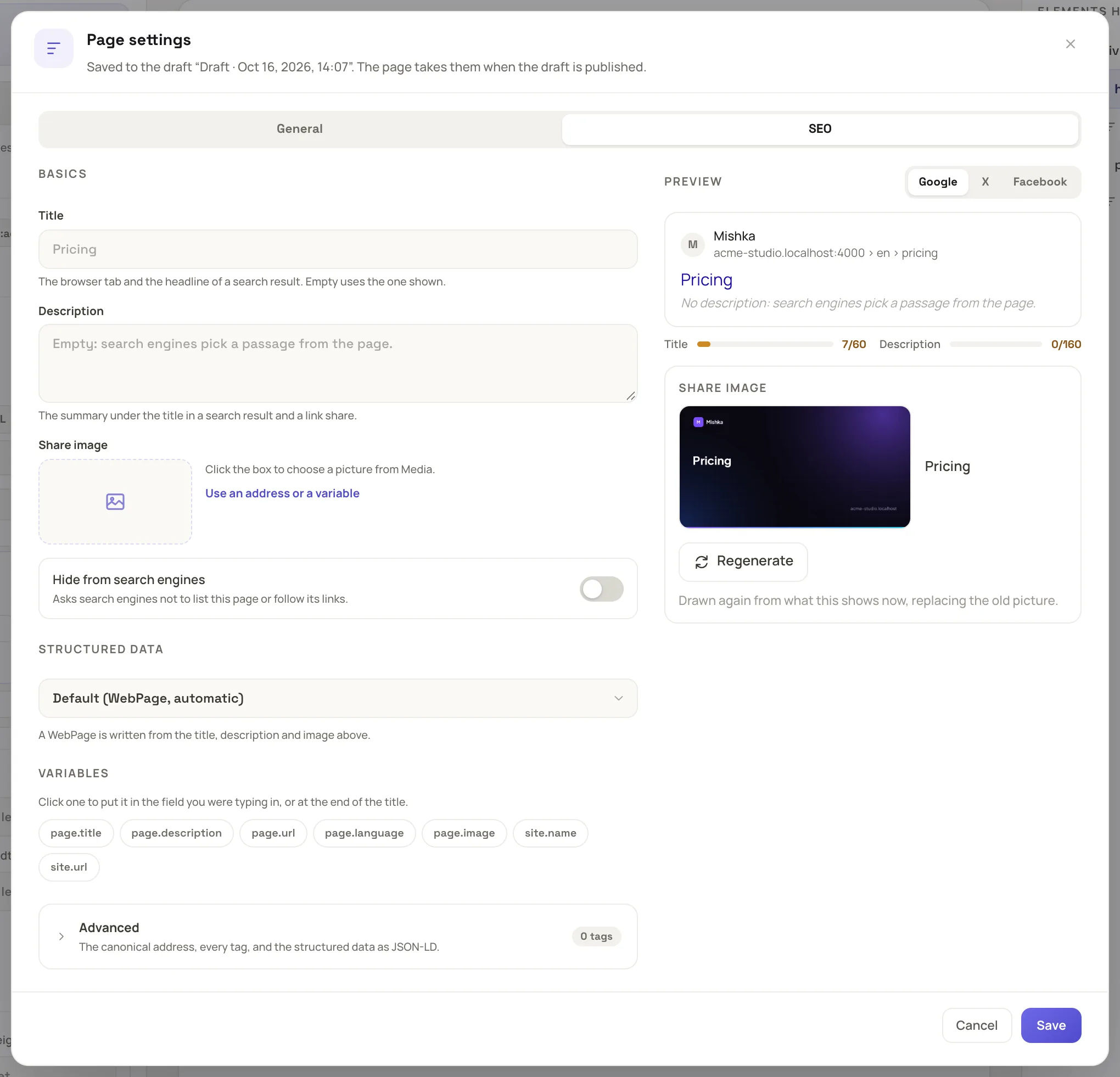
The SEO tab keeps the fields beside a live preview.
Save writes the changes to the page itself and leaves the design on the canvas untouched. When a draft is open, they go to that draft instead, and the page takes them when the draft is published.
Set the basics
- Title: the browser tab and the headline of a search result. Left empty, the page's title is used.
- Description: the summary under the title in a search result and in a link share.
- Share image: click the box to choose a picture from Media. Click Use an address or a variable to type an address instead.
- Hide from search engines: asks search engines not to list the page or follow its links. The tab says so when a page is hidden already because it needs a permission or is a sign-in page.
Setting a title also sets the Open Graph and X titles, a description sets their descriptions, and a share image sets their images, unless a layout stores those tags itself.
The Google, X and Facebook buttons switch the preview. Under the Google preview, a length bar for the title and one for the description turn green in the best range, 30 to 60 characters for the title and 70 to 160 for the description. A bar is amber when the text is shorter and red when it is longer.
Use variables
A value may name a variable written as {{page.title}}. The Variables list under the fields shows them, and a click puts one into the field you were typing in. The page variables are page.title, page.description, page.url, page.language and page.image. The site variables are site.name, the Site title setting in the page's language, and site.url, the site's address with no path. A description or a tag that names a variable with no value is left out, so {{ never reaches a visitor.
Add structured data
Under Structured data, the default is Default (WebPage, automatic). To describe the page as something else, choose a type such as Article, Product, Event, Local business or Questions and answers. The form then shows the few fields search engines read for that type, with variables as placeholders. For Questions and answers, click Add a question for each pair.
The default WebPage carries inLanguage, and the types in the form do not. When you choose a type, the page stores that object instead of the default, so add "inLanguage": "{{page.language}}" to it in the JSON-LD field under Advanced if you want the language there. When the page stores no JSON-LD, an extension that shows records writes its own objects, and those carry inLanguage too. Mishka Blog sets it on its BlogPosting, CollectionPage and ProfilePage objects, and Mishka Document sets it on its TechArticle object.
Share cards
Where a link to your page is shared, the page shows a share card: a 1200 by 630 picture with the page's title and description, the site's name and address, and the site logo on a white tile. A card is used only when the page is active and public, and its SEO stores no Share image. A page published in several languages has one card for each language.
The Share image panel under the previews shows the card. It says Not drawn yet until the file is written, and No share image when the page is not public or sets an image of its own.
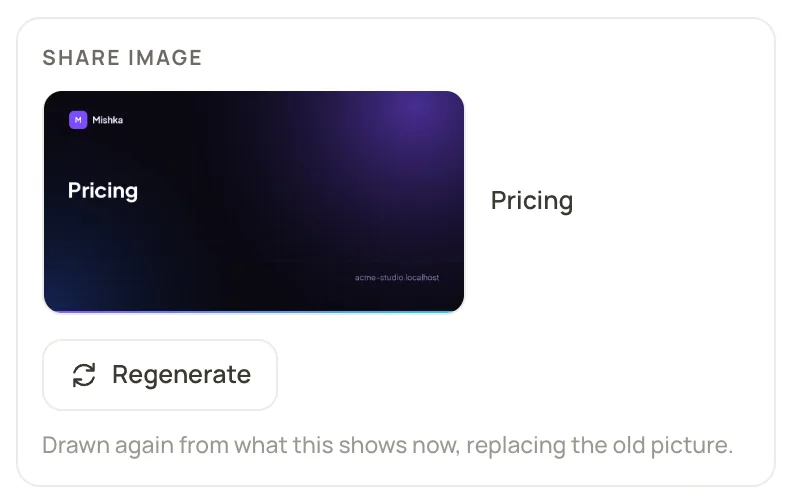
The panel shows the card visitors see, with a Regenerate button.
A card is drawn in the background on the share_cards queue, never during a visit. Until it is written, the page shows its own image or none. The CMS draws a card when you save the page, when a visit asks for a card that does not exist, and when the site's address, name, name translation or logo changes. A save that leaves the title, description and picture alone draws nothing. You can also draw cards yourself:
- Click Regenerate to draw this page's card again over the old file. The button reads Drawing… until the new card is written.
- Click Redraw all share cards in the Share cards panel on the SEO tab of Settings. After you confirm, every card of the site, or of every site in the Global view, is queued, and the row reports Queued with the count.
- Click Redraw these on the row of one extension in the same panel. Each extension that draws cards has its own row, named for the extension, and the button queues only its cards.
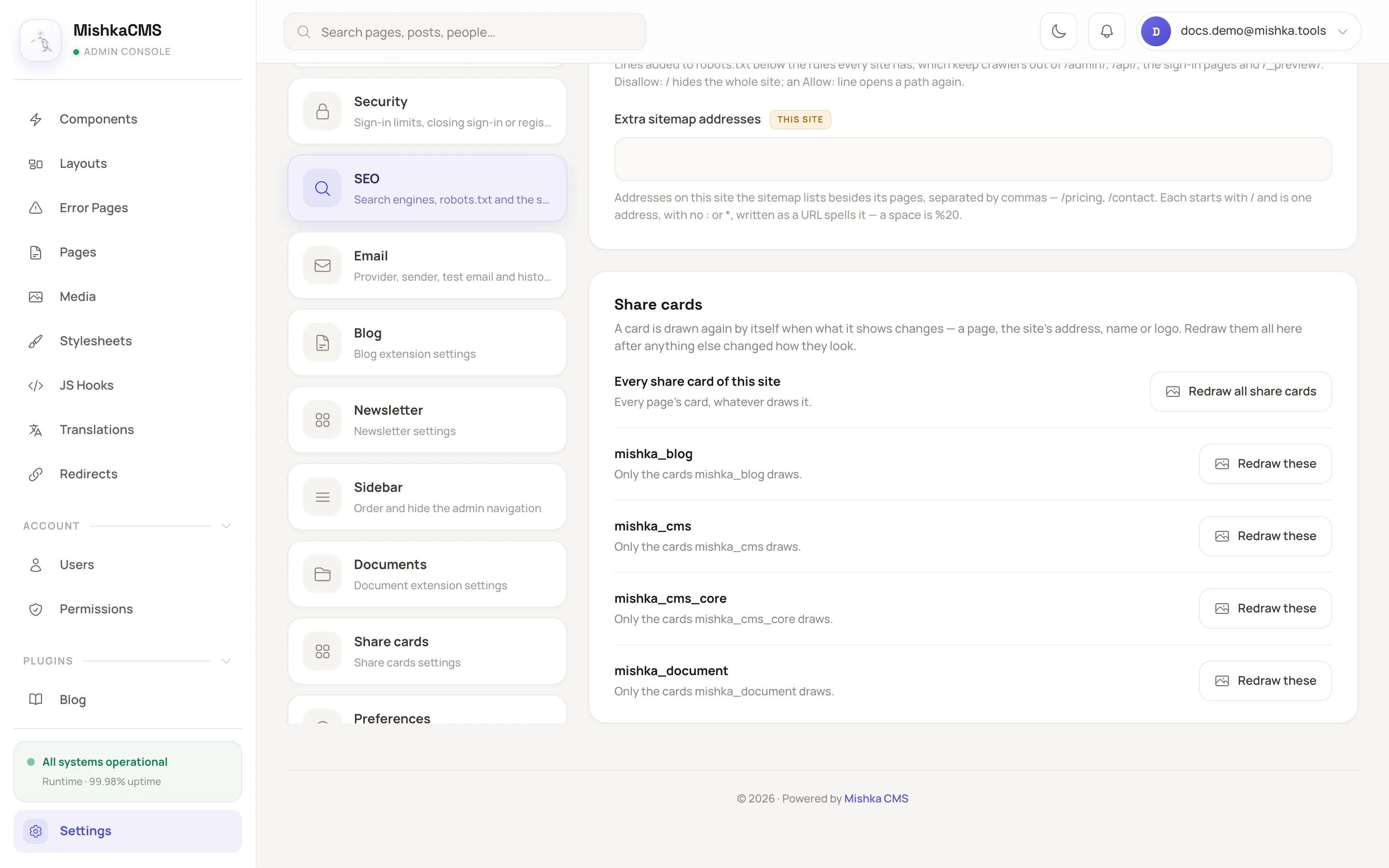
The Share cards panel redraws every card of a site, or the cards of one extension.
In the Global view, a master also sees Share-card workers, which sets how many cards are drawn at once, from 0 to 4. The default is 1. Setting 0 pauses the drawing until you raise it again.
Settings can also have a separate Share cards tab. A plugin adds it to hold the words of the cards it draws, such as a label, a pitch and chips, so it is there only where such a plugin is installed. It is not the panel above.
robots.txt and the sitemap
Every site answers /robots.txt and /sitemap.xml on its own domain. The SEO tab of Settings holds two fields for them:
- Extra robots.txt rules: lines added below the rules every site has, which keep crawlers out of
/admin/,/api/, the sign-in pages and/_preview/.Disallow: /hides the whole site. - Extra sitemap addresses: addresses besides the pages, separated by commas, such as
/pricing, /contact. This field is per site.
The sitemap lists the active pages a search engine may be sent to, at their public addresses. It leaves out pages that need a permission and pages whose robots tag says noindex, whether the page sets it with Hide from search engines or its layout does.
Example: a pricing page
- Open the
Pricingpage in the editor, then More and SEO. - Set Title to
Simple pricing plans for {{site.name}}. - Set Description to
Compare the Solo, Team and Studio plans, see what each includes, and start free. - Click Save.
- Reopen the tab. The Share image panel shows the card with the new title. Click Regenerate if it still shows the old one.
Next steps
- Upload and organize media: pictures for the share image and the logo.
- Translate a page: a title and description for each language.
- Lock a page or post to members: why a locked page is hidden from search engines.
- Settings: every key of the SEO tab.
- Plugin events:
runtime:page:seoand the sitemap and robots events.