Check the activity log
v0.0.1
The activity log is one timeline of what changed on your sites and what ran in the background. It answers questions such as who archived a page, when a redirect was added, and whether a compile job failed. This guide opens the log, reads an entry, filters the timeline, and explains who sees which entries.
Before you begin
- Sign in with an account that holds
admin:dashboard:runtime:activity, or a wildcard that covers it, such asadmin:dashboard:runtime:*. See How permissions work.
Open the log
The sidebar has no link to the log. Use one of these ways in:
- On the Home page, click View all logs at the bottom of the Recent activity card. The card shows the latest entries and how many events happened today. How many entries it holds is your own setting, Entries to show, from 3 to 20 with a default of 6.
- On a list page such as Redirects, click Logs. A System Logs panel opens with the latest entries for that area. Click View all logs in its footer.
- Go to
/admin/dashboard/runtime/activity.
The page is titled Activity Logs. Its filters and page are kept in the address, so you can bookmark or share a filtered view.
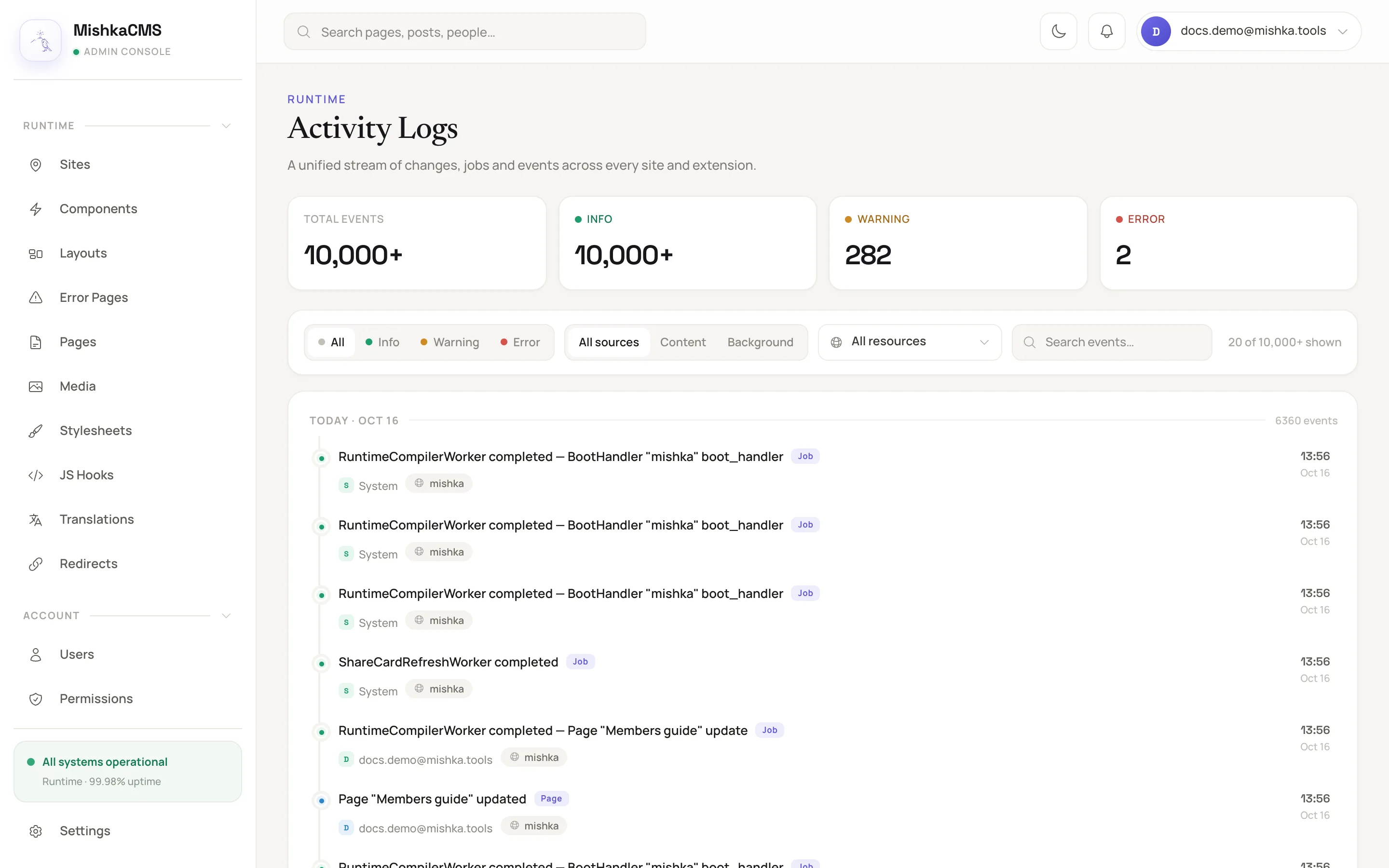
The log shows the newest day first, grouped under day headings.
Read an entry
Entries run from newest to oldest. A heading opens each day, with the day's date and its number of events. Each row has these parts:
- The message, such as
Page "About" updatedorRedirect archived, with a small label for the kind of record, such as Page or Media. - The actor: the email of the account that did it. A master sees the email of every account, a master's own included. A site account sees Master for an entry a master made, because it cannot read a master's email. System means nobody triggered it (a scheduled job, for example), and Unknown means an account you may not read.
- The time and day at the right.
- The site the entry belongs to, or Global.
The dot on the left shows the kind of event. It is green for a create and for routine events such as a publish or a finished job, blue for an update, amber for a job that will be retried, and red for an archive, a permanent delete or a failed job.
The count cards above the filters are Total events, Info, Warning and Error. They count everything you may see, not just the current filters. A count that reaches 10,000 reads 10,000+.
| Severity | What it covers |
|---|---|
| Info | Creates, updates, restores, publishes and finished jobs. |
| Warning | Archives and permanent deletes, and jobs that failed and will be retried. |
| Error | Jobs that failed for good. |
Filter the log
- Severity: Info, Warning or Error.
- Source: Content for changes to records, or Background for jobs. The empty choice reads All sources.
- Resource: one kind of record, grouped by the extension that owns it. The empty choice reads All resources.
- Search events…: finds entries by their text, such as a page's title.
The filter bar shows how many entries match, such as 20 of 10,000+ shown. Click Clear to remove the filters. Click Load more events for the next 20. While the page is open, new entries that match your filters and that you may see appear at the top as they happen.
What the log records
| Source | What appears |
|---|---|
| Record versions | Every create, update, archive and version restore of a record that keeps versions: pages, layouts, components, error pages, stylesheets, JS hooks, media, folders and redirects, plus the records of installed extensions. |
| Extension event logs | The event log of an extension that keeps one, such as Mishka Document. |
| Drafts | Saving and publishing a page, layout or error page draft. |
| The visual editor | Each change somebody made in the editor to a page, layout, component or error page. |
| Background jobs | Jobs that finished, will be retried, or failed for good: compiles, email deliveries and share cards among them. |
Some events are live only. Restoring an archived record, deleting one for good and discarding a draft appear at the top of the open log as they happen. A page compiled on its first visit shows only in a System Logs panel. The history keeps none of them.
Who sees which entries
- A master sees every site. A site account sees its own site, plus the global components, layouts, JS hooks and stylesheets that every site uses.
- An account that holds
admin:dashboard:*, or a wildcard that covers it, sees every kind of entry. Any other account sees the entries of the areas it holds. Withadmin:dashboard:runtime:media, you see media entries and not page entries. - A job that names no resource, such as an email delivery, shows to accounts that hold
admin:dashboard:*, or a wildcard that covers it, only.
Example: find who changed a page
- Open the log and type the page's title in Search events….
- Set Source to Content, so background jobs drop out.
- Read the rows that say the page was updated. Each one names the actor and shows the time and day.
To find a failed job instead, set Source to Background and Severity to Error.
Next steps
- Drafts, publishing and versions: go back to an earlier version of a page.
- Permission names: the names that decide which entries you see.
- Sites, masters and global records: why a master sees every site.
- Send email from your site: email deliveries appear here as jobs.