Secure sign-in
v0.0.1
Mishka CMS can ask admins for a second step at sign-in, limit how often someone tries a password, show a captcha on the sign-in forms, and close ways into a site. This guide sets each of them from the Settings screen. Every setting here is per site unless the text says it belongs to the Global view.
Before you begin
- Your account holds
admin:dashboard:setting, or a wildcard that covers it, to change settings on the Security tab. Any dashboard admin can use the Preferences tab for their own account. - A site admin edits the settings of its own site. A master picks a scope from the list in the page header: Global, which holds the masters' own sign-in and the limits for every site, or one site by name. A master signs in at
/auth?master_user=true. See the documentation. - On the Security tab, click Save Changes after each change. The screen shows Settings saved.
Set up an authenticator app for your account
- In the admin sidebar, click Settings, then open the Preferences tab.
- In the Two-step sign-in card, click Set up authenticator.
- Scan the code with an authenticator app such as Google Authenticator, 1Password or Authy. You can type the key under Or type this key instead.
- Enter the 6-digit code the app shows, then click Turn on.
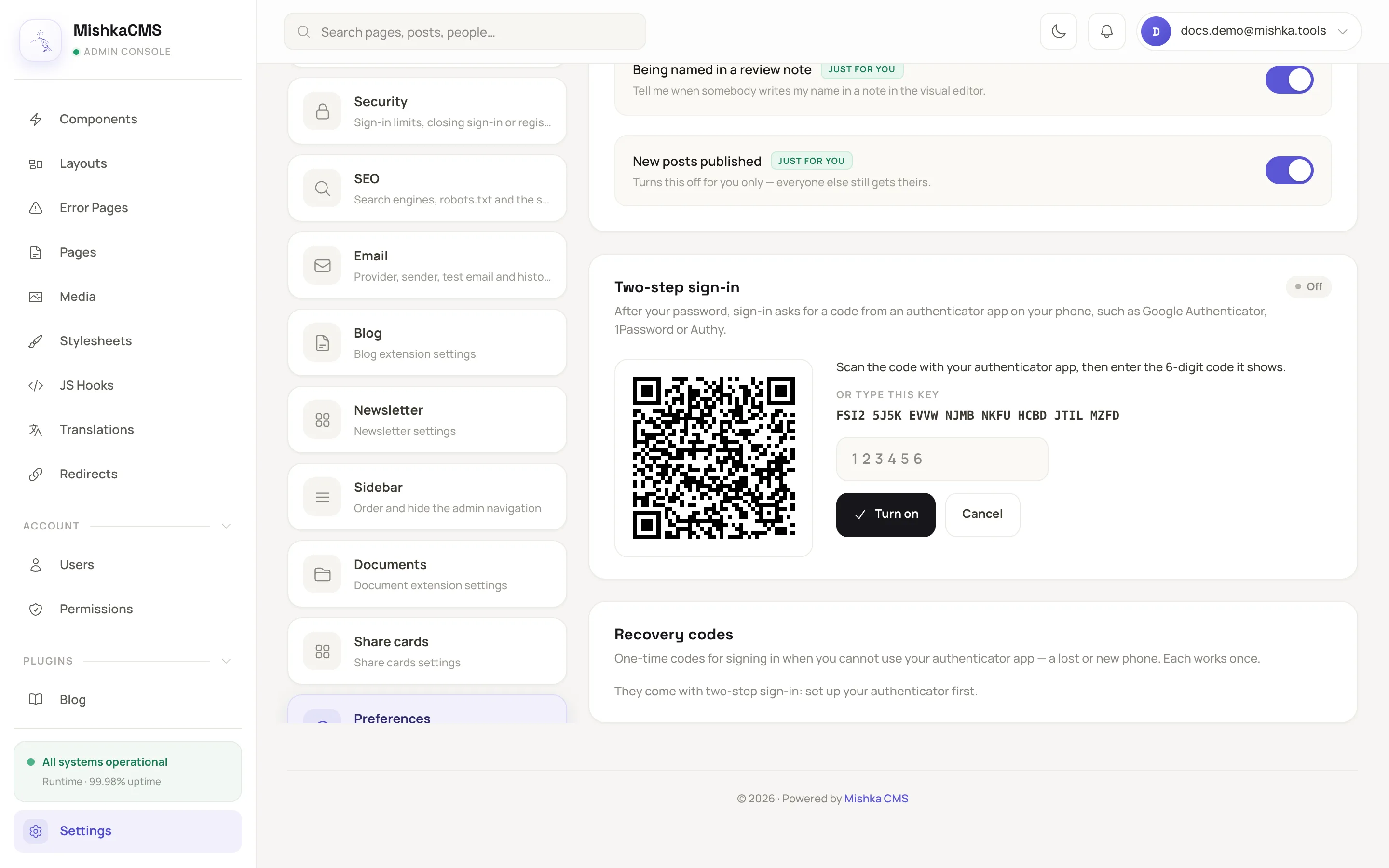
The Preferences tab holds the Two-step sign-in and Recovery codes cards.
From now on, signing in with your password asks for the code on a second step. If you cannot reach the app, choose Use a recovery code instead on that step. While the site's two-step setting is not Off, an account with an authenticator cannot sign in with a sign-in link.
To turn it off, enter a current code in the card and click Turn off. The CMS emails the account when its two-step sign-in is turned off.
Make recovery codes
- In the Recovery codes card, enter a current code from your app.
- Click Make recovery codes. The card shows ten one-time codes, once.
- Click Download or copy them somewhere apart from your phone, then click I saved them.
Each code works once. Make new codes replaces the old set. Turning the authenticator off deletes all codes. The CMS emails the account when a recovery code signs someone in.
Ask your admins for a second step
Open the Security tab. Under Two-step sign-in, choose a value for Two-step sign-in for this site's admins:
| Value | Effect |
|---|---|
| Off | Nobody is asked for a code, even with an authenticator set up. |
| Optional | Each admin chooses. This is the default. |
| Recommended | Admins without one are reminded at each sign-in and on the dashboard. |
| Required | An admin without one is sent to the Preferences tab to set one up before using the dashboard. |
In the Global view, a master can set Two-step sign-in for admins on every site with the same values plus Each site decides, the default. Any other value there wins over each site's own choice.
When an admin loses the phone, open Users and click Turn off two-step on the account's row. You confirm with a current code from your own authenticator, so you need one set up. The admin then signs in with the password alone.
Limit sign-in attempts
These settings live in the Global view, under Sign-in limits, and only masters see them. Each is a whole number of at least 1, named for its action, such as Sign-in attempts per account (per 15 minutes). Every attempt counts, right or wrong. Each site counts its own visitors and accounts, and masters count together. A change applies from the next attempt. The windows are fixed.
| Action | Per account | Per IP address |
|---|---|---|
| Sign in | 10 per 15 minutes | 30 per 5 minutes |
| Password reset request | 3 per hour | 10 per hour |
| Sign-in link request | 3 per hour | 10 per hour |
| New account | None | 10 per hour |
| Password change | 10 per 15 minutes | None |
| Authenticator code | 5 per 5 minutes | None |
A visitor over a limit sees a title such as Too many sign-in attempts.
Add a captcha
- On the Security tab, under Captcha, choose a provider in Captcha: Cloudflare Turnstile, Google reCAPTCHA or hCaptcha. None asks nothing.
- Enter that provider's site key and secret key, which appear once you choose it. For reCAPTCHA, also choose reCAPTCHA kind, v2 or v3. For v3, set Lowest v3 score let through (out of 100).
- Click Save Changes.
- Open the admin on the site's own address and use the Try the captcha panel on the same tab. It draws the saved captcha and checks it with the saved keys. The keys work only on that address.
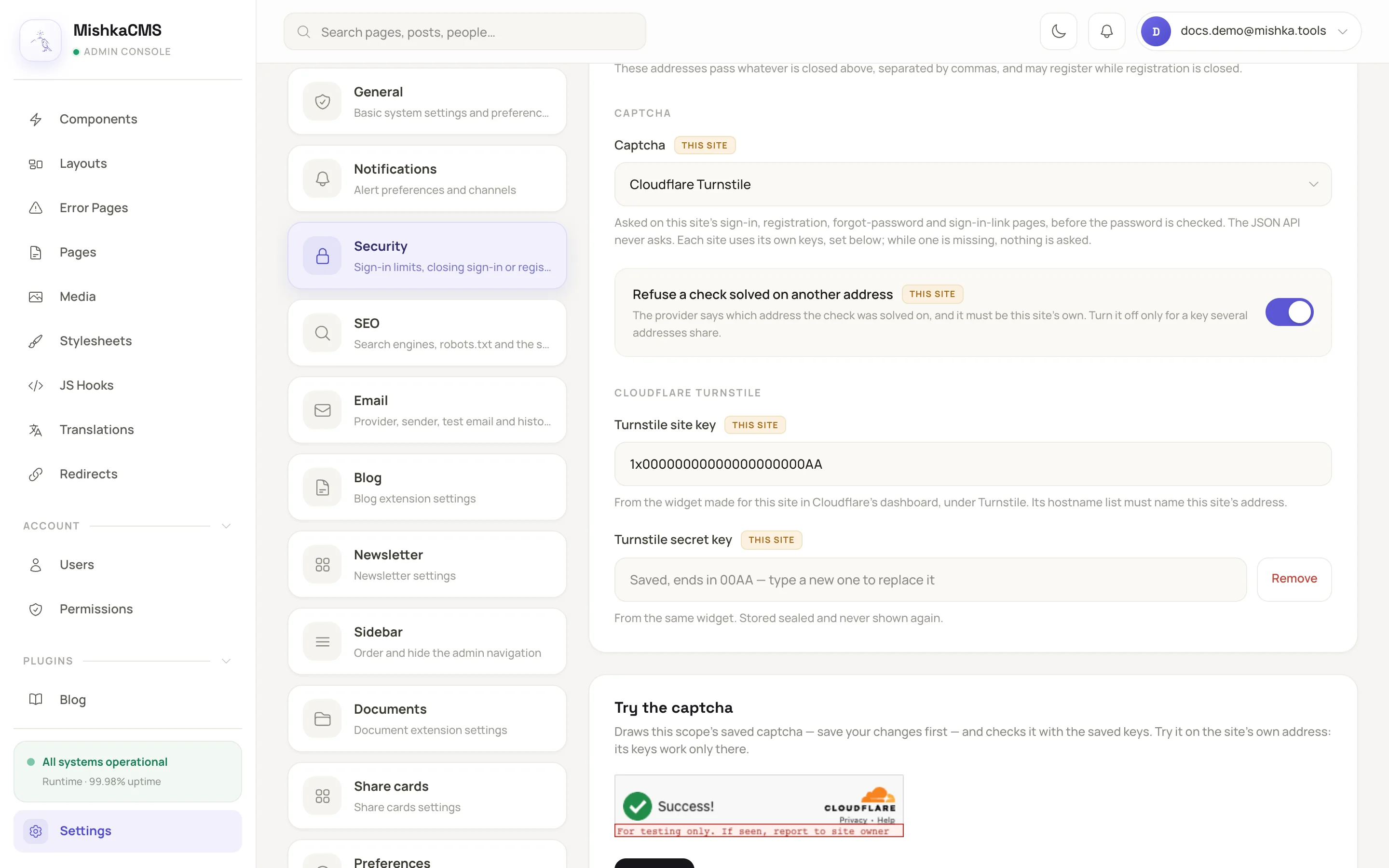
Each scope keeps its own provider and keys.
The captcha appears on the sign-in, registration, forgot-password and sign-in-link forms, before the password is checked. The JSON API never asks. Each site uses its own keys, and the Global view holds the keys for the masters' sign-in. While a key is missing, nothing is asked. A secret key is stored sealed and never shown again.
Leave Refuse a check solved on another address on, so a check solved on a different address is refused. If the provider cannot be reached, the form goes through and the rate limits still apply.
Close a way in
Under Closed, each switch shuts one way into the site:
| Setting | What it does |
|---|---|
| Close sign-in | Nobody signs in by password, sign-in link or the API, except the people allowed. |
| Sign out who is signed in | While sign-in is closed, signs out whoever could not sign in now, on every device, at their next page, click or API call. |
| Close registration | No new accounts, except for an address on the allowed list. |
| Close password reset | Reset emails go only to the people allowed. A reset link already sent stops working for everyone else. |
| Close sign-in links | Sign-in link emails go only to the people allowed. A link already sent stops working for everyone else. |
In the Global view the switch labels end with on every site. The Global switch and a site's own switch are both asked, so either one can refuse.
Under Still allowed, Permissions that still get in (default *) and Accounts that still get in (email addresses) name who passes a closed switch. Masters always pass.
Example: a stricter site
- On the Security tab, set Two-step sign-in for this site's admins to Required.
- Choose Cloudflare Turnstile in Captcha and enter its two keys.
- Turn on Close registration, and list the addresses that may still register in Accounts that still get in.
- Click Save Changes, then sign in from a private window to check each step.
Next steps
- Settings: every setting, its default and its scope.
- Give a teammate access: accounts and the names they hold.
- Send email from your site: reset links, sign-in links and confirmations need it.
- Sites, masters and global records: why the Global view differs from a site's.