Add a form to a page
v0.0.1
A form block puts fields and a Send button on a page. Visitors see each field checked as they type, and the page answers with a message you write. This guide adds a form in the visual editor, sets its checks and its message, and shows where the answers go.
Before you begin
- Sign in with an account that can open the page builder. It needs
admin:dashboard:runtime:pageoradmin:dashboard:code. See How permissions work. - Open a page in the editor. To make one first, follow Build a page in the visual editor.
- Forms work on pages only. In a layout, a component or an error page, a form does not send.
Place a form
- In the left panel, open the Blocks tab.
- Click the Forms filter.
- Drag a form block onto the canvas. You can also click it, then click the spot where it goes.
| Block | What it holds |
|---|---|
| Contact form | Name, email and message, checked as the visitor types. |
| Fieldset group | Related fields under a legend, inside a form. |
| Newsletter signup | One email field and a button, on a line. |
| Subscribe box | An email field and a button sharing one rounded border. |
The filter also lists single elements, such as Form, Text input, Select and Submit button.
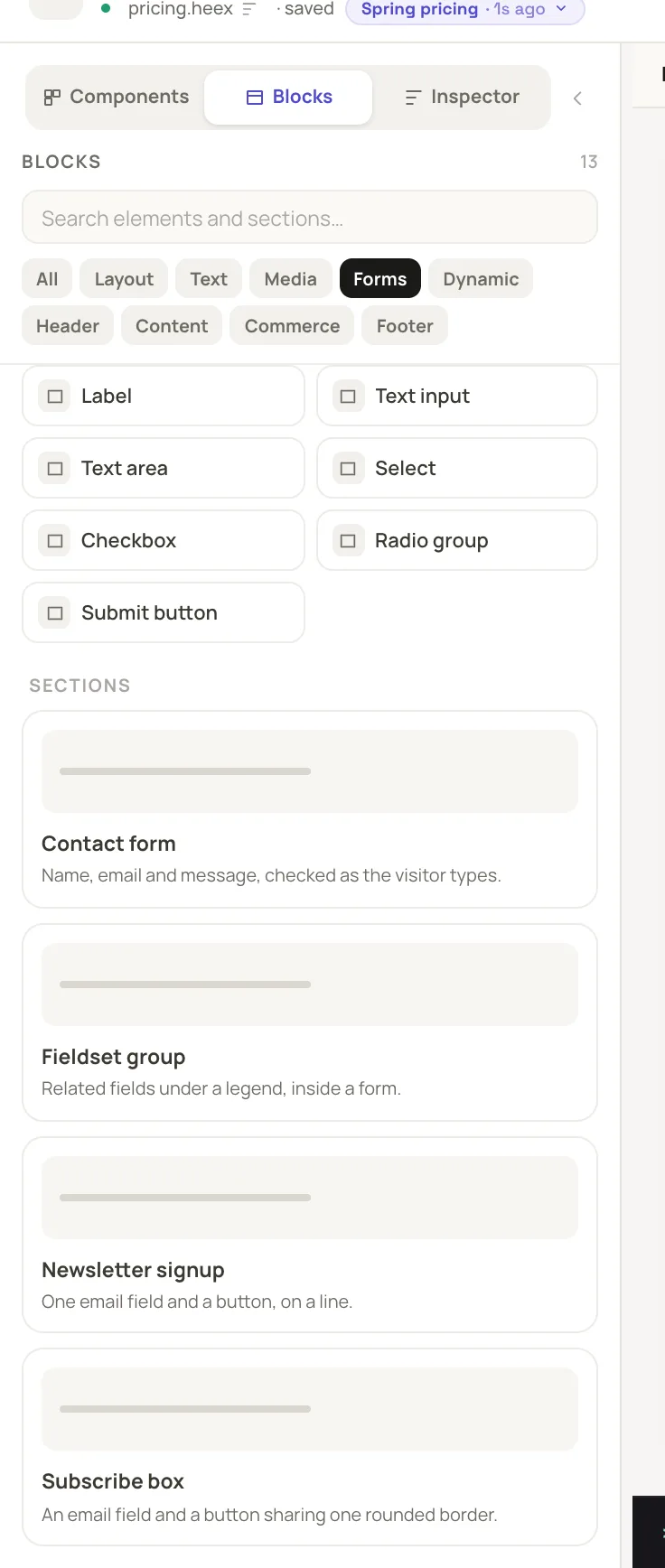
The Forms filter lists the form blocks and the single form elements.
Name the form and write its message
Click the form on the canvas, not one of its fields. The Inspector tab opens a Form section.
- Form name is a short word, such as
contact. The editor derives the form's id, handler names and page data from this word, so you rename it in one place. Two forms on one page cannot share a name. - Success message is what the visitor reads once the form sends. Left empty, it reads Sent. Thank you.
- How it works, where the editor offers it, switches between When they press Send and As they type (no Send button).
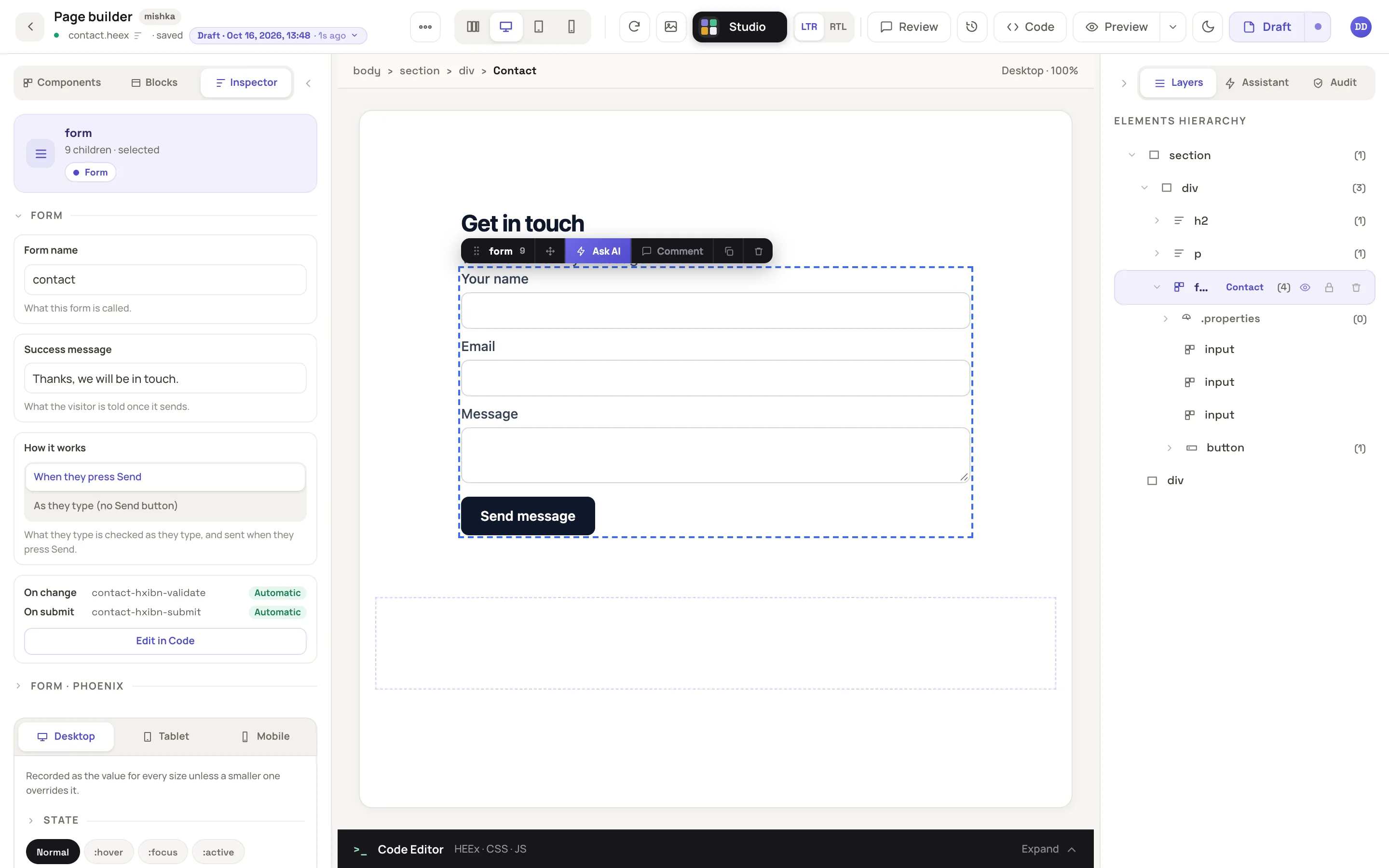
The Form section holds the name, the message and how the form sends.
Add fields and set their checks
Drag a Text input, Text area, Select, Checkbox or Radio group into the form. The editor joins it to that form and says Added it to the Contact form. A field dropped outside every form starts a new form with a Send button. To move a field later, select it and choose another form under In form.
Select a field to open its Validation section. Each control writes one rule.
| Control | What it checks |
|---|---|
| Required | The field cannot be left blank. |
| Min length, Max length | The fewest and the most characters accepted. |
| Min, Max | The lowest and the highest number accepted. |
| Pattern | A regular expression the whole value has to match. |
| Format | email or url. Neither means no format check. |
| Confirms | The key of the field this one has to match, such as a repeated password. |
The browser checks each field before it sends, and the server checks the same rules again. To leave the check to the server, turn on Skip the browser's checks in the form's Form · Phoenix section.
To change the button, select it. The Send button section has Text while sending and Button type.
Decide where the answers go
Out of the box, nothing keeps what visitors type. They see the success message, and the server log records the form's name and field names, never the values. The Audit tab flags this as Nothing receives this form. Pick one of three ways to receive answers.
Send to another address
Select the form and open Form · Phoenix. In Send to another address, enter an address that starts with https://. The page checks the fields first, then posts them to that address, and the answer opens in the same tab. Leave it empty to keep visitors on the page.
Receive them in a plugin
A plugin on the page:form:submitted event gets each valid submission. The payload holds form (the form's name), values (a map keyed by the form's fields), page and site_id. Answer with handled: true once you stored it. No plugin ships with the CMS.
use MishkaInstaller.Event.Hook, event: "page:form:submitted"

def call(payload) do
  # Store payload.values somewhere, then:
  {:reply, %{payload | handled: true}}
end
Write the handler yourself
With admin:dashboard:code, click Edit in Code in the form's Form section. The Handlers tab lists On change and On submit, each Automatic or Custom. Click Customize to add the default code as an entry you can edit. A function passed as the fifth argument receives the cast values. Return {:error, "text"} to refuse with that text. Any other return counts as success.
MishkaCmsCore.Runtime.PageForm.submit(socket, __page_forms__(), "contact-k7m2q-submit", params, fn values ->
  MyApp.Inbox.save(values)
end)
Replace "contact-k7m2q-submit" with the event name your form shows in the Handlers tab.
Check and publish
Open the Audit tab in the right panel. Its Forms group checks every form on the page. A form with no destination shows the note Nothing receives this form. The group counts it as a note, not as an issue. Checks that pass show as green rows, such as Every field is inside a form and Each form has a name of its own. A broken form shows an issue instead. A form with no Send button, for example, reads This form has no submit button and offers two fixes: Add a Send button and Make it work as they type. If the Inspector says a form does not work yet, click Make it a working form.
The fixes of the Forms group work without an AI backend. The editor edits the form itself, in one undoable step. On Nothing receives this form, Fix adds what the form still lacks, one piece per click. Once nothing is lacking, it opens the Handlers tab of the Code window so you can write the handler. If the deployment has turned page code off, it shows a message that asks whoever writes code for the site to add one.
For findings that are not about forms, such as the SEO and Performance ones, Fix hands the finding to the AI Assistant. Until a model is connected, those Fix buttons are disabled, with the tooltip Needs the AI Assistant, which is on our roadmap, and an amber notice at the top of the tab reads Some checks and automatic fixes are not available yet. See Connect a model to the editor's Assistant.
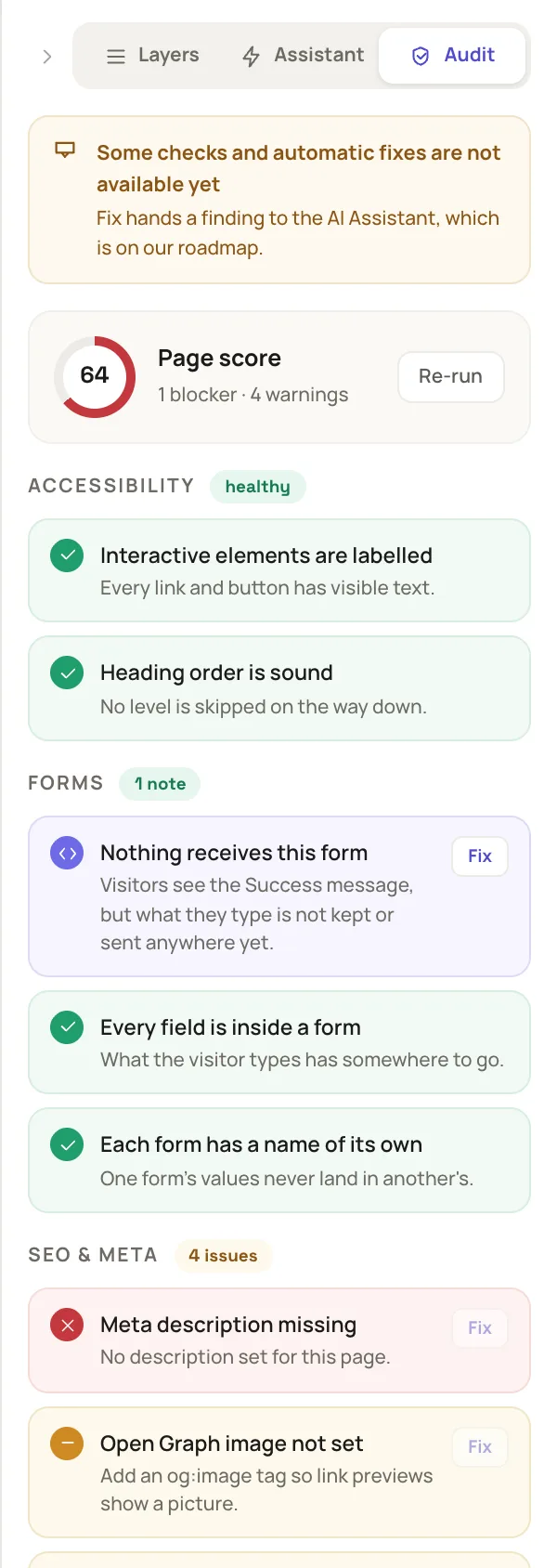
The Forms group of the Audit tab reports what a form still needs.
Publish the page as in Build a page in the visual editor. A draft preview never sends a form, so test the published page: a valid entry shows the success message, and an invalid one shows each field's error.
Example: a contact form
- Drag Contact form from the Forms filter onto an empty page.
- Click the form. Set Form name to
contactand Success message to Thanks, we will reply within two days. - Click the Email field. Under Validation, check that Format is email.
- Under Form · Phoenix, enter your address in Send to another address.
- Click Draft, choose Published, then click Publish.
Next steps
- Plugin events: every event a plugin can listen to.
- Share a draft and collect comments: let a colleague review the form before you publish.
- Visual editor keys, commands, blocks and starters.