How permissions work
v0.0.1
Mishka CMS answers every access question the same way: does the account hold a permission name that covers what the action needs? The same check guards the admin screens, the admin API, the builders, and the pages and posts visitors open, so a name means the same thing everywhere. This page explains how names, wildcards, sites and locks fit together.
Permission names
A permission is a plain string of lowercase segments joined by colons. Admin names follow one pattern:
admin:dashboard:<area>opens an area of the admin dashboard, such asadmin:dashboard:runtime:page.admin:api:<area>opens the same area over the admin JSON:API, such asadmin:api:runtime:page.
The installer creates the core names, and the Permissions screen under Account lists each with what it opens. An extension adds its own names when you install it: Mishka Blog adds admin:dashboard:blog:post and admin:dashboard:blog:comment, for example.
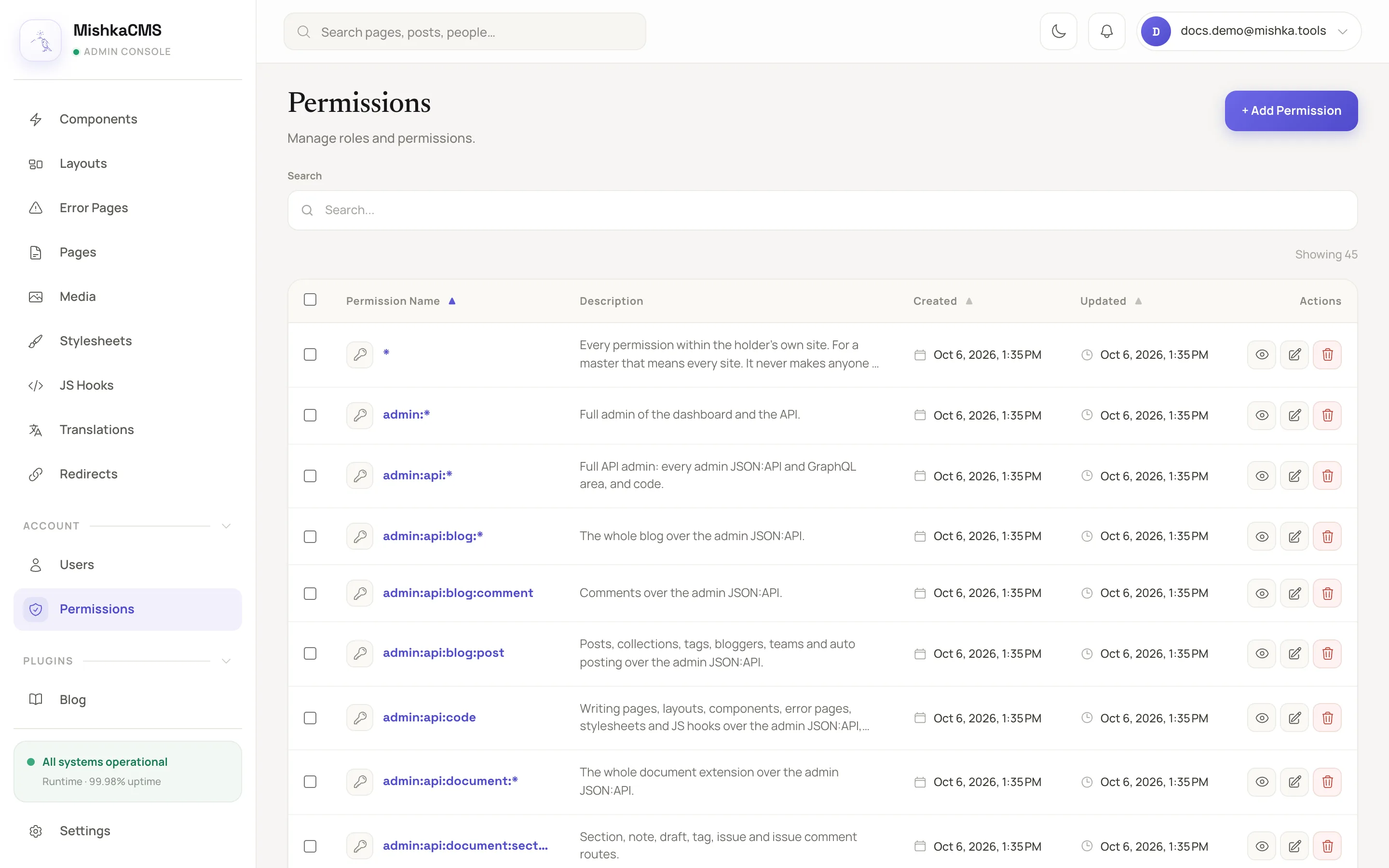
The Permissions screen lists every name and what it opens.
Wildcards
A * can only be a whole last segment. A held name that ends in * covers every name under it, and a name without one covers only itself.
| The account holds | The action asks for | Allowed |
|---|---|---|
admin:dashboard:* | admin:dashboard:blog:post | Yes |
admin:dashboard:runtime:* | admin:dashboard:runtime:page | Yes |
admin:dashboard:code | admin:dashboard:code:x | No |
admin:dashboard:runtime:page | admin:dashboard:* | No |
* | Anything on the account's own site | Yes |
A narrow name never meets a check that asks for a wildcard: a check for admin:dashboard:* passes only for admin:dashboard:*, admin:* or *.
Dashboard and API are separate
An admin name counts only on its own surface. admin:dashboard:* opens every dashboard area, every builder and code, and nothing on the API. admin:api:* opens the whole API and nothing on the dashboard. admin:* opens both.
To open the dashboard at all, an account needs at least one name under admin:dashboard. Without one, the CMS sends it to the home page with You don't have permission to access this page.
Every dashboard admin can read the content lists, such as Pages and Media. Writing needs the area's own name: changing a page takes admin:dashboard:runtime:page or admin:dashboard:code. Each builder opens for its own area or for admin:dashboard:code, so the page builder and the layout builder can go to different people.
The sidebar hides links an account cannot use, and each screen also checks the account when it opens.
Masters and site accounts
A master is an account that belongs to no site. The installer creates the first master and gives it *. Every other account belongs to one site, and what it holds counts on that site only: a site account holding * has every permission on its own site and none on another. Holding * never makes an account a master. A master signs in at /auth?master_user=true. See the documentation.
Only a master can create, rename or delete a permission name, and it can rename or delete only a name it holds. A site account sees the Permissions screen as Read-Only Access.
Granting has a ceiling. To change what an account holds, you need admin:dashboard:permission and admin:dashboard:user, and you can grant only names your own permissions cover. A site admin holding admin:dashboard:blog:* can make a colleague a blog editor but cannot grant *, and changes only its own site's accounts, never its own permissions.
Locks on pages and posts
Every page has a Permissions field. Left empty, the page is open to everyone. With names in it, the page opens only for an account that holds one of them:
- Every other visitor, signed in or not, gets the site's not-found page, as for an address with no page. A visitor who is not signed in is not sent to sign in, so the refusal does not confirm the page exists.
- The page tells search engines
noindex, nofollow, unless its own SEO tags set a robots value.
A lock can use any name in the catalogue except one that starts with admin:api:, which opens for nobody. A master can add a name of your own, such as members:read, for a group of readers. Set the field with the pencil icon, Edit, on a row of the Pages list, or in Page settings in the visual editor.
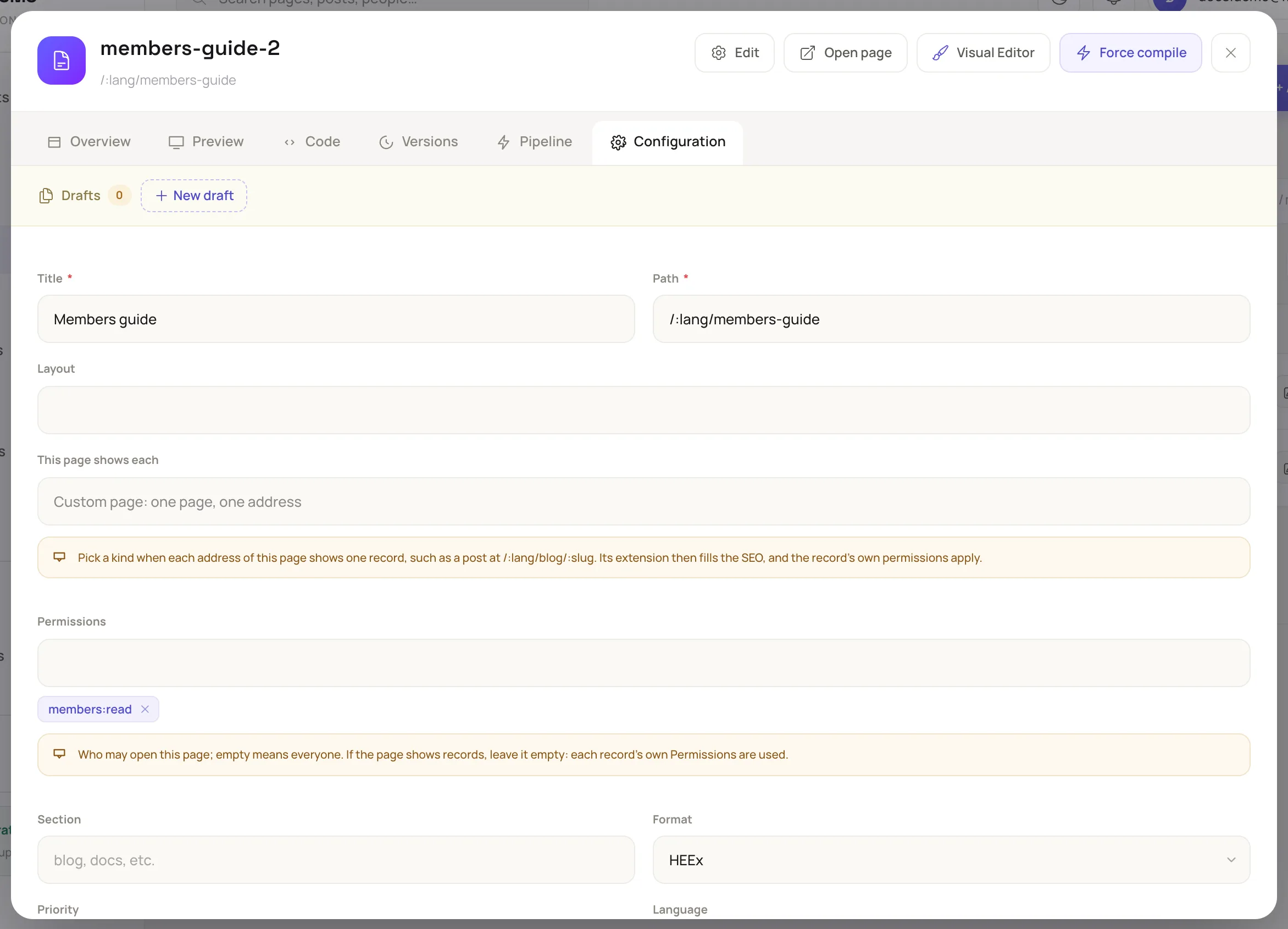
A page's Permissions field and its help text.
A page that shows records, such as a blog post at /:lang/blog/:slug, leaves its own field empty: each record has its own Permissions. A locked post opens only for readers who hold one of its names, and the blog's lists leave it out for everyone else.
When permissions change
Granting or removing a permission, renaming or deleting a name, and changing an account's password or site all disconnect that account's open pages. The browser reconnects at once and the CMS checks the account again: one that still qualifies notices nothing, and one that no longer does is refused. A visitor already reading a page you lock is checked again too.
Example: a members-only guide
A site publishes a guide for paying members. A master creates members:read, the site's owner (who holds *) grants it to each member on the Users screen, and the guide's page lists it in Permissions. Members sign in and open the guide, every other reader sees the not-found page, guests included, and search engines leave it out.
Extension code asks through AccessPermissions, in a policy or directly:
alias MishkaCmsCore.Accounts.Checks.AccessPermissions

# In a resource policy, with the name of each surface it answers on
authorize_if {AccessPermissions,
              permissions: ["admin:dashboard:runtime:page", "admin:api:runtime:page"]}

# Anywhere else, as true or false
AccessPermissions.match?(user, %{}, permissions: ["members:read"])