Share a draft and collect comments
v0.0.1
While you edit, the visual editor keeps your changes in a draft, and every draft has its own address. Anyone with that address can read the draft in a browser, without signing in. Your team leaves notes on the page in the editor's Review panel. This guide shares a draft and collects notes on it.
Before you begin
- Open a page, a layout or an error page in the editor and make a change, so a draft exists. A component has no draft and no shareable address.
- To write notes, sign in with an account that can open that builder, such as
admin:dashboard:runtime:pageoradmin:dashboard:code. Reading the shared address needs no account. See How permissions work.
Copy the draft link
- In the top bar, find the Preview button. Once a draft exists, a small arrow sits on its right edge. Click the arrow.
- Click Open in a new tab. Its text reads The shareable link for and the draft's name.
- Copy the address from the new tab and send it.
The link is for the draft the editor is writing now. To share an earlier one, click Draft at the top right, choose Draft history and open that draft first. On an error page the link includes the status you are editing.

The arrow beside Preview opens the shareable link.
You can also copy it from the list. Click View on the row of a page, a layout or an error page. Under Drafts, click the draft, open the Preview tab, choose Draft and click Copy draft link.
What the reader sees
The link opens the draft as a visitor would see it, inside its layout, with the site's components and JS hooks running. A bar at the top reads Draft preview. If you changed the live page after you made the draft, the bar adds The original was changed after this draft was made.
- Links to other pages open the published site in a new tab, so the draft stays open.
- A form on the draft sends nothing.
- If the page's site is offline, only its admins and the masters can open the link. If the site is inactive, only the masters can. Everyone else gets the not-found page.
Leave a note
Notes belong to the page, not to one draft. Everyone who opens the page in the editor sees them.
- Click Review in the top bar. The panel lists the page's notes under Comments.
- Click an element on the canvas to note that element, or select nothing to note the whole page. The composer says Commenting on and names the target. Click the small × beside it to write about the whole page instead.
- Choose a type: Bug, Information, Suggestion, Question, Task or Other.
- Write the note. Type @ and pick a teammate to name them. They get a notification, You were mentioned in a note, that links to the page in the editor.
- Click Post comment.
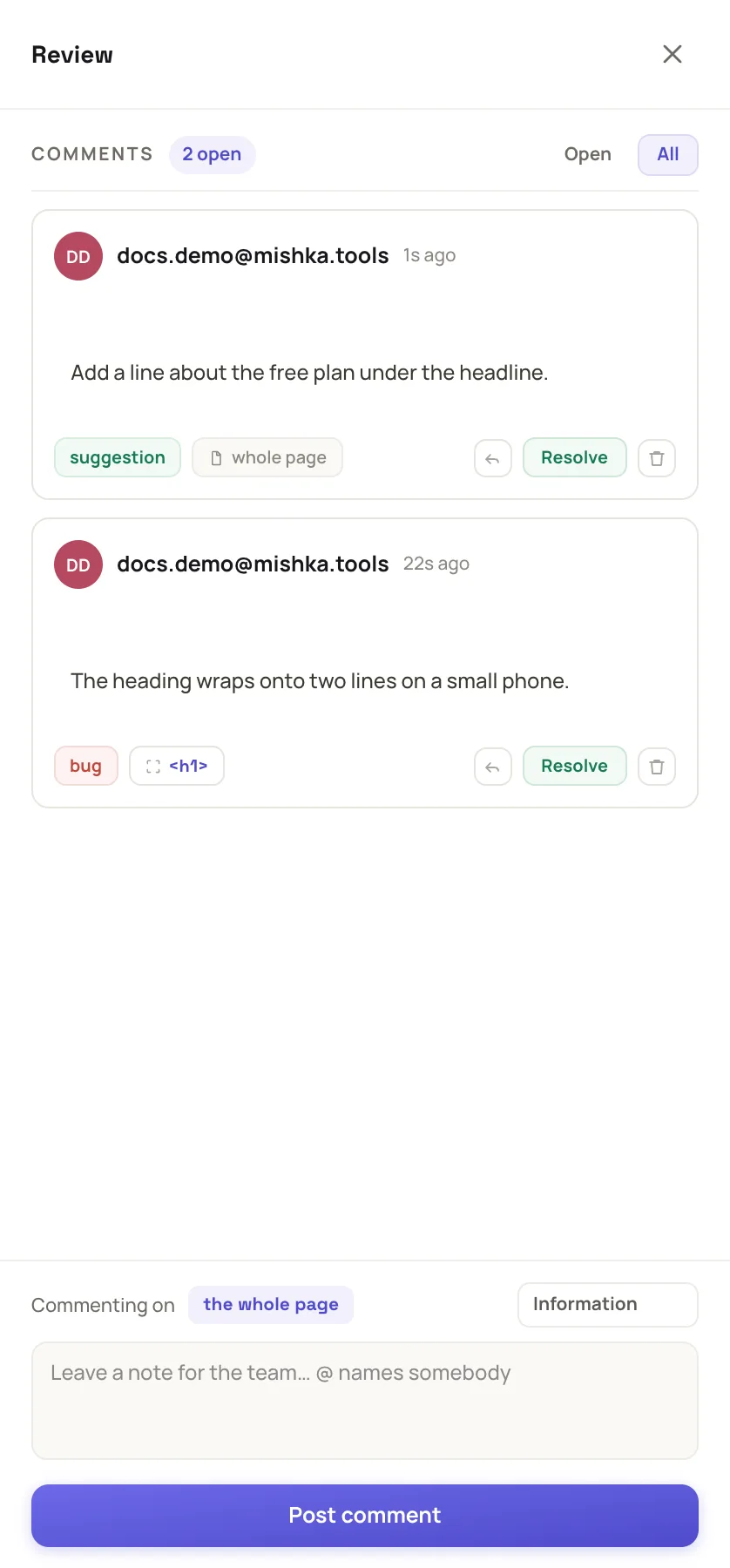
The Review panel lists the notes and holds the composer.
Work through the notes
- Click the element pill on a note, such as
<h1>, to select that element on the canvas. If the element is gone, the editor says The element that note was on is no longer on this page. - Click the reply icon, Reply to this note, then Post reply.
- Click Resolve when the work is done. Reopen brings the note back.
- Use the Open and All filters to hide or show resolved notes. The count beside the filters reads, for example, 3 open.
The red number on Review counts only unresolved notes of type Bug. A note on a layout or component shared with every site can be closed only by a master. It shows Master closes this.
The shared link has no comment box. To collect feedback from someone without an account, ask for it by email and add it as a note. To give them an account, see Give a teammate access.
Example: review a landing page
- Edit the page until the draft is ready. Click the arrow beside Preview, then Open in a new tab, and send the address to a client.
- A colleague opens the page in the editor, selects the headline and posts a Suggestion: @[email protected] shorter?
- You read the note, change the headline and click Resolve.
- Publish the page, and send the client its own address.
Next steps
- Drafts, publishing and versions: how drafts relate to the live page.
- Build a page in the visual editor: the stage control and Publish.
- Give a teammate access: accounts for reviewers.