Your first site: edit the starter pages
v0.0.1
The installer writes a small site for you: a header, a footer, a layout, a theme and a home page. In this tutorial you open that site, change the words on its home page in the visual editor, and publish the change. You finish with a home page that says what you want it to say.
Before you begin
- Finish Install Mishka CMS and sign in.
- Sign in as the master admin, or as an account that holds
admin:dashboard:runtime:page. See How permissions work. The master admin signs in at/auth?master_user=true. See the documentation.
Step 1: See the site the installer wrote
Open the site at the domain you entered in the wizard, http://localhost:4000 for a local install. The CMS finds the site by the host name of the request, so open it at that exact name.
The home page shows the headline Mishka is up and running., a paragraph that begins You're looking at the default page of a fresh install, and two buttons, Open admin console and Read the docs. A header sits above it and a footer below it. They come from the site's layout, so they are not part of the page you edit here.
The installer wrote the home page as one page named Home, and it stores the path /:lang. The :lang part stands for the language in the address, so the page answers at / when the primary language has no prefix. If you chose A prefix for every language in the wizard, it answers at /en.
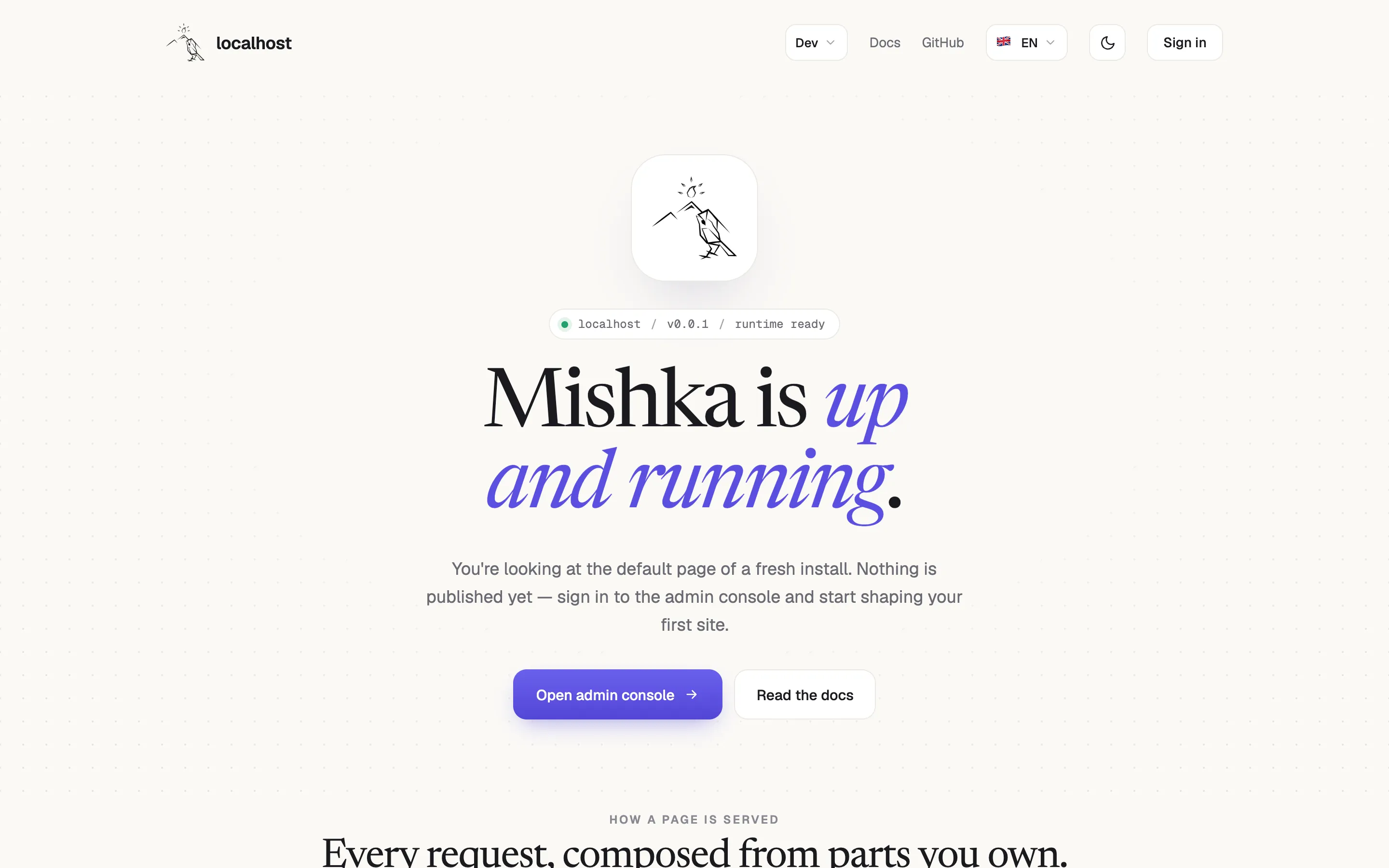
The home page the installer writes.
Step 2: Open the pages list
Sign in and open /admin/dashboard. In the sidebar, under Runtime, click Pages. The list is newest first. A fresh install holds nine pages. The installer wrote the eight sign-in pages after Home, so they sit above it. They are named Sign in, Create account, Reset your password (twice), Sign in without a password, Confirm your account, Magic sign in and Sign out. Home is the last row. Type Home in Search to narrow the list.
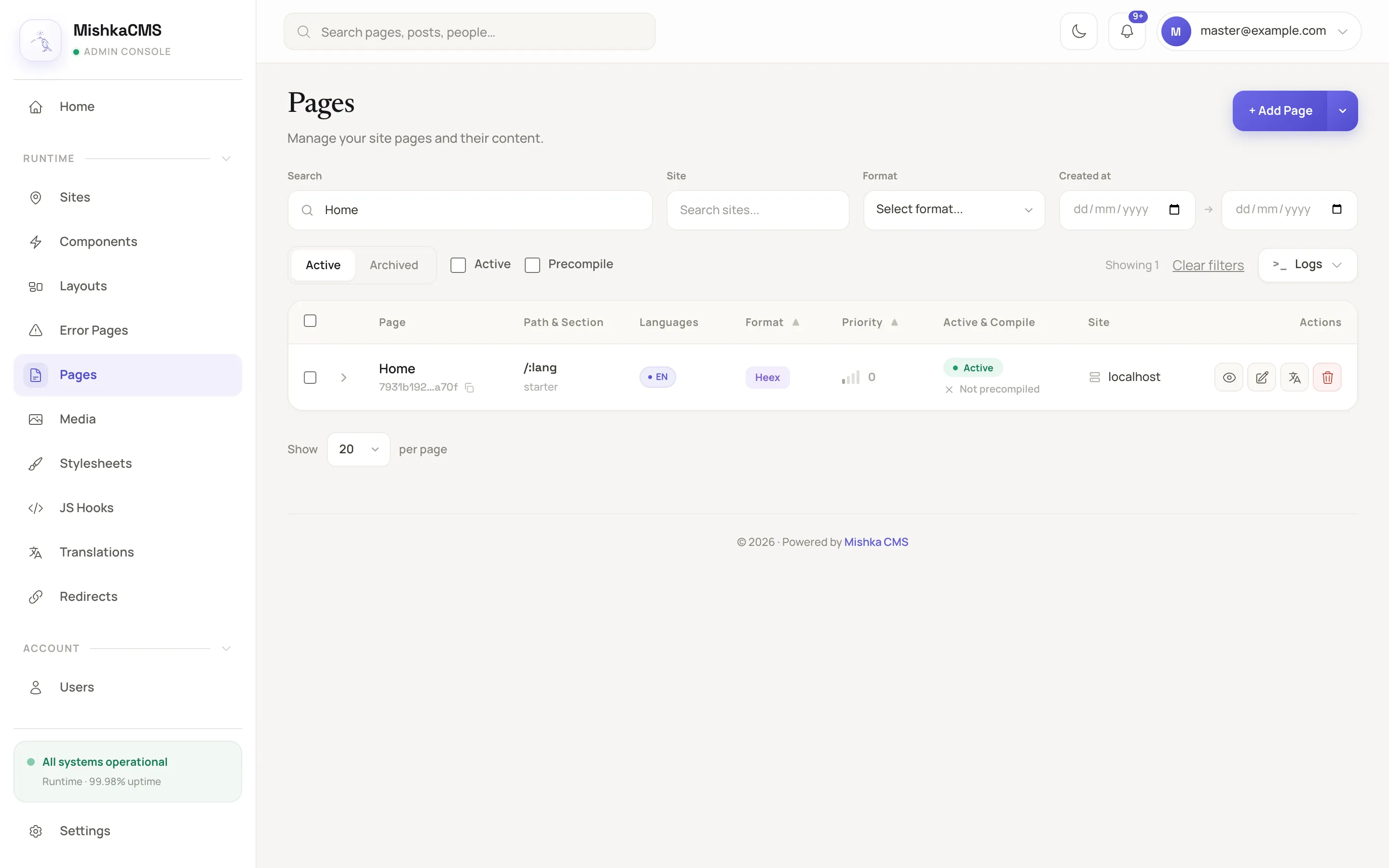
Searching for Home narrows the list to the Home page.
Step 3: Open Home in the visual editor
Click View on the Home row, then click Visual Editor. The page opens on the editor's canvas. Its tour is in Build a page in the visual editor.
Step 4: Change the headline and the paragraph
- Double-click the part of the headline you want to change, such as the italic words up and running, type your own words, and click outside the text. Each part of the headline is its own run of text, so it changes on its own.
- Double-click the paragraph under the headline, which begins You're looking at the default page of a fresh install, and type what your site is for.
The editor keeps each change in a draft as you type. Visitors still see the old page.
Step 5: Publish the page
- Click Draft at the top right, then choose Published. The button changes to Publish.
- Click Publish. The editor confirms with Page published.
Reload http://localhost:4000. The home page shows your words. The CMS compiles the page in a background job, so the new version can take a moment to appear.
What you learned
- The installer's home page is an ordinary page. You open it from Runtime and Pages, edit it in the visual editor and publish it.
- The header and the footer are not part of the page. They are the components
site-headerandsite-footer, drawn by a layout namedsite-main. Change them on the Components and Layouts screens.
Next steps
- Build a page in the visual editor: add a second page, such as an About page, at an address of your own.
- Design the site layout: the header, the footer and the frame around every page.
- Translate a page: the same page in another language.
- Set a page's SEO and share card: the title and description search engines show.
- Start a blog: posts that read from the Blog extension.