Connect a model to the editor's Assistant
v0.0.1
The visual editor has an Assistant panel where an author describes a change in words. This guide shows how to connect your own model to it: you write one Elixir module that calls the model, and you name that module in the host's config. The CMS does not ship a model client, so the module is yours.
Before you begin
- You can edit the host project's config and restart the server.
- You can call your model from Elixir. Your module needs a function that takes the author's text and returns a reply.
- To test it, sign in with an account that can open the page builder. See Build a page in the visual editor.
Know the two callbacks
Your module implements the MishkaCmsCore.Runtime.PageBuilder.AiBackend behaviour.
| Callback | Returns | Used for |
|---|---|---|
name/0 | String.t() | The label under AI Assistant in the panel. |
ask(prompt, scope, opts) | {:ok, message} or {:error, reason} | One request from the author. |
promptis the text the author typed. An attachment, such as the selected element's markup, follows it after a line<!-- attached: label -->.scopeis a map withnode_id, the id of the selected element, andlabel, its tag such ash1ortext. Both arenilwhen nothing is selected.optsis a keyword list with:token,:section,:resource_idand:site_id. The token names the editing session.MishkaCmsCore.Runtime.PageBuilder.EditorSession.fetch/1returns{:ok, editor}for it, andeditor.treeis the document.- A message is a map with
role: :ai,text(the line in the chat bubble),plain(a small note under it, ornil),scope(a string ornil) andops(a list of edits).
Write the module
This module sends the prompt to a function you provide, MyApp.Model.complete/2. It expects {:ok, %{summary: text, markup: html_or_nil}} back. When the model returns markup, the module inserts it at the top of the page.
defmodule MyApp.Assistant do
  @behaviour MishkaCmsCore.Runtime.PageBuilder.AiBackend

  @impl true
  def name, do: "Acme model"

  @impl true
  def ask(prompt, scope, _opts) do
    case MyApp.Model.complete(prompt, timeout: 20_000) do
      {:ok, %{summary: summary, markup: nil}} ->
        {:ok, reply(summary, nil, scope, [])}

      {:ok, %{summary: summary, markup: markup}} ->
        ops = [%{kind: :insert, parent_id: "root", index: 0, template: markup}]
        {:ok, reply(summary, "Inserted a section at the top of the page.", scope, ops)}

      {:error, _reason} ->
        {:error, "The model did not answer. Try again."}
    end
  end

  defp reply(text, plain, scope, ops) do
    %{role: :ai, text: text, plain: plain, scope: scope[:label], ops: ops}
  end
endReturn edits as ops
Each op is a map with a kind. The editor checks it with the same rules as a hand edit. It then applies all the ops of one reply as a single undoable step.
| Kind | Required fields |
|---|---|
insert | template |
move, delete, duplicate, unwrap, set_text | node_id |
set_attr, delete_attr | node_id, name |
set_style | node_id, bucket, prop |
reset_styles | node_id, bucket |
wrap | node_id, tag |
wrap_many | node_ids, tag |
The other fields are parent_id, index, value, value_kind and text. A node_id is n followed by eight lowercase letters or digits, and parent_id: "root" means the top level. An op the editor cannot read, or a placement the page does not allow, changes nothing. The bubble then reads Nothing was changed. with the reason, and your text moves to the small line.
Name the module in the config
Add this line to config/config.exs in the host project, or to config/runtime.exs, then restart the server:
config :mishka_cms_core, :builder_ai_backend, MyApp.AssistantCheck the connection
- Open any page in the visual editor.
- In the right panel, click the Assistant tab. Until a backend is connected, the tab starts with the amber notice The AI Assistant is not available yet. Your
name/0text appears under AI Assistant. With no backend configured, it reads Echo (no model configured). Under it, a revisions row reads 0 revisions and autosaved. - Find the Advanced settings row. Its badge reads Connected with your backend and Not connected with the stub, even while the row is collapsed. Click the row to open the backend name and a note. With the stub, the note names this config key.
- Select an element on the canvas, type a request in the box and click Send.
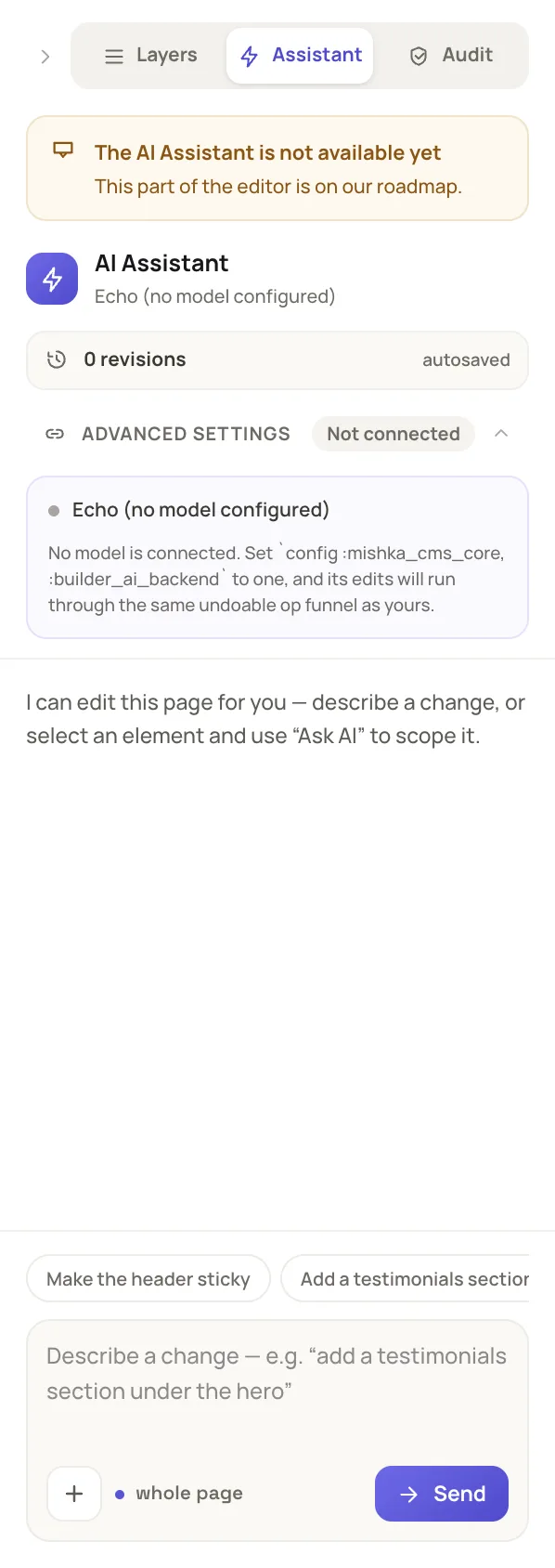
The Advanced settings badge shows whether a backend is connected.
With no backend configured, the tab opens with the amber notice The AI Assistant is not available yet, the backend name is Echo (no model configured), and the revisions row reads 0 revisions and autosaved. The Not connected badge sits on the Advanced settings row, and the note inside that row names the :builder_ai_backend config key. In a development setup that sets builder_demo_data: true, an empty thread starts with a sample chat instead: a request, then an AI reply that carries a revision label and a Restore button, with 2 revisions in the revisions row. The notice then adds that the conversation below is a sample. It is placeholder text, not your history, and your own thread replaces it from your first request.
After you connect a backend, a reply of yours that changed the page shows a revision label and a Restore button, and the revisions row counts it. One request is one undo step: press ⌘Z to take it back. On Windows and Linux, use Ctrl in place of ⌘.
The Audit tab follows the same rule. While no backend is connected, it shows an amber notice, Some checks and automatic fixes are not available yet, and the Fix buttons of findings that are not about forms are disabled. Once a backend is connected, those buttons work. Fix selects the element, switches to the Assistant tab and sends the finding to your backend as a request. The editor repairs forms findings itself, so they need no backend. See Add a form to a page.
Rewrite or refuse prompts
A plugin on the builder:ai:before_ask event runs before ask/3. It can rewrite the prompt, for a house style or to remove private details, or refuse it with a message. See Plugin events.
Next steps
- Build a page in the visual editor: the editor your assistant edits.
- Drafts, publishing and versions: where an assistant's edits stay until you publish.
- Extensions and plugins: ship the backend as a package.