Build a page in the visual editor
v0.0.1
The visual editor builds a page on a live canvas: you place ready-made sections and your site's components, edit them in place, and check each screen size. The editor keeps your work in a draft while you edit, so visitors see nothing until you publish. This guide takes a new page from an empty canvas to a published page.
Before you begin
- Sign in with an account that can open the page builder. It needs
admin:dashboard:runtime:pageoradmin:dashboard:code, or a wildcard that covers one of them, such asadmin:dashboard:*. See How permissions work. - Have a site to put the page on. The install wizard creates the first one.
- To place components, install a UI kit on the site. The Blocks tab works without one, because its sections are plain HTML with Tailwind classes.
Create the page
- In the admin sidebar, under Runtime, click Pages.
- Click + Add Page. The editor opens with the Name your page dialog.
- Enter a Title and a Path. The path starts with
/. For a page in each of the site's languages, start it with/:lang, as the Home page and the sign-in pages the install wrote do:/:lang/pricing. - If you are signed in as a master admin, choose the Site too.
- Click Create.
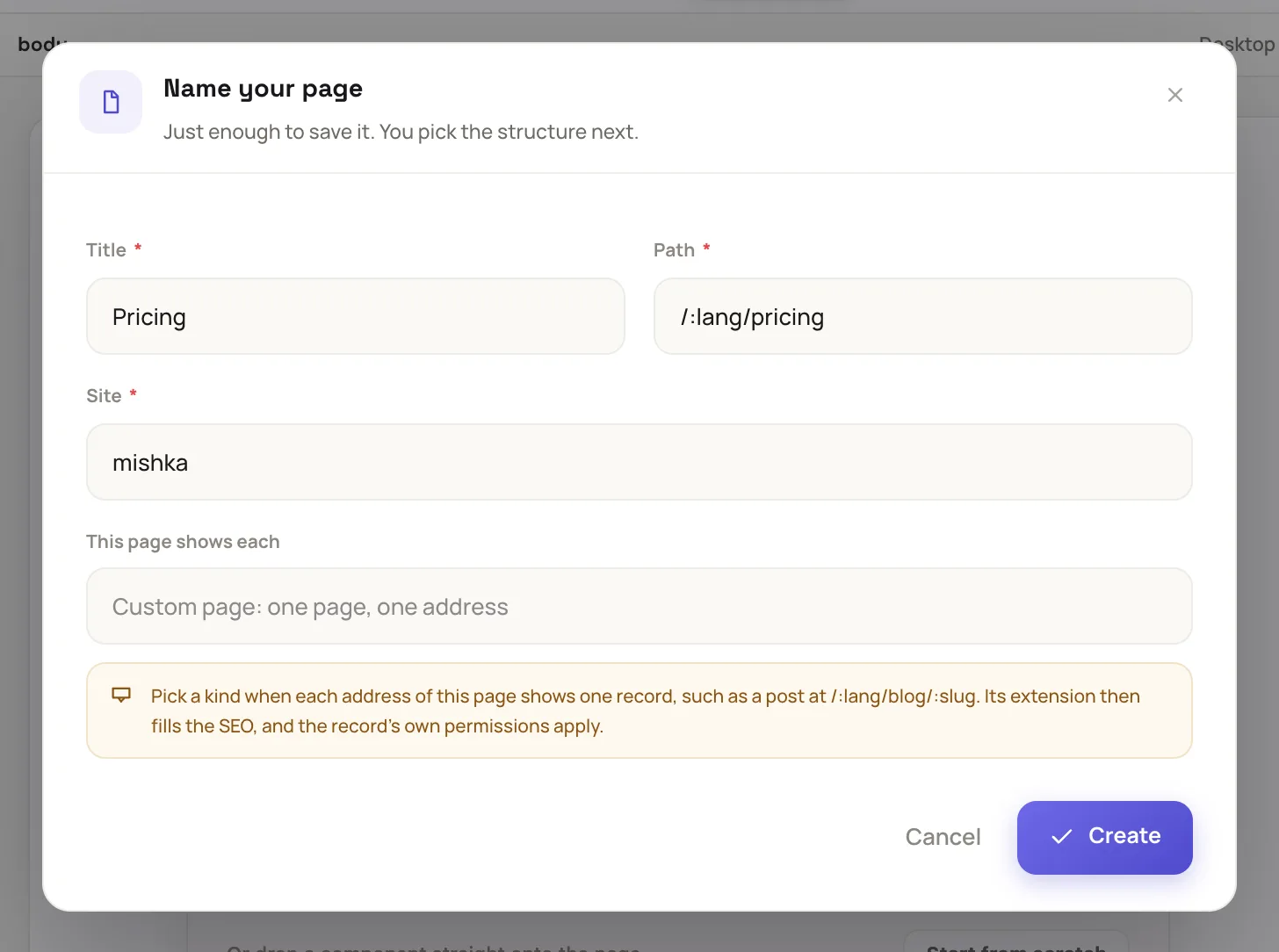
The Name your page dialog asks only for what a page needs to be saved.
To edit a page that already exists, click View on its row in the Pages list, then click Visual Editor.
Add sections and components
A new page opens on This page is empty. Pick a structure: Single column, Two columns, Three columns or Hero + content. To start with nothing, click Start from scratch.
Two tabs of the left panel hold what you can place:
- Blocks has whole sections, such as Hero, Features ×3, Pricing, Call to action, Contact form and Footer.
- Components lists the components installed for your site. Type in Search components… to find one. A G badge marks a global component, which every site has, and T marks one only this site has.
Drag a block or a component onto the canvas. You can also click it, then click the spot on the canvas, or the layer in Layers on the right, where it goes.
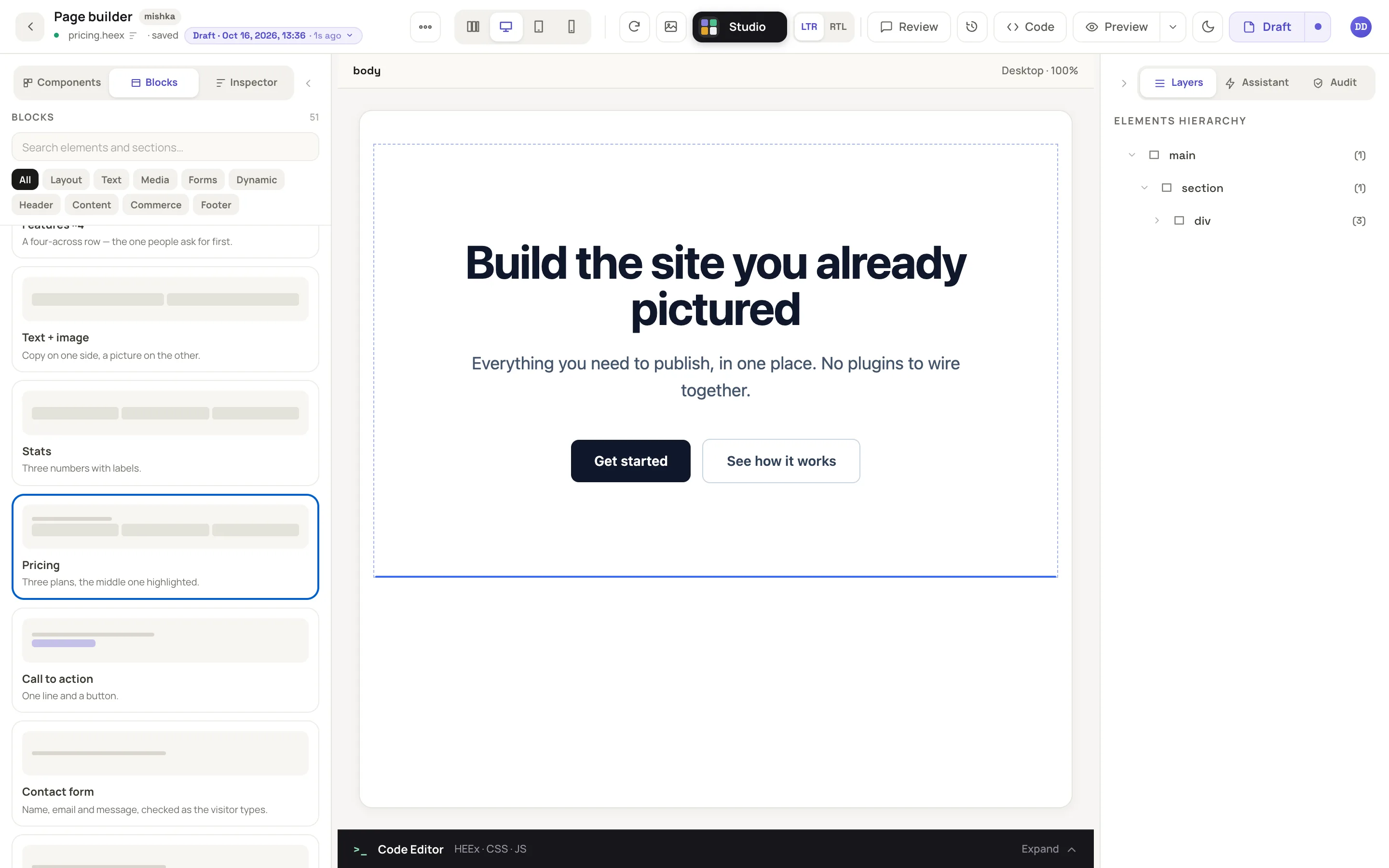
Drag a block onto the canvas, or click it and then click where it goes.
Edit text and settings
- To change words, double-click the text on the canvas and type. Click outside the text to finish.
- To change anything else, click the element. The Inspector tab opens with its settings under State, Layout, Typography, Appearance, Behavior, Attributes and Custom CSS. A component also shows its own properties above them. State, Behavior and Attributes start collapsed.
- The toolbar above the selected element starts with a grip that carries the element's name. Drag the grip to move the element. Next come a four-arrow button, Layout, for columns, direction and spacing, then Ask AI, Comment, Duplicate and Delete. Hover an icon to see its name. A run of text has no Layout button.
Press ⌘Z to undo, ⇧⌘Z to redo, and ⌘K to open the command palette. On Windows and Linux, use Ctrl in place of ⌘.
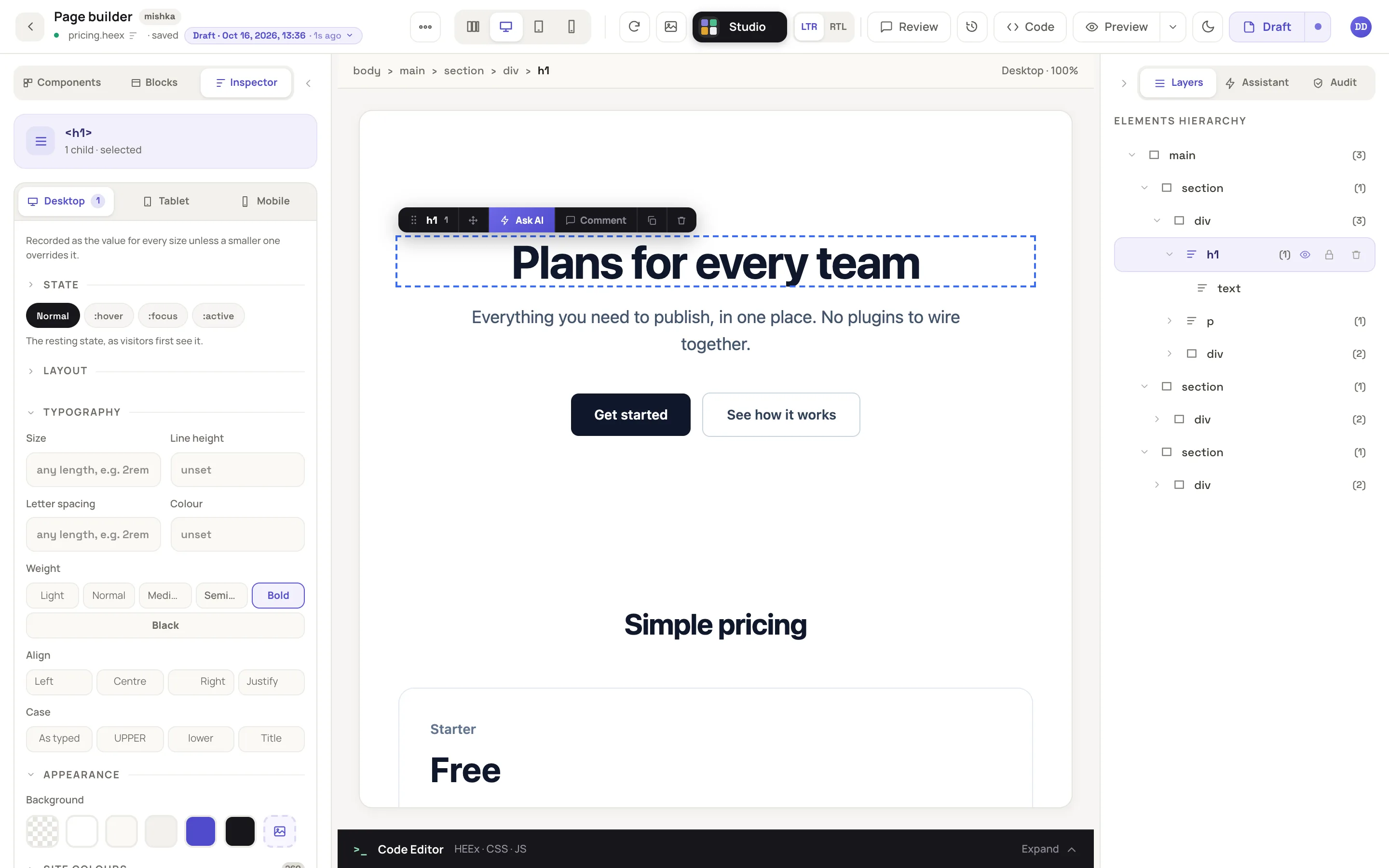
Selecting an element opens its settings in the Inspector tab.
Check each screen size
The device buttons in the top bar show the canvas as Desktop, Tablet (834px), Mobile (390px) or All breakpoints, the three side by side.
The device you pick also sets which screens a style change applies to. On Mobile, a change applies to screens up to 560px wide, and on Tablet, up to 900px. A change made on Desktop applies at every width that has no change of its own.
Publish the page
While you work, the button at the top right reads Draft, and the editor keeps each change in a draft. To make the page live:
- Click Draft, then choose Published. The button changes to Publish.
- Click Publish. The editor confirms with Page published.
Publishing makes the page active and writes the canvas to the live page. The CMS then compiles the page in a background job, and visitors get the new version.
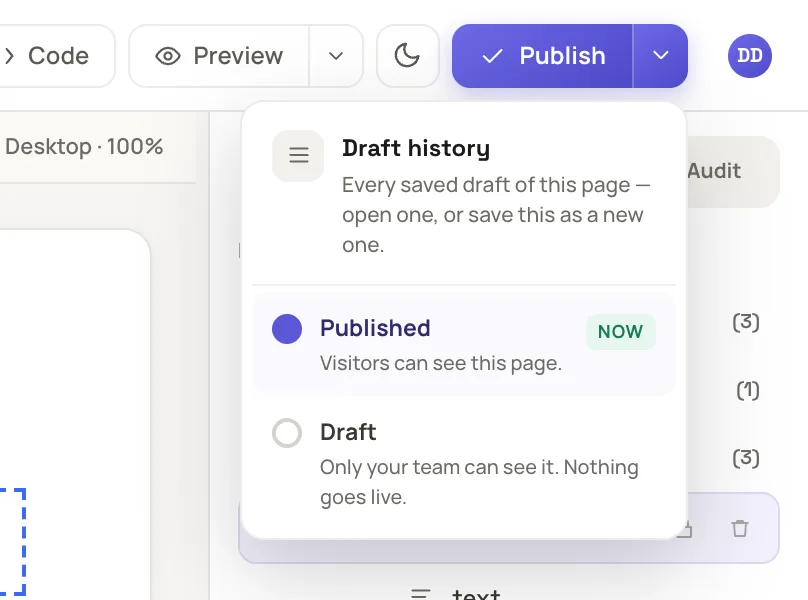
Choose Published in the stage menu, then click Publish.
If the editor answers Not saved and names a field, a component lacks a required value: select it and fill in that field in the Inspector tab.
Example: a pricing page
- Create a page titled
Pricingat the path/:lang/pricing. - Click Start from scratch, then drag Hero, Pricing and Call to action from Blocks onto the canvas, in that order.
- Double-click the hero headline, Build the site you already pictured, and type Plans for every team.
- Double-click $29 under Team and type your price.
- Click Mobile to see the three plans stack in one column.
- Click Draft, choose Published, then click Publish.
Next steps
- How permissions work: who can open and edit the page.
- Translate a page: the same page in another language.
- Set a page's SEO and share card: the SEO tab of Page settings.
- Drafts, publishing and versions: go back to an earlier draft or version.