Redirect an old address
v0.0.1
When a page or a file moves, the old address still gets visits from search engines, shared links and bookmarks. A redirect rule answers a request for the old address by sending the visitor to the new one. This guide adds a rule, explains what it matches and which rules the CMS refuses, and shows how to check that it works.
Before you begin
- Every dashboard admin can read the list of rules. Adding, editing and archiving take
admin:dashboard:runtime:redirect, or a wildcard that covers it, such asadmin:dashboard:runtime:*. Without it, the buttons that write are not drawn. See How permissions work. - A rule belongs to one site and answers requests for that site's domain only. A master picks the site when it adds a rule. A site account adds rules to its own site.
- Know the old address and the new one. The new address can be a path on the same site or a full
http://orhttps://address.
Add a redirect
- In the admin sidebar, under Runtime, click Redirects.
- Click + Add redirect.
- If you are signed in as a master, choose the Site.
- In From, enter the address that is still asked for, such as
/images/blog/old-photo.jpg. You can paste a full address. Only its path is kept. - In To, enter where visitors go: a path on this site, such as
/uploads/site/media/photo.jpg, or a fullhttp(s)address. If a visitor's request carries a query string and To has none, the query string is added to the target. - Choose a Status. The default is 301 Moved permanently.
- Leave Active ticked, add a Description if you want a note for your team, and click Create. The page answers Redirect created.
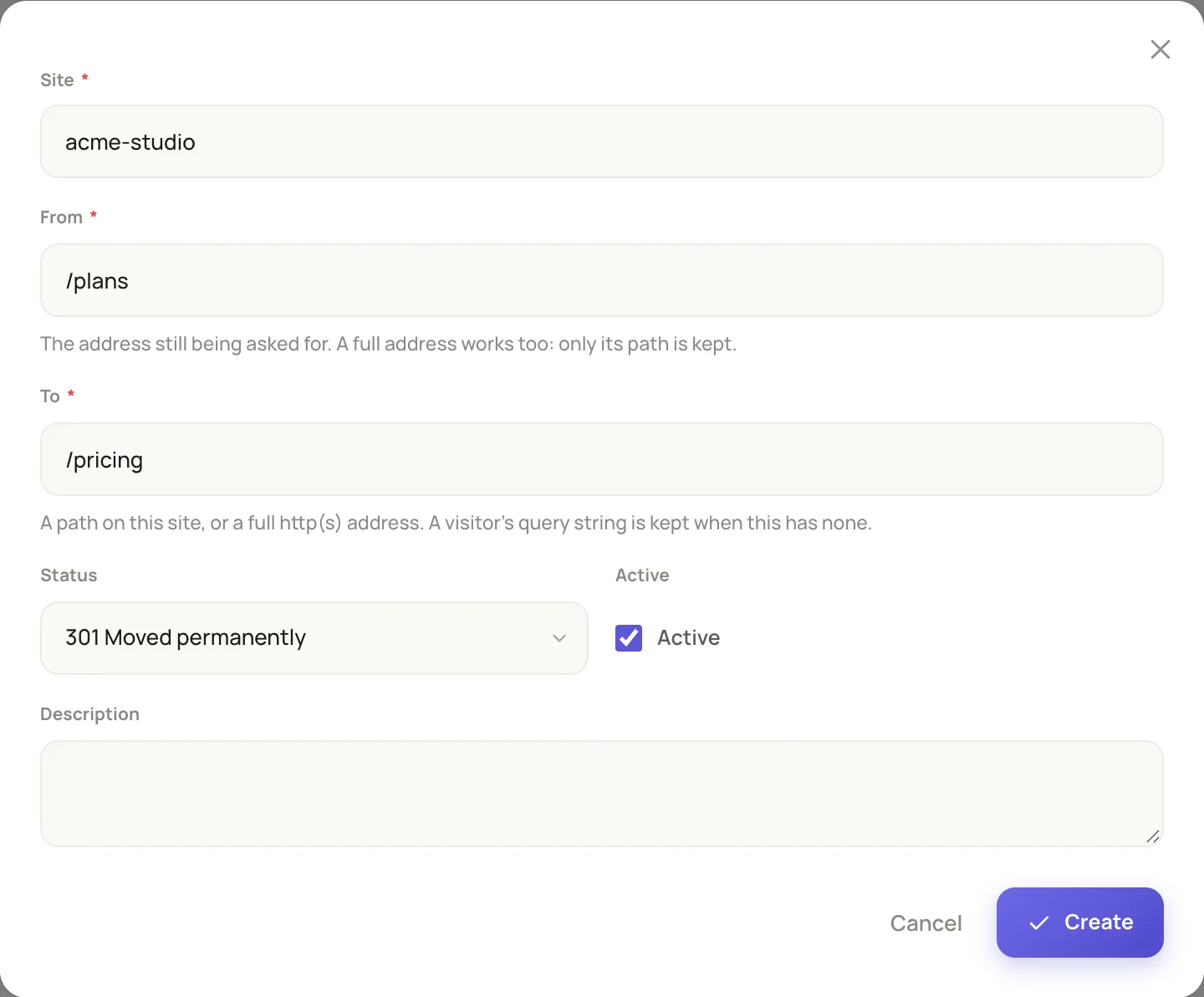
The form asks for the old address, the new one and the status.
The list shows each rule as the old address with the new one under it, then its Status, whether it is Active, and, for a master, its Site. The search box looks in both addresses and the description. You can also filter by Status and Active.
Pick a status
| Status | Use it when |
|---|---|
| 301 Moved permanently or 308 Permanent | The move is for good. A browser and a search engine treat the new address as the page's address. 301 Moved permanently is the default. |
| 302 Found or 307 Temporary | The move is temporary and the old address comes back later. |
The list marks permanent moves (301 and 308) in blue and temporary ones (302 and 307) in amber.
What a rule matches
- An exact path. A rule has no wildcards.
/old-pagematches/old-pageand/old-page/. - Any query string. The address is stored without its query string or fragment, so
/old-page?ref=newsmatches the same rule. - Before the page. The CMS checks the rules as soon as it knows the site, before it looks for a page. A rule therefore answers a page that moved and a file that is no longer there.
- One rule per address. A second rule for the same From on a site is refused with This site already redirects that address. An archived rule does not hold its address.
The CMS writes the address in one form. A leading / is added, a trailing / is dropped, and escapes such as %D8%A8 are decoded. An address with a space, or with a scheme other than http or https, is refused with Enter an address on this site, such as /old-page.
Rules the CMS refuses
- The CMS's own addresses.
/admin,/api,/liveand/phoenix, and everything under them, cannot be a From. A rule there would send the people who manage the site, and the editor's own connection, somewhere else. - A rule that sends an address to itself. The answer is A redirect cannot send an address to itself.
- A loop. The CMS follows the site's other active rules from your target. If they lead back to your address, or to any address already on the way, it refuses the rule with This would make a loop and names the addresses. A target on another host ends the chain.
- A bad target. To must start with a single
/or be a fullhttp(s)address.//hostis refused.
A chain without a loop is allowed. If /a goes to /b and /b goes to /c, a visitor to /a follows two redirects. Point /a at /c to save the hop.
Edit, switch off or remove a rule
- Click Edit on a row, change the form and click Save Changes. The page answers Redirect updated. A rule's site cannot change.
- To pause a rule, untick Active. An inactive rule is kept and answers nothing. The loop check runs again when you tick it back on.
- Click Delete and confirm to archive a rule. To archive several, tick their rows and use the bulk Archive action.
- Click Archived in the switch above the list to see archived rules. Restore brings one back, and Delete permanently removes it for good.
A saved change reaches every server at once, with no restart.
Check that it works
Request the old address and read the response. The status is the one you chose, and the location header holds the new address.
curl -I https://example.com/plansA browser and a search engine treat a 301 or a 308 as final. While you test, set the status to 302 Found, and change it to 301 Moved permanently when the rule is right.
Example: a renamed pricing page
- You changed the page path from
/plansto/pricing. - Click + Add redirect. Set From to
/plansand To to/pricing. - Leave Status on 301 Moved permanently and Active ticked, then click Create.
- Run
curl -Ion/plansand check for the 301 and thelocationheader.
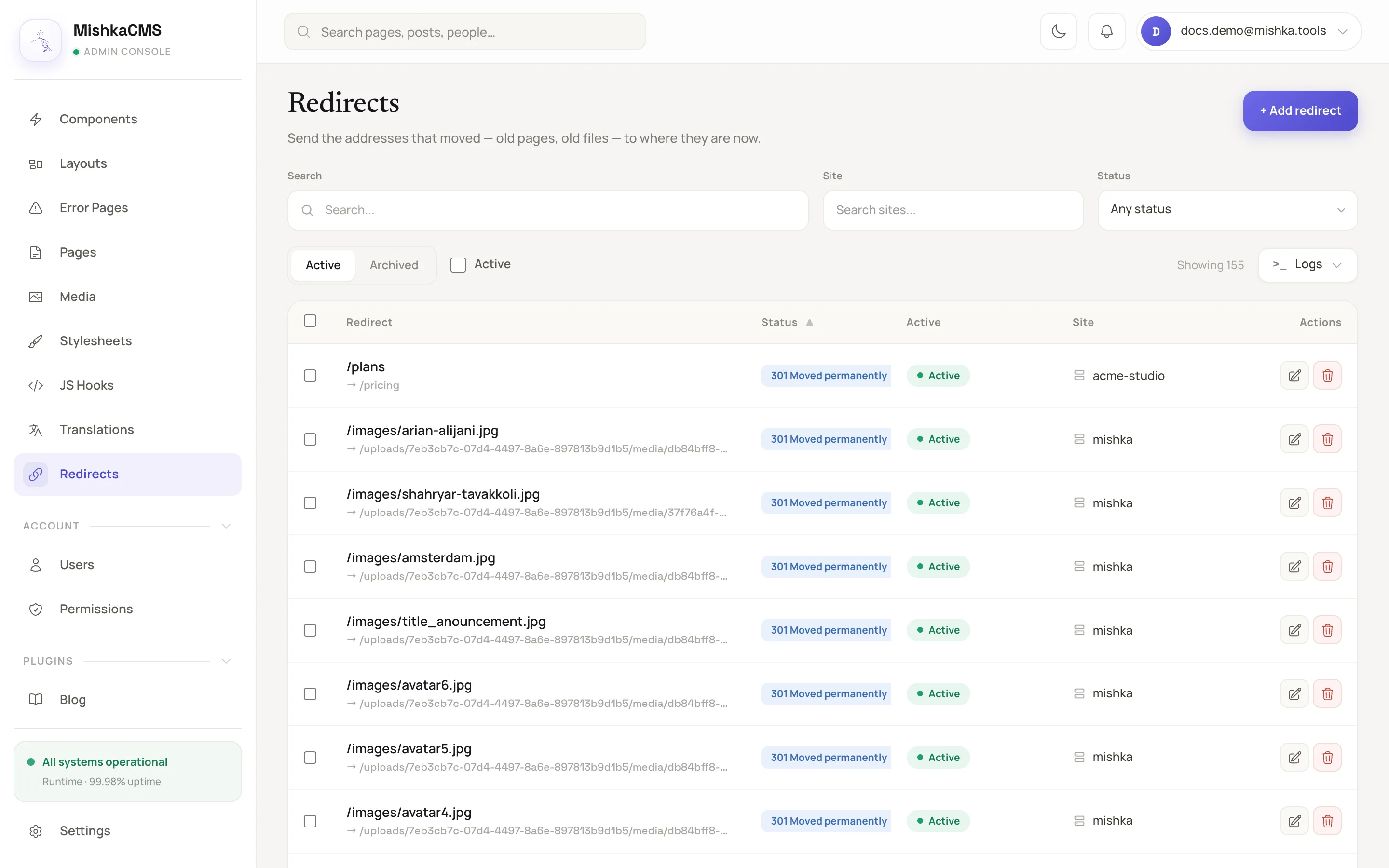
The saved rule appears at the top of the list.
Next steps
- Build a page in the visual editor: change a page's path.
- Upload and organize media: the new address of a moved file.
- Check the activity log: who added or changed a rule.
- Plugin events:
web:request:redirectedlets a plugin change or answer a redirect.