Install an extension
v0.0.1
An extension is an Elixir package from Hex, compiled into the CMS, such as Mishka Blog or Mishka Document. Using one takes two steps: the package is part of your project, and each site sets the extension up. Setting up adds the extension's permission names, components, sample pages and snippet to one site. A site you add later gets the core content only, until someone sets the extension up on it.
Before you begin
- The package must be in your project. A standard project already includes Mishka Blog and Mishka Document. For another package, such as Mishka Newsletter, follow Add an extension package to your project at the end of this page.
- The account that sets a site up needs
admin:dashboard:runtime:component,admin:dashboard:runtime:pageandadmin:dashboard:runtime:site. It also needsadmin:dashboard:runtime:stylesheetwhen the extension's kit ships a stylesheet, andadmin:dashboard:runtime:js_hookwhen it ships JS hooks. A wildcard such asadmin:dashboard:runtime:*covers them. See Permission names. - A site admin sets up their own site. A master chooses any active site.
Set up an extension while you install the CMS
The installer's Choose what to install step ends with an Extensions section. Tick the extensions the first site should start with, such as Blog or Documentation. Each row shows a one-line summary. An extension that asks for its own answers shows a Settings button once you tick it. You can also leave every box empty and set an extension up later from its menu. See Install Mishka CMS and sign in.
Set up an extension on a site
- In the admin sidebar, under Plugins, click the extension, such as Blog or Documents.
- A site that is not set up opens on a setup screen with the extension's name, such as The blog, and a card titled Install it on this site.
- If you are a master, choose the site in the dropdown beside the Set up button. A site admin has no dropdown.
- Click Set up.
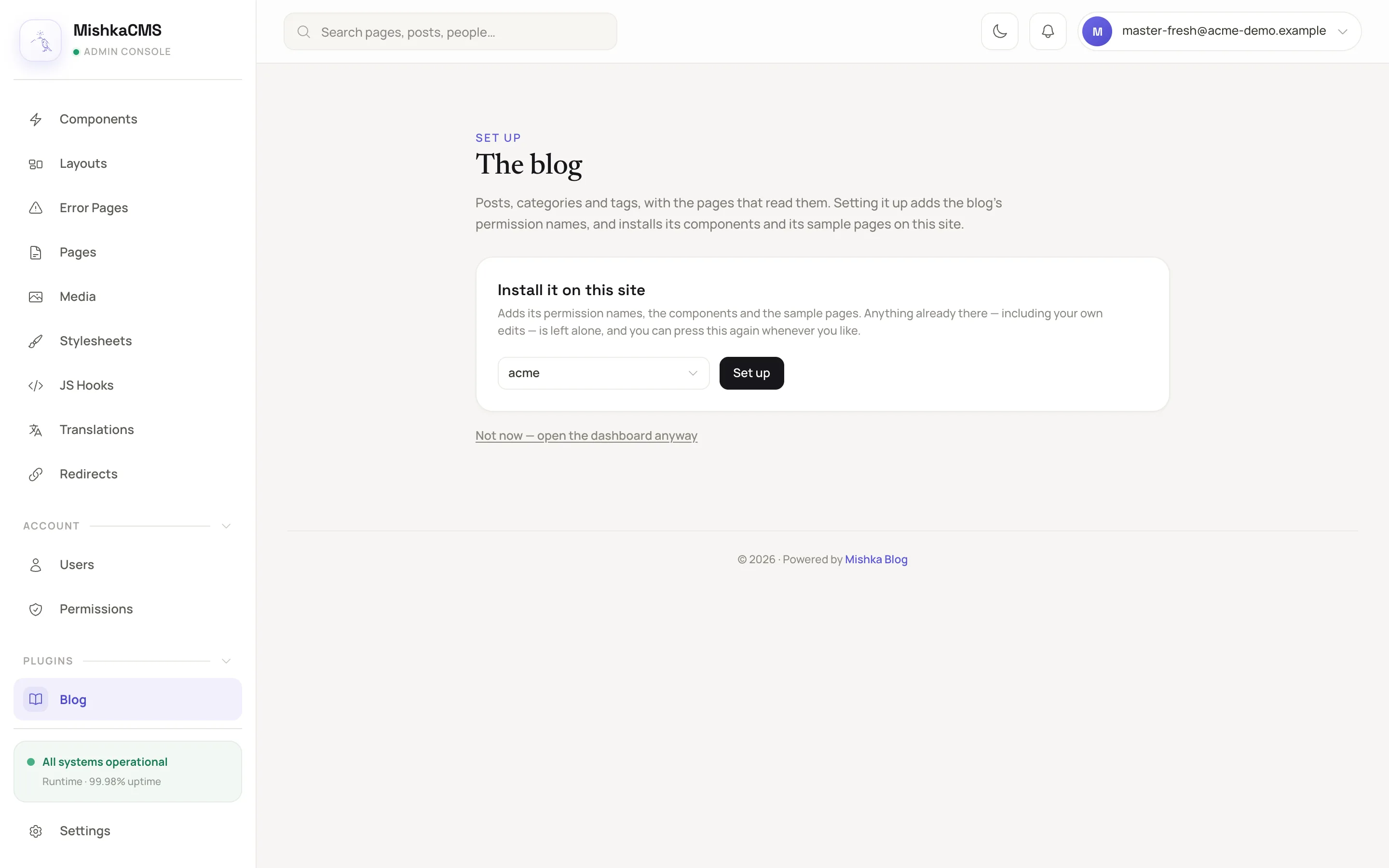
A site that has never had the blog opens on its setup screen.
The extension's dashboard then replaces the setup screen, and a message says what was added, such as Added 17 components, 9 pages, 1 snippet. It counts only what was written, so it names the permissions only on the first site that creates them, as in Added 6 permissions, 17 components, 9 pages, 1 snippet. Setting up Mishka Blog adds six permission names: admin:dashboard:blog:*, admin:dashboard:blog:post and admin:dashboard:blog:comment, and the same three under admin:api:blog. Mishka Document adds admin:dashboard:document:*, admin:dashboard:document:workspace and admin:dashboard:document:section, and the same three under admin:api:document. A name is shared by every site, so only the first site creates it.
A site counts as set up when it holds the record that setting up writes. A site that has pages at the extension's addresses but no record still opens on the setup screen. The record is the Set up at version value on the extension's tab in Settings.
To open the dashboard without setting up, click the link Not now — open the dashboard anyway below the card. A Not set up badge in the header brings the setup screen back. The badge also appears for a site that is not set up when the extension already runs on the site you are signed in to. As a master, click the wrench and screwdriver icon, choose that site in the dropdown, click Check for updates, then click the badge.
Resolve addresses that are taken
An extension's pages live at fixed addresses, such as /:lang/blog. When a page you already have holds one of them, the run skips that page. The message counts it as left alone, and the report lists it under Left alone. A page whose name is taken, but not its address, is written under another name and listed under Created under another name.
The report stays on the setup screen when you reached the screen from the Not set up badge. Otherwise open the wrench and screwdriver window and click Repair to see it. For each skipped address, the report shows a field with the placeholder a path of its own. Enter a new address there, or enter a segment such as /mish in the field after Or move them all under to move every page of the extension under it. Click Set up again. Nothing of yours is changed.
Check and repair a set-up site
Click the wrench and screwdriver icon in the extension's header. Under Put back what is missing, click Repair to install any component or page the site has lost. The dialog also compares the site's components with the version you run: see Install or upgrade a UI kit. An extension that draws its own share cards adds a Redraw button, which draws every card on that site again in the background.
Turn an extension off for one site
- Open Settings and choose the extension's tab, such as Blog. This takes
admin:dashboard:setting. - Switch off Active on this site.
The extension's menu disappears and its pages stop being served on that site. Nothing is deleted, and switching the setting on again brings everything back. Set up at version on the same tab is read only. The installer writes it.
Add an extension package to your project
Add the package from Hex to the list in deps in the host's mix.exs. Mishka Blog, Mishka Document and Mishka Newsletter are published on Hex, and a standard project already lists the first two:
defp deps do
  [
    {:mishka_blog, "~> 0.0.1"},
    {:mishka_document, "~> 0.0.1"},
    {:mishka_newsletter, "~> 0.0.1"}
  ]
end
Run mix deps.get. Then list the extension's Ash domain and its web module in the host's config. For Mishka Newsletter they are MishkaNewsletter and MishkaNewsletterWeb. The example adds an extension of your own, MyExtension:
config :mishka_cms,
  ash_domains: [
    MyExtension,
    MishkaDocument,
    MishkaBlog,
    MishkaCmsCore.Runtime,
    MishkaCmsCore.Accounts,
    MishkaCmsCore.Notify,
    MishkaCmsCore.Mail
  ]

config :mishka_cms_core,
  extensions: [MishkaCmsCoreWeb, MishkaBlogWeb, MishkaDocumentWeb, MyExtensionWeb]
Each web module needs a Routes submodule that implements MishkaCmsCore.ExtensionRouter. The build fails with a message if it is missing. To publish the extension's resources over the JSON:API, add its domain to @domains in MishkaCmsWeb.AshJsonApiRouter. Then generate and run its migrations with mix ash.codegen and mix ash.migrate.
The installer lists an extension because a plugin on the installer:extension:install event describes it. The plugin's initial: option carries priority and an extra list with a label, a summary and any fields to ask. The event payload holds site_id, key (the OTP app as a string), answers, reports, actor and ask, which is always :install. Answer only when key is yours: append the report from MishkaCmsCore.Runtime.ExtensionProvision.ensure!/4 to reports. When a report comes back, the CMS writes the record that marks the site as set up, so the plugin writes none. MishkaBlog.Plugins.Installer is a complete example.
Example: set up the blog on a second site
- Sign in as a master at
/auth?master_user=trueand add the site. See Add a site and its domain and the documentation. - Open Blog under Plugins. Click the wrench and screwdriver icon, choose the new site in the dropdown and click Check for updates. Click the Not set up badge that appears in the header, then click Set up.
- Read the report under the card. If a page is under Left alone, give it a new address and click Set up again.
- Open the site's blog page,
/:lang/blogwith its language filled in, in a new tab to see the result.
Next steps
- Start a blog: write the first post on a site that has the blog.
- Extensions and plugins: how an extension adds its menu, widgets and events.
- Give a teammate access: grant the new
blognames.