Set a site's languages and language URLs
v0.0.1
A site's languages decide which /:lang addresses answer, which language the site leads with, and how an address spells its language. You set both on the Settings screen. This guide sets the list of languages and chooses the address style.
Before you begin
- Sign in with an account that holds
admin:dashboard:setting, or a wildcard that covers it, such asadmin:dashboard:*. See How permissions work. - Have the language codes: two or three lowercase letters, such as
enorfa, with an optional region, such aspt-br. - A master account also sees a Settings for list. See Sites, masters and global records.
Set the languages
- In the admin sidebar, click Settings, then open the General tab.
- As a master, pick the scope in Settings for. Global sets the list for every site that has no list of its own. A site's own list replaces the global one. As a site admin, the page edits your site and a badge names it.
- In Languages, type the codes separated by commas, such as
en, fa, ar. - Click Save Changes. The page answers Settings saved.
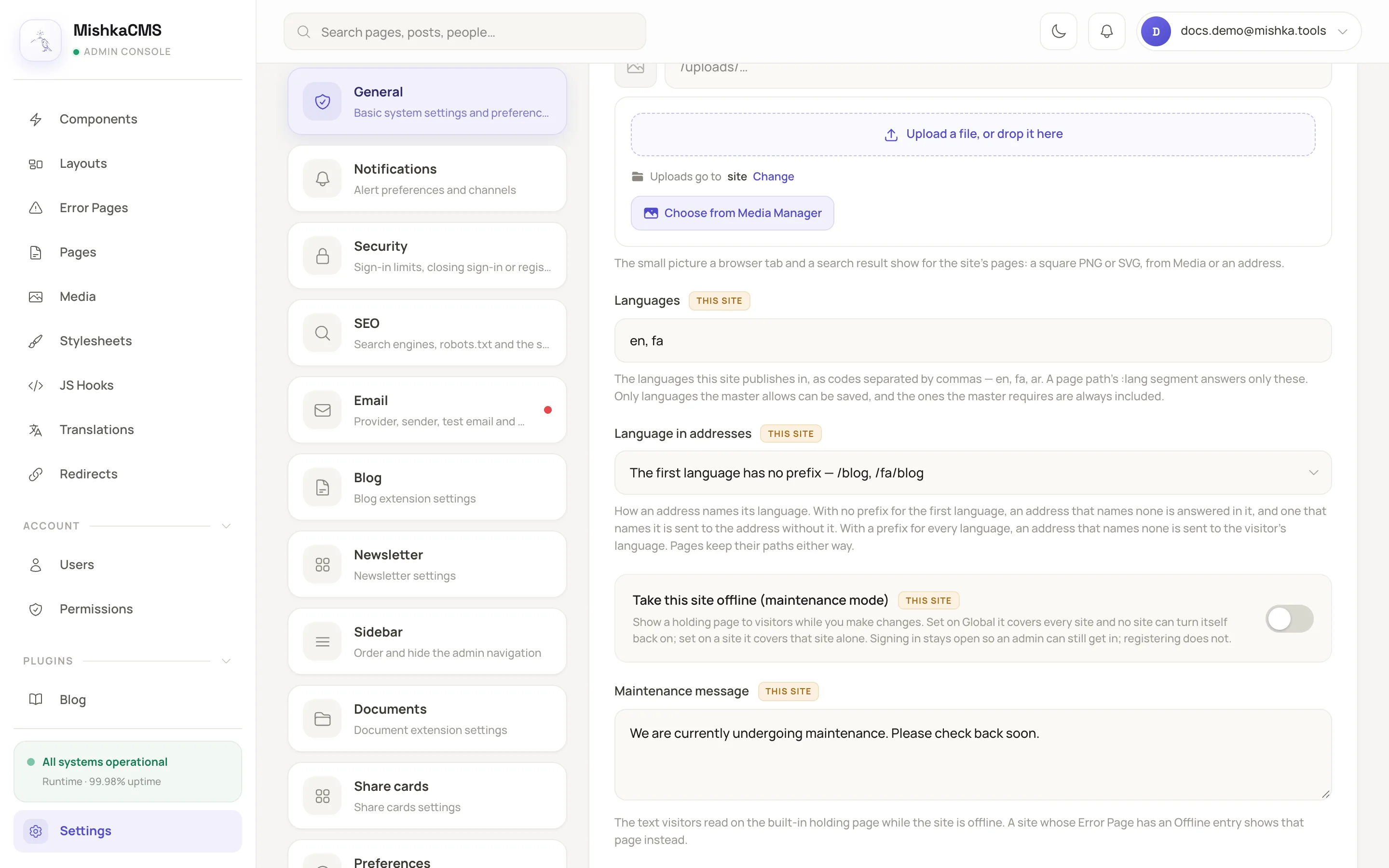
The Languages and Language in addresses fields on the General tab.
The CMS trims each code, lowercases it and drops repeats. A list that is empty, or holds text that is not a language code such as Persian, is not saved, and the page answers Some settings could not be saved. The change applies on the next request, with no restart.
What the first language does
- An address that names no language is answered in it, when addresses leave it unprefixed.
- The
x-defaultalternate in the head of a page that exists in several languages points to the edition in it. - A link built with
site_path/2and no language uses it.
What the language switcher offers
The language switcher in the header lists the languages a page is written in, in the order of the Languages field, so the first language leads it. A page in fewer than two languages has no switcher. For a record that an extension answers for, such as a blog post, the switcher offers only the languages in this list, so a language you remove disappears from it. See Languages and language editions.
Choose how addresses name the language
In Language in addresses, choose one of two styles. Both keep the stored paths of your pages as they are, so switching rewrites no page.
- The option that begins The first language has no prefix is the default.
- The option that begins Every language has a prefix puts the language in every address.
Take a site with en first and fa second, and a page stored at /:lang/blog that answers both languages. The style decides what a visitor gets:
| A visitor opens | First language unprefixed | Every language prefixed |
|---|---|---|
/blog | The English page is served. | The visitor is sent (302) to /en/blog, or to the language they last read the site in, when a page exists there. |
/en/blog | The visitor is sent (301) to /blog. | The English page is served. |
/fa/blog | The Persian page is served. | The Persian page is served. |
The CMS remembers the language a visitor reads in. If the site later stops listing that language, the memory is ignored and the visitor gets the first language.
In a template, build links with site_path/2 so they follow the style you chose:
<.link navigate={site_path("/:lang/about", @page.language)}>About</.link>Limit the languages across sites
A master sees two more fields on the General tab in the Global view. Site admins do not see them.
- Languages sites may publish: a site can list only these codes. Leave it empty to allow any language.
- Languages every site publishes: these codes are part of every site's list, whether the site listed them or not. Leave it empty to require none.
A code outside the allowed list is not saved. If a site's list loses every code to the allowed list, the site publishes the required languages, else the first allowed language.
Add or remove a language
Adding a language does not create pages in it. Three things follow:
- A page whose path has
:langstarts answering the language, but only if it is written in that language or is marked to answer every language. - To write a page in the language, add a translation. See Translate a page.
- Words that templates ask for with
t()get a row in the new language when the template is next saved, or when you click Scan templates on the Translations screen. See Translate interface words with t().
Removing a language closes its /:lang addresses, which then answer the not-found page. A page stored at a literal path, such as /fa/about, keeps answering that path.
The language menu of the dashboard offers the site's languages and English.
Example: add Persian with a prefix for every language
- Open Settings, then the General tab.
- Set Languages to
en, fa. - Choose the Every language has a prefix option in Language in addresses.
- Click Save Changes.
- In a browser that has not read the site yet, open
/blog. The CMS sends you to/en/blog.
Next steps
- Translate a page: write a page in the new language.
- Languages and language editions: how the list, the address and the editions fit together.
- Settings: every setting key, with its default.