Install Mishka CMS and sign in
v0.0.1
In this tutorial you install Mishka CMS on your own computer, run its browser setup wizard, and sign in to the admin dashboard as the master admin. You finish with a running site, one master account and a home page you can open in a browser.
Before you begin
You need these on your computer:
- Elixir 1.20 or later, with a matching Erlang/OTP. The project's
.tool-versionsfile pins Erlang 29.1.1 and Elixir 1.20.4. - PostgreSQL, running on
localhost. The development configuration connects as the userpostgreswith the passwordpostgresand uses a database namedmishka_cms_dev. TheDB_HOSTandDB_NAMEenvironment variables change the host and the database name. - Bun, which installs the JavaScript packages the admin needs.
- Git and an internet connection. The Mishka libraries come from Hex, and the wizard downloads the UI kits from GitHub.
Step 1: Set up the project
Clone the repository, go into it and run the setup alias:
git clone https://github.com/mishka-group/mishka_cms.git
cd mishka_cms
mix setup
The repository is the host application. Its mix.exs lists the Mishka libraries mishka_cms_core, mishka_blog, mishka_document and mishka_gervaz as Hex packages. mix setup fetches the dependencies, creates the database and runs its migrations, installs the asset tools and builds the assets. It writes no content, so the CMS is still uninstalled when it ends.
Start the server:
mix phx.serverThe server listens on port 4000. Set the PORT environment variable to use another port.
Step 2: Open the setup wizard
Open http://localhost:4000 in your browser. While the CMS is uninstalled, every page request goes to /install, so the wizard opens. Its sidebar lists four steps: Configuration, Components, Settings and Install.
Step 3: Create the master admin and the first site
On the Configuration screen, fill in two groups of fields:
- Under Master Admin, enter an Email, a Password of at least 8 characters, and the same password under Confirm password. A meter shows the password's strength as you type.
- Under Website, enter a Site name of 3 to 70 characters and a Domain. Write the domain bare, without
http://. For local development, uselocalhost.
Click Next: choose components. A field that fails its check shows a message under it, such as must be at least 8 characters or does not match. Fix the field and click the button again. The wizard then moves to Choose what to install.
The master admin is an account that belongs to no site and holds the permission *. The first site you create here is the master site, the one masters sign in on. See How permissions work.
Step 4: Choose what to install
The step starts downloading the UI kits from GitHub as soon as it opens. A progress bar for each package shows how far the download has got.
The Kit version chips choose which release to fetch: Stable, Pre-release or Master. The wizard selects Stable when a stable release has the kits. When none does, it selects Pre-release instead and shows a notice that names the release it uses. A line under the chips names the release the wizard fetched.
Above the components card, the Add a package by URL row installs a kit that Mishka does not ship. See Install or upgrade a UI kit.
When the download ends, the components card shows how many components are chosen, for example 1 of 227 chosen · plain style, extras optional. At the start it counts only the components the kit itself requires. Nothing else is ticked, and each chosen component installs in its plain style. You can continue without ticking anything and add components later. To choose more now, click Customize, search in Search components… and tick what you want. A component marked required is locked, because the kit needs it or because another chosen component depends on it.
The Extensions card lists the extensions your project includes, Blog and Documentation in a standard project. Tick Blog if you plan to follow Start a blog. You can also set an extension up later from its own menu.
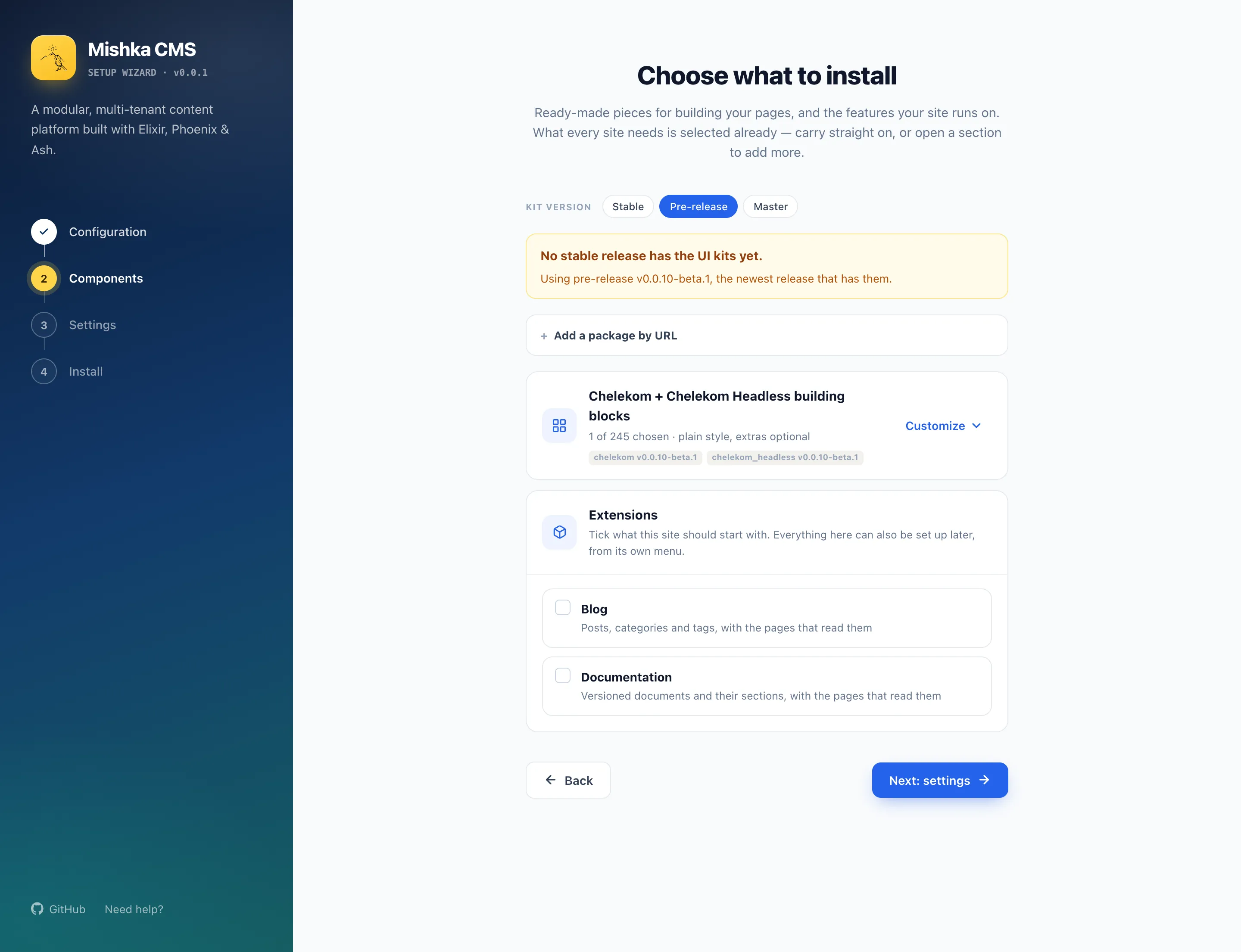
The Components step offers the UI kits and the extensions.
Click Next: settings. The button stays disabled until the download ends.
If the download fails, the step says The UI-kit packages could not be found. or No UI-kit bundle could be loaded. Click Retry download, or carry on and add components later from the admin.
Step 5: Set the essentials
The Settings step opens on Essential settings:
- Site title starts as the site name you entered. It appears in the browser tab and wherever the site names itself.
- Outgoing email "from" address starts as
noreply@followed by your domain. Forlocalhostit starts as[email protected], because the domain of an address needs a dot. - Add a starter home page is ticked and disabled. Its note reads always added, with the header and footer every page is drawn in. Every install writes a home page, the header, the footer and the layout that draws them.
Under Languages, English (en) is listed and marked primary. A visitor whose address names no language is answered in the primary one. To add a language, type its name or code in Search by name or code… and click a match. Make primary moves a language to the front, and the button with an x removes it.
Under Language in addresses, choose No prefix for the primary language or A prefix for every language. For a site that also publishes Persian, the first gives /blog and /fa/blog, and the second gives /en/blog and /fa/blog. The settings page changes both choices later.
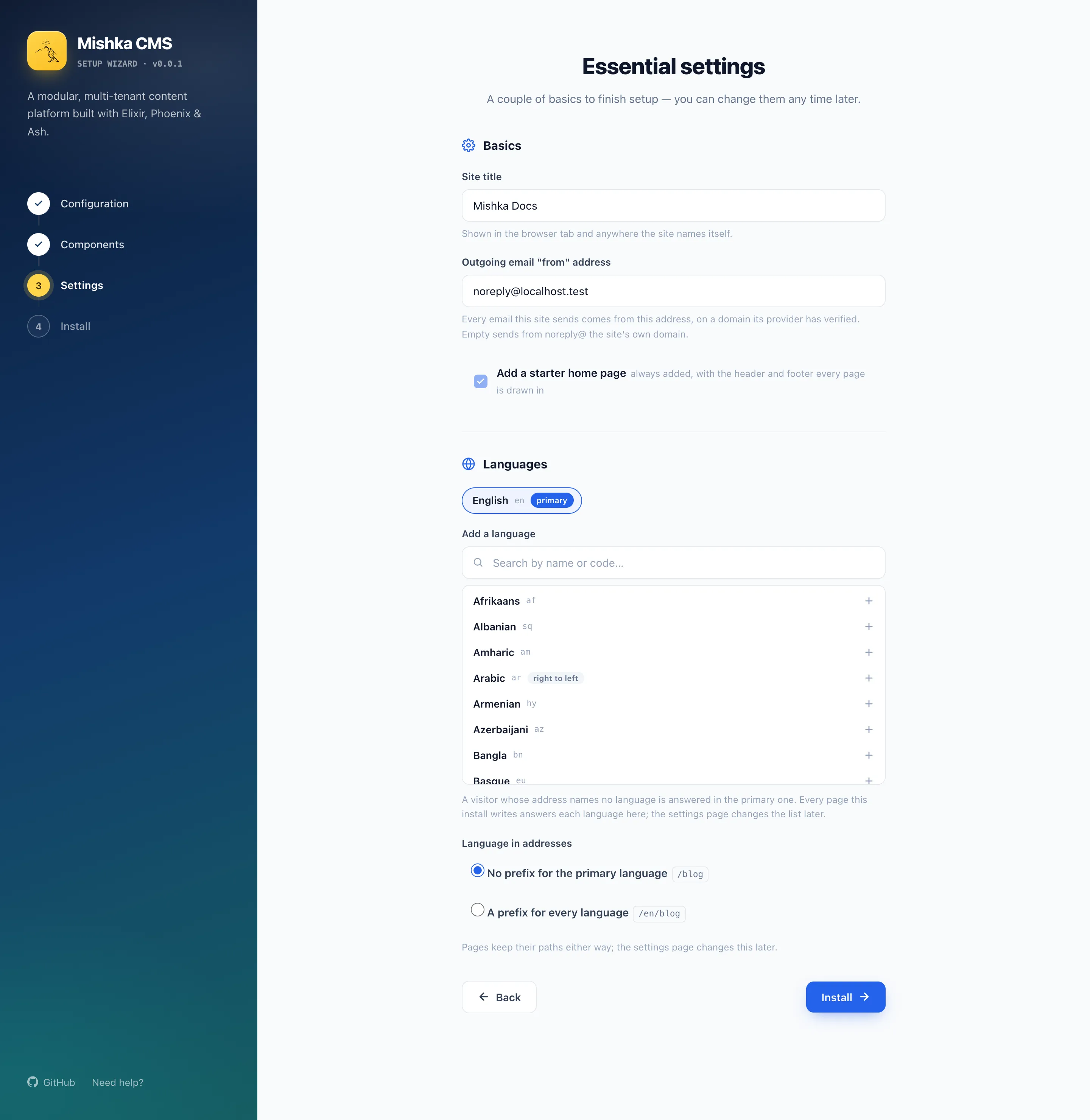
The Settings step holds the site title, the sender address and the languages.
Click Install.
Step 6: Watch the install run
The wizard lists the install steps, from Preparing permissions through Creating the first site, Adding starter content and Adding sign-in pages to Finishing up. It marks each one as it starts and ends.
When every row is done, Installation complete appears. Click Continue. The wizard says your site is ready and shows the dashboard address, /admin/dashboard.
If a step fails, an Installation failed banner shows the reason, and Back to settings returns you to the form. An extension that fails does not fail the install. Its row says it could not be installed, and its own menu offers to set it up again.
Step 7: Sign in as the master admin
Click Go to login. It opens the site's sign-in page for masters at /auth?master_user=true. If you chose a prefix for every language, the address starts with the language, as in /en/auth?master_user=true. The page greets you with Welcome back. Enter the email and password from step 3 and click Sign in.
The CMS signs you in and sends you to the site's home page. Open http://localhost:4000/admin/dashboard. The dashboard greets you, for example with Good morning, master, and the sidebar groups its screens under Runtime, Account and Plugins. Plugins lists the extensions your project includes, Blog and Documents in a standard project.
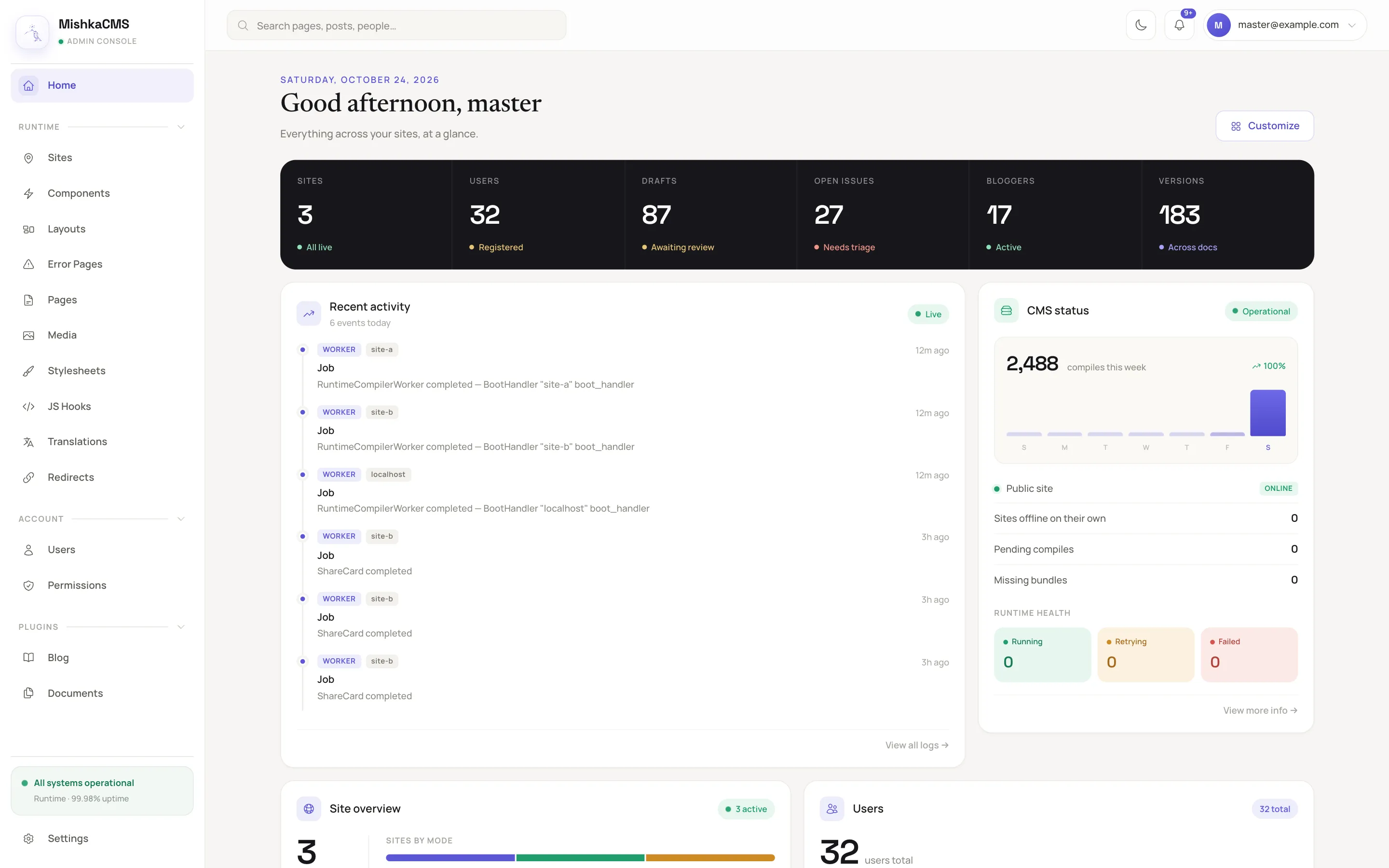
A fresh install opens on the dashboard with the sidebar on the left.
What you learned
- The CMS keeps sending visitors to
/installuntil a master account and a site exist. - The wizard creates the master admin, the first site, the UI components, a home page with its header, footer and layout, and the sign-in pages in one run.
- A master signs in at
/auth?master_user=true, a site account on the master site at/auth?master_user=false, and the admin lives at/admin/dashboard.
Next steps
- Your first site: edit the starter pages: change the words on the home page the installer wrote.
- Start a blog: set up the Blog extension and publish a post.
- Sites, masters and global records: how one install holds many sites.
- Add a site and its domain: a second website on the same install.