Reuse work with snippets and design tokens
v0.0.1
The Studio is a panel in the visual editor that holds what you reuse. A snippet is a piece of markup you saved once and insert again. A design token is a named value, such as a colour, that every component on the site reads. This guide saves and inserts a snippet, changes a token, and sets the options a component starts with.
Before you begin
- Sign in with an account that can open a builder, such as
admin:dashboard:runtime:pageoradmin:dashboard:code. See How permissions work. - Open a page, layout, error page or component in the editor. Snippets are saved per builder: one saved in the page builder is offered in the page builder.
- Click Studio in the top bar. Its tabs include Tokens, Classes, Presets, Snippets, Registry and Settings.
Save a snippet
- Click an element on the canvas to save just that element. Select nothing to save the whole document.
- In the Studio, open the Snippets tab. The Save as snippet box names what it will save: the element's tag or whole page.
- Type a name in Name this snippet…. It takes 2 to 120 characters.
- Choose who sees it.
- Click Save selection as snippet. With nothing selected, the button reads Save this page as a snippet.
| Choice | Who can insert it |
|---|---|
| This page | Editors of this one document. Offered once a document is open, and preselected when an element is selected. |
| Shared | Every editor on this site. |
| All sites | Every editor on every site. Only a master sees this choice. |
Two snippets in the same place cannot share a name. Saving a name that is taken answers A snippet with that name is already saved here.
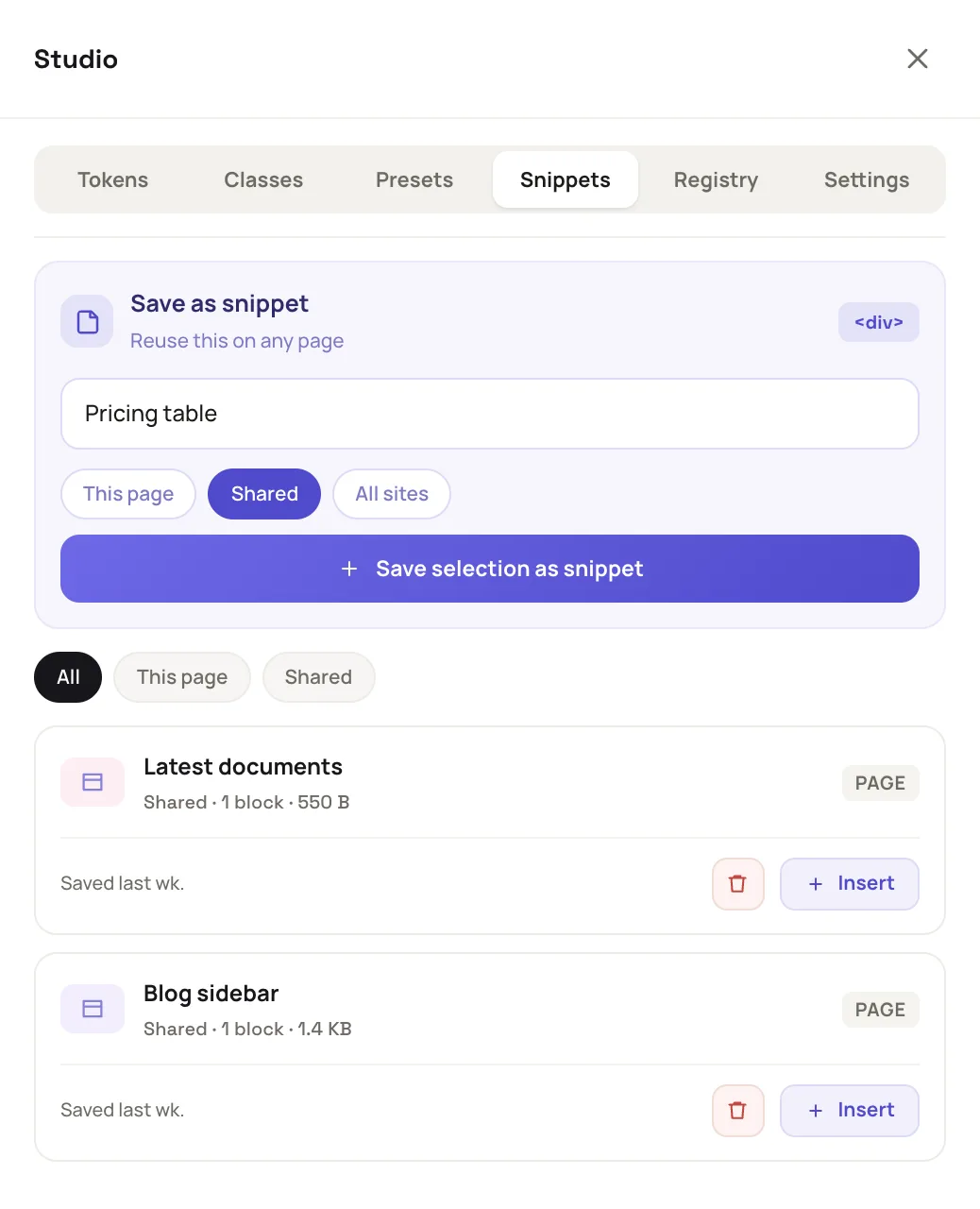
The Save as snippet box sits at the top of the Snippets tab.
Insert or delete a snippet
The list under the box shows each snippet with its scope, its block count and its size. The chips All, This page and Shared filter it.
- Click Insert to place the snippet at the selection. You can also drag its row onto the canvas.
- Click the trash icon, Delete snippet, to remove it.
A site account deletes only its own site's snippets. A snippet saved for All sites belongs to every site, so only a master removes it.
Change a design token
Open the Tokens tab. The list is grouped by Color, Typography, Spacing, Radius, Shadow, Motion and Breakpoints. A group shows only when the site has tokens in it.
Above the list, the format tabs Tailwind, CSS vars, Tokens JSON and Elixir choose how each row names its token. They also choose the file in the Generated output row at the bottom, which has a Copy button. Under the format tabs, the chips filter the list: All, Color, Type and Space, then Radius, Shadow, Motion and Breakpoints for the groups the site has, and Custom once a token has been changed. The list has no search box. It loads in pages, so click Load more tokens to see the rest.
- Find the token. Click a chip to narrow the list, or click Load more tokens until the row appears. A token with a hex colour has a swatch you can click to pick a colour.
- Type a new value in the box at the end of its row, such as
#c2410cor1.25rem. The editor saves when you stop typing. - Watch the canvas. Every component that reads the token changes.
A value cannot be empty, longer than 200 characters, or contain ;, {, } or a CSS comment. A token the site does not declare answers This site does not declare that token.
A site's change is saved as an override in that site's own theme stylesheet, named studio-tokens. It never edits the kit's shared stylesheet, so other sites keep their values. The CMS then rebuilds the site's CSS.
Three marks help you read the list. Custom marks a token declared in a stylesheet of the site itself. A token you change gets the badge, because the change is saved in the site's own studio-tokens sheet. Unused marks one that nothing reads. A number such as 12× counts how many other declarations read the token. The number beside Studio in the top bar counts the custom tokens.
The Studio changes tokens that already exist. To add a new one, click New token. It opens Stylesheets, where you add the declaration. See Add custom CSS, JS hooks and components.
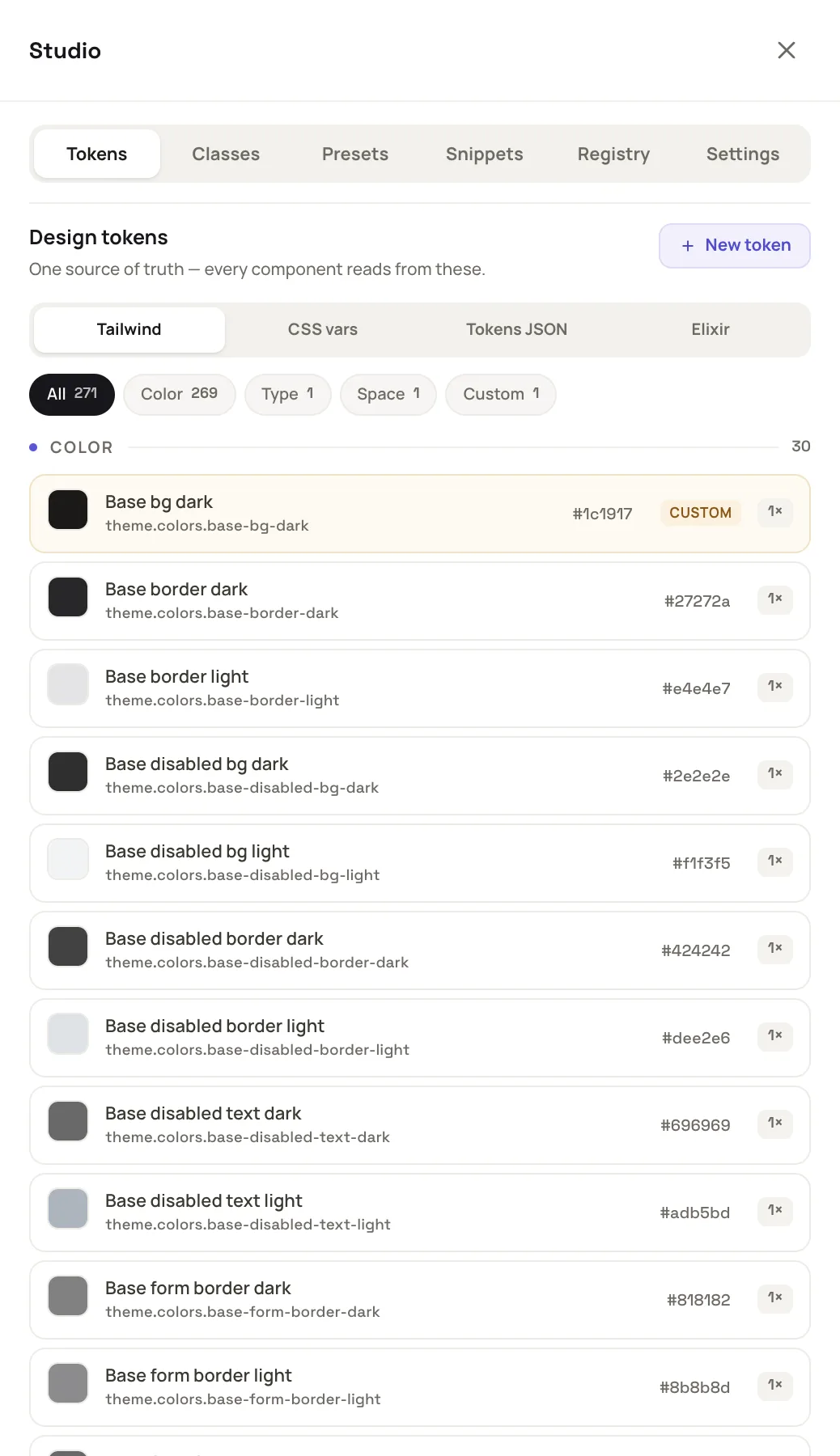
Each token row has a value box that writes straight to the site's theme.
Set what a component starts with
A kit ships one set of defaults. If your site always wants a different set, save it once.
- In the left panel, open the Components tab.
- Click the small ! in the top left corner of a component's card. It appears on a component that has examples or options.
- In the Wizard tab, which appears for a component that has options, choose them. The preview updates as you pick.
- Click Make this the default. Every component of that kind you place on this site now starts with these options.
The button then reads Update the default. The × beside it, Go back to the kit's own default, clears your choice. An option left at the kit's default is not stored, so a kit update still reaches it.
Example: reuse a section and warm a colour
- Build a pricing section on one page. Click its outer element.
- Open Studio, then Snippets. Type Pricing table, choose Shared and click Save selection as snippet.
- Open another page in the editor. In Studio, Snippets, click Insert on Pricing table.
- Open Tokens, choose Color, and change a brand colour token to a warmer value. Both pages now use it.
Next steps
- Add custom CSS, JS hooks and components: declare a new token or write your own styles.
- Components and UI kits: where the defaults a preset overrides come from.
- Build a page in the visual editor.