Visual editor keys, commands, blocks and starters
v0.0.1
This page lists every keyboard shortcut, command, element, section and starter structure of the Mishka CMS visual editor. Use it to look up a name or a key. To learn the editor step by step, read Build a page in the visual editor.
On a Mac the shortcuts use ⌘ and ⇧. On Windows and Linux, use Ctrl in place of ⌘ and Shift in place of ⇧.
Keyboard shortcuts
The editor reads these keys on the canvas and on the panels around it.
| Keys | Action | Notes |
|---|---|---|
| ⌘Z | Undo | Works while you type in a field. |
| ⇧⌘Z | Redo | Works while you type in a field. |
| ⌘S | Save the draft now (Save draft now) | Writes the draft. It does not publish. |
| ⌘C | Copy the selected element | Needs a selection. |
| ⌘X | Cut the selected element | Needs a selection. |
| ⌘V | Paste after the selected element | Needs a selection. |
| ⌘D | Duplicate the selected element in place | Needs a selection. |
| ⇧⌘H | Hide the selected element from visitors, or show it again | The element stays in the page. ⌘H alone is left to the system. |
| Delete or Backspace | Delete the selected element | Needs a selection. |
| ⌘K | Open or close the command palette | See the Commands section below. |
| ⌘/ | Show or hide the code drawer | The drawer shows the generated source. |
| ⌘P | Turn preview on or off | Preview turns the editor chrome off. |
| ⇧1 | Fit to screen (Fit to screen) | Sets the canvas zoom back to 100%. No ⌘ is needed. |
| Esc | Close the topmost layer, or clear the selection | Closes an open media preview first, then a folder form. Otherwise it clears the selection and the block you picked from the palette, and closes the open sheet. |
These rules apply to every shortcut:
- The editor reads the physical key, not the character it produces. ⌘Z is the key where Z sits on a US keyboard, so it works on a Persian or Russian layout as well.
- While you type in a field, a text input or text you are editing on the canvas, the keys are left to the field. ⌘Z and ⇧⌘Z are the two exceptions.
- A key held down acts once. The editor ignores auto-repeat.
- With no element selected, a shortcut that needs one answers Select an element on the page first.
Gestures
| Gesture | Result |
|---|---|
| Double-click text on the canvas | Edits the text in place as plain text. |
| Enter, ⌘Enter or Esc while editing text | Finishes the edit and keeps the text. Clicking outside the text does the same. |
| ⇧Enter while editing text | Inserts a new line. |
| Double-click a node that a single click selects around, such as an expression or a comment | Selects that node itself instead of the element around it. |
| ⌘-click an element on the canvas, or a row in Layers | Holds a second element beside the selection instead of replacing it. |
| Right-click an element on the canvas, or a row in Layers | Opens the context menu, described below. |
| ⌘Enter in the code drawer or the code window | Applies the markup or the CSS you typed, the same as the Apply button. |
Commands
Press ⌘K to open the command palette. Its input reads Jump to a page, or run a command…. The palette has two lists. Actions holds the commands below, in this order. Go to holds the admin pages the signed-in account can open.
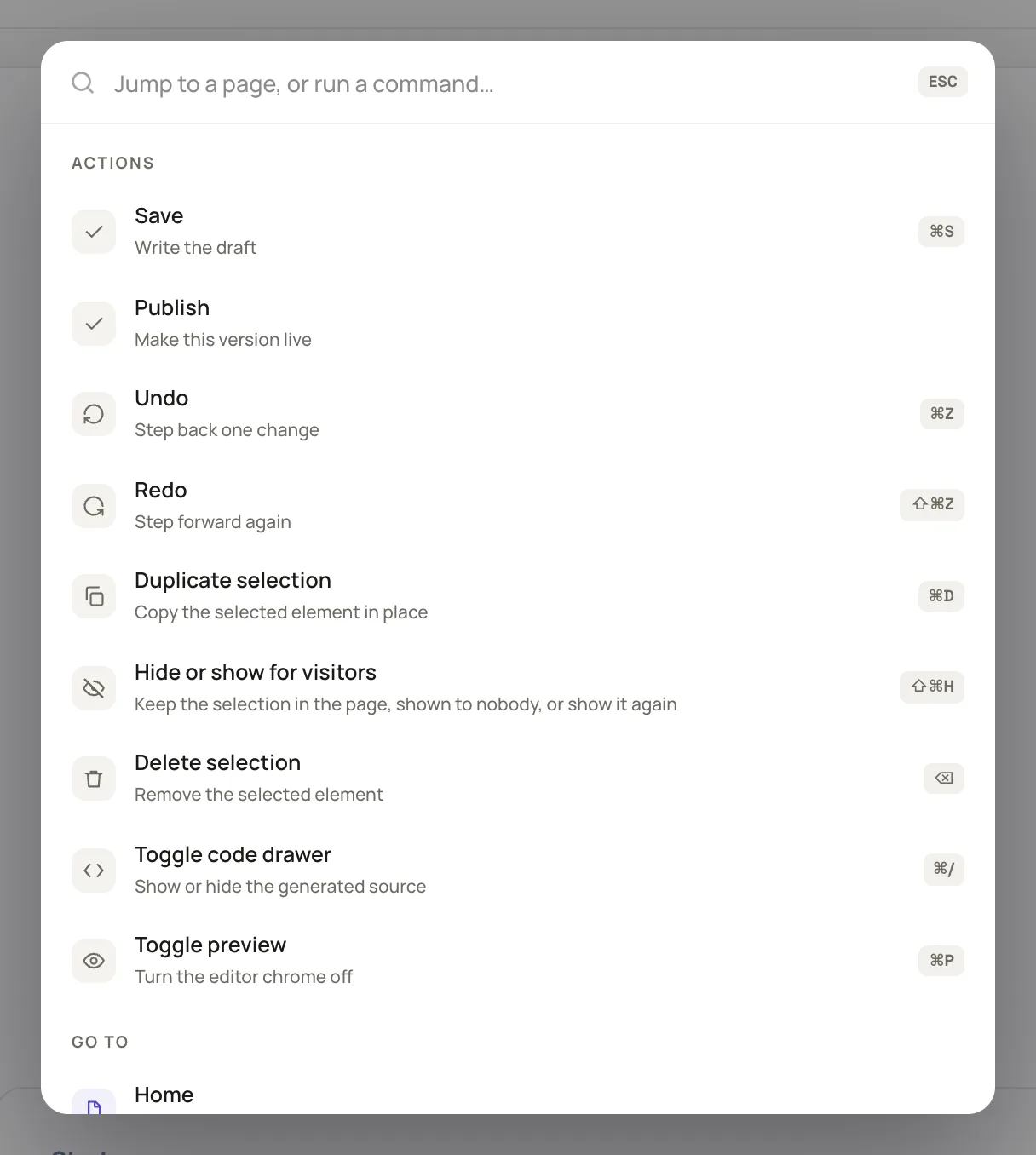
The command palette lists the editor's actions, then the admin pages you can reach.
| Command | Key | Shortcut | What it does |
|---|---|---|---|
| Save | save | ⌘S | Writes the draft. |
| Publish | publish | None | Makes this version live. |
| Undo | undo | ⌘Z | Steps back one change. |
| Redo | redo | ⇧⌘Z | Steps forward again. |
| Duplicate selection | duplicate | ⌘D | Copies the selected element in place. |
| Hide or show for visitors | toggle_visibility | ⇧⌘H | Keeps the selection in the page but shown to nobody, or shows it again. |
| Delete selection | delete | ⌫ | Removes the selected element. |
| Toggle code drawer | toggle_code | ⌘/ | Shows or hides the generated source. |
| Toggle preview | toggle_preview | ⌘P | Turns the editor chrome off. |
A plugin can add commands to this list on the builder:commands event. A command can name the permission that shows it, and the palette leaves out the ones the account does not hold. See Plugin events.
Elements
The Blocks tab of the left panel lists elements first, grouped by category, then the sections. The tab has the search box Search elements and sections… and one filter chip per category. Click an element to arm it and then click where it goes, or drag it onto the canvas.
Every element is plain HTML with Tailwind classes, so it works on a site with no UI kit installed. Text elements arrive with placeholder words you type over. Containers arrive empty, and the canvas draws a dashed outline around an empty one while you edit.
Layout
| Element | What you get |
|---|---|
| Section | A band across the page. The usual outermost wrapper. |
| Container | Centred, width-capped, with side padding. |
| Main | The primary content of the page. Use one per page. |
| Article | A self-contained piece, such as a post or a card body. |
| Aside | Content beside the main thread, such as a sidebar. |
| Header | Introductory content for the page or a section. |
| Footer | Closing content for the page or a section. |
| Nav | A group of navigation links. |
| Box | A plain div, for when nothing more specific fits. |
| 2 columns | Side by side on desktop, stacked on mobile. |
| 3 columns | Three across on desktop, stacked on mobile. |
| 4 columns | Four across on desktop, stacked on mobile. |
| Row | Children in a line, vertically centred. |
| Stack | Children one under the next, evenly spaced. |
| Spacer | Empty vertical room between two things. |
| Divider | A horizontal rule. |
Text
| Element | What you get |
|---|---|
| H1 | The one top-level heading of the page. |
| H2 | A section heading. |
| H3 | A sub-section heading. |
| H4 | A fourth-level heading. |
| H5 | A fifth-level heading. |
| H6 | A sixth-level heading. |
| Paragraph | A run of body copy. |
| Link | An anchor. Set where it goes in the Inspector. |
| Bulleted list | An unordered list with three items. |
| Numbered list | An ordered list with three items. |
| Quote | A pulled quotation. |
Media
| Element | What you get |
|---|---|
| Image | An image. Pick the file from Assets after you place it. |
| Figure | An image with a caption under it. |
Forms
| Element | What you get |
|---|---|
| Form | A working form with one field. Rename it in the Inspector. |
| Fieldset | Groups related fields under a legend. |
| Label | Names a field. Set its For to the id of that field. |
| Text input | A single line. Bound to the form it lands in. |
| Text area | Several lines. Bound to the form it lands in. |
| Select | One choice from a list. |
| Checkbox | A yes or no. It sends false when it is left unticked. |
| Radio group | One choice from a few, all sharing one name. |
| Submit button | Sends the form to the handler of the page. |
Dynamic
| Element | Offered in | What you get |
|---|---|---|
| Page content | Layouts only | Where the page that the layout wraps is rendered. Every layout needs one. |
| Component content | Components only | Where whatever is put inside the component is rendered. |
| Property value | Components only | One of the declared attributes of the component. Rename it in the Inspector. |
| Expression | Every document | Any Elixir expression the document can evaluate. Edit its source in the Inspector. |
See Design the site layout for the Page content element and Add a form to a page for the form elements.
Sections
Below the elements, the Blocks tab lists whole sections under the heading Sections. A section arrives with sample copy that you edit down, and it drops in as one undoable step. Each one opens with a band tag, so it lands beside the other bands of the page.
| Section | Category | What you get | Offered in |
|---|---|---|---|
| Hero | Header | A headline, a line of copy and two buttons. | Every document |
| Features ×3 | Content | Three columns of title and text. | Every document |
| Features ×4 | Content | A row of four cards with a title and a line each. | Every document |
| Text + image | Content | Copy on one side and a picture on the other. | Every document |
| Stats | Content | Three numbers with labels. | Every document |
| Pricing | Commerce | Three plans, with the middle one highlighted. | Every document |
| Call to action | Footer | One line and a button. | Every document |
| Contact form | Forms | Name, email and message, checked as the visitor types. | Pages only |
| Fieldset group | Forms | Related fields under a legend, inside a form. | Pages only |
| Newsletter signup | Forms | One email field and a button on a line. | Pages only |
| Subscribe box | Forms | An email field and a button that share one rounded border. | Pages only |
| Footer | Footer | Three link columns and a line of small print. | Every document |
The form sections are bound to handlers that only a page can hold, so layouts, components and error pages do not offer them. A plugin can add elements and sections on the builder:elements and builder:blocks events.
Starters
A document with nothing in it opens on the starter chooser. The heading reads This page is empty, or This layout is empty, This error page is empty or This component is empty, and the text under it reads How do you want to start? Pick a structure and begin filling it in. Click a card to insert that structure. A structure is scaffolding with no copy in it.
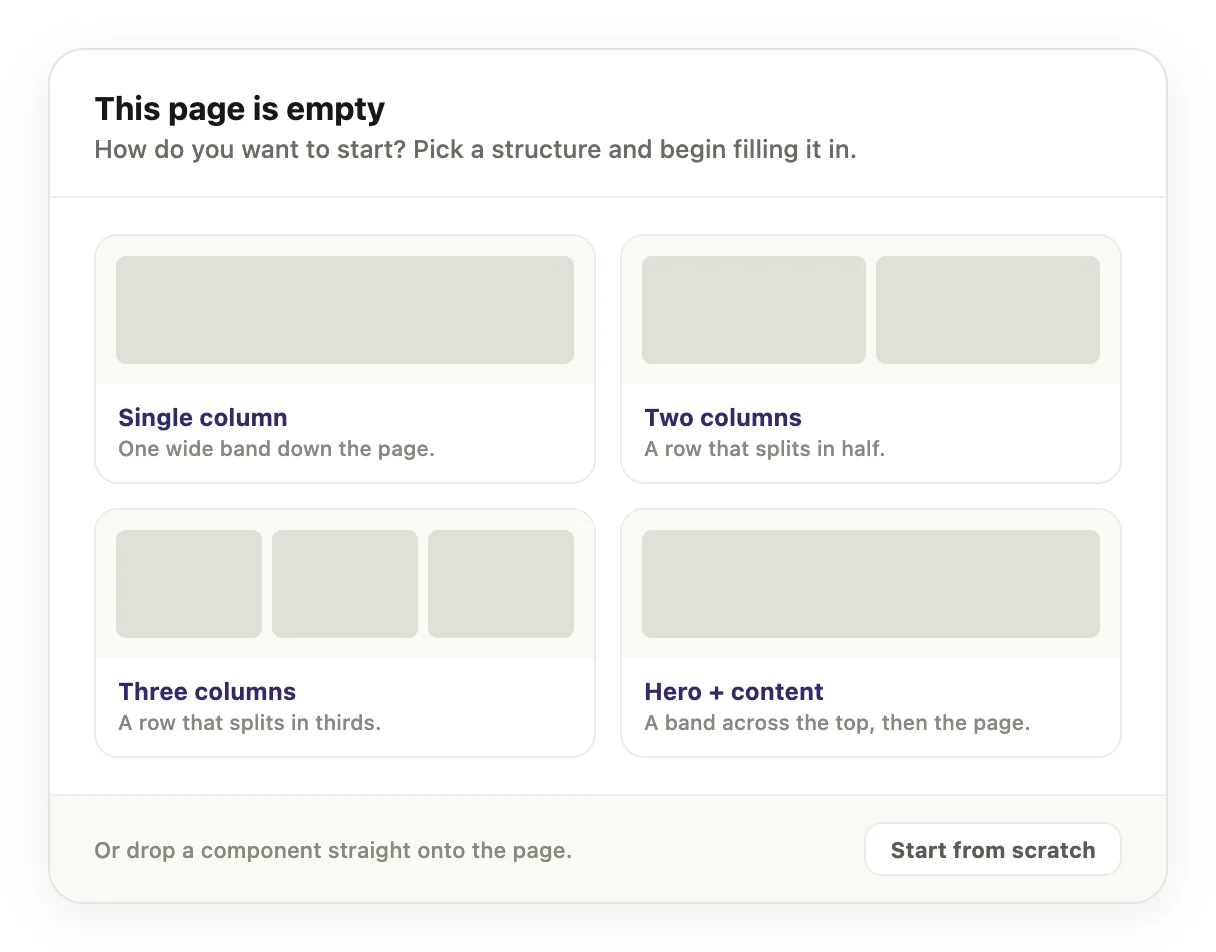
The starter chooser appears on a document that has nothing on it yet.
| Starter | Id | Columns | What you get |
|---|---|---|---|
| Single column | single | 1 | One wide band down the page. |
| Two columns | two | 2 | A row that splits in half. It stacks on small screens. |
| Three columns | three | 3 | A row that splits in thirds. It drops to two columns, then one, on smaller screens. |
| Hero + content | hero | 1 | A band across the top, then the page. |
The button Start from scratch skips the structures. It leaves a single empty main element, tall enough to drop the first thing on. A plugin can add starters on the builder:page_starters event.