Design the site layout
v0.0.1
A layout holds the parts every page shares, such as the header, the footer and the navigation. Each page picks one layout, and the layout draws the page inside itself. This guide builds a layout in the visual editor, publishes it and chooses it for a page.
Before you begin
- Sign in with an account that can open the layout builder. It needs
admin:dashboard:runtime:layoutoradmin:dashboard:code. See How permissions work. - Every site already has a layout named
site-main, which draws, from top to bottom, the header, the section bar of a section such as the blog, the page and the footer. The header shows a language switcher for a page in two or more languages. You can edit it instead of making a new one. - A layout with no site belongs to every site, and only a master can edit it. A site account can pick it for its pages and edit its own site's layouts. See Sites, masters and global records.
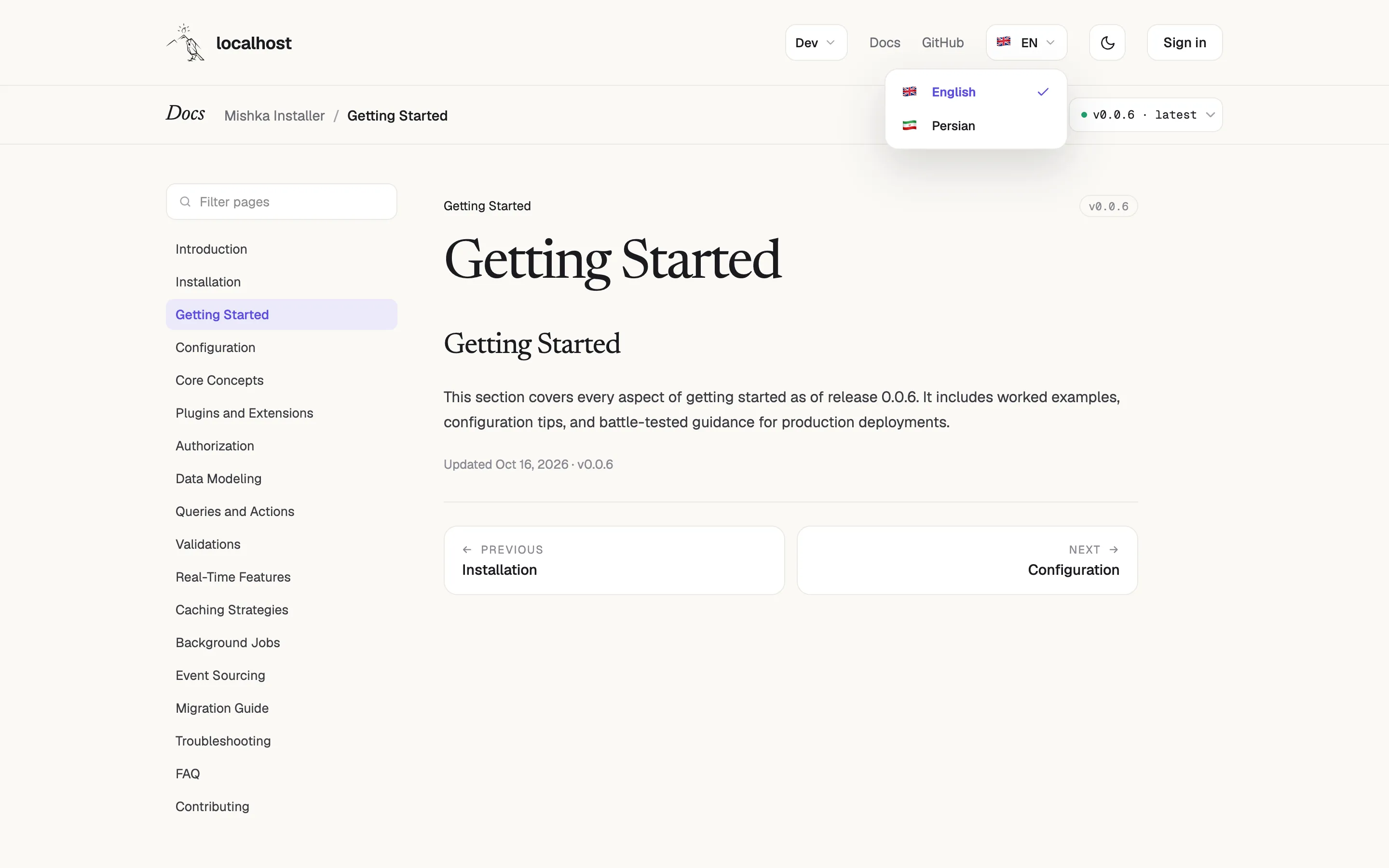
The site-main layout draws the header, the section bar, the page and the footer.
Create the layout
- In the admin sidebar, under Runtime, click Layouts.
- Click + Add Layout. The editor opens with the Name your layout dialog.
- Enter a Name and a Path. The path must differ from every other layout path on the site. The starter layout uses
/layouts/site-main. - If you are signed in as a master, choose the Site, or leave it on Global (no site) for a layout every site can use.
- Click Create.
A new layout is saved as inactive and starts as one centred container that already holds the place where the page goes. Publishing makes it active.
Keep the page in the layout
A layout draws a page through one expression, @inner_content. On the canvas it appears as a chip. If that chip is gone, every page that uses the layout shows the header and footer and no content.
- Build the header and footer around the chip. In the left panel, the Blocks tab has the Header, Nav and Footer elements and the Footer block, and the Components tab has the site's own components.
- To put the chip back, open the Blocks tab, search for Page content, click it, then click the canvas or a row in Layers to say where it goes. It lands at the end of the container you click. You can also drag the card onto the canvas. The element is only offered in the layout builder.
- Keep it visible. If you hide the element that holds it from visitors, the layout stops drawing the page.
The Audit tab checks this. Its Structure group reads The page renders inside this layout when all is well and This layout renders no page when it is not.
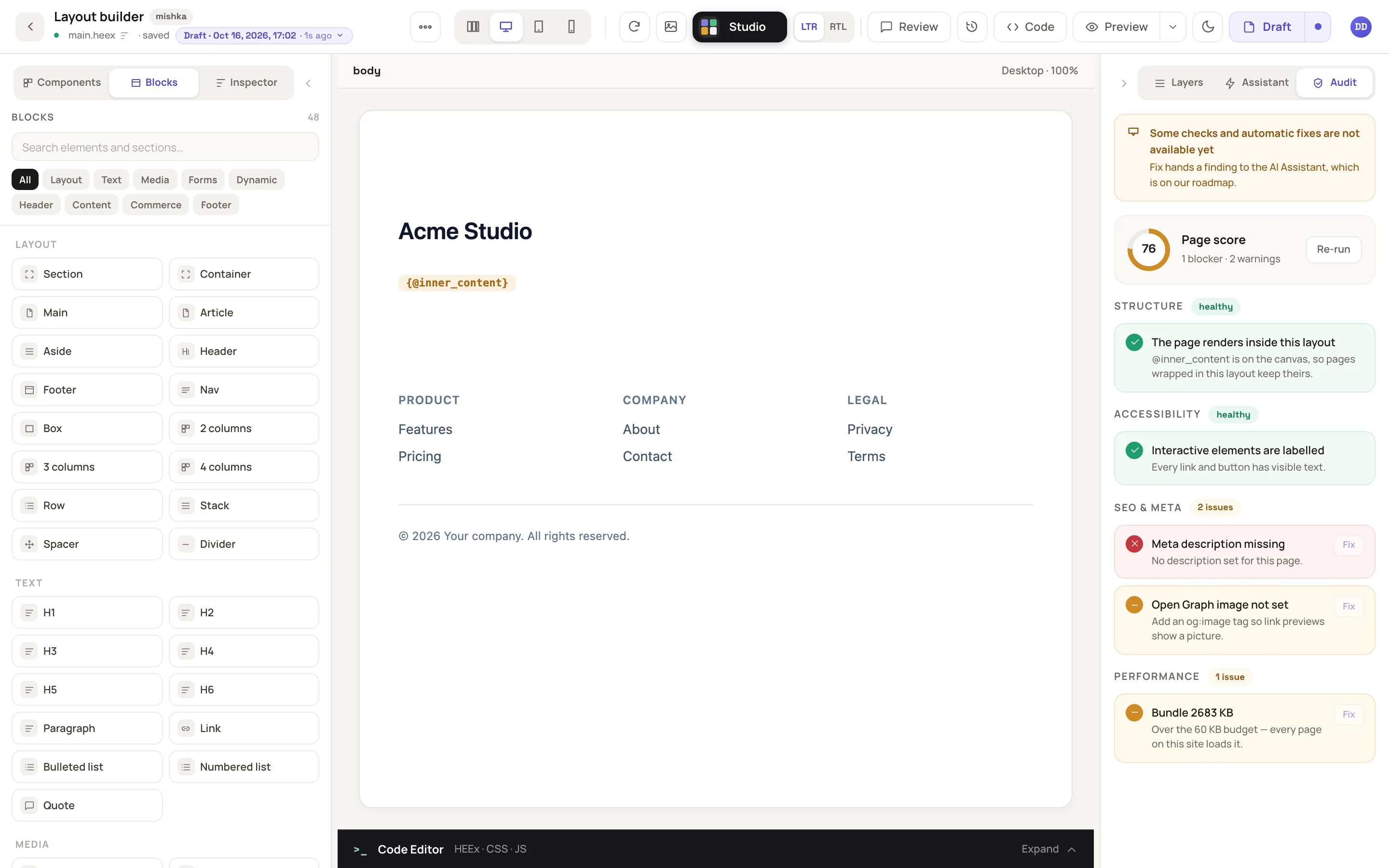
The chip in the middle is where each page appears.
Publish the layout
- Click Draft at the top right, then choose Published. The button changes to Publish.
- Click Publish. The editor confirms with Layout published.
The CMS compiles the layout in a background job, and the pages that use it update.
Choose the layout for a page
- Open the page in the visual editor.
- Click the page's name at the top left, shown as a file name such as
about.heex. It carries the tooltip Name and path. The Page settings window opens on its General tab. - In Layout, search for the layout and pick it. The list holds No Layout, the page's own site's layouts and the shared ones. Every site starts with two layouts,
authfor its sign-in pages andsite-mainfor every other page, so a fresh site lists No Layout,auth,site-mainand any layout you made. No Layout draws the page inside the application's default layout. - Click Save Changes.
In the Pages list you can do the same: click View on the row, then Edit, or click the pencil icon, Edit, on the row itself. Then set Layout in the form.
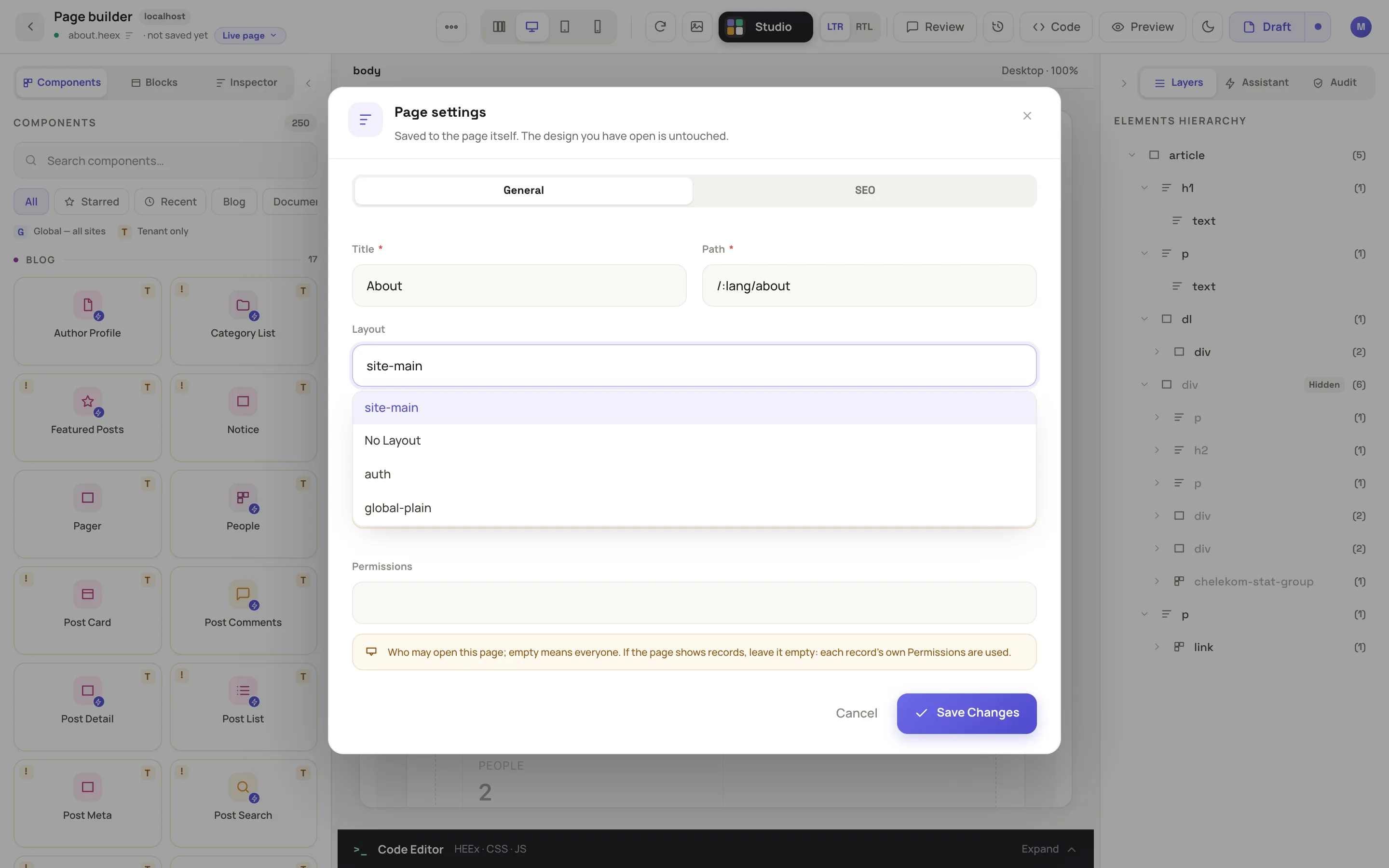
The Layout field lists the site's layouts and the shared ones.
Next steps
- Build a page in the visual editor: what goes inside the layout.
- Draw an extension's pages in the site layout: for developers, hang an extension's pages on
site-main. - Customize error pages: error pages are drawn in their own shell, not in a layout.
- Add custom CSS, JS hooks and components: styles and components for the header.