Translate a page
v0.0.1
In Mishka CMS, a translation is a page of its own: the same content in another language, at its own address, grouped with the original. This guide creates a translation from the Pages list, translates it in the visual editor, and publishes it. To translate the single words that a template asks for with t(), see Translate interface words with t().
Before you begin
- Sign in with an account that holds
admin:dashboard:runtime:pageoradmin:dashboard:code, or a wildcard that covers one of them, such asadmin:dashboard:*. Without one, the Add translation action does not appear. See How permissions work. - Add the new language to the site's languages. A page whose path has
:langanswers only the languages the site lists. See Set a site's languages and language URLs. - Have the language's code: two or three lowercase letters, such as
faorde, with an optional region, such aspt-br.
Add the translation
- In the admin sidebar, under Runtime, click Pages.
- Find the page. The Languages column shows the language it is written in, and a chip for each edition it already has.
- Click Add translation on the page's row. The dialog opens with the page's name above the form.
- In Language, type the code of the new language. The box suggests the site's languages that the page has no edition in yet, then languages that other pages of the site use. The first suggestion is already filled in.
- Check Path. It follows the language until you type a path of your own.
- Click Create translation.
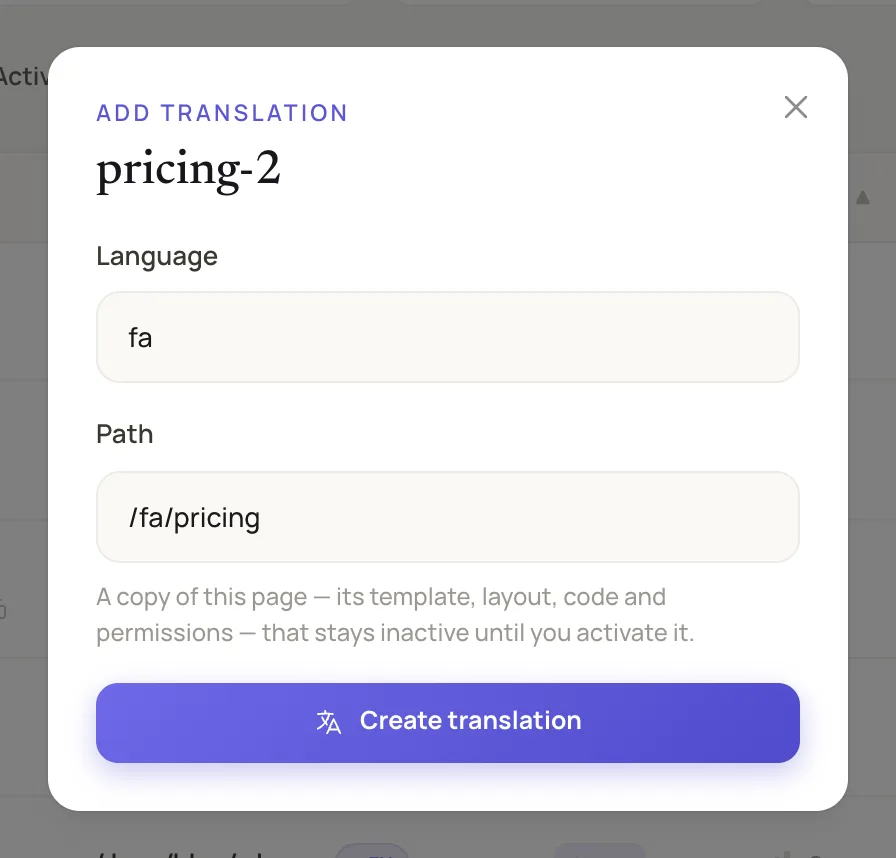
The dialog suggests a path from the language you type.
The suggested path swaps the language into the page's path:
| The page's path | New language | Suggested path |
|---|---|---|
/about | fa | /fa/about |
/:lang/about | fa | /fa/about |
/docs/en/intro, written in en | fa | /docs/fa/intro |
A path with no :lang segment and no segment that names the page's language gets the new language as its first segment, as the first row shows.
If the page's path has :lang and the site does not list the new language, a note appears under Path. It says the address takes its language from the site's list, so add the language there. A literal path such as /de/about answers whatever language it is written in, so the note is a hint and not a refusal.
What the copy holds
The CMS creates the page and opens it on the Configuration tab, with a message that the translation is inactive.
- The translation is a copy of the page: its template, layout, permissions, SEO tags and code. Only the name, path, language and Active differ.
- Its name is the page's name followed by the language, such as
pricing-fa. - It joins the original's language group, so the Pages list shows both as one row.
- It is inactive, so its address stays closed until you activate it.
Translate the content
- In the modal's header, click Visual Editor. To come back later, click the new language's chip on the original's row, then click Visual Editor.
- Replace each text with its translation. See Build a page in the visual editor.
- On the Configuration tab, change Title, and under the SEO fields change Description. See Set a page's SEO and share card.
The translation is a page of its own. Its elements and their CSS are copies, so a style change on one page does not change the other.
Words that the template asks for with t() are not translated here. They have their own rows on the Translations screen.
Activate the translation
Use either way:
- In the visual editor, click Draft, choose Published, then click Publish. Publishing makes the page active.
- On the Configuration tab, set Active and click Save Changes.
Check the result
- The original's row on the Pages list shows a chip for the new language. Click the chip to open that edition.
- Open the translation's address, such as
/fa/pricing. The page'slangand text direction follow its language, so a Persian page reads right to left. - The language dropdown in the header lists the page's languages, and picking one changes the page without a reload. See Changing language without a reload.
- Each edition's head lists the other editions as
hreflangalternates. A template can show language links with@page_languages.
If the CMS refuses
- A page with this language already exists in this language group. The page already has an edition in that language. Open it from its chip.
- Page path must be unique within a site. Another page holds the path. Type a different path.
- Choose a language and a path. One of the two boxes is empty.
- The page “…” at … already answers at … This appears when you activate a translation. Another active page already answers at that address. The message names the page and the address. Change the translation's path, or deactivate the other page.
Example: a Persian pricing page
- Add
fato the site's languages. - On the Pages list, click Add translation on the Pricing page, which lives at
/:lang/pricing. - Keep
fain Language and/fa/pricingin Path, then click Create translation. - Click Visual Editor and replace the English text with Persian.
- Click Draft, choose Published, then click Publish.
- Open
/fa/pricing.
Next steps
- Languages and language editions: how editions are grouped and which one an address answers.
- Translate interface words with t(): the words inside templates.
- Set a site's languages and language URLs: the list and the address style.
- Drafts, publishing and versions: what Draft and Publish do.