Customize error pages
v0.0.1
When a request fails, the CMS shows the site's own error page for that status instead of a bare browser message. Each site has one error page record that holds a separate page for each status, such as 404 or 500, and one for the time the site is offline. You edit each in the visual editor. This guide reworks a status page and adds a new one.
Before you begin
- Sign in with an account that can open the error page builder. It needs
admin:dashboard:runtime:error_pageoradmin:dashboard:code. See How permissions work. - A site has one error page record, written when the site is made. It is named after the site, such as
acme-docs errorsfor a site named Acme Docs, and holds a 404 page, a 500 page and an offline page.
Open the site's error page
- In the admin sidebar, under Runtime, click Error Pages.
- Click View on the site's row, then Visual Editor.
If the site has none, click + Add Error Page. The editor opens with the Name your error page dialog. Enter a Name, choose the Site if you are a master, and click Create. The Path box is read-only. The CMS fills it from the site, as /mishka-cms/errors/<site name>, because that is the address it looks the page up by. A site account that clicks + Add Error Page when its site already has one lands on the existing page, with a note saying so.
Pick a status
A strip above the canvas, labelled Status, has one button per status the record holds, such as 404, 500 and offline. Click one to edit that page. Each status is its own document, so the editor reloads when you switch.
To add a status, click + Status and pick one, such as 403 · Forbidden. The choices are the client errors from 400 to 451, the server errors from 500 to 511 and Offline. The new status is stored when you save what you build for it.
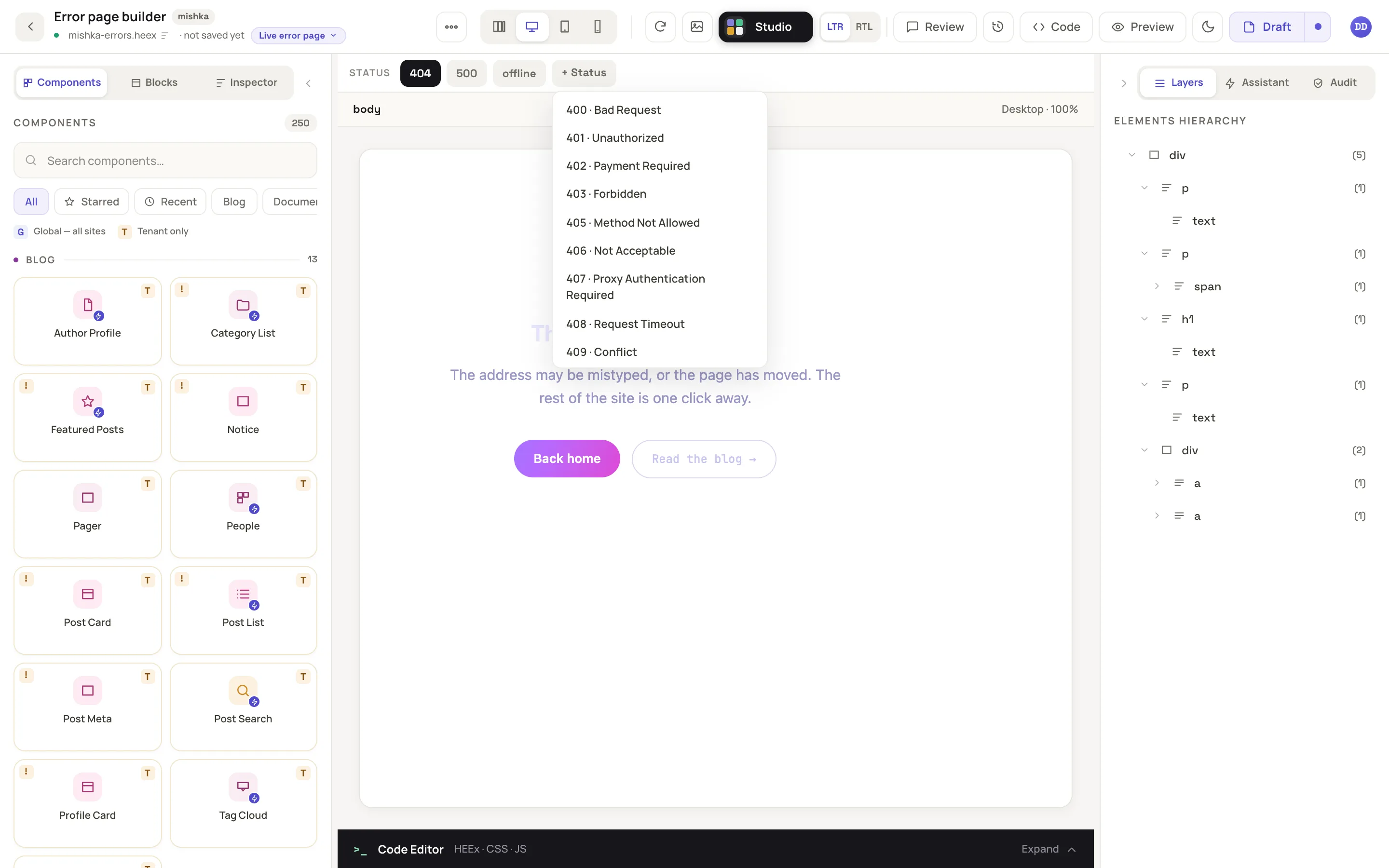
The Status strip switches between the pages of one error page record.
Design the page
An error page is built like any other page: drag blocks and components onto the canvas and edit the words in place. See Build a page in the visual editor. Two things differ.
- An error page is not drawn inside a layout from Layouts. It has its own shell, set in the Root Layout Template field of the full form. Each status can also have a Wrapper template that holds
{@inner_content}. - The page is drawn by the server alone, so click actions, JS hooks and forms do not work on it. A link works.
To reach those fields, click View on the row, then Edit. The form lists Error Pages, one entry per status with its Status, Template and Layout.
Check it, then publish
The Preview button shows the page you are editing. The shareable link carries the status, so a reviewer opens the same one. See Share a draft and collect comments.
To publish, click Draft at the top right, choose Published, then click Publish. The editor confirms with Error page published. Only the status you have open is written. Open each status you changed and publish it.
What visitors get
| Situation | What the visitor sees |
|---|---|
| A request fails with a status that has a page | That status page. |
| A request fails with a status that has none | The status name as plain text, such as Not Found. The server log notes the missing page. |
| The error page does not compile or raises | The status name as plain text. |
| The site is offline | The offline page, sent as a 503 at the address asked for. With no such page, the CMS draws a built-in holding page. |
A page locked to a permission shows every visitor without it, signed in or not, the site's 404 page. See How permissions work.
The site goes offline with the Take this site offline (maintenance mode) setting. Sign-in pages stay open, and admins of the site and masters see the real site. The starter offline page adds an Administrator sign in button. The button opens the sign-in page with ?master_user=false added, which signs in the site's own accounts. A master signs in at /auth?master_user=true on the master site. See the documentation.
Example: reword the 404 page
- Open Runtime, Error Pages, View, Visual Editor.
- Click 404 in the Status strip.
- Double-click the headline and type We could not find that page. Double-click the paragraph and point readers to the home page.
- Click Draft, choose Published, then click Publish.
- Open an address on your site that does not exist. The new words appear.
Next steps
- Design the site layout: the shell your normal pages share.
- Add a site and its domain: each site gets its own error page record.
- Settings: the offline switch and the maintenance message.