Translate interface words with t()
v0.0.1
A page, layout or component in Mishka CMS is a database row, so translation files cannot reach the words in it. You wrap each word in t("…") instead, and translate it per language on the Translations screen, with no deploy. This guide marks words in a template, translates them, and keeps the list tidy. To write a whole page in another language, see Translate a page.
Before you begin
- To change words, sign in with an account that holds
admin:dashboard:runtime:translation, or a wildcard that covers it, such asadmin:dashboard:*. Any dashboard admin can read the list. See How permissions work. - A site admin changes the words of their own site. Words shared by every site, called global words, are a master's to change.
- Add the languages you translate into to the site's languages. See Set a site's languages and language URLs.
Mark a word in a template
Pass the word to t/1 in the template of a page, layout or component:
<h2>{t("Categories")}</h2>
<p>{t("Read %{count} posts", count: @count)}</p>- The word, called the key, must be a string in double quotes written inside the call.
t(@label)is not registered, because its value does not exist until the page renders. - A
%{name}in the key is filled from the bindings you pass. t/1also works in the Elixir of the helpers, events, infos and state of a page, layout or component.
When you save the page, layout or component, the CMS adds a row for each key in every language the site publishes in. A global template gets rows in every language any site publishes in. The rows start empty, and until a language has a translation the page shows the key itself. A row that already exists is never changed, so saving a template again cannot erase a translation.
Translate the words
- In the admin sidebar, under Runtime, click Translations.
- Find the word. The list has one row for each key, with Key, Languages, Used and Site columns. A filled chip in Languages is a translated language, and a dashed chip is a missing one. Use Search, or the Language filter, to narrow the list.
- Click Translate on the row. The dialog lists every language of the word, each with its text or Missing. The first missing language is already picked.
- In Translation, type the text and click Save Changes. The CMS answers Translation saved and moves to the next missing language.
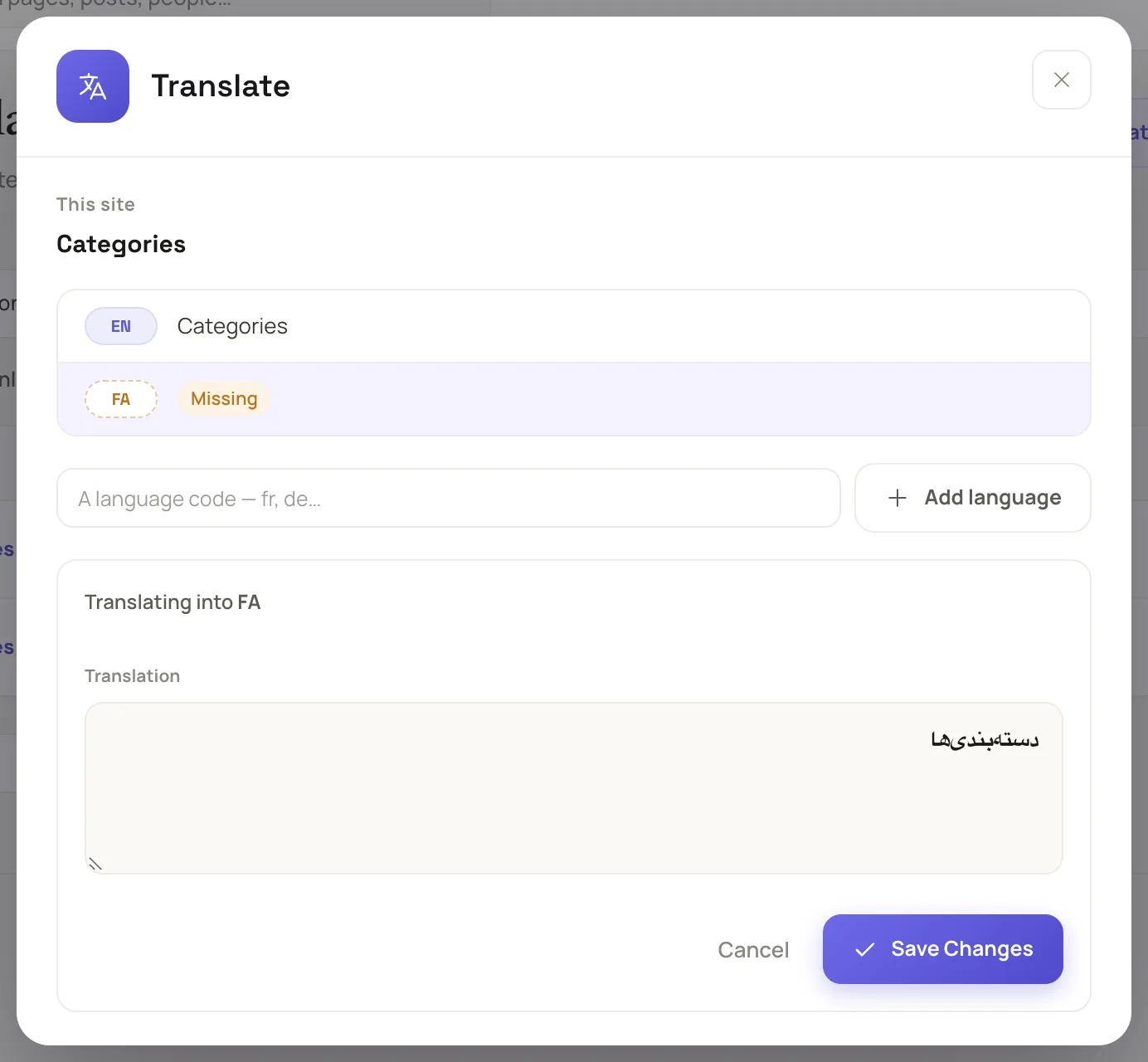
The Translate dialog lists every language of one word.
To leave a language on the key itself, leave Translation empty.
To translate into a language the dialog does not list, type its code in Add language. If the site does not publish that language yet, the CMS adds it to the site's languages first. A master can add only languages that the allowed list permits.
Translate from the visual editor
The editor lists the words of the document you have open.
- Click More, then click Translations.
- The Translations sheet lists the words of the page and of the components on it. A word you typed a moment ago is already there.
- Click Translate on a row, and fill in each language as above. Click All words to go back to the list.
A document with no t() calls shows This document asks for no translated words yet.
Add a word by hand
Use this to prepare a word before a template asks for it.
- On the Translations screen, click + Add translation.
- As a master, pick the Site, or leave it empty for a global word.
- In Key, type the exact text inside
t("…"). Spaces and case count. - Pick the Language, type the Translation, and click Create.
The language list offers only the languages of the site you picked. A translation in another language would never be shown, so the CMS refuses it.
Words an extension looks up
An extension can look up words that no template holds. Mishka Blog draws a bar under the header with the words Blog, Posts, Categories, Tags and People, and Mishka Document draws one with Docs. The extension registers its words on a site when you set it up there. They get a row in every language of the site, so they appear on the Translations screen, and you translate them like any other word. Until a language has a translation, the bar shows the word itself. When the site gains a language later, click Translate on one of these words, and the dialog adds the new language to it.
The extension also names these words on the runtime:translations:used_keys event. The Used column shows them as In use, and Remove unused keeps them. To do the same in an extension of your own, see Translate an extension's words.
Keep the list tidy
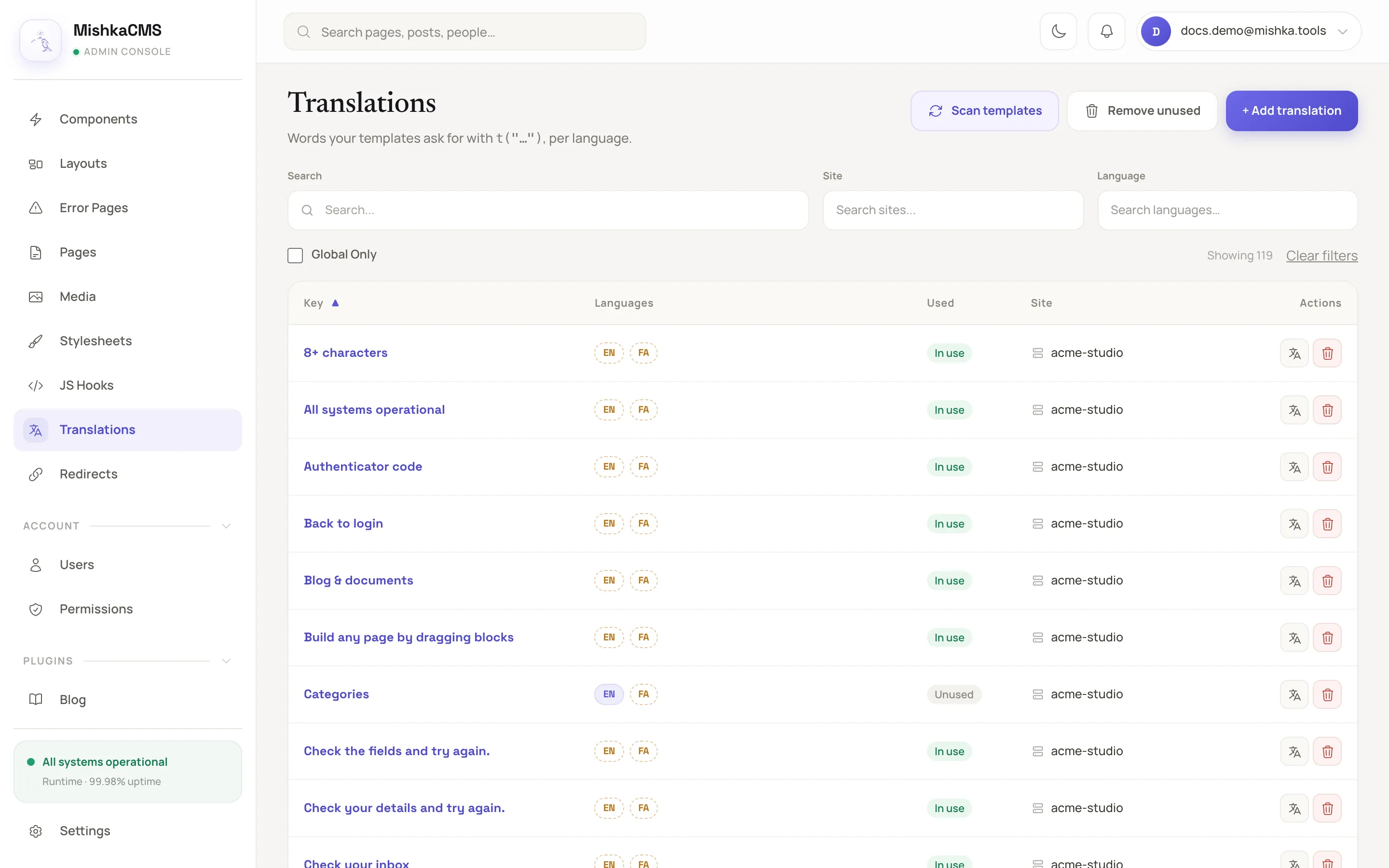
Three buttons above the list keep the rows in step with the templates.
- Scan templates reads every template again and adds the missing rows. Use it for templates saved before the site gained a language. It does not register the words an extension looks up, because no template holds them. The extension registers those when you set it up on the site.
- Remove unused opens Unused words, the rows that no template asks for and no plugin names any more. Delete one, or click Delete all. The Used column shows In use or Unused for each word. A word that a plugin names on
runtime:translations:used_keysis in use, so Remove unused keeps it. - Delete on a row removes the key in every language.
The CMS keeps unused rows until you remove them, because a renamed key is often renamed back.
How a word is chosen
When a page renders, t/1 looks for the key in the language the visitor reads, in this order:
- The site's own row.
- The global row.
- The key itself.
The CMS answers from memory, so rendering reads no database. The result is plain text, and the page escapes it, so a translation cannot add markup.
Example: a Persian heading
- Put
{t("Categories")}in a heading of a component that your pages use, then save the component. - Open Translations and click Translate on the Categories row.
- Pick the FA row, type دستهبندیها in Translation, and click Save Changes.
- Open a Persian page that shows the component, such as
/fa/pricing. The heading reads in Persian. On an English page it still reads Categories.
Next steps
- Languages and language editions: how words, pages and the site's list fit together.
- Translate a page: write a whole page in another language.
- Set a site's languages and language URLs: the languages a word can have.
- Translate an extension's words: register the words your own extension looks up, and keep them.