Send email from your site
v0.0.1
Mishka CMS sends the emails your visitors and admins ask for: a password reset, a sign-in link and an account confirmation. Extensions can send their own. Each site sends through the email provider you choose for it. This guide sets up a provider and a sender, sends a test email, and shows you how to read the email history when something does not arrive.
Before you begin
- Sign in with an account that holds
admin:dashboard:setting, or a wildcard that covers it, such asadmin:dashboard:*. See How permissions work. - Have an account with an email provider. The core ships with Resend. Create an API key there with sending access only, limited to your site's domain, and verify that domain.
- Know the scope. A site sends with its own provider and key. The Global scope is the installation's own and sends a master's email. See Sites, masters and global records.
Choose a provider and a sender
- In the admin sidebar, click Settings, then open the Email tab.
- If you are signed in as a master, pick the scope in the list at the top of the page: Global or one site. A site admin sees the badge Editing: this site and cannot change it.
- Under Delivery, set Email provider to Resend. A new site starts with the option that sends no email, unless the host sets another default. In a development setup the default is Development mailbox (/dev/mailbox).
- Under Sender, fill in Outgoing email "from" address, an address on a domain your provider has verified. Left empty, the site sends from
noreply@followed by its own domain. - In Sender name, enter the name shown beside the address. Left empty, the site's title is used. In Reply-to address, optionally enter where replies go when they should not go to the from address.
- Under Resend, paste the key into Resend API key.
- Click Save Changes. The page answers Settings saved.
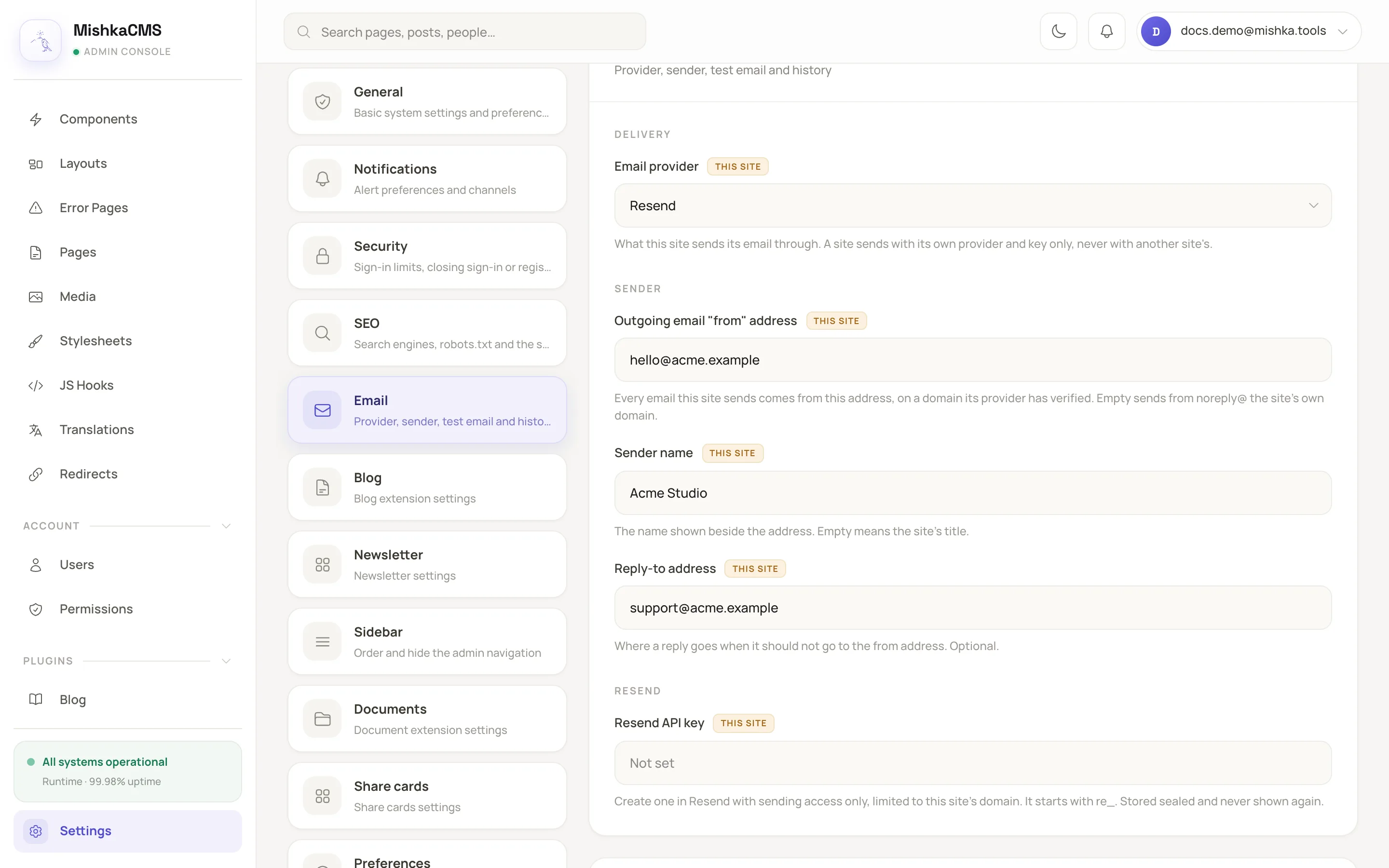
The Email tab holds the provider, the sender and the key for one scope.
The key is stored sealed and never shown again. After a save the field is empty. Its placeholder reads Saved, ends in … with the last four characters of the key, and a Remove button sits beside it. A scope with no key shows Not set. Leave the field empty to keep the key, or click Remove and confirm to delete it. The Resend fields appear only while Resend is chosen.
Resend refuses a from address on a domain you have not verified. The address [email protected] sends without one, but only to the Resend account owner's own address.
Send a test email
- Save your changes first. The test uses the saved provider and sender.
- In the Send a test email panel under the settings, check the address. It starts as your own.
- Click Send test.
The page answers Test email sent to the address, or Not sent: followed by the reason. Either way the attempt is added to the history with the kind Test email.
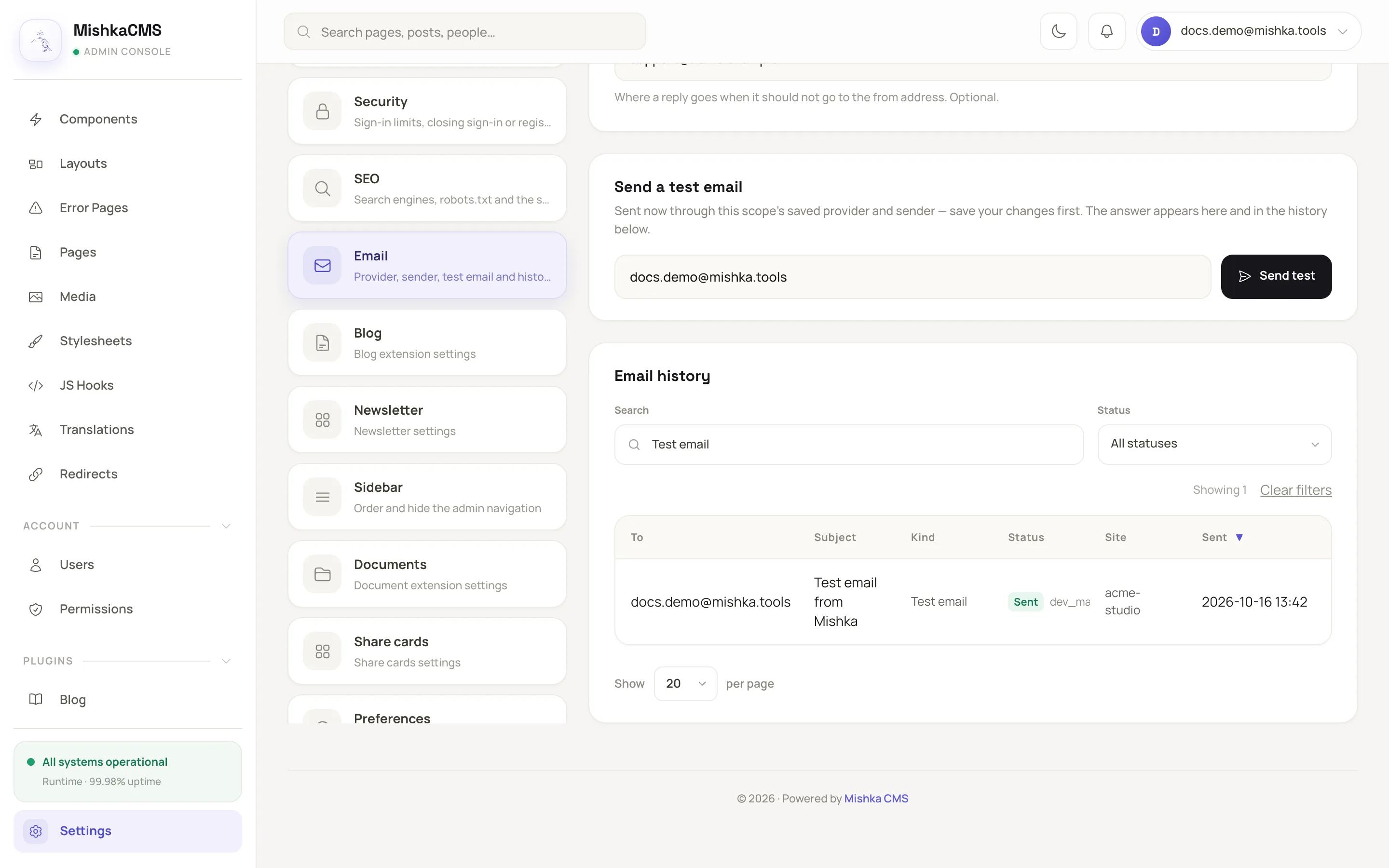
The test panel and the history sit under the settings form.
Read the email history
The Email history table lists every email the account may see, sent or tried, newest first. A site admin sees the site's own emails. A master sees every site's emails and the installation's own. The columns are To, Subject, Kind, Status and Sent. A master also sees Site. Use the search box to find a recipient or a subject, and the Status list to narrow the table. Clear filters appears once a filter is on. Click Load more for older rows, and use the Show list to set 20, 50 or 100 rows per page. The history never stores the body of an email, because a reset or sign-in email carries a token. The kinds are Password reset, Sign-in link, Account confirmation, Test email and the name of anything an extension sends.
| Status | Meaning |
|---|---|
| Sending | The email is queued, or the CMS is waiting to try again. |
| Sent | The provider accepted it. |
| No provider | The scope has no provider, or its provider lacks a key. The reason is under the label. |
| Failed | The provider refused it, or every attempt failed. The reason is under the label. |
The CMS sends each email from a background job. It tries up to five times when the provider may succeed later: a rate limit, a provider error or a network failure. A retry reuses the same idempotency key, so Resend does not send the email twice. It stops at once for a failure that will repeat, such as a bad key, an unverified domain, a refused address or a used-up quota.
In the Global scope, the History group has Keep the email history for (days), from 1 to 365 with a default of 30. A site's older entries are deleted the next time that site sends an email.
Example: set up Resend for a studio site
- Verify
acme.examplein Resend and create a key for that domain. - On the site's Email tab, choose Resend. Set the from address to
[email protected], the sender name toAcme Studioand the reply-to address to[email protected]. - Paste the key and click Save Changes. Click Send test and check that the history row reads Sent.
Send email from your own code
An extension builds an email with Mail.email/2, which fills the site's own sender, and hands it to Mail.deliver/2. It never names a provider. :purpose is required and appears in the Kind column.
alias MishkaCmsCore.Mail

Mail.email(site_id,
  to: "[email protected]",
  subject: "Your invoice",
  html: "<p>Your invoice is ready.</p>",
  text: "Your invoice is ready."
)
|> Mail.deliver(site_id: site_id, purpose: "invoice")
deliver/2 returns {:ok, delivery} once the email is queued, {:ok, :suppressed} when a plugin stopped it, {:error, :not_configured} when the site has no ready provider, or {:error, reason}, and it never raises. site_id: nil is the installation's own email. :idempotency_key names one email so a retry is never sent twice.
A plugin on mail:deliver:before can change or stop an email, and the events mail:delivered, mail:failed and mail:not_configured announce the outcome. A provider for another service is a module that uses MishkaCmsCore.Mail.Provider and implements settings/0, ready?/1, deliver/3 and retry?/1.
Next steps
- Secure sign-in: the reset and sign-in emails this page sends.
- Check the activity log: email deliveries appear there as jobs for accounts with full dashboard access.
- Settings: every key and default.
- Plugin events: the mail events in full.