Add a site and its domain
v0.0.1
A site in Mishka CMS is one website with its own domain, pages, layouts, accounts and settings. One installation can serve many sites. This guide adds a site on the Sites screen, sets its domain and mode, and checks that it serves requests.
Before you begin
- Sign in as a master. A master is an account that belongs to no site. It needs
admin:dashboard:runtime:site, or a wildcard that covers it, such asadmin:dashboard:runtime:*. A master signs in on the master site's address at/auth?master_user=true. See the documentation. - A site account can open the Sites screen and read its own site, but it cannot create a site. See Sites, masters and global records.
- Have a domain you control. Your DNS and reverse proxy must send requests for it to this CMS with the original
Hostheader.
Open the Add Site form
- In the admin sidebar, under Runtime, click Sites.
- Click Add Site. The Add Site dialog opens on its Configuration tab.
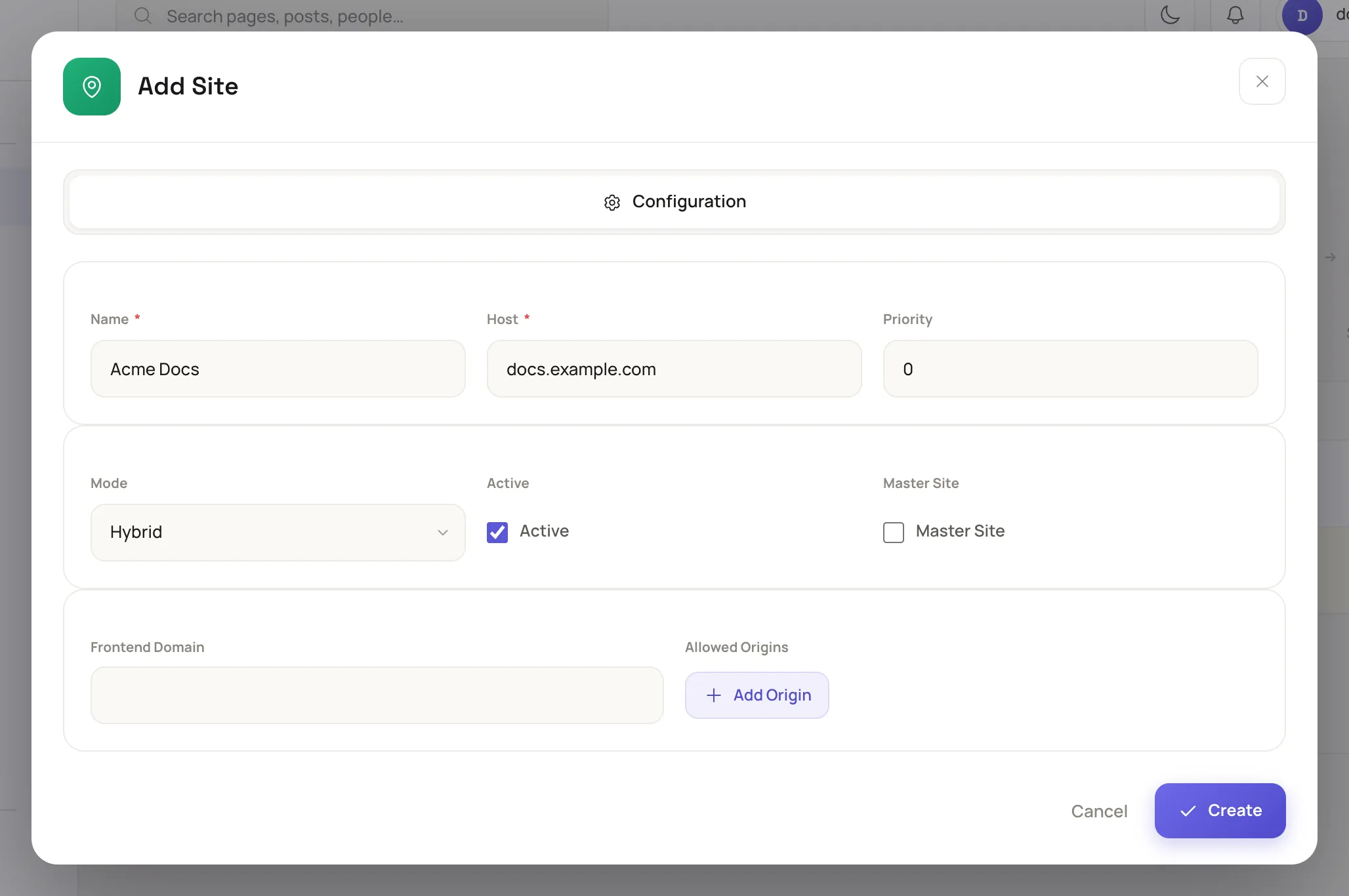
The Add Site dialog asks for a name, a host and how the site is served.
Fill in the fields
| Field | What to enter |
|---|---|
| Name | 3 to 70 characters. It must be unique. The CMS saves it as a slug, so Acme Docs becomes acme-docs. |
| Host | The domain with no scheme and no port, such as docs.example.com. It is 3 to 200 characters and must be unique. The CMS trims it and writes it in lowercase. |
| Priority | A whole number from 0 to 100. The default is 0. |
| Mode | Hybrid (the default) serves web pages and the API. Phoenix Only serves web pages and refuses outside API access. API Only serves the API and answers web pages with a 403 page. |
| Active | On by default. An inactive site answers every request with a 503 page. |
| Master Site | Leave it off. An installation has one master site, and the install wizard made it. To move the flag later, click Set Master in the other site's View dialog. |
| Frontend Domain | For a site whose front end runs on another domain, such as app.example.com. A browser app on that domain may call the site's API. |
| Allowed Origins | More origins that may call the site's API from a browser. Click Add Origin and enter a full origin such as https://example.com. Each one starts with http:// or https://. The CMS compares the host and ignores the port. |
The length and trimming rules for Name and Host are GuardedStruct derives on the site record.
When you choose Phoenix Only, the form empties Frontend Domain and Allowed Origins, because that mode takes no outside API calls.
Click Create. The dialog closes and the screen shows Site created successfully.
The form refuses a value it cannot accept and names the field. Two refusals you may meet:
- Site name must be unique. or Host must be unique. Another site already holds the value.
- Another site is the master site. Use Set Master to move it to this one. You ticked Master Site while another site holds the flag.
How a request finds the site
The CMS reads the host name from the request's Host header, drops the port, and looks for a site with exactly that host. A request to docs.example.com:4000 reaches the site whose host is docs.example.com.
| The request | The answer |
|---|---|
| Names a host no site holds | A 503 page, Service Unavailable. |
| Names an inactive site | A 503 page, This site is not available. |
| Asks an API Only site for a web page | A 403 page, Web Access Not Allowed. |
| Names an active Hybrid or Phoenix Only site | The site's page. |
Check that the site works
- On the Sites screen, click View on the new site's row. The dialog opens on Overview.
- Read the pill under Runtime Health. While background jobs run it reads Working. When they finish it reads Healthy. A failed job makes it read Needs attention, and the Failed count rises.
- For a site that serves web pages, open the robots.txt or Sitemap link under Site Details. It opens on the site's own address, so a page that loads confirms the domain reaches the CMS.
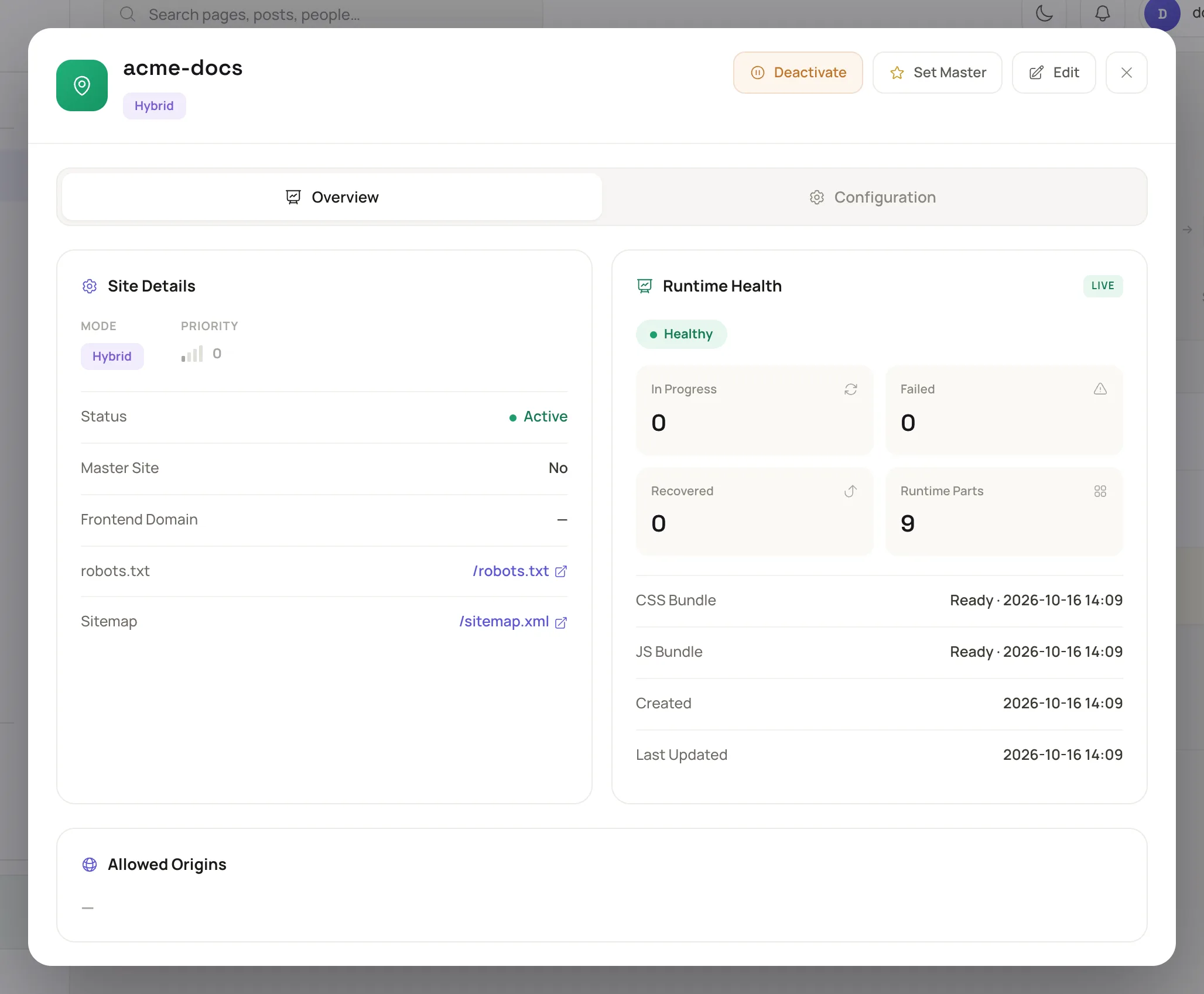
The Overview tab shows the site's details and its runtime health.
Switch a site off or archive it
These buttons appear only for a master, and never for the master site.
- Click Deactivate in the site's View dialog and confirm. The site stops serving requests and answers with the 503 page. Activate brings it back.
- Click Delete on the site's row and confirm Archive this site?. The site is archived, not removed.
- Switch the table from Active to Archived to see archived sites. Restore brings one back.
Example: a docs site on its own domain
- On the Sites screen, click Add Site.
- Enter
Acme Docsas the Name anddocs.example.comas the Host. - Leave Mode on Hybrid and Active ticked, then click Create.
- Click View on the acme-docs row and wait for Healthy.
- Create the site's first admin, as Give a teammate access describes.
Next steps
- Give a teammate access: an account on the new site.
- Set a site's languages and language URLs: the languages the site publishes in.
- Install an extension: add a blog or documents to the site.
- Sites, masters and global records: what a site owns and what it shares.