Drafts, publishing and versions
v0.0.1
Mishka CMS keeps your work in separate places before and after it reaches visitors. A draft holds work that is not published. Publishing writes it to the live page. A version records a state the live page has been in. This page explains what each one is, when the CMS makes it, and how you move between them.
The parts
| Name | What it holds | Made when | Where you see it |
|---|---|---|---|
| Live page | The page row that visitors get | You create the page | Pages list |
| Draft | An unpublished copy of the page | You change the page in the visual editor | Editor: Draft history. Pages list: the Drafts bar of View |
| Version | A saved state of the live page | The live page changes | Pages list: the Versions tab of View |
| Record history | One entry for each change you make in the editor | You change the page in the visual editor | Editor: More, then Record history |
The live page
The live page is the record visitors get. Its Active setting decides whether its address answers. Every write to it queues a compile in a background job, so the editor does not write half-finished work to it. That is why drafts exist.
Drafts
A draft is a separate record with its own preview link. Writing one queues no compile, and visitors never see it.
- With Draft chosen, which is the default, the visual editor saves your changes to a draft as you work. Each editing session that changes something starts a draft of its own, named after the session. A colleague on the same page does not overwrite yours.
- To keep a draft under a name, open Draft history from the stage menu or the More menu, type a name in Name this draft, and click Save as. If the name is taken, you choose Update it or Save as a copy.
- The Drafts tab lists the drafts of the page. Editing marks the one that receives your saves. Click a draft's row to open it. The two icons at the right of the row copy and delete it, and have no text label, so hover one to see its name.
- A page keeps its 20 most recently changed drafts. Creating a new one drops the oldest.
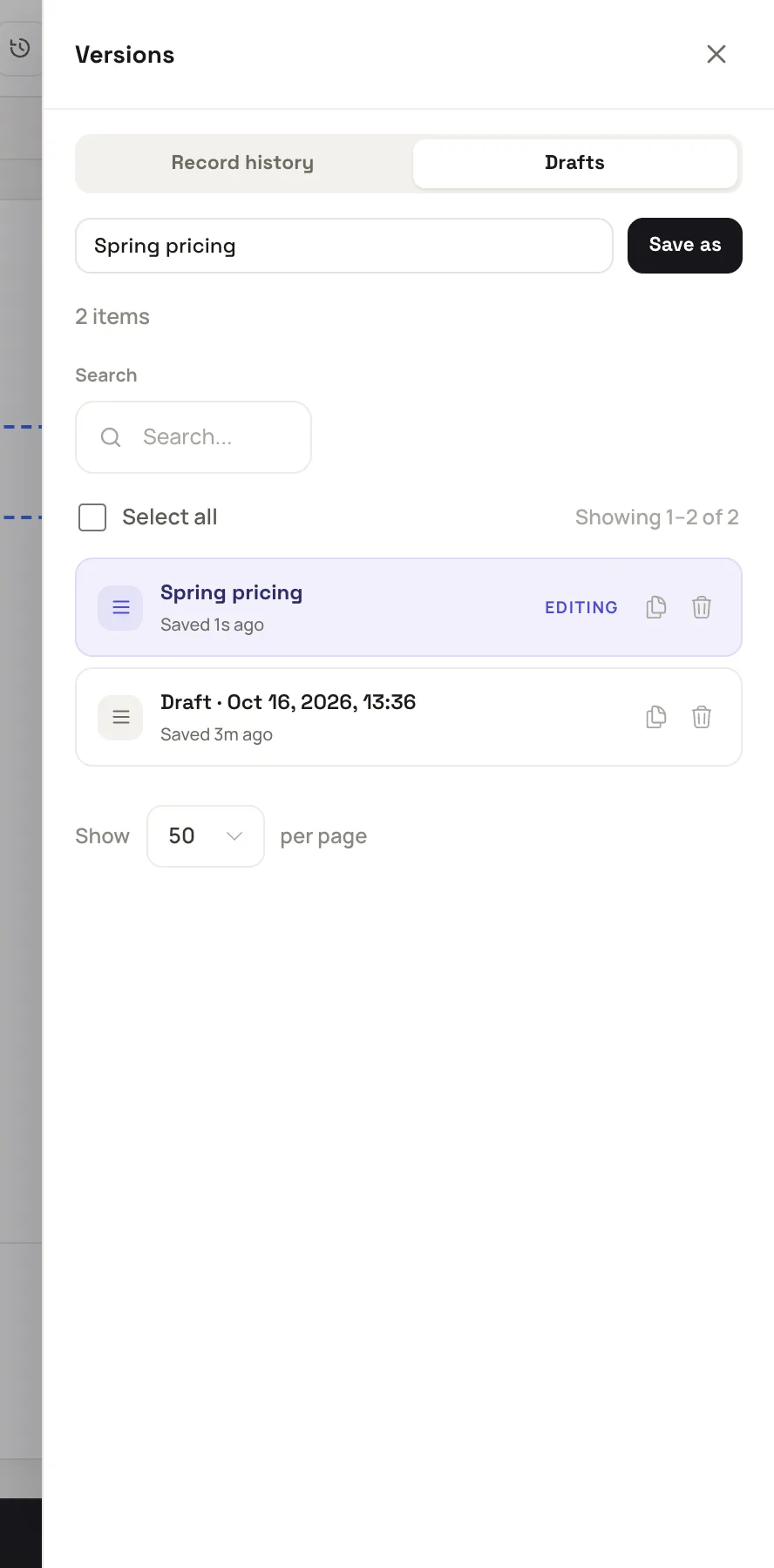
The Drafts tab names the draft that receives your saves.
When you open a page that has an unpublished autosave, a bar offers Resume or Discard. Until you choose, the editor shows the live page. If a draft was made from a page that has changed since, the editor warns that publishing the draft writes it over those changes.
A layout or an error page keeps drafts the same way. A component keeps none, and you save it with Publish.
The Pages list reaches drafts too. Click View on a row. The Drafts bar shows each draft as a chip, and New draft makes another. With a draft selected, the bar offers Copy draft link, Discard and Publish. See Share a draft and collect comments.
Publishing
In the editor, choose Published in the stage menu and click Publish. The CMS then:
- Checks that every required property is filled in and that the markup compiles. If not, it refuses and names the problem.
- Writes the document to the live page and makes the page active.
- Queues the compile, so visitors get the new version.
- Deletes the draft your session was using. Your next change starts a new draft.
- Drops the restore points behind the draft, and writes one summary entry to the record history.
While Published is chosen the editor writes nothing, though it still records each change. When you have unsaved changes, a red bar offers Keep as a draft.
Publishing a draft from the Pages list writes the draft's fields over the page. The page keeps its own events, infos, state and helpers, because you save code to the page directly and a draft only holds the copy it started from.
Versions
The CMS records a version of the live page each time it changes: a publish, a save from the Configuration tab, or a restore. A save that changes nothing makes none. A version holds the page's fields as saved, the action that wrote it, and who wrote it.
Click View on a row of the Pages list, then open the Versions tab. The newest row is marked Current. Show opens the fields of a version. Restore asks you to confirm, because the current data is replaced, and then writes the version's fields back to the page.
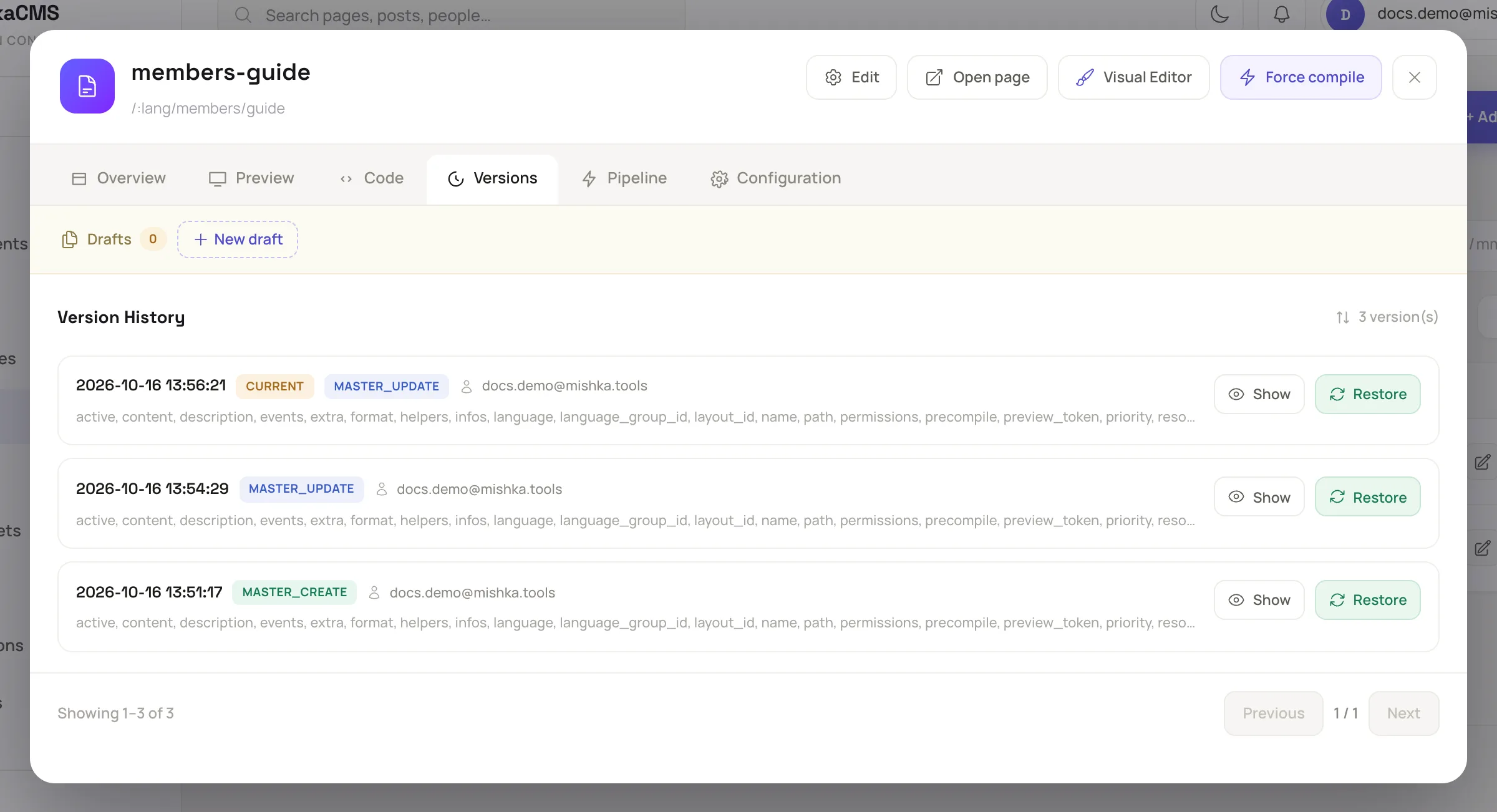
Restore replaces the page's current fields with those of the version.
- A restore is itself a change, so it adds a version when it changes anything. Nothing is deleted, and you can restore the version you left.
- A restore copies every field the page form can change, Active included. Drafts are not touched.
- An archived page cannot be restored until you restore the page itself.
Record history
Record history is the editor's own log, with one entry for each change you, a colleague or the assistant makes. Open More, then Record history, to read it. The pills All, Content, Style and Publish filter it.
- Revert puts the document as it was before that change back into the editor. The live page does not change until you publish.
- An entry whose restore point was dropped says Snapshot dropped. A document past the size the CMS keeps says Too large to restore.
- Clear this page’s editing history deletes the whole log at once, never a single entry.
The undo stack behind ⌘Z is separate. It lives in the session's memory and ends with the session.
Example: take back a publish
- You publish the Pricing page with a wrong price.
- On the Pages list, click View on the row, then open the Versions tab.
- Click Restore on the second row, the state from before the publish, and confirm. The page has the earlier price again, and the list has a new top version.