Start a blog
v0.0.1
Mishka Blog is the CMS's blog extension. In this tutorial you set it up on your site, write a post, publish it and read it on your site's blog pages. You finish with a live post at /blog.
Before you begin
- Finish Install Mishka CMS and sign in.
- Sign in as the master admin. Setting a site up writes components, a stylesheet and pages, and reads the site, so it takes
admin:dashboard:runtime:component,admin:dashboard:runtime:stylesheet,admin:dashboard:runtime:pageandadmin:dashboard:runtime:site. The master holds*, which covers them. Writing posts takesadmin:dashboard:blog:post. See How permissions work. The master admin signs in at/auth?master_user=true. See the documentation.
Step 1: Set up the blog on your site
In the sidebar, under Plugins, click Blog. If you ticked Blog in the installer's Extensions card, the blog dashboard opens and you can go on to step 2.
Otherwise the screen titled The blog opens with a card titled Install it on this site. A master sees a Site dropdown there. Check that it shows your site, then click Set up. When the blog is already set up on your site, this screen does not open on its own. On a site that is not set up, the dashboard header carries a Not set up badge, and clicking it brings the screen back.
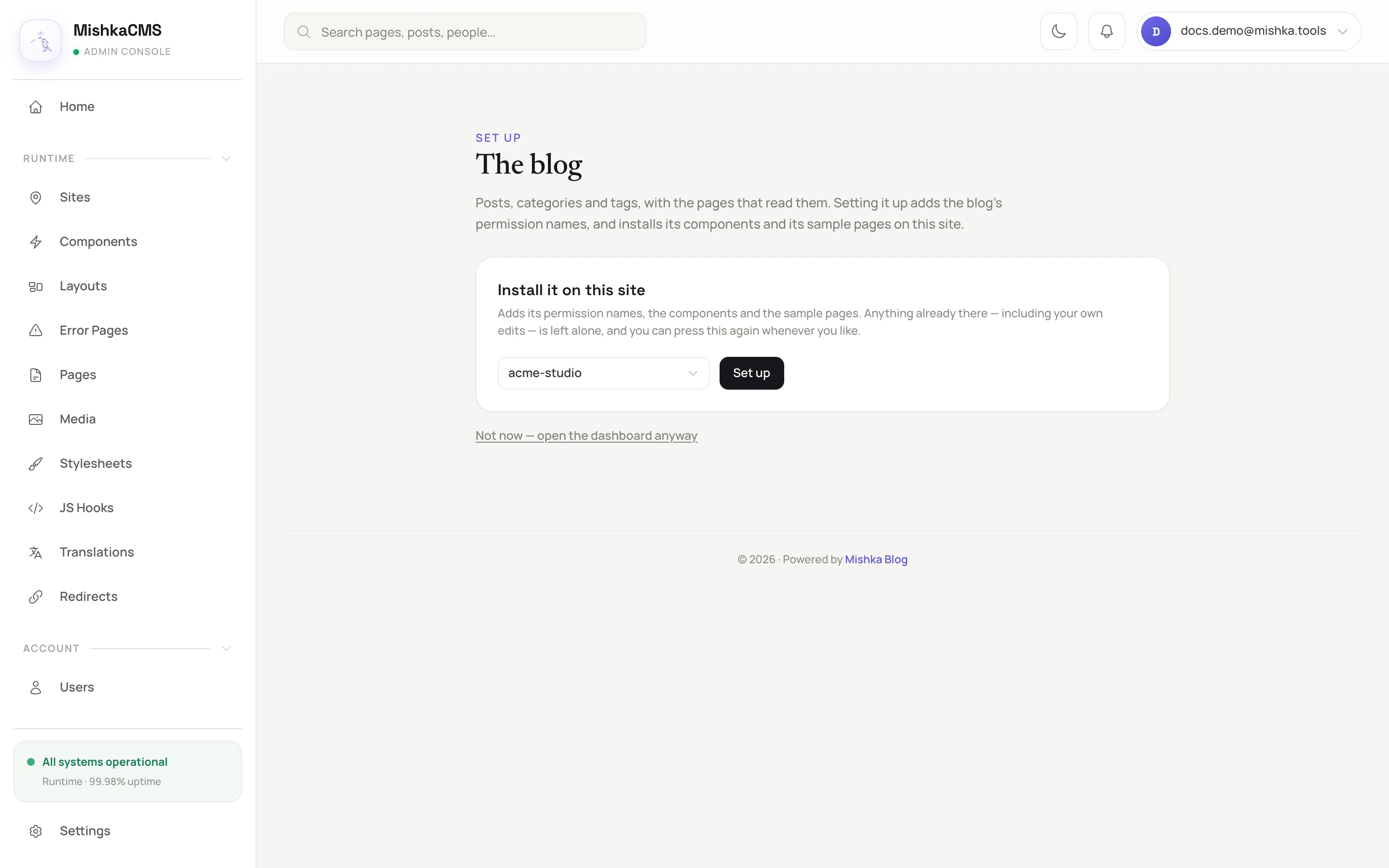
A site that has never had the blog opens on this screen.
The CMS adds the blog's permission names, its components, its sample pages and a snippet. A message that starts with Added lists only what it wrote, for example Added 6 permissions, 17 components, 9 pages, 1 snippet. A kind with nothing to write is left out. The permission names are shared by every site, so on a second site the message starts with the components. The blog dashboard then replaces the set-up screen.
Open Runtime and Pages. The list now includes the blog's pages, among them Blog and Blog post. Pressing Set up again later adds only what is missing and leaves your edits alone.
Step 2: Open the posts screen
On the blog dashboard, click New Post at the top right. It opens Blog Posts Management, the list of posts. Click Add Post. A form opens over the list.
Step 3: Write the post
Fill in the form:
- Title:
Our first post. - Slug: it follows the title while you type, giving
our-first-post. The slug is the last part of the post's address. Edit it if you want another. - Status: check that it reads Draft.
- Language: check that it holds
en, the primary language the installer set. - Content: type a few sentences in the editor.
Click Create. The post appears in the list as a card with a Draft badge and the actions Edit, Delete, Versions, Publish and Unpublish. Visitors cannot see a draft yet.
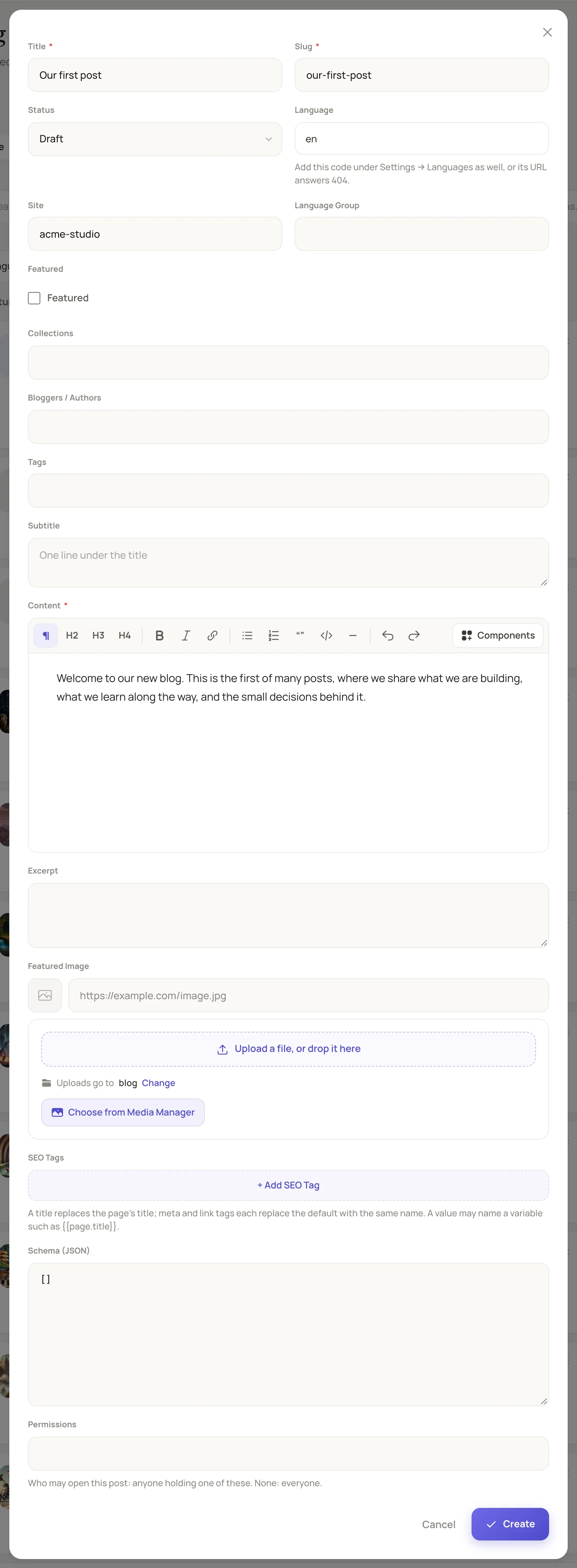
The Add Post form asks for a title, a slug, a status, a language and the content.
Step 4: Publish the post
Click Publish on the post's card. The badge changes to Published. The post now shows on your site. Unpublish turns it back into a draft.
Step 5: Read the post on your site
Open http://localhost:4000/blog. The page lists your post under Latest posts. Click it to read it at /blog/our-first-post. If you chose a prefix for every language in the wizard, the addresses start with the language, as in /en/blog.
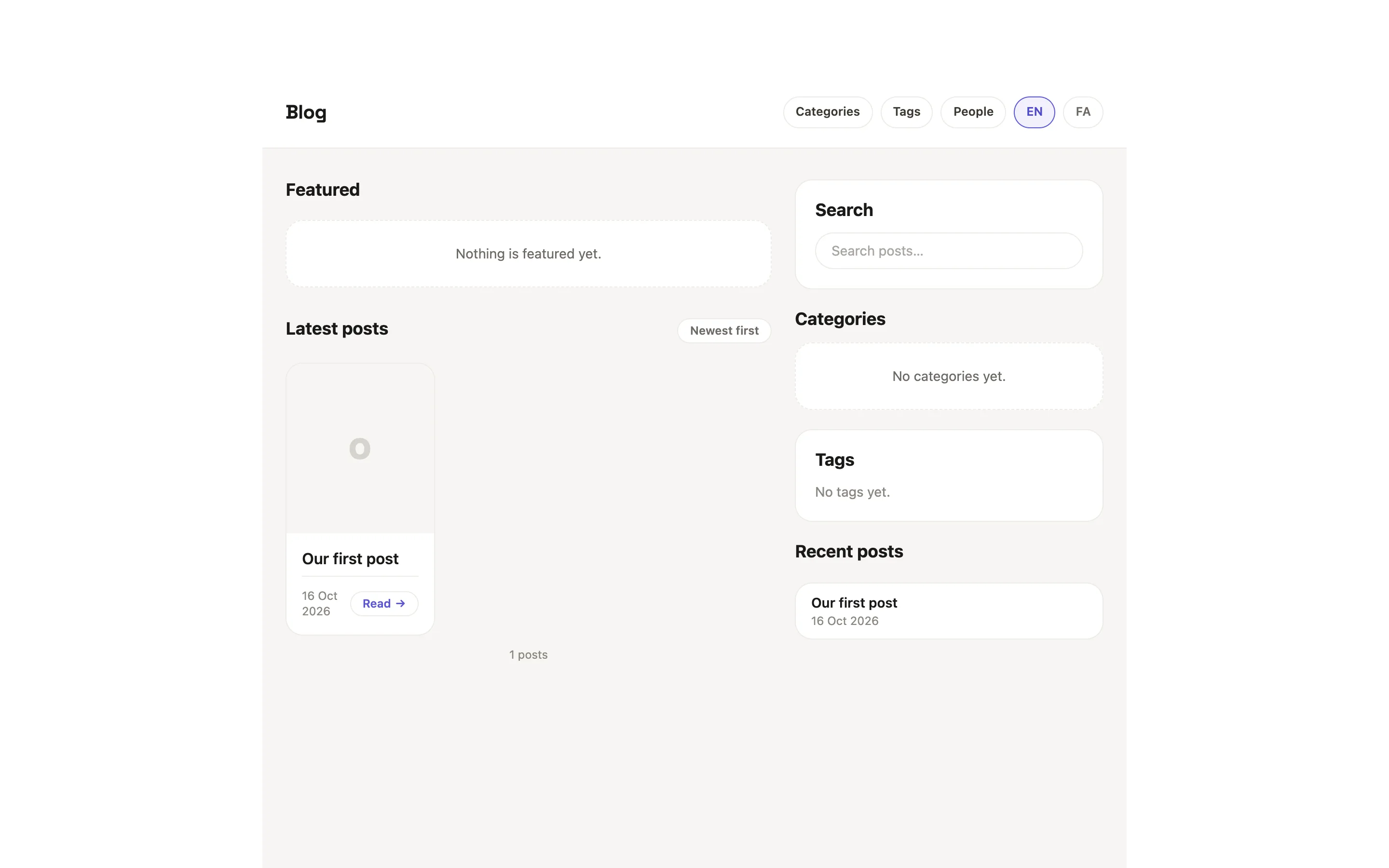
The blog home page lists the published posts.
To put the post in the strip above the list, click Edit on its card, tick Featured and click Save Changes. The Featured strip shows the posts an editor flagged this way.
What you learned
- Setting an extension up on a site is a step of its own. It gives the site its own copy of the extension's components and pages, and the pages are ordinary pages you can edit in the visual editor.
- A post stays a draft until you press Publish.
- The blog's pages read posts by language, so the post's Language must be one the site publishes.
Next steps
- Lock a page or post to members: limit a post to readers who hold a permission.
- Give a teammate access: let a writer hold
admin:dashboard:blog:postand nothing else. - Set a page's SEO and share card: the title, description and image a shared link shows.
- Extensions and plugins: how the blog attaches itself to the CMS.