Install or upgrade a UI kit
v0.0.1
A UI kit is a bundle of components, JS hooks and a stylesheet that the visual editor places on your pages. This guide covers choosing a kit and its version when you install the CMS, adding more components to a site afterwards, and updating the components an extension ships. To learn what a component is first, read Components and UI kits.
Before you begin
- The kit step belongs to the installer at
/install, which is open only until the CMS is installed. See Install Mishka CMS and sign in. - Adding components later takes
admin:dashboard:runtime:componentoradmin:dashboard:code. A kit also writes JS hooks and a stylesheet, which takeadmin:dashboard:runtime:js_hookandadmin:dashboard:runtime:stylesheet, oradmin:dashboard:code. See Permission names.
Choose the kit version in the installer
The Choose what to install step downloads the styled and the headless Chelekom packages as soon as it opens. Under Kit version, pick where they come from:
- Stable is the newest release that is not a pre-release.
- Pre-release is the newest release of any kind.
- Master is the unreleased files on Chelekom's master branch. They can change at any time.
A note under the choices names the version the installer fetched. When no stable release has the kits, the installer uses the newest pre-release and says so.
Click Customize to pick components. Use Search components…, Select all and Clear, or All and None on a group. A component that another pick needs stays ticked and carries the label required.
Each component installs with its default value for every option, such as variant or color. To add values, click the sliders button on the component (Configure options) and tick them.
Add a kit by URL
To install a kit Mishka does not ship, open Add a package by URL in the same step, read the warning, enter the address of the bundle and click Fetch.
The CMS accepts an http:// or https:// address and refuses a response over 32 MB. It checks that the file is a mishka.ui_kit.bundle.v3 with a name and a list of components, and that no installed kit has the same name. The kit then appears in the picker. A component with no name or no template is skipped and named in the server log.
Add components to a site later
The Studio lists every component of the installed kits that the site does not have. It reads the bundles already on the server and never downloads a newer one.
- Open a page in the visual editor and click Studio in the top bar.
- Click the Registry tab. The sheet is labelled
registry.mishka.toolsand shows the chips All, Downloaded and Shop above the search box. The list stays the components this site does not have, whichever chip is lit. - Choose a category chip, or type in Search the component registry…. The list shows up to 60 components at a time, sorted by name.
- Click Install on a component's card. A card shows the component's name without its kit prefix, such as
cardoraccordion, and a line such as From Chelekom Headless. Installs on its own. or Brings 1 component it depends on.
The editor confirms with a message that uses the component's full name, with its kit prefix, such as chelekom-card installed, with 1 it depends on.
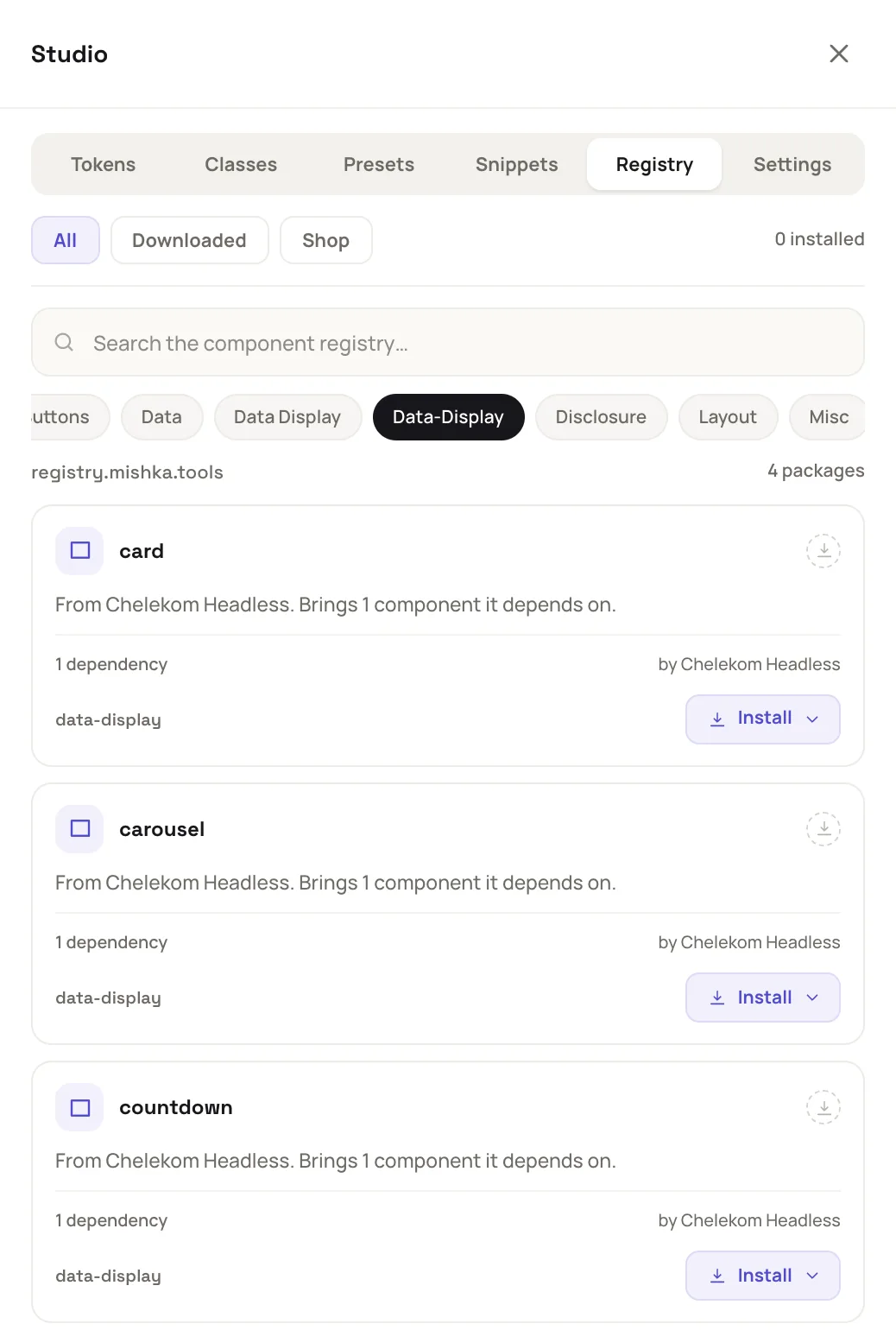
The Registry tab lists the kit components this site does not have.
As a master, Install opens a menu named Install into: This site adds the component to the site you are editing, and All sites shares it with every site. A site admin gets a plain Install button that adds the component to their own site, under the note Installs land on this site only. The Studio installs a component with its default options only.
Update an extension's components
Mishka Blog and Mishka Document each ship a kit. After you update an extension, a site keeps the components it was set up with until you compare them.
- In the sidebar, under Plugins, open the extension, such as Blog.
- Click the wrench and screwdriver icon in the header. Its hover text reads Check and repair the blog on this site, and a dialog opens.
- If you are a master, choose the site. Then click Check for updates. The check writes nothing.
The report sorts each component of the kit:
- Ready to update holds components whose copy on the site is exactly what the kit installed. Click the button under it, such as Update 3 components, to write them.
- Edited here since install holds components someone changed, or that carry no record of where they came from. The button under it, such as Update these 2 components too, replaces them. What each held is kept in the component's history.
- Up to date, Archived here and Not on this site are never written by an update. Repair in the same dialog installs the components a site lacks.
Sample pages are checked as well. For pages that are behind, click a button such as Create 2 drafts. Nothing live changes until you publish a draft in the builder.
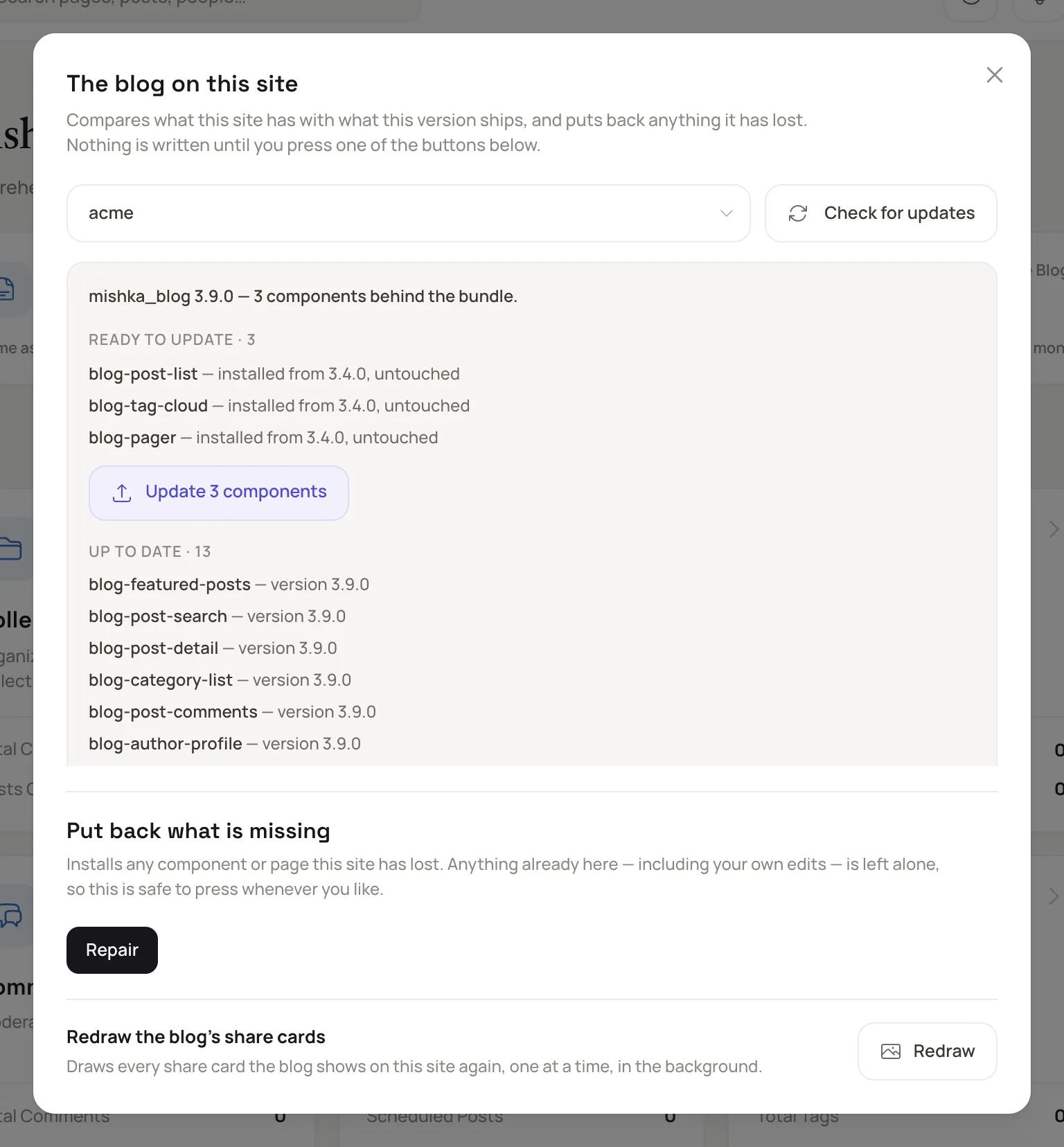
The report lists each component before you write anything.
Chelekom's own components have no update button. To bring a site forward, reinstall the bundle from the console, as the last section shows.
Choose where kits come from
Three settings in the host's config change the sources.
config :mishka_cms_core, :official_ui_kits, [
  %{
    key: :styled,
    label: "Chelekom styled",
    file: "chelekom.json",
    tag: "v0.0.10",
    url: "https://example.com/releases/v0.0.10/chelekom.json"
  }
]

config :mishka_cms_core, :ui_kits_dir, "/var/lib/mishka/kits"
config :mishka_cms_core, :prefer_local_ui_kits, true:official_ui_kitsnames the exact files to fetch, so the installer offers no version choice. An empty list downloads nothing.:ui_kits_diris the folder bundles are read from and written to. The default ispriv/cms_ui_kits/.:prefer_local_ui_kitsmakes a bundle on disk win over a download. It isfalseunless you set it.
Reinstall a bundle from the console
Put the new bundle in the kits folder, then run it against a site in iex:
alias MishkaCmsCore.Runtime.Handlers.UiKitHandler

UiKitHandler.available_kits()
UiKitHandler.install_kit!(UiKitHandler.default_bundle_path(), site_id: site_id)
available_kits/0 lists each bundle on disk with its version. Without site_id, the components install for every site. Pass selection: %{components: ["chelekom-card"]} to install only the names you list, each with every option.
Next steps
- Install an extension: set up Mishka Blog or Mishka Document on a site.
- Build a page in the visual editor: place the components you installed.
- Plugin events: the events fired before and after a kit installs.
- Add custom CSS, JS hooks and components: write a component of your own.