Upload and organize media
v0.0.1
The media library holds the images, videos and documents of one site. You upload a file once, keep it in a folder, and pick it again wherever a page, a share image or a site logo needs a picture. This guide uploads a file, organizes the library into folders, and shows where to use the file afterward.
Before you begin
- Every dashboard admin can read the library. Uploading, editing, moving and archiving take
admin:dashboard:runtime:media, or a wildcard that covers it, such asadmin:dashboard:runtime:*. Without it, the upload form is not drawn. See How permissions work. - Files belong to a site. A site account works in its own library. A master sees every site's files and picks the site when it uploads.
- Have files of an accepted type, up to 50 MB each. Images are
.jpg,.jpeg,.png,.gif,.webpand.svg. Videos are.mp4,.webmand.mov. Documents are.pdf,.doc,.docx,.xls,.xlsx,.ppt,.pptx,.txtand.csv.
Open the library
In the admin sidebar, under Runtime, click Media. The Media Library page has four parts: the upload card at the top, the path of the open folder under it, the Folders list on the left, and the files on the right. The files appear as a Gallery of cards. The two buttons above them switch between Gallery and Table.
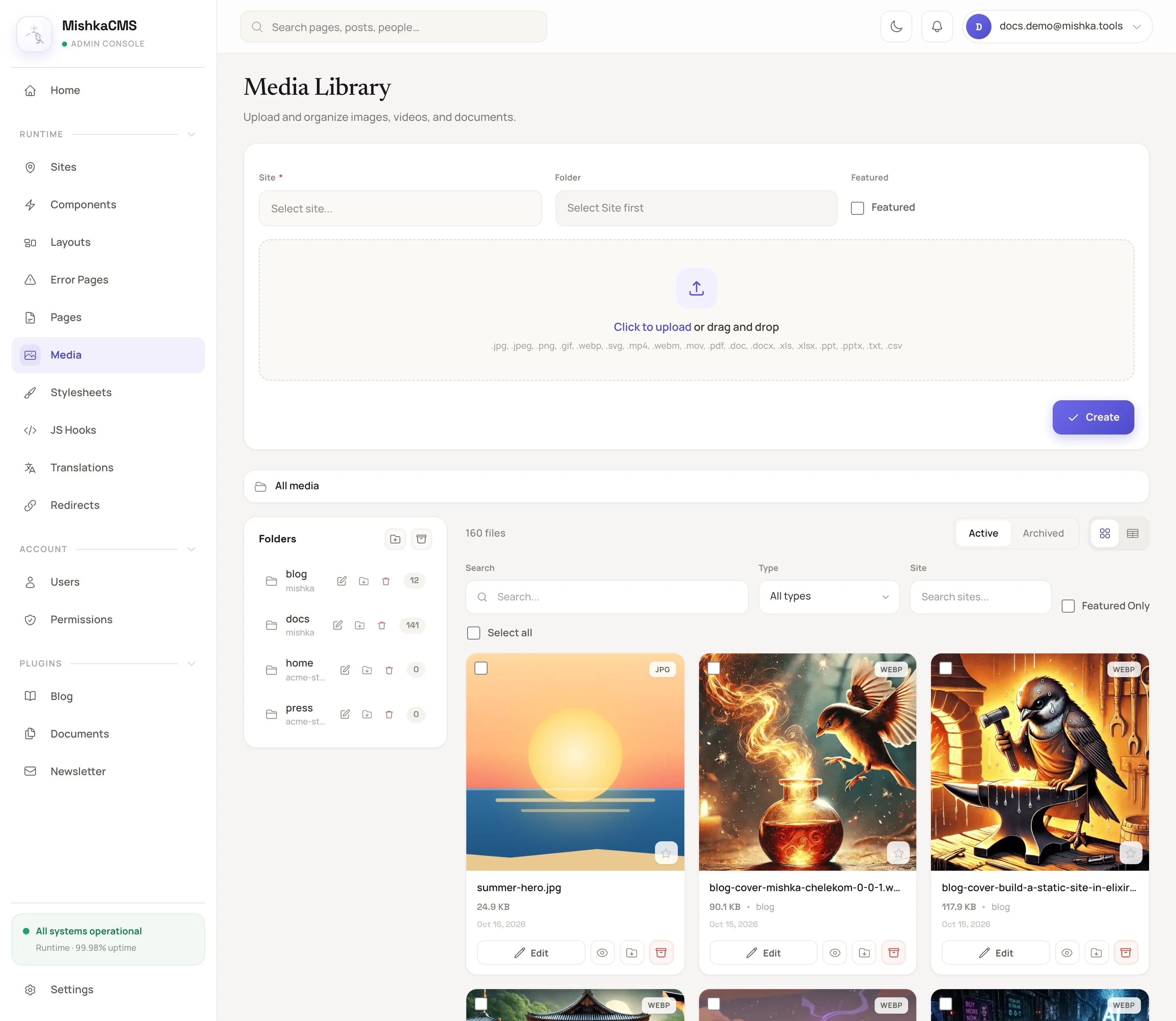
The library page: upload card, folders and files.
The path above the folders starts at All media. At that level the gallery shows the files of every folder, newest first. Inside a folder it shows only that folder's files.
Upload a file
- Open the folder the file belongs in, or stay at All media for the top level. The upload card starts on the open folder.
- If you are signed in as a master, choose the Site.
- Change Folder if you want another one. Tick Featured to mark the file with a star.
- Drop a file on the box, or click Click to upload to browse. The box takes one file at a time.
- Click Create.
The file appears in the gallery. Its name is its file name without the extension, kept to word characters, spaces and dashes, and saved in lowercase with dashes between words. Summer Hero.jpg becomes summer-hero.
The CMS stores the file under /uploads/<site id>/media/ and serves it from there while the site is up.
Organize with folders
- To make a folder, click the folder-plus button above the list, titled New folder here. The folder is made inside the one that is open. Enter a Name, optionally a Description, and click Create. Inside folder starts on the open folder, and an empty value means the top level.
- To go into a folder, click it in the Folders list. Click Up one level or a name in the path to go back.
- To rename a folder, click Rename on its row. To move it, click Move. Moving a folder moves everything inside it. A folder cannot go inside itself or one of its own folders.
- To move a file, click Move on its card. The path across the top of the dialog starts at Top level and follows the folder you have open. Open the folder the file goes in, then click Move here. While the open folder is the one the file is already in, Move here is disabled and the dialog says It is already here.
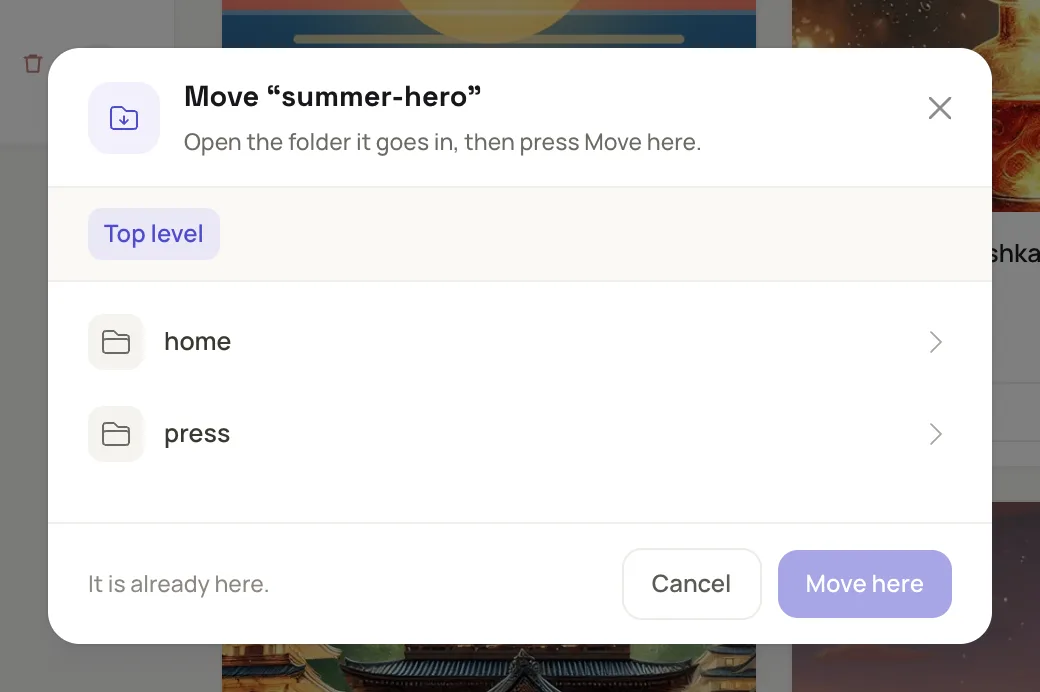
The Move dialog opens on the folder the file is in.
The number on each folder row counts its files. Folder names are saved like file names, so Summer Photos becomes summer-photos.
Find, edit and feature a file
- Search by name or description, or narrow the list with Type (Images, Videos or Documents), Featured Only and Folder. A master can also filter by Site.
- A card has a wide Edit button and small icon buttons for Preview, Move and Archive. Hover an icon to see its name. Preview shows an image larger.
- The star over the picture is Toggle Featured. Click it to add or remove the star.
- Click Edit. The upload card turns into an edit form with Name, Type, Description, Folder and Featured. Size (bytes), Format and Path are shown but cannot change. Click Save Changes when you finish.
To replace the picture itself, drop a new file on the box while you edit, then click Save Changes. The file keeps its address, so every page that uses it shows the new picture. The address changes only when the new file has another extension.
Archive and restore
- Click Archive on a card and confirm. To archive many files, tick them and use the bulk Archive action.
- Click Archived in the switch above the files to see them. Click Active to come back.
- On an archived file, click Restore to bring it back, or Delete Permanently to remove the file for good.
Folders work the same way: the archive button on the Folders list shows the archived folders, with Restore and Permanently Delete. A folder can be archived or deleted only when nothing is left in it, archived files and folders included.
Use a file
- On a page: in the visual editor, select an element with a picture attribute, such as an
img. In the Inspector tab, open the Attributes section, which starts collapsed. Click the image button besidesrc, whose hover text is Choose from the media library. The Assets sheet opens with a banner reading Choosing for and the attribute name. Click Use on a file card. The Assets button in the top bar opens the same sheet, where you can also upload. - As a share image: on the SEO tab of the page settings, click the box under Share image. See Set a page's SEO and share card.
- As the site logo or favicon: in Settings, on the General tab, pick from Media in the Site logo and Favicon fields. A master picks a site in the scope list first, because the Global view has no site's files to offer.
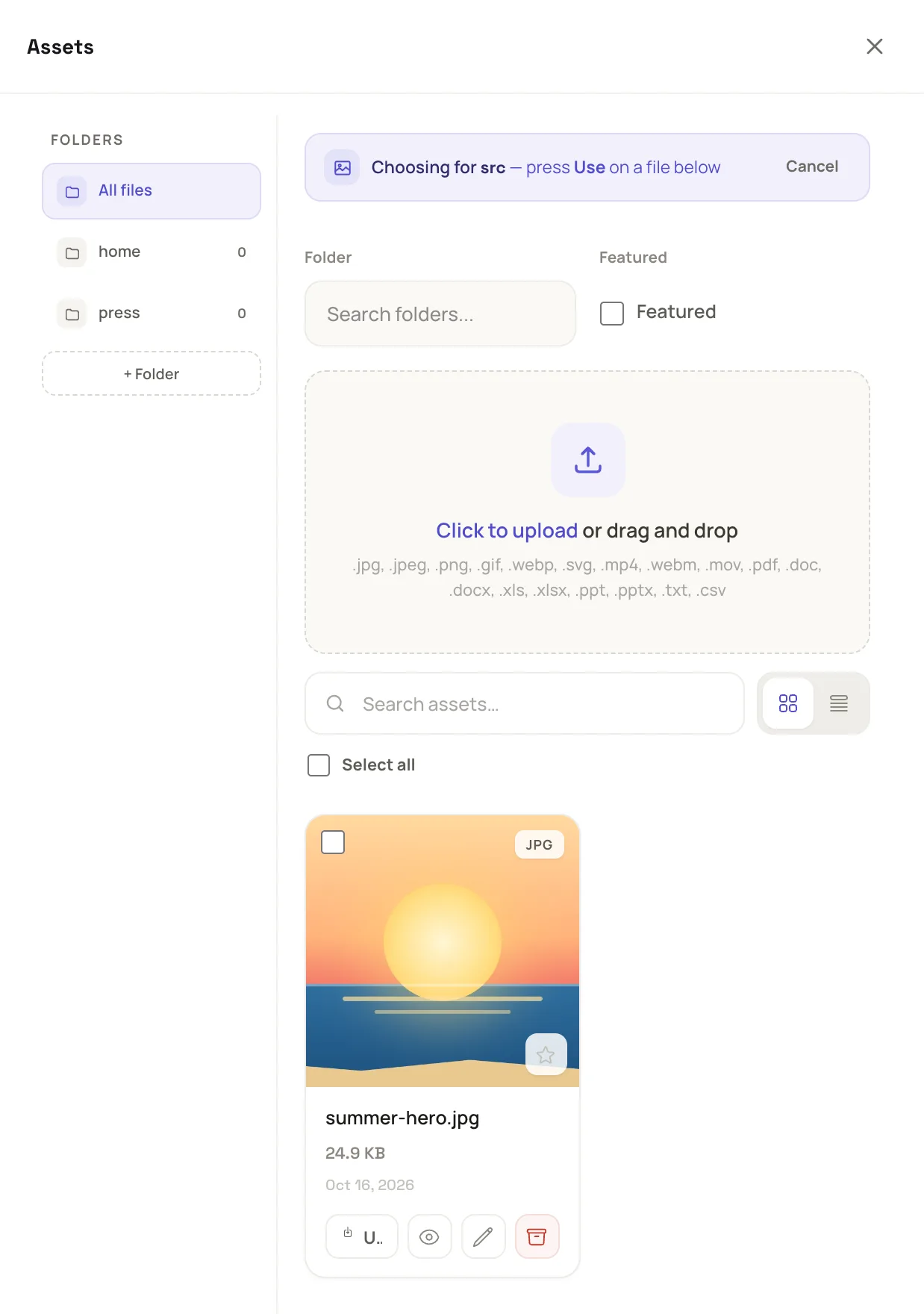
The Assets sheet picks a file for the attribute you came from.
Example: a hero picture for the home page
- On the Media page, click New folder here, name it
Homeand click Create. - Open Home, drop
Summer Hero.jpgon the upload box and click Create. The card is namedsummer-hero. - In the visual editor, select the hero image, open Attributes in the Inspector, click the image button beside
src, and click Use on the card. Publish the page.
Next steps
- Build a page in the visual editor: place the picture on a page.
- Set a page's SEO and share card: choose a share image.
- Sites, masters and global records: why each site has its own library.
- Permission names: every core name.