Lock a page or post to members
v0.0.1
A lock limits a page, a blog post or a blog collection to accounts that hold a permission name. Visitors without the name cannot open it, and search engines are told to leave it out. This guide locks a page for members, locks a post, and checks what each kind of visitor sees.
Before you begin
- Pick the name that opens the page. Any name in the permission list works, an
admin:dashboard:name or one of your own such asmembers:read. A name that starts withadmin:api:opens for nobody. See How permissions work. - Check that the name exists. The lock field lists only names that exist, and only a master can add one. A master clicks + Add Permission on the Permissions screen under Account, enters the Name and a Description, and clicks Create. A name uses lowercase letters, digits and underscores, joined by colons.
- Your account must be able to write the record. A page takes
admin:dashboard:runtime:pageoradmin:dashboard:code. A post or a collection takesadmin:dashboard:blog:post. - The readers hold the name. See Give a teammate access.
Lock a page
From the Pages list:
- In the admin sidebar, under Runtime, click Pages.
- Click the pencil icon, Edit, on the page's row. The dialog opens on its Configuration tab.
- In the Permissions field, search for the name and pick it. You can pick more than one.
- Click Save Changes.
From the visual editor:
- Click the page's name at the top of the editor. Its tooltip reads Name and path.
- In the Page settings dialog, pick the name in the Permissions field.
- Click Save Changes.
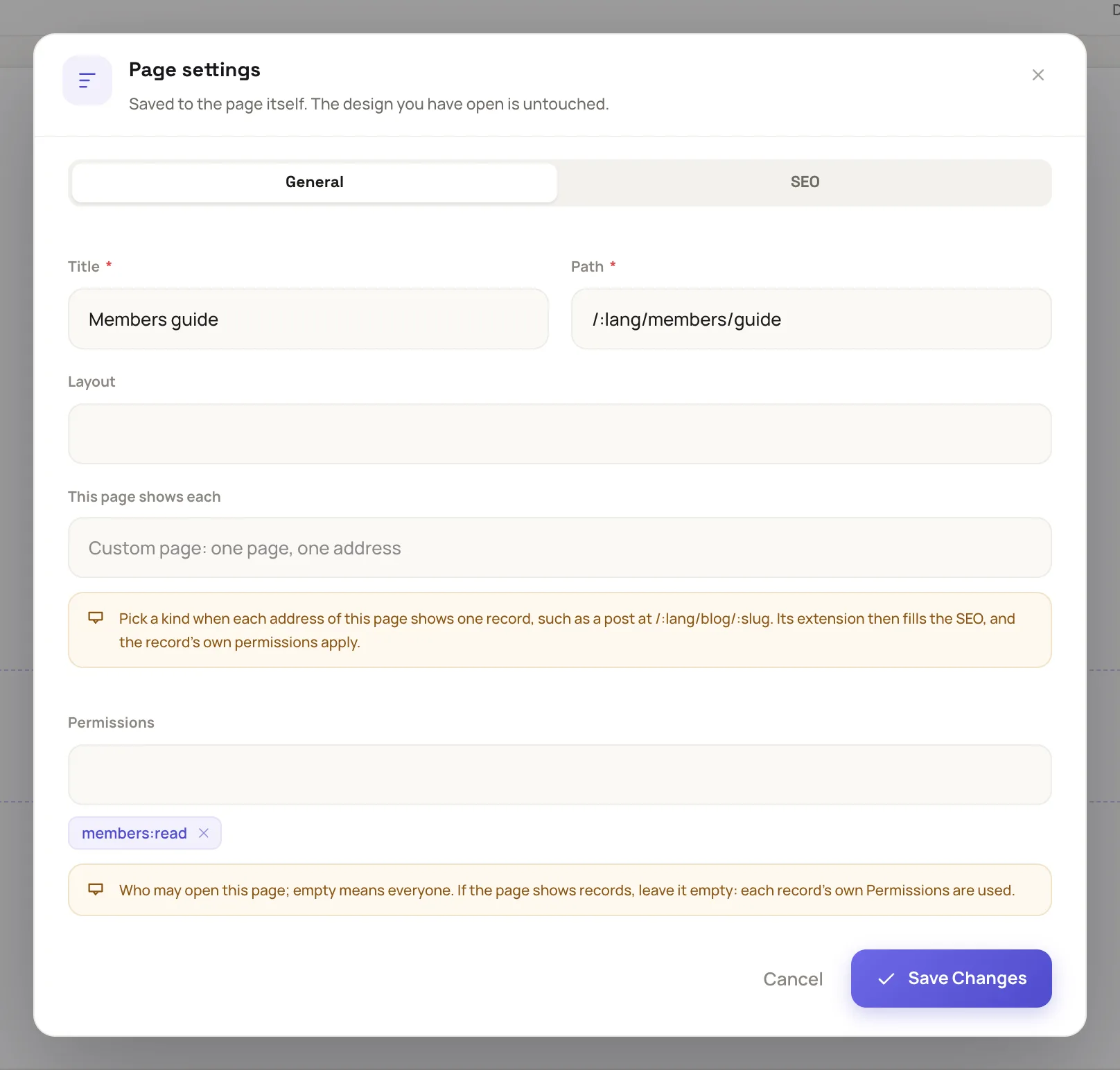
The Permissions field is on the General tab of Page settings.
The dialog says Saved to the page itself, so the lock does not wait for you to publish. If the editor is writing to a draft, the dialog says Saved to the draft instead, and the lock starts when you publish the draft.
To remove the lock, delete every name from the field and save. An empty field means everyone can open the page.
Lock a blog post
- Open Blog Posts Management at
/admin/dashboard/blog/posts. - Click Edit on the post's row.
- In the Permissions field, pick the names. The help text reads Who may open this post: anyone holding one of these. None: everyone.
- Click Save Changes.
A locked post also leaves the blog's lists for readers who do not hold one of its names.
Lock a whole collection
A collection has the same Permissions field on the Collections screen at /admin/dashboard/blog/collections. Its help text calls the collection a category.
- A post that names no permission takes the names of every collection it is filed under. Holding one of any of them is enough.
- A post that names its own permissions uses only those.
- A collection with none takes the names of the nearest parent collection that has some.
- Setting a locked collection to draft does not open its posts.
What visitors see
| The visitor | The result |
|---|---|
| Not signed in | The site's not-found page, the same page an address with no page gets. The answer does not confirm that the page exists, and the visitor is not sent to sign in. |
| Signed in, holding none of the names | The same not-found page. |
| Signed in, holding one of the names | The page opens. |
A locked page does not send a visitor to sign in, so a reader signs in at the site's sign-in page first, then opens the page's address.
A name ending in * that the account holds covers every name below it. An account that holds * opens every locked page on its own site.
A locked page tells search engines noindex, nofollow, unless its own SEO tags set a robots value, and it stays out of the sitemap. A locked post or collection is kept out of an index too.
Check the lock
- Open the page's address in a private window. Expect the site's not-found page.
- Sign in with an account that does not hold the name, then open the address. Expect the same not-found page.
- Sign in with an account that holds the name, then open the address. Expect the page.
Example: a members-only guide
- A master creates the name
members:readwith the description Members of the club. - The site's admin grants
members:readto each member on the Users screen. - In the editor, the admin opens Page settings for the page at
/:lang/members/guideand picksmembers:readin Permissions. - Members sign in, then open
/en/members/guide. Guests and other signed-in readers see the not-found page.
Next steps
- How permissions work: wildcards, sites and what happens when names change.
- Give a teammate access: grant the name to the readers.
- Set a page's SEO and share card: set a robots value of your own.
- Permission names: the names the CMS creates.