Give a teammate access
v0.0.1
An account opens the admin areas that its permission names cover. This guide creates an account for a teammate on the Users screen, picks the names it holds, and changes them later. It also explains the ceiling that stops one admin from granting more than that admin holds.
Before you begin
- Your account holds
admin:dashboard:userto manage accounts. To pick permission names for an account, it also holdsadmin:dashboard:permission. A wildcard that covers them, such asadmin:dashboard:*, works too. - You can grant only names that your own permissions cover. A site admin who holds
admin:dashboard:blog:*can grantadmin:dashboard:blog:postbut not*. Only*covers*. - The names exist. A master adds a custom name on the Permissions screen. An extension adds its own names when you install it. See Permission names.
For how names, wildcards and sites fit together, read How permissions work.
Create an account
- In the admin sidebar, under Account, click Users.
- Click + Add User. The Add User dialog opens.
- Under Basic Information, enter the Email. A master also sees Site: search for the site the account belongs to.
- Under Security, enter a Password of at least 8 characters, then enter it again in Confirm Password.
- Under Access Control, search the Permissions field and pick each name the account should hold.
- Click Create. The screen shows User created successfully.
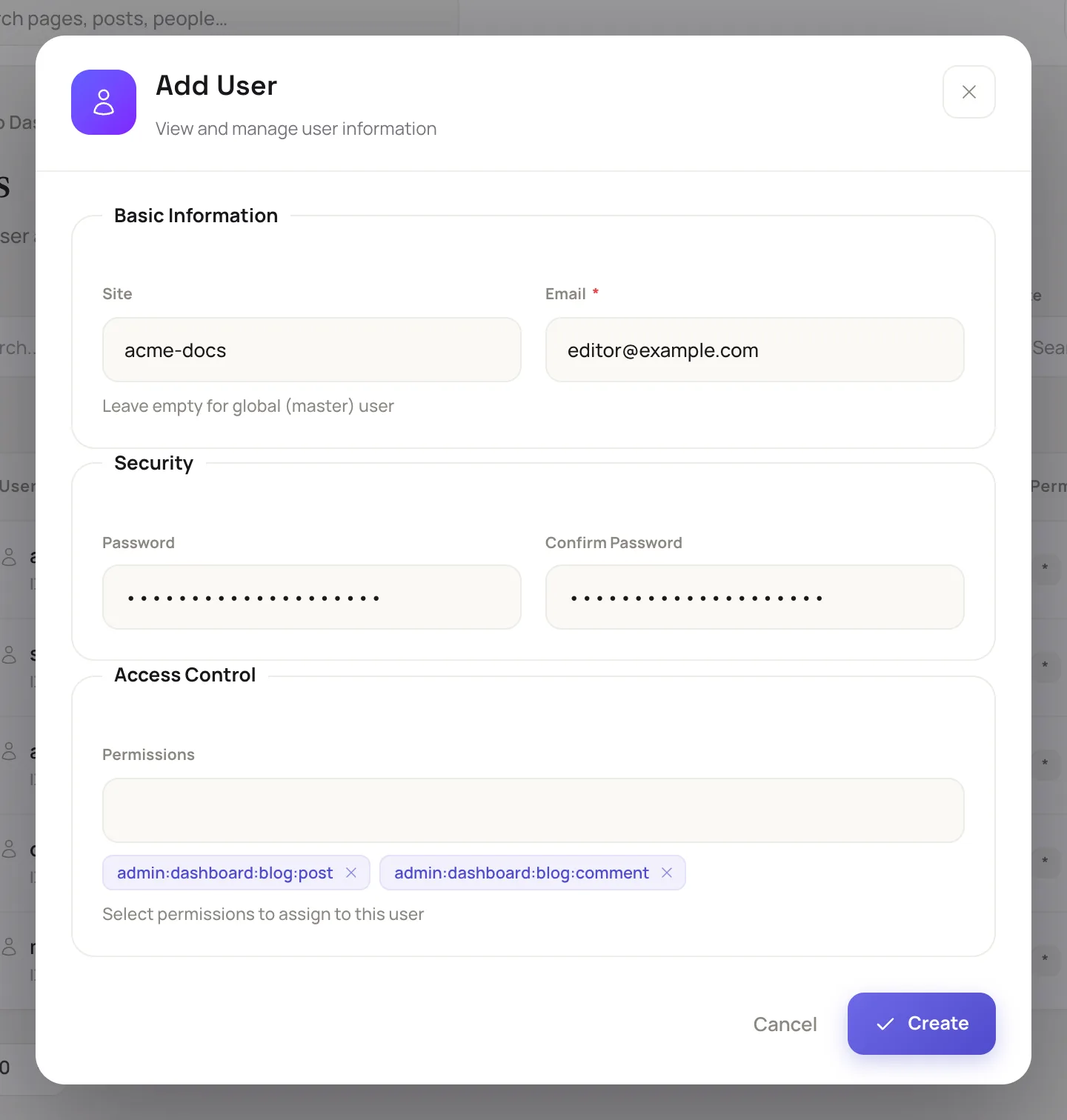
The Add User dialog groups the email, the password and the permissions.
A site admin does not see Site. The new account joins the admin's own site.
Confirm the email address
The Confirmed column reads Pending until the owner follows the confirmation link in the email. To confirm an address yourself, click Confirm account on the row and accept the prompt. This skips the confirmation email.
Change what an account holds
- On the Users screen, click Edit on the account's row. Click View instead to read the account first, then click Edit User.
- In the Permissions field, add names, or remove names to take them away.
- To set a new password, fill in Password and Confirm Password. Leave both empty to keep the current one.
- Click Save Changes. The screen shows User updated successfully.
The account's open pages disconnect and reconnect at once, and the CMS checks the account against its new names.
What the ceiling refuses
- Granting a name you do not hold. The form answers cannot grant permissions you do not hold yourself and lists the names.
- Changing your own permissions. A site admin never changes its own names. Ask another admin, or a master.
- Editing an account that holds more than you. You cannot change its email, password or site, or delete it. Otherwise you could sign in as it.
- Reaching another site. A site admin sees and changes only its own site's accounts. A master reaches every account.
Example: a blog editor
A site admin holds admin:dashboard:user, admin:dashboard:permission and admin:dashboard:blog:*. The admin wants a colleague to write posts and moderate comments.
- On the Users screen, click + Add User.
- Enter
[email protected]and a password. - In Permissions, pick
admin:dashboard:blog:postandadmin:dashboard:blog:comment. - Click Create.
The colleague signs in at the site's own sign-in page and sees Blog in the sidebar. Writing anywhere else still needs another name.
Next steps
- How permissions work: names, wildcards and the dashboard and API surfaces.
- Permission names: every name and what it opens.
- Secure sign-in: ask admins for a second step.
- Lock a page or post to members: use a name to limit a page.