Set up documents on a site
v0.0.1
Mishka Document works on a site only after the site has its components, its sample pages and its permission names. This guide sets a site up, and then shows how to check it against the version you run and repair or update it. Setting up is safe to repeat. It adds what is missing and leaves everything that is there, your own edits included.
Before you begin
- Sign in with an account that may write the site's runtime. Setting up writes components, JavaScript hooks, a stylesheet, pages and the site's settings, so it asks for
admin:dashboard:runtime:component,admin:dashboard:runtime:js_hook,admin:dashboard:runtime:stylesheet,admin:dashboard:runtime:pageandadmin:dashboard:runtime:site. A wildcard that covers them works too. See How permissions work. - To open the Documents screen at all, the account needs
admin:dashboard:document:workspaceoradmin:dashboard:document:section.
Set a site up
The install wizard offers Mishka Document as Documentation. If you did not tick it there, set the site up from the admin.
- In the admin sidebar, under Plugins, click Documents.
- On The documentation, find the Install it on this site panel. A master account chooses the site in the dropdown beside the Set up button first.
- Click Set up.
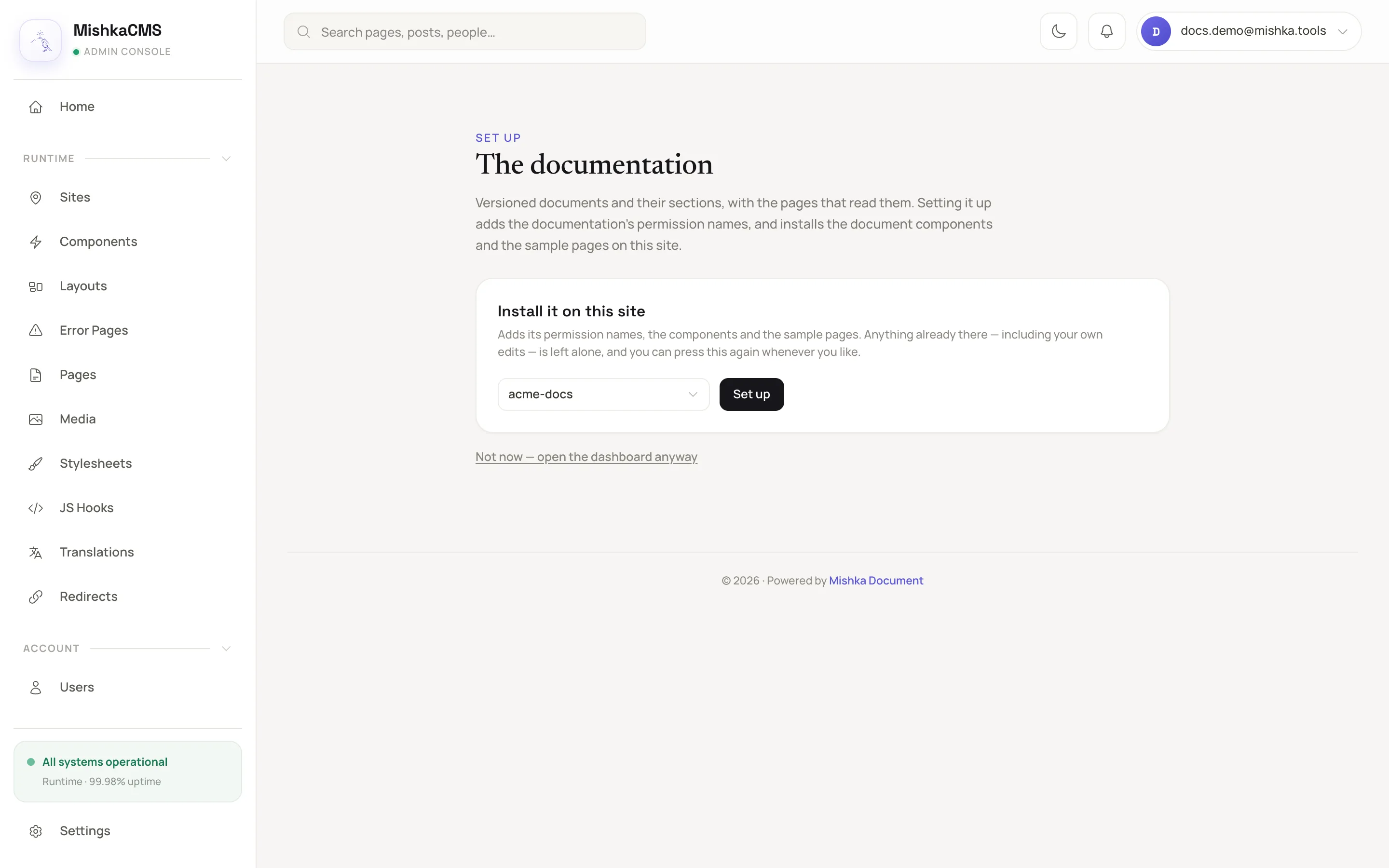
The screen a site sees until it has been set up.
The documentation dashboard then replaces the set-up screen, and a message counts what was added: permissions, components, pages and snippets. A site that already has everything reads This site already has everything the documentation ships. Nothing to add. An account that may not set the site up sees a note that an administrator who may write the site's runtime has to do it.
The run adds these:
| What | Added |
|---|---|
| Permission names | Six names under admin:dashboard:document and admin:api:document. See Permission names. |
| Components | Eleven doc- components, listed in Blocks that read a document, Document list and card blocks and Callouts, examples and the version placeholder. |
| JavaScript hooks | Six: doc-code-copy, doc-example, doc-sidebar-scroll, doc-tabs, doc-page-scroll and doc-toc-spy. |
| Stylesheet | doc-code-highlight, a base stylesheet that colors code blocks and draws the code and example windows. |
| Pages | Documentation at /:lang/docs, Document at /:lang/docs/:workspace and Document page at /:lang/docs/:workspace/*section. |
| Snippet | A page-builder snippet named Latest documents. |
| Words | The word Docs, which titles the bar under the header, registered in the site's translations in each of the site's languages. A word the site already has is left as it is. See Translate an extension's words. |
A component the site already has, even an archived one, is not installed again. A page whose path is taken is left alone. A page whose name is taken is written under the next free name.
Resolve a taken address
If a page of yours already answers at one of the sample paths, the report lists the sample page under Left alone, and a sample page written under a different name is listed under Created under another name. The report stays on the screen you opened from the Not set up badge. Otherwise open the check window and click Repair to see it. For a path that is taken, a form asks you to give the sample page another path, or to move all of them under one prefix such as /mish. Fill it in and click Set up again. Nothing of yours is changed either way.
Skip the setup for now
Click the link Not now — open the dashboard anyway to open the dashboard without setting up. The dashboard stays empty, and a Not set up badge in its header brings the setup screen back.
Check and repair a set-up site
A site that was set up months ago keeps the components and pages it was given. Check it against the version you run now.
- On the Documents screen, click the wrench icon in the header. Its tooltip reads Check and repair the documentation on this site.
- In The documentation on this site, click Check for updates. Nothing is written yet.
- Read the groups. Ready to update lists components behind the version. Edited here since install lists components someone changed. Up to date, Archived here and Not on this site are listed for information.
- Click the update button under Ready to update. It reads, for example, Update 3 components. Click the button that ends in too under Edited here since install only when you accept replacing an edit. The replaced version stays in the component's history.
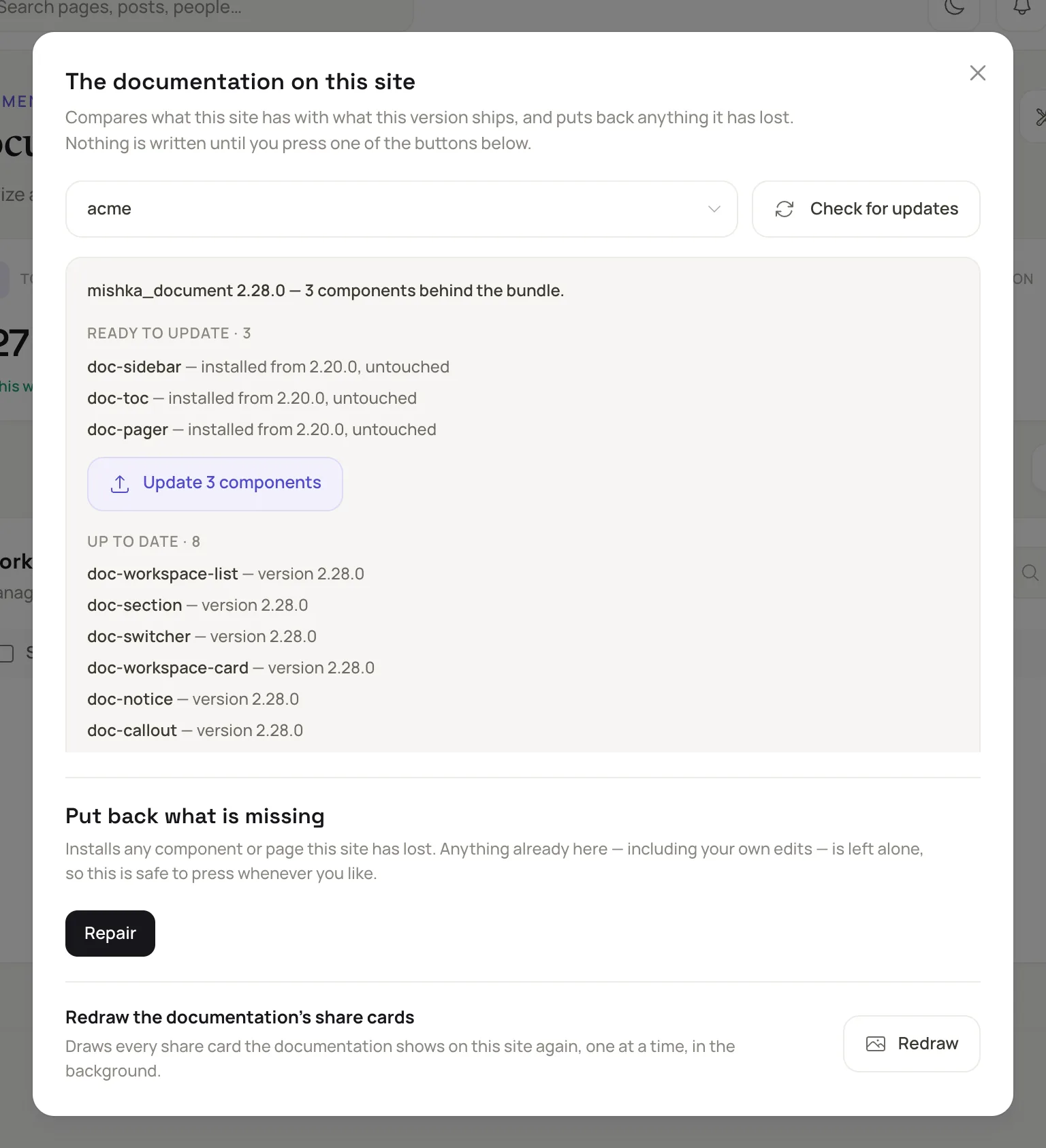
The check lists what is behind before it writes anything.
The same dialog checks the sample pages. Pages that are behind are never rewritten. The button that reads, for example, Create 2 drafts offers each as a draft of its page, and nothing changes for readers until you publish the draft in the page builder. See Build a page in the visual editor.
Two more buttons sit in the dialog. Repair, under Put back what is missing, installs any component or page the site has lost. An update never installs a component the site does not have, and Repair does. Redraw, under the share-card heading, draws every share card of the documentation again in the background.
Next steps
- Create a document.
- Show documents on your site: use the sample pages and blocks.
- Permission names: what each area opens.