Write pages and notes
v0.0.1
A page of a document is a section in the admin. It holds a title, a slug and a text written in a rich editor, and it can hold notes: titled blocks drawn after the text. This guide adds a page, writes its text with code and components, and adds notes to it. A reader sees the page once it is approved and its version is published.
Before you begin
- Create a document and a version. See Create a document and Add, clone and publish versions.
- Sign in with an account that holds
admin:dashboard:document:section. Without it the sections screens do not open.
Open the sections of a version
- On the Documents screen, click Open workspace on the document's card. The screen opens on the version marked latest, else the newest stable one, else the newest version.
- To work in another version, choose it in Current version, under Software Info at the side. Each option shows (latest), (stable) or its status.
A document with no version shows No versions found, with a link to the versions page for accounts that may add one.
Add a page
- Click Add Section.
- Enter a Title. It is required and holds up to 500 characters. The Slug follows it until you type your own.
- Enter the page's Language, a code such as
en. - Set Content Review and Technical Review. Both must be Approved before readers see the page. See Review, status and who can read a page.
- Write the Content.
- Click Create. The admin answers Section created successfully.
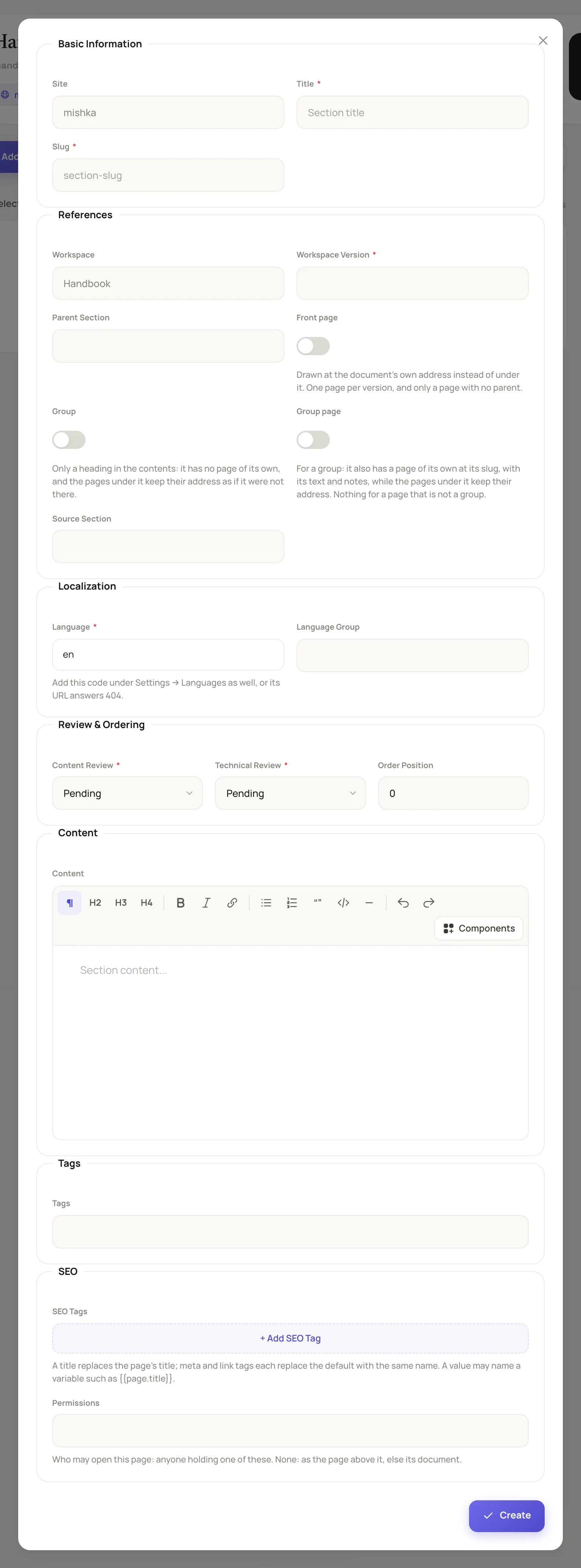
The form for a page has seven groups.
The other fields place and describe the page:
- Parent Section, Front page, Group, Group page and Order Position set where the page sits. See Organize the contents of a version.
- Source Section names the page this one was copied from in another version of the same document.
- Language Group links the page to its translations, as it does for a document.
- Tags assigns tags to the page. See the section on tags below.
- SEO Tags and Share image are covered in Titles, descriptions, sitemap and share cards. Permissions is covered in Review, status and who can read a page.
Write the text
The Content field is a rich-text editor. Its toolbar has Paragraph, Heading 2, Heading 3, Heading 4, Bold, Italic, Link, Bulleted list, Numbered list, Quote, Code block, Divider, Undo and Redo, and a Components button. The page's headings become the entries of the On this page list on the reader's side.
The CMS cleans the HTML when you save it, so only standard HTML5 markup is kept.
Code blocks
Click Code block, then choose the language in the list above the code: Plain text, Elixir, HEEx, EEx, Erlang, HTML, CSS, JavaScript, TypeScript, JSON, SQL, Diff or Shell. When you save, the CMS colors the block unless it is Plain text or Shell. Readers get each block in a window with its language and a Copy button. A block longer than 16 lines is cut, with a button that reads Show all and the number of lines under it.
Components
Click Components to open Add to the content. Its Ready blocks tab holds whole pieces, and All components lists every component the site may place. Search either tab, pick one, and set its attributes in the drawer that opens. Click Done to close the drawer.
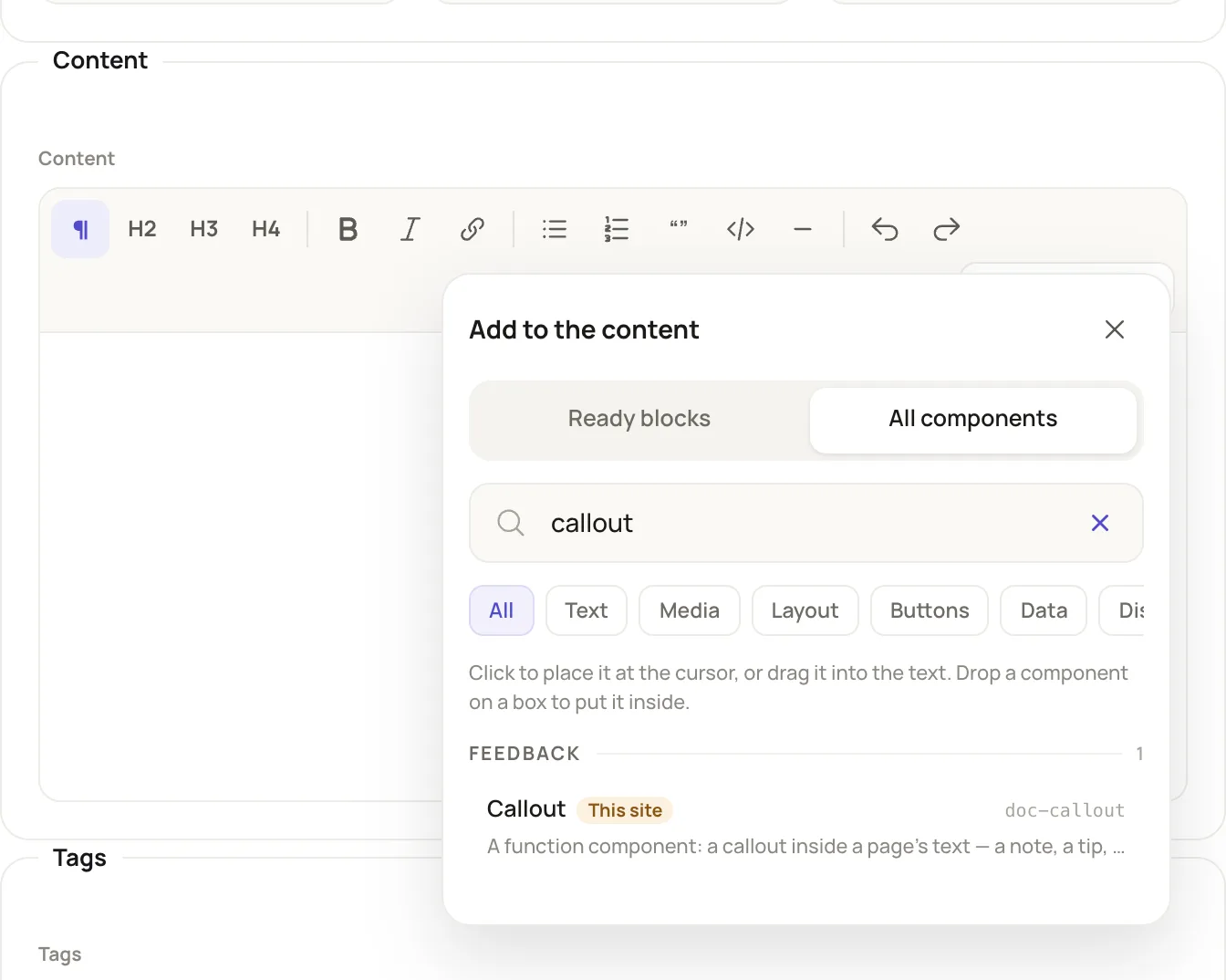
The palette places a component as a block in the text.
Three components are made for documentation text: a callout, a live example, and cards for the pages under a page. See Callouts, examples and the version placeholder.
Add notes to a page
A note is a titled block that a reader sees after the page's own text. The page's On this page list includes each note. Use notes to split a long page into parts a reader can jump to.
- On the page's row, click the Notes icon. The New Note dialog opens with the page already chosen.
- Enter a Title and write the Content. Both are required. The editor is the same as the page's.
- Set Order Position, Content Review and Technical Review.
- Click Create. The admin answers Note created successfully.
To edit a note, click Advanced Details on the page's row. The Notes list there has an Edit note button for each note. Readers see notes in ascending Order Position.
Tag a page
Tags label pages in the admin, and the JSON:API serves them. The documentation blocks do not draw tags on the reader's side.
- Open the Document Tags screen at
/admin/dashboard/document/tags. It has no sidebar link. Click Add Tag. - Enter a Name. The Slug follows it. Enter the Language, then click Create.
- Edit a page, search for the tag in Tags, choose it and click Save Changes.
Example: a page of notes
The Mishka Chelekom documentation writes each page as an introduction plus one note per section heading. The introduction is the page's Content, and each heading, with the examples and code under it, is a note titled with that heading. The page's On this page list is then the list of its notes.
Next steps
- Organize the contents of a version: parents, groups and the front page.
- Propose a change with a draft: let contributors suggest edits.
- How documents are organized.