Add, clone and publish versions
v0.0.1
A version holds the pages of a document at one release. Readers choose among the published versions, and the document opens on the latest. This guide adds a version, copies an existing version into a new one, marks the latest, and ends the link between a copy and its source.
Before you begin
- Create the document first. See Create a document.
- Sign in with an account that holds
admin:dashboard:document:workspace. To copy a version, the account also needsadmin:dashboard:document:section, because a copy writes the source's pages and notes.
Add a version
- On the Documents screen, click the Versions icon on the document's card. The Workspace Versions screen opens.
- Click Add Version.
- Enter a Version Number such as
1.0.0. It must be a semantic version of up to 50 characters, and unique within the document. - Optionally enter a Version Name and a Description.
- Choose a Status. See the table below.
- Click Create.
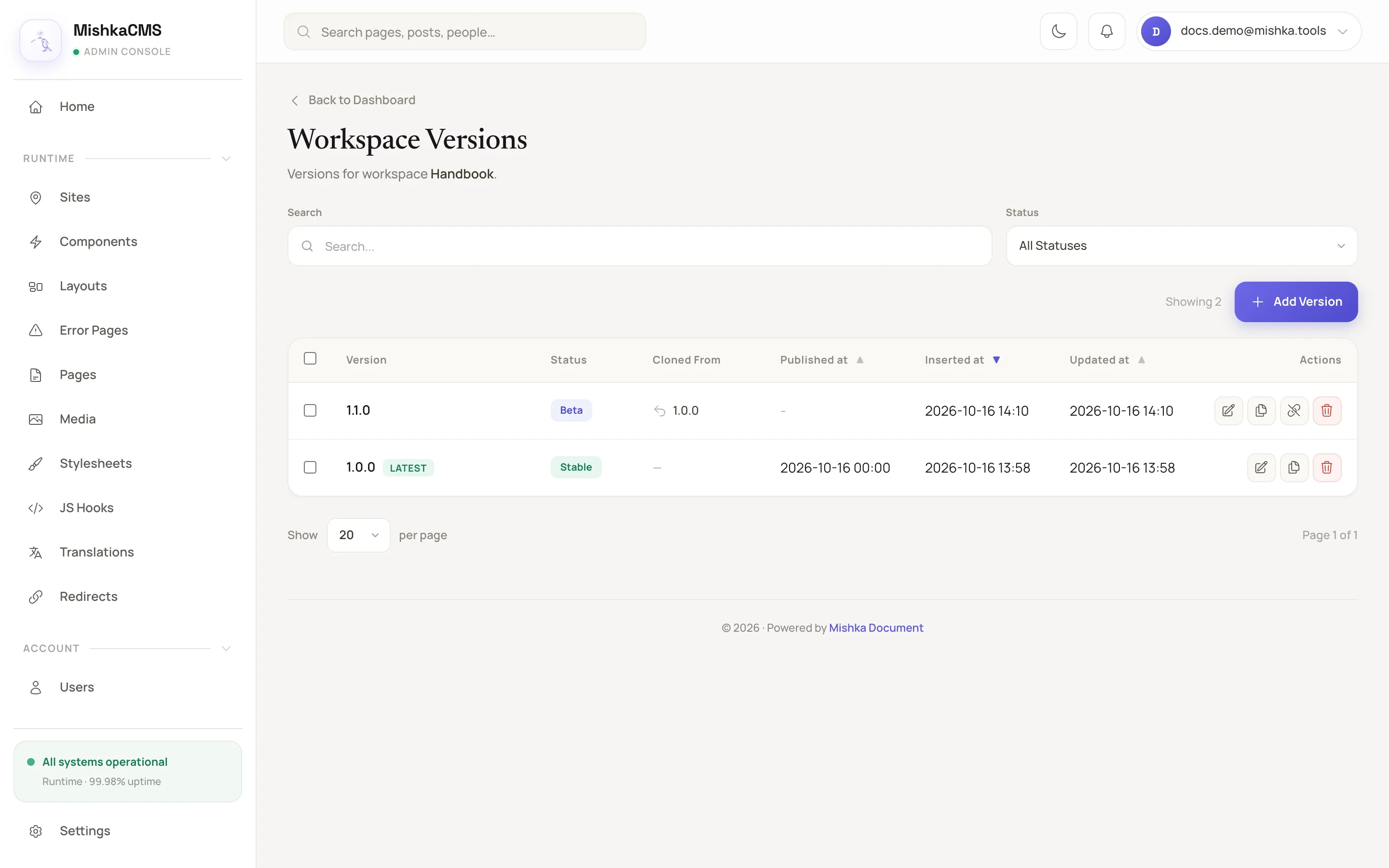
The versions of a document, with their status, latest mark and source.
| Status | Readers see the version |
|---|---|
| Draft | No |
| Alpha | Yes |
| Beta | Yes |
| Rc | Yes |
| Stable | Yes. Needs a Published At that is not in the future. |
| Archived | No |
Choose the version readers land on
Switch on Mark as Latest Version in the version's form. Only one version of a document is latest, so marking one unmarks the others. A document opens on its latest version. With none marked, it opens on the newest published one. A reader picks another published version with the version switcher. The latest version has no ?v= in its address. The switcher adds ?v= and the version number to the address of any other version.
The latest version cannot be deleted. Mark another version as latest first.
Clone a version
A clone starts a new version as a copy of an existing one, with every page, note and tag. Drafts of pages and notes are not copied.
- On the Workspace Versions screen, click Clone on the version to copy.
- In Clone version, enter the New version number. The Version name and Description are optional.
- Click Clone version. The button reads Copying pages and notes… while the copy runs.
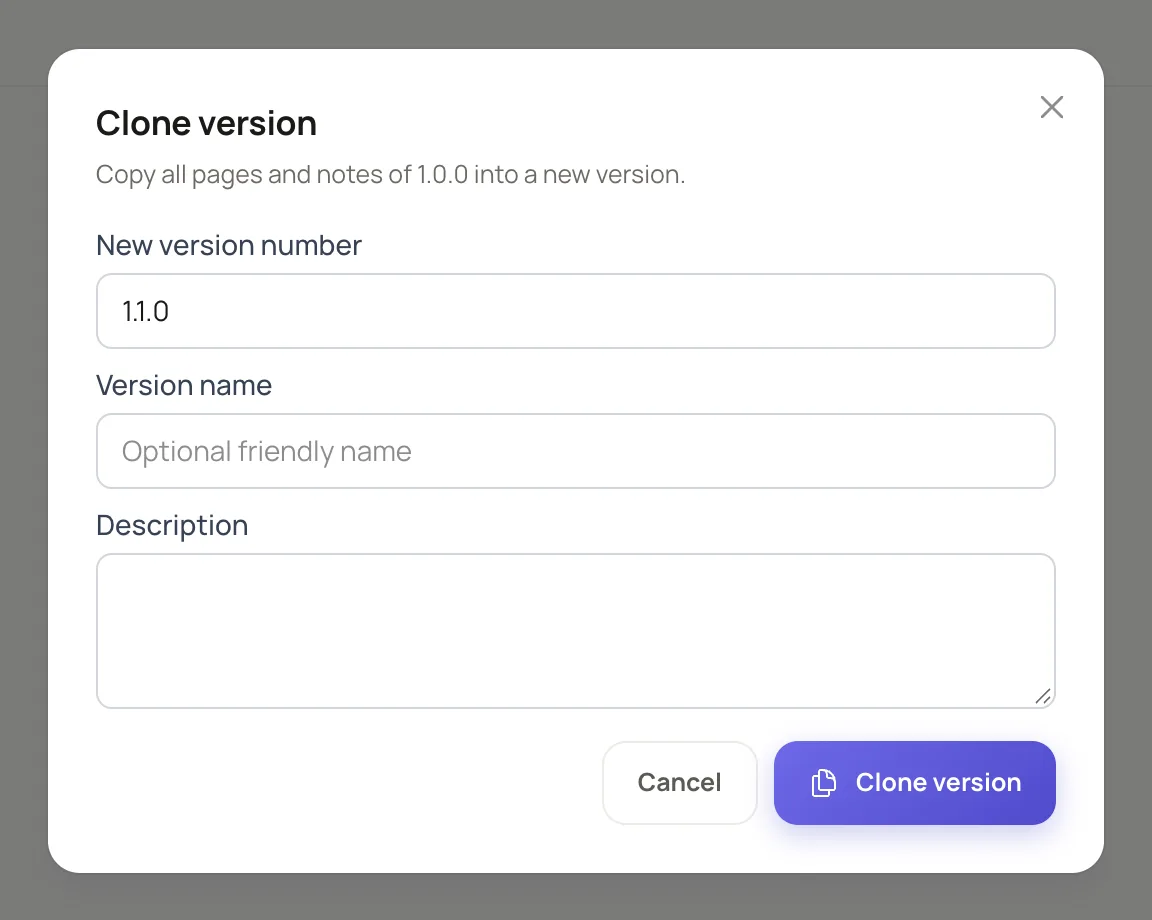
The dialog names the version being copied and asks for the new version number.
The admin answers with the new version, its source and how many pages and notes were copied. The clone is a draft and is not the latest, so readers do not see it until you change its status. The copy is one transaction: if anything fails, nothing is written.
You can also copy while adding a version. In the Add Version form, choose a version in Clone from. The field is shown only to accounts that may clone, and the first choice starts an empty version.
End the link to the source
A cloned version is tied to the version it came from, and the Cloned From column shows the source. Deleting a source deletes the versions cloned from it, with all their pages and notes. The delete confirmation names them.
To keep a clone when its source goes, click Make independent on it and confirm. The version no longer names a source, and none of its pages names the page it was copied from. Its pages keep the history that links them across versions.
Example: two Chelekom versions
The Mishka Chelekom documentation has the versions 0.0.9 and 0.0.10, both Stable. The site marks 0.0.10 as latest, so /chelekom/docs shows it, and /chelekom/docs?v=0.0.9 shows the older one. 0.0.10 was created from 0.0.9 with a source version, so each page keeps its lineage and the version switcher leads from one to the other.
Next steps
- Write pages and notes.
- Review, status and who can read a page.
- Plugin events: react when a version is cloned or made independent.