Track reported issues
v0.0.1
An issue is a problem report about a page or a note of a document: a typo, a broken link, wrong content or a suggestion. Issues live in the admin only, for the people who maintain the documentation. This guide records an issue, discusses it in comments, and moves it through its statuses.
Before you begin
- Sign in with an account that holds
admin:dashboard:document:section. Issues, their comments and the Reported Issues panel belong to that area. - Have a page or a note to report on. See Write pages and notes.
Record an issue
- On the Documents screen, click Reported Issues beside the activity feed, then View all issues. You can also open
/admin/dashboard/document/issues. - Click Add Issue.
- Enter a Title and choose an Issue Type: Typo, Broken link, Incorrect content, Suggestion, Review feedback or Other.
- Choose the Section, the Note or both. An issue must point at one of them.
- Describe the problem in Description, then click Create. The admin answers Issue created successfully.
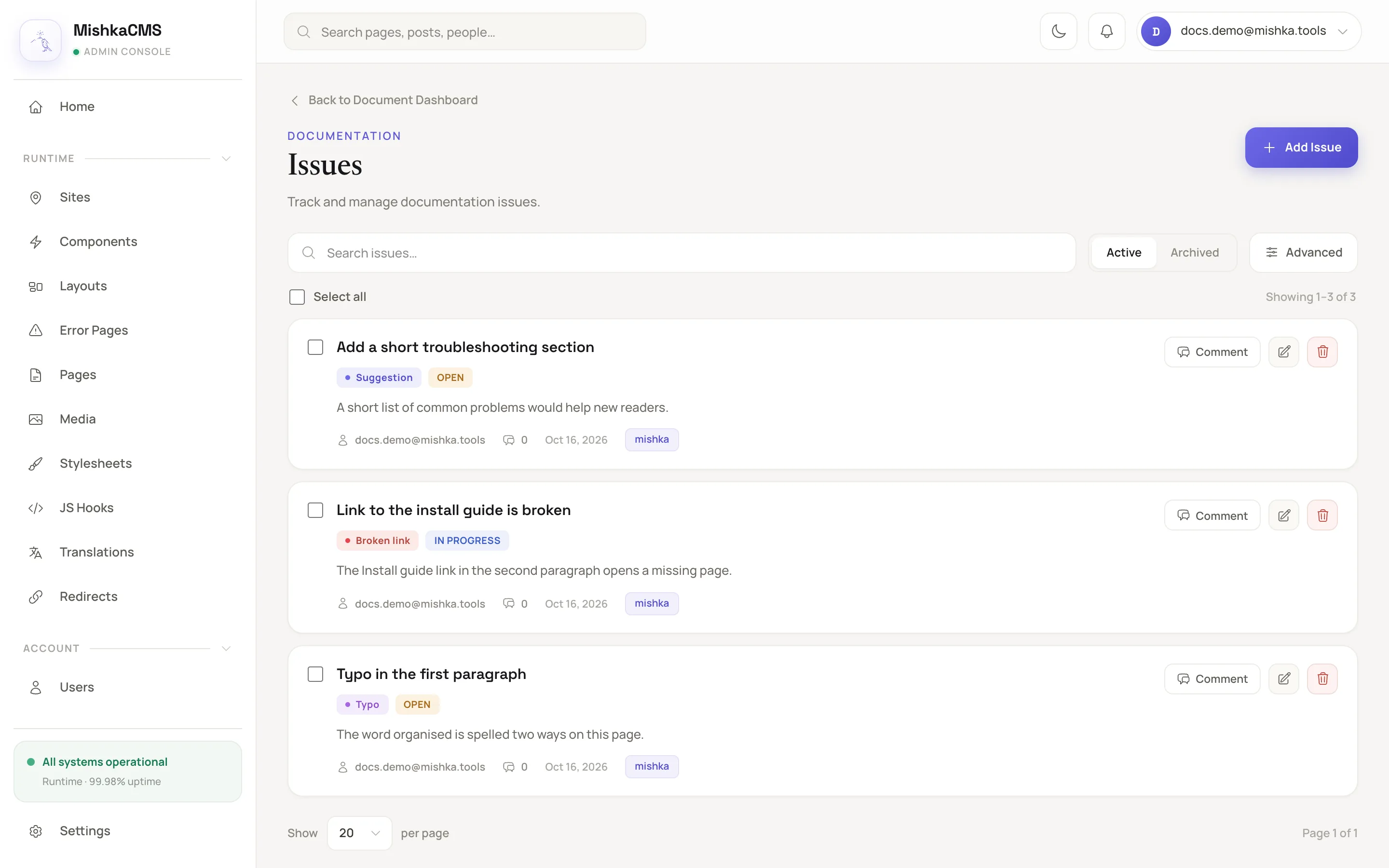
The Issues screen lists each issue with its type and status.
The reporter is the account that creates the issue. A master account chooses the Site and the Reporter in the form. A new issue starts as Open.
Discuss it in comments
- On the issue's card, click Comment to open Comments & Actions.
- Click Add Comment, write the Content and save.
- Use the edit icon beside a comment to change it. The delete icon removes a comment for good, after a confirmation. Click Load more comments to see more.
The CMS refuses a new comment on an issue that is Resolved or Closed. Reopen the issue first. A comment written by a master account can be read, but not edited or deleted, by a site account.
Move it through its statuses
The same panel has the status buttons. Each answers Issue status updated. A card offers only the changes that fit its status: an open issue offers Mark In Progress, Mark Resolved and Close, an issue in progress offers Mark Resolved and Close, a resolved issue offers Reopen and Close, and a closed issue offers Reopen.
| Button | Sets the status to |
|---|---|
| Mark In Progress | In progress |
| Mark Resolved | Resolved |
| Close | Closed |
| Reopen | Open |
The Status and Issue Type filters on the screen narrow the list, and its search box searches it.
Archive and restore an issue
Archive an issue you no longer need, then switch the list or the Reported Issues panel to Archived to Restore it or to delete it for good. Nothing is removed until you delete it permanently.
Next steps
- Propose a change with a draft: fix the page the issue is about.
- Permission names: who can see the Open issues widget.