Propose a change with a draft
v0.0.1
Editing an approved page in place changes what readers see as soon as you save. A draft is the other route: it holds a proposed page or note, waits for a content review and a technical review, and writes itself into the document when both approve. This guide proposes a change to a page, reviews it, and shows what happens when it is applied.
Before you begin
- Have a page to change, or the version to add a new page to. See Write pages and notes.
- Sign in with an account that holds
admin:dashboard:document:section. The same permission covers proposing and reviewing. The CMS does not require two different people for the two reviews.
Propose a change to a page
- On the sections screen of the version, open the page's row with Advanced Details and click View Drafts for this Section. The Section Drafts screen opens, filtered to that page.
- Click Add Section Draft.
- Choose the Workspace and the Workspace Version the page is in.
- Choose the page in Source Section. The draft starts with the page's current value for every field you leave empty, so it shows what the page holds and changes nothing you did not edit.
- Enter the page as you want it: the Title, Slug, Language and Content. A field you leave empty keeps the page's value. Applying the draft writes only the fields you changed, and a field set back to the page's own value is not a change.
- Enter the Change Version, a semantic version such as
1.0.1, and choose an Increment Type: Major, Minor, Patch, Prerelease or None. - Leave Content Review and Technical Review on Pending, and click Create.
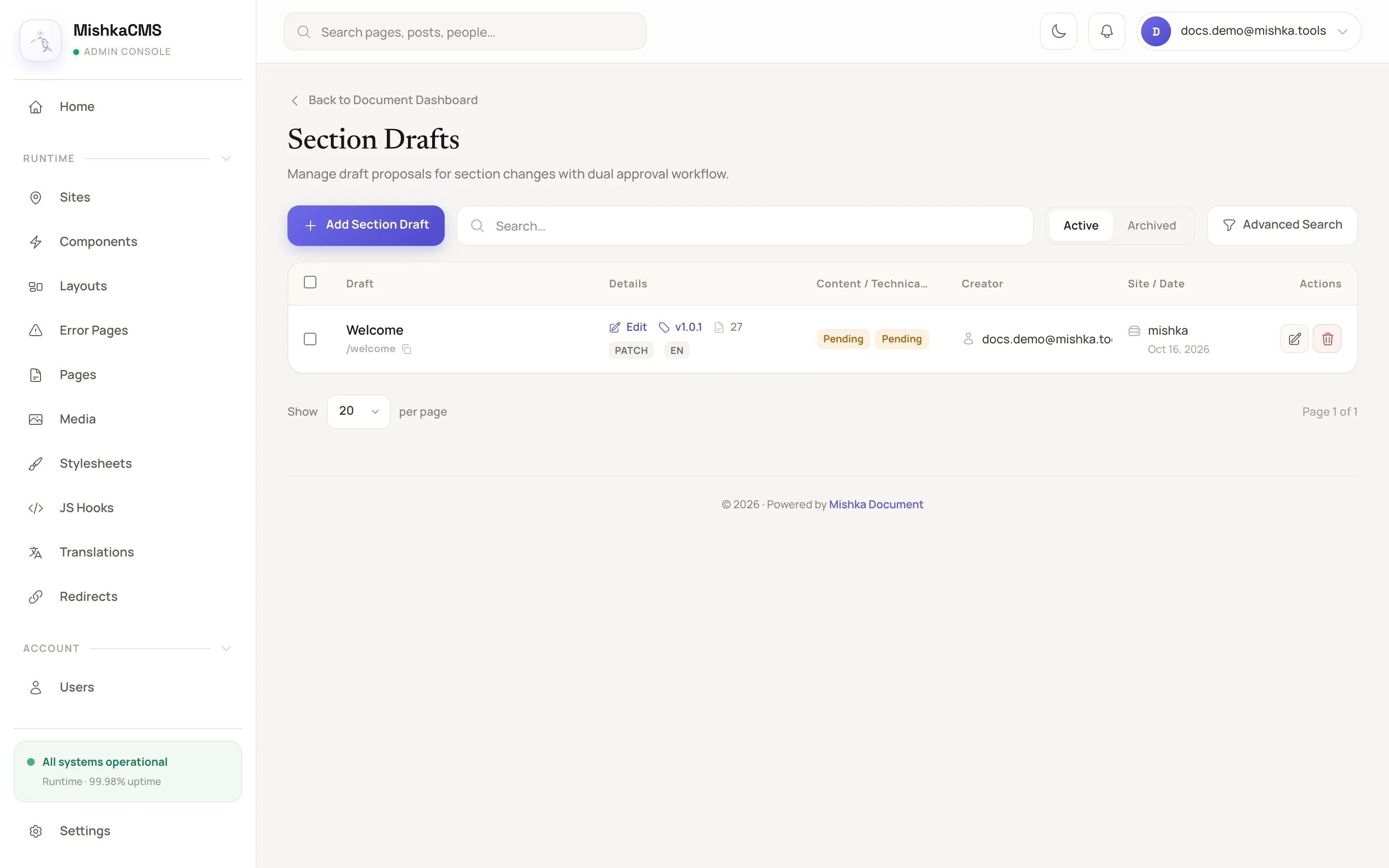
The Section Drafts screen lists each proposal with its two review states.
To propose a new page instead, leave Source Section on No source section. If the page belongs under another, choose its Parent Section.
Review the draft
- On the Section Drafts screen, open the draft's details to read it. The details list the title, slug, language, version, increment type, both review states, whether it is applied, the source section and who created it.
- Click Edit. Correct the draft if it needs it.
- Set Content Review and Technical Review. Each is Pending, Approved, Rejected or Needs revision.
- Click Save Changes.
While either review is not Approved, the page is unchanged.
See what is applied
When you save a draft with both reviews Approved and it has not been applied before, the CMS applies it, once.
- For a draft with a Source Section, the page takes only the fields the draft changes, from its title, slug, content, order position, change version, parent section, structured data, SEO tags, permissions, language and language group. A draft that changes none of them is applied and writes nothing to the page. Its review states and its front page and group settings stay as they are.
- For a draft with no source, the CMS creates a page in the draft's version, with both reviews approved.
- The draft's details then show the date under Applied, and Not applied for any draft still waiting.
The Increment Type is stored and shown with the draft. Applying a draft writes its Change Version to the page when it differs from the page's, and does not create or change a document version.
Propose a note
Notes have their own screen, Note Drafts, at /admin/dashboard/document/note-drafts. Open it from the sections screen with Note Drafts, or with the draft icon beside a note. Click Add Note Draft and choose how the note relates to the document:
- For a new note on an existing page, set Section.
- For a change to a note, set Source Note.
- For a note on a page that is itself still a draft, set Section Draft. The note draft waits until that section draft has been applied.
Review it the same way. Applying an edit writes only the fields the draft changes, from its title, content, order position, change version, structured data and SEO tags. Applying a new note creates it with both reviews approved.
Archive a draft
Click Delete on the draft's row. The confirmation asks to archive the draft, so it is archived and not removed. Switch the list to Archived to click Restore, or Delete Permanently to remove it for good.
Next steps
- Review, status and who can read a page.
- Track reported issues: record a problem with a page before you draft the fix.