Organize the contents of a version
v0.0.1
The pages of a version form a tree. A reader sees the tree as the contents list, reaches each page at an address built from the tree, and steps through it with Previous and Next. This guide files pages under a parent, orders them, chooses the page that opens at the document's address, and adds group headings.
Before you begin
- Add the pages first. See Write pages and notes.
- Sign in with an account that holds
admin:dashboard:document:section.
File a page under a parent
- On the sections screen of the version, click Edit on the page.
- Under References, search for the page in Parent Section. The first choice, No parent section, puts the page at the top.
- Click Save Changes.
A parent must be a page of the same version, and a page cannot be its own parent. A page filed under a parent is read at the parent's slug followed by its own.
Order the pages
Set Order Position under Review & Ordering. It is a whole number from 0. Readers see pages in ascending order position, and pages with the same number in order of their titles. Previous and Next follow the order of the contents.
Choose the front page
Switch on Front page on one page. The document's own address then shows that page instead of the list of pages, and the pages filed under it sit directly under the address.
- A version has one front page, and it must have no parent.
- Like any page, it is shown only when both of its reviews are Approved.
- A front page cannot also be a group.
- The front page's own slug is not an address. In the Mishka Chelekom documentation, Get Started is the front page, so
/chelekom/docsshows it and/chelekom/docs/get-startedis a missing page.
Add a group
A group is a heading in the contents with pages under it.
- Add a page whose purpose is only to be the heading.
- Switch on Group, and set both reviews to Approved. A group that is not approved is not in the contents.
- Edit the pages that belong under it and choose the group as their Parent Section.
A group has no page and no address of its own. Nothing links to it, and Previous and Next step over it. The pages under it are addressed as if the group were not there, so Breadcrumb under a group named Navigations is /chelekom/docs/breadcrumb.
Give a group a page of its own
Switch on both Group and Group page. The group is then also read at its own slug, with its text and notes, and Previous and Next stop on it. The pages under it still leave its slug out of their addresses. The Chelekom documentation does this for Navigations, Feedback, Media, Overlays and General: each is read at /chelekom/docs/navigations and so on, and its text lists the pages under it as cards. See Callouts, examples and the version placeholder for the cards.
Switching on Group page for a page that is not a group changes nothing.
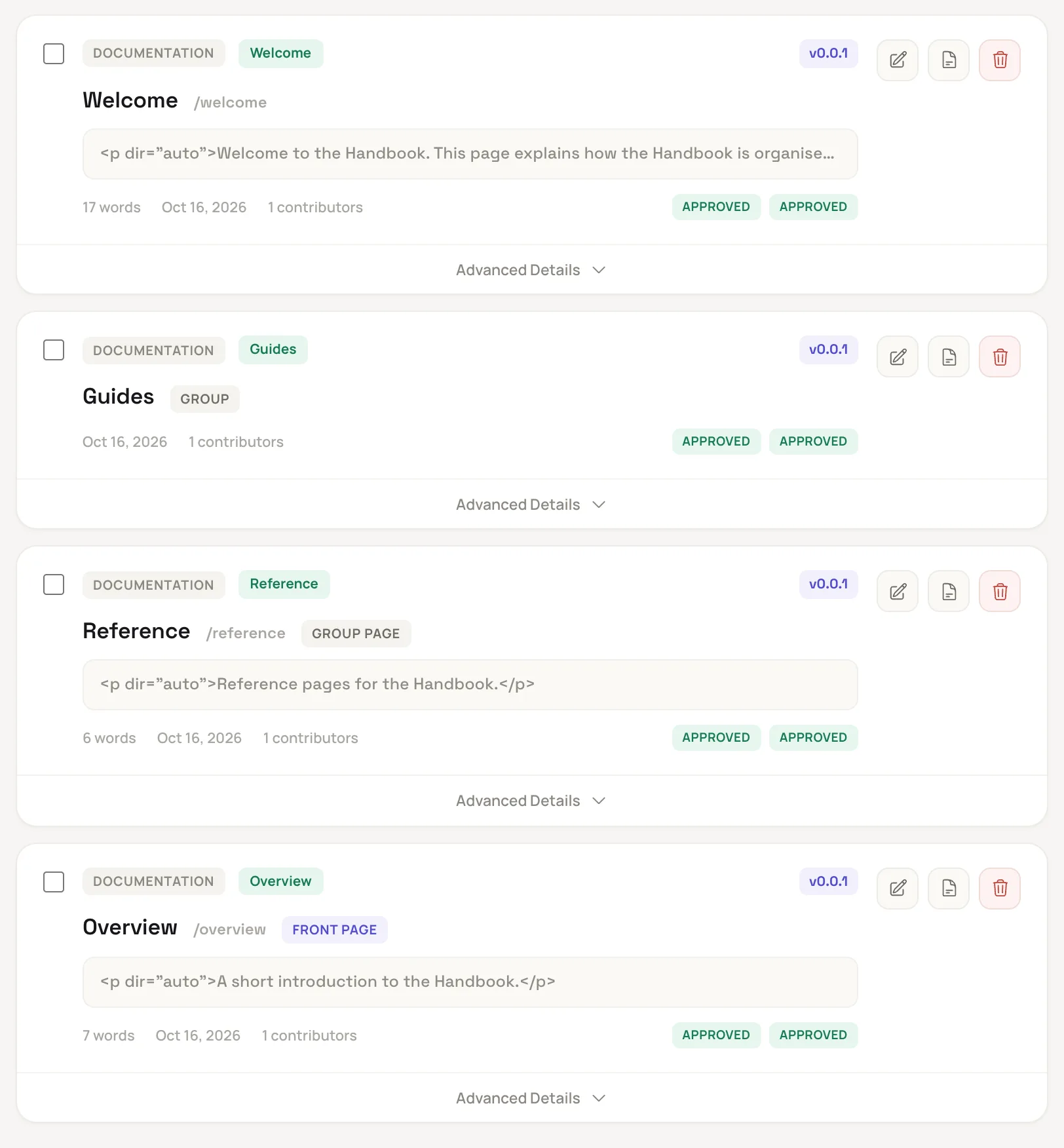
The section cards mark front pages, groups and group pages.
Fix an address that is refused
Because groups and the front page leave their slugs out, two pages under different parents can end at the same address. The admin refuses the save with a message on Slug that names the other page and says it is read at the same address, and asks you to choose another slug or parent. Do that for one of the two pages. A group with a page of its own also meets a page that has the same slug and is filed under it, and the same message applies.
Example: how addresses are built
| Kind of page | Where it is read | In the contents |
|---|---|---|
Page at the top, cli | /chelekom/docs/cli | A link |
Page switch filed under headless | /chelekom/docs/headless/switch | A link under Headless |
| Front page | /chelekom/docs | A link |
Group navigations | No address | A heading |
| Group with a page of its own | /chelekom/docs/navigations | A heading that links to the page |
| Page under the group | /chelekom/docs/breadcrumb | A link under the heading |
Next steps
- How documents are organized: addresses in depth.
- Blocks that read a document: the contents list and the pager.