Create a document
v0.0.1
A document is the top level of Mishka Document. It has a name, an address and a language, and it holds versions, which hold pages. The admin and the API call a document a workspace. This guide creates one, gives it an address, adds a translation of it, and shows how to archive and restore it.
Before you begin
- Set the site up. See Set up documents on a site.
- Sign in with an account that holds
admin:dashboard:document:workspace. An account that holds onlyadmin:dashboard:document:sectionsees the list but not Add Workspace.
Create the document
- In the admin sidebar, under Plugins, click Documents, then click Add Workspace.
- Fill in the form. A master account chooses the Site first.
- Click Create. The admin answers Workspace created successfully.
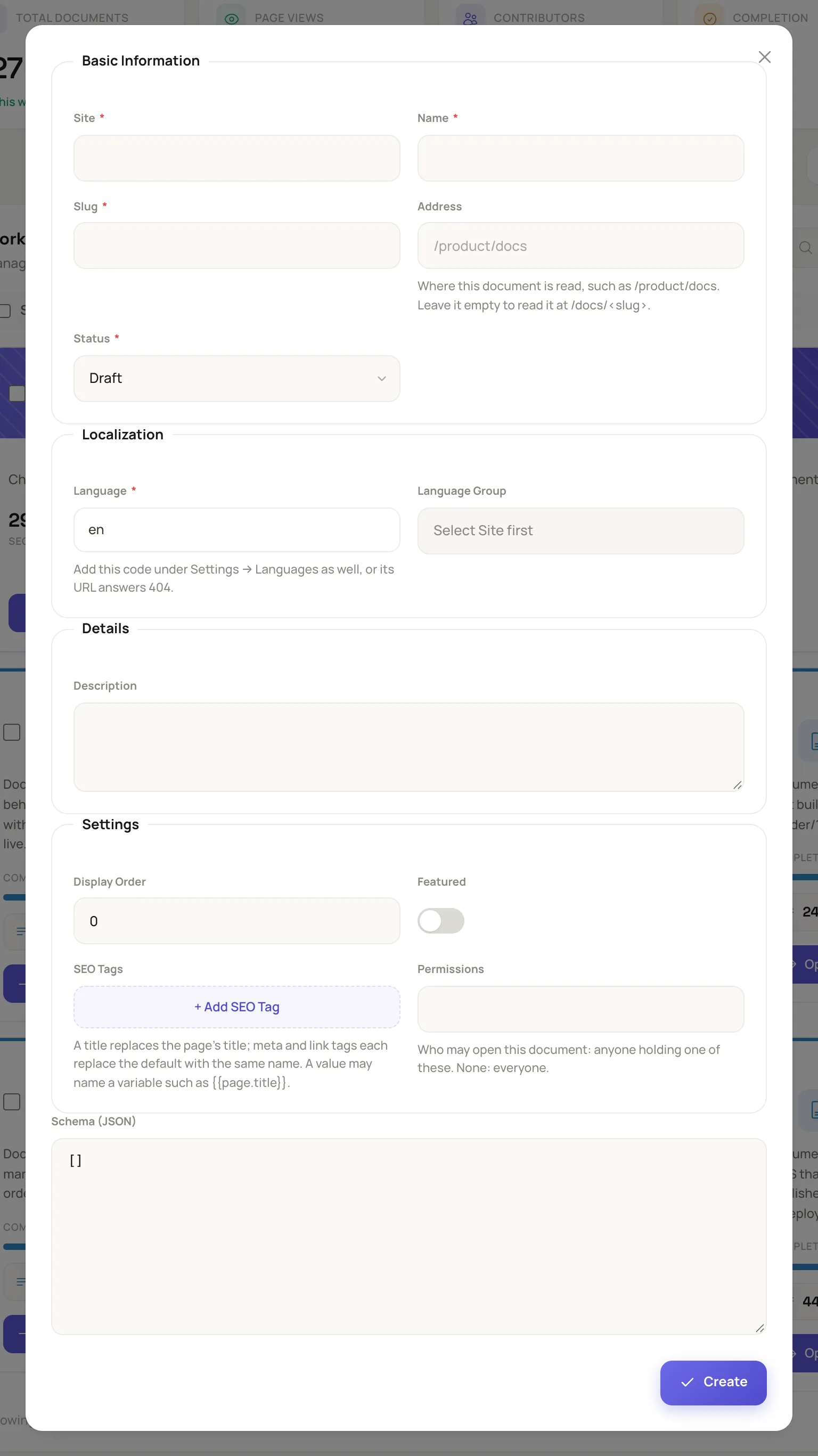
The form is grouped as Basic Information, Localization, Details and Settings.
These are the fields:
- Name is required and holds up to 255 characters.
- Slug is required. While you add the document it follows the name until you type your own. A slug is unique within a site.
- Address is where the document is read. See the next section.
- Status is Active or Draft. Readers see only an active document.
- Language is required and takes a language code such as
en. Add the same code under Settings, then Languages, as well, or the document's URL answers 404. - Description holds up to 2000 characters of plain text. It is the summary the document list shows.
- Display Order is a whole number from 0. The document list can sort by it.
- Featured marks a flagship document. The document list can show only featured documents, and a featured card carries a badge.
- SEO Tags and Share image change how the document looks in a search result or a shared link. See Titles, descriptions, sitemap and share cards. The share image appears after the first save.
- Permissions names who may open the document. Leave it empty for everyone. See Review, status and who can read a page.
The length limits on Name and Description are GuardedStruct derives on the document record.
Choose an address
With an Address such as /product/docs, the document is read there and nowhere else, and its pages are read under it. With no address, it is read under the documentation base by its slug, as /docs/<slug>. The sample pages use /:lang/docs, so on a site that puts the language in the URL, a language the site does not leave unprefixed has its code in front, as in /fa/docs/<slug>.
An address follows these rules:
- It is made of segments of lower-case letters, digits and dashes between slashes, and may hold
:langonce where the site's language goes. - It is stored trimmed, in lower case, with one leading slash and no trailing one.
- It cannot sit under
/docs. - No other document of the site may be read at it, above it or under it. The one exception is a translation of the same document at an address that holds
:lang.
When you save a new address, the CMS writes the two site pages that answer at it, unless the site already has pages at both paths. Your account needs the runtime permissions listed in Set up documents on a site. Without them the form refuses the address and names what is missing. Leave the address empty to skip that.
Add a language edition
A translation is another document with its own slug, pages and versions. Documents of one family share a language group.
- Click Add Workspace.
- Enter the translated Name and Slug, and choose the new Language.
- In Language Group, choose the original document, which the list shows as its name and language. Leave New Language Group (auto-generate) for a document that starts a family.
- Click Create.
Each language appears once in a family. The list shows one card per family and a chip for every other language, with that edition's completion. Click a chip to open that edition's sections.
Archive and restore a document
- On the card, click the trash icon, Archive, and confirm.
- To find it again, switch the list from Active to Archived.
- Click Restore to make it active, or Delete to remove it for good. A permanent delete cannot be undone.
An original cannot be archived or deleted while its translations are live. The admin explains why and offers to archive or delete the translations at once. An archived document cannot be edited until you restore it.
Example: this documentation
The documentation you are reading is a document with the Name Mishka Document, the Slug document, the Address /cms/extensions/documentation/docs, the Status Active and the Language en. The version you are reading is 0.0.1. The Mishka Chelekom documentation at /chelekom/docs is another document of the same site, marked Featured.
Next steps
- Add, clone and publish versions: a document shows nothing until it has a version.
- Write pages and notes.
- How documents are organized.