Get Started
v0.0.1
Mishka Document is the extension of Mishka CMS that stores versioned, multi-language documentation. You write a document in the admin, review its pages, and the CMS serves it at an address you choose. This tutorial takes a site with no documentation to a document you can read in the browser. The page you are reading is itself a document, named Mishka Document, served at /cms/extensions/documentation/docs.
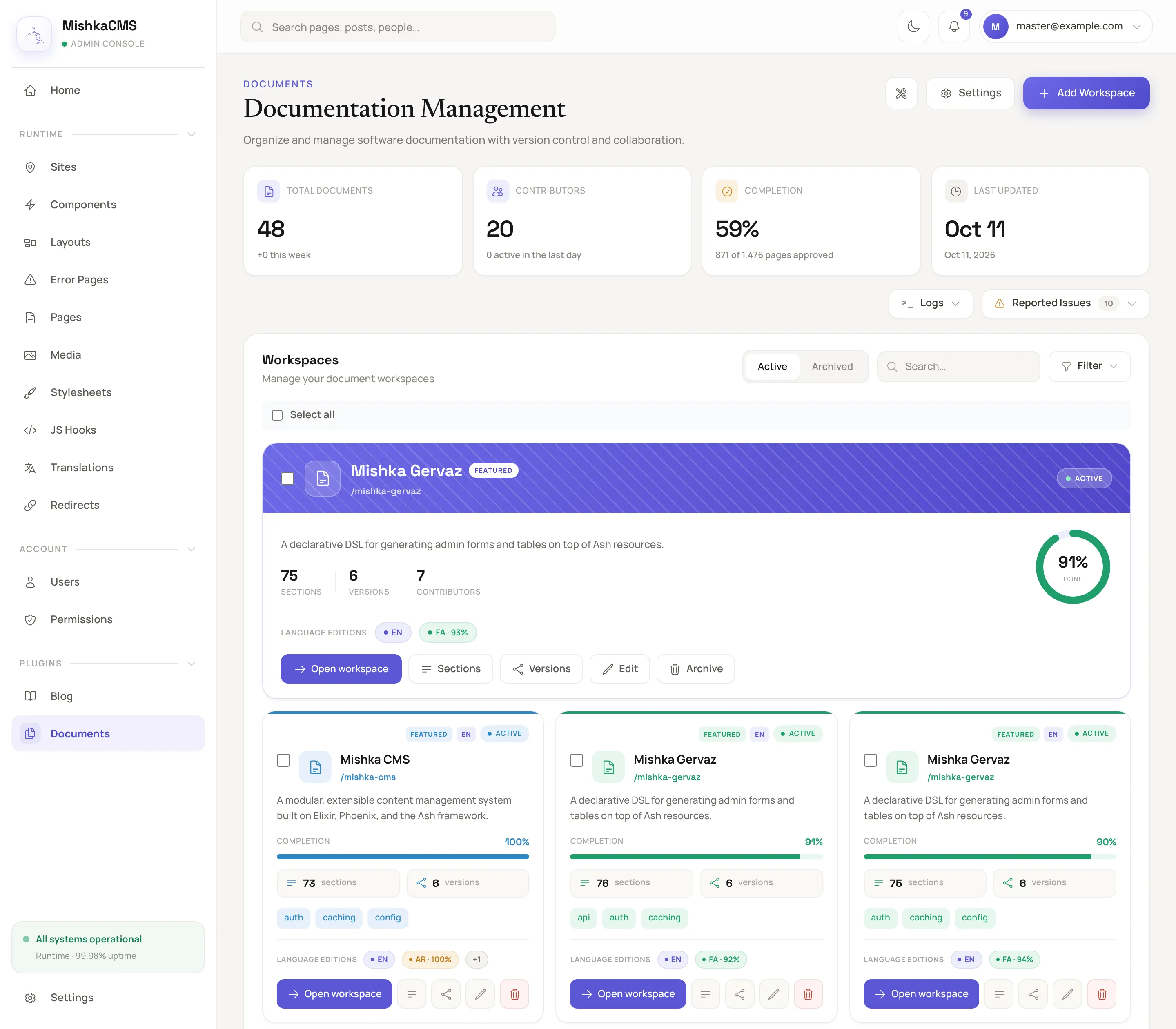
The documents dashboard shows every workspace with its sections, versions, languages and how much of it is approved.
What you will build
A document named Handbook, read at /handbook/docs, with one version, 1.0.0, and one page, Welcome.
Before you begin
- Use a Mishka CMS project that includes the Mishka Document package. A standard project already does, and the install wizard lists it as Documentation.
- Sign in with an account that holds
admin:dashboard:document:workspaceandadmin:dashboard:document:section, oradmin:dashboard:document:*. To set the site up in step 1, the account also needs the page, component, stylesheet, JavaScript hook and site permissions underadmin:dashboard:runtime. A master account holding*has all of them, and signs in at/auth?master_user=true. See Permission names and the documentation.
If your project does not include the package, add it from Hex to deps in mix.exs:
def deps do
  [
    {:mishka_document, "~> 0.0.1"}
  ]
end
Run mix deps.get, then list the package's Ash domain and its web module in the project's config, as Install an extension shows.
Step 1: Set the site up
- In the admin sidebar, under Plugins, click Documents.
- A site that has never been set up opens on The documentation. Click Set up. If you are a master, choose the site in the list first.
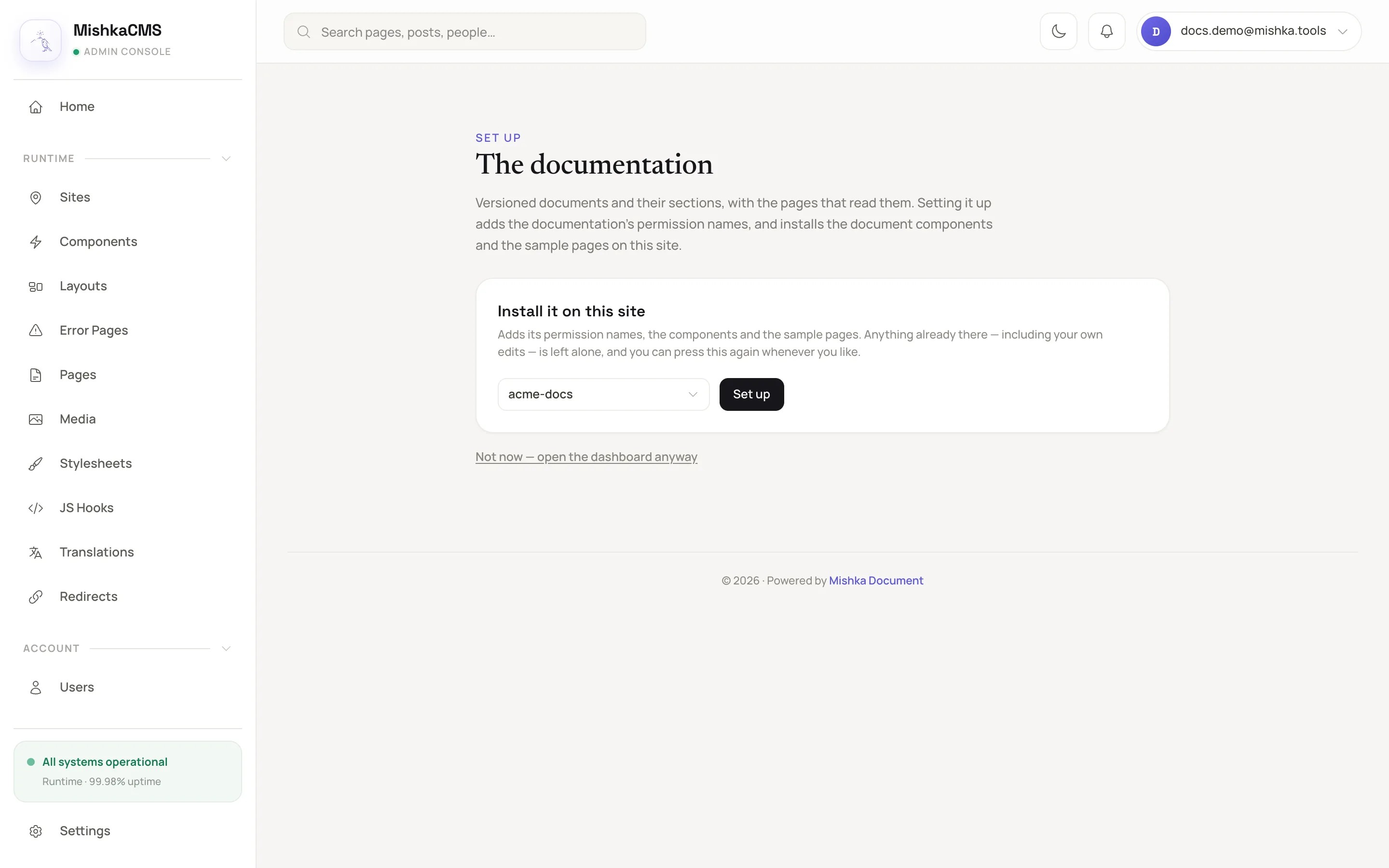
The first screen of a site that has not been set up.
The panel then reports what it added, such as the documentation's permission names, its components and its sample pages. The dashboard opens with Settings and Add Workspace in the header.
Step 2: Create the document
The admin calls a document a workspace.
- Click Add Workspace. The form opens in a dialog. A master chooses the Site first.
- Under Basic Information, enter
Handbookas the Name. The Slug follows it ashandbook. - Enter
/handbook/docsas the Address, and choose Active as the Status. - Under Localization, enter the code of your site's main language as the Language, such as
en. - Click Create.
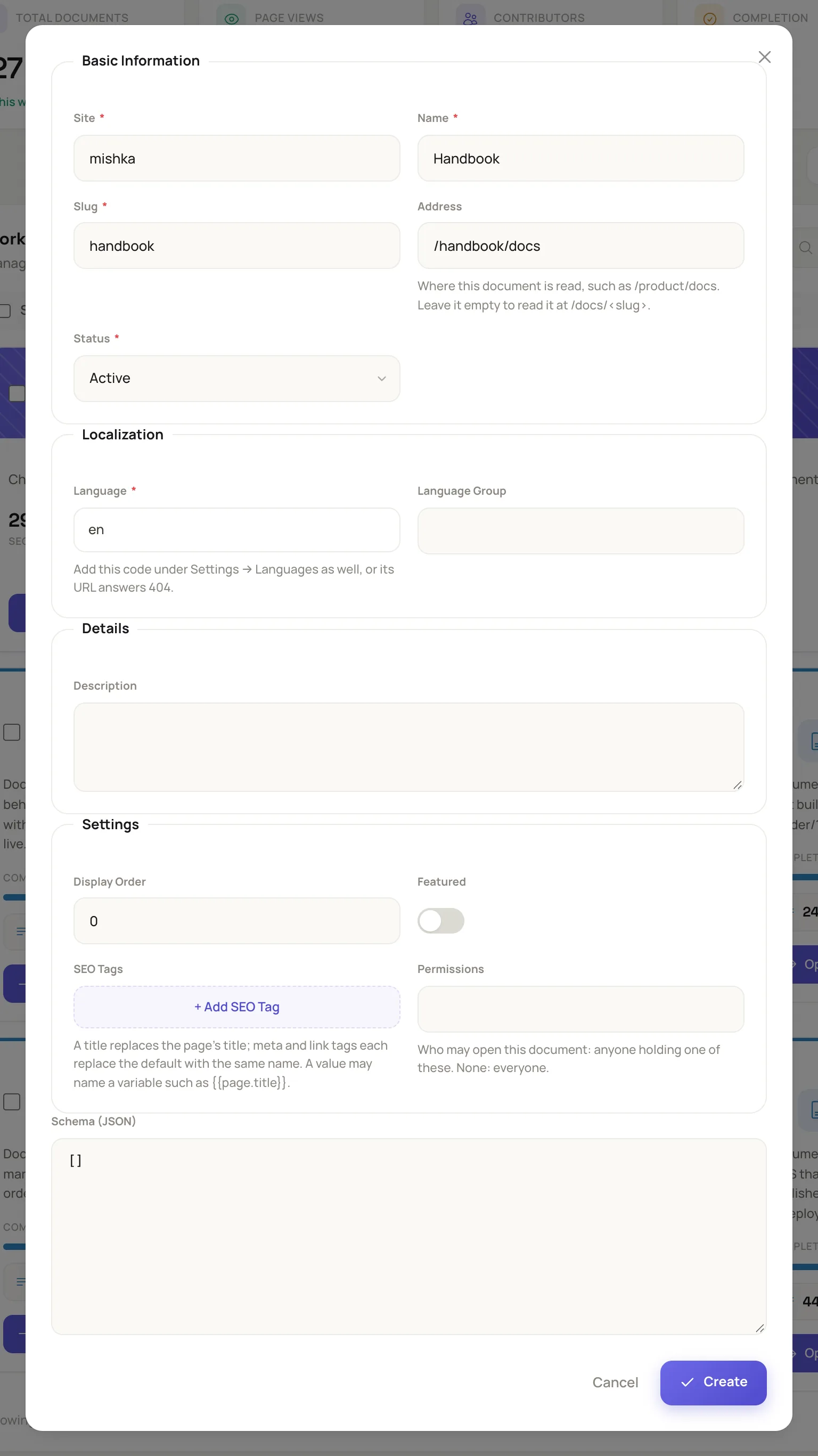
The dialog asks for a name, a slug, an address, a status and a language.
The admin answers Workspace created successfully, and a Handbook card with an Active status appears in the list.
Step 3: Add a version
- On the Handbook card, click the Versions icon. The Workspace Versions screen opens.
- Click Add Version.
- Enter
1.0.0as the Version Number, choose Stable as the Status, and set Published At to the current moment. Click the field, click today in the calendar, set Hour and Minute under Time, and click Done. The picker has Clear and Done and no button for the current time. A stable version needs a publish date that is not in the future, so choose a time that has already passed. - Switch on Mark as Latest Version, then click Create.
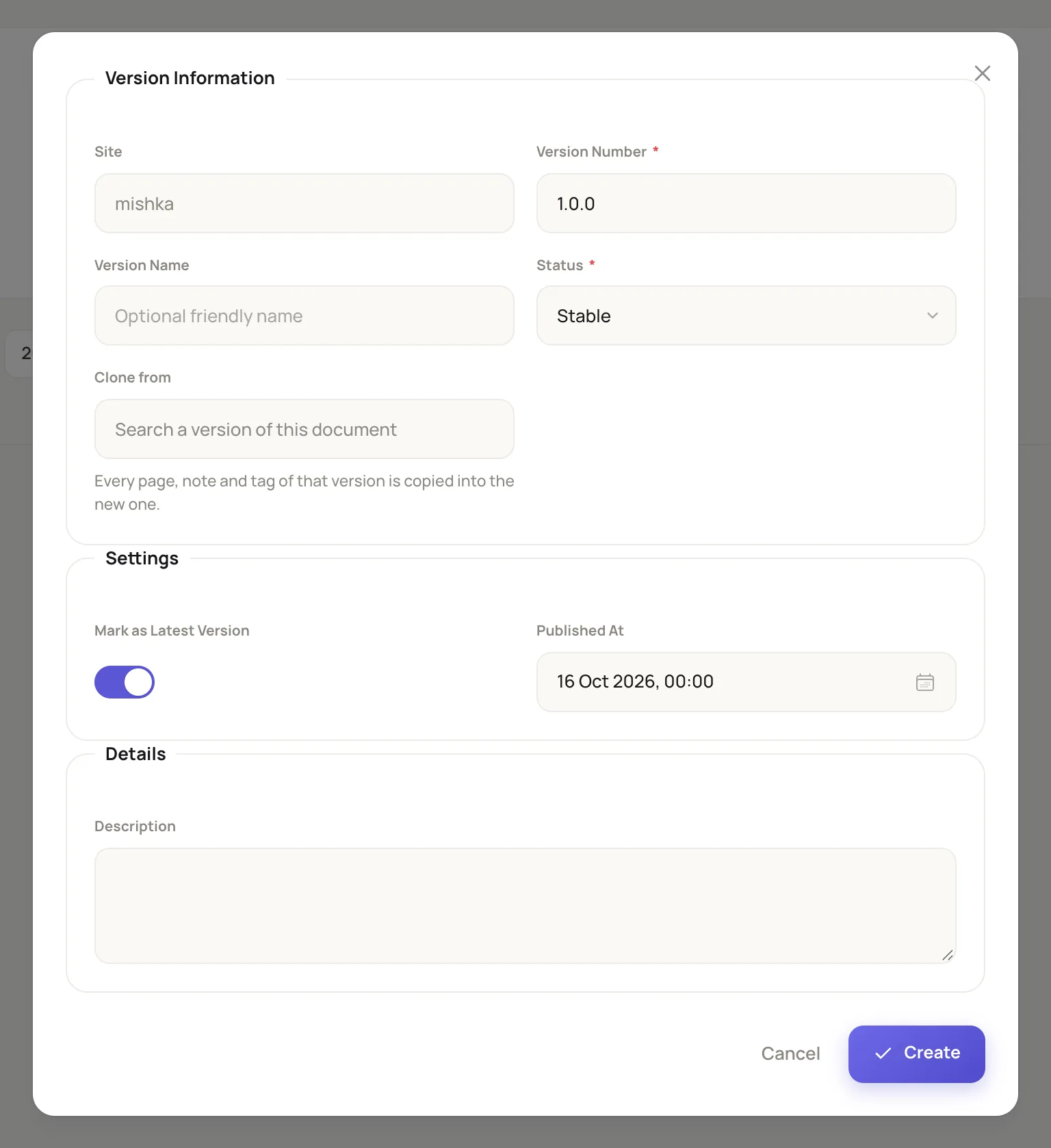
The Workspace Versions screen with the Add Version dialog open.
The list now shows 1.0.0 with a Stable badge and a Latest mark.
Step 4: Add a page
- Click Back to Dashboard, then Open workspace on the Handbook card. The sections of version
1.0.0open. - Click Add Section.
- Enter
Welcomeas the Title and your language code as the Language. - Set Content Review and Technical Review to Approved.
- Write a sentence or two in Content, then click Create.
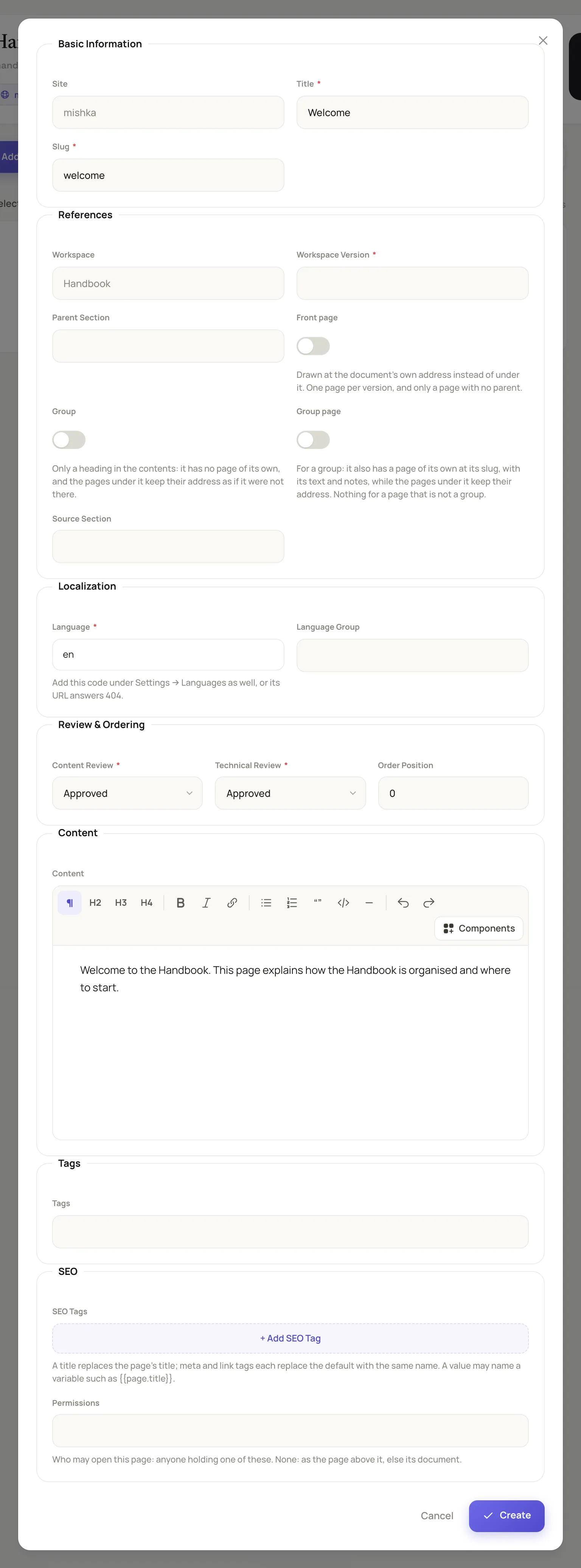
A page is a section. Both reviews must be approved before readers see it.
The admin answers Section created successfully, and Welcome appears in the list.
Step 5: Read the document
- Open
/handbook/docsin your browser. The page shows the name Handbook and a link to Welcome. - Click the link. The page opens at
/handbook/docs/welcomewith its title and your text. The document's pages are listed in a column at the start, with a Filter pages box above the list, or in a box named Pages on a narrow screen. A line after your text says when the page last changed and which version you are reading.
What you learned
- A reader sees a page only when its document is active, its version is Alpha, Beta, Rc or Stable, and both of its reviews are approved.
- The address on the document decides every URL under it. The document is read at the address itself, and a page is read under it by its slug, after the slugs of the pages it is filed under.
Next steps
- Create a document: the other fields, language editions and archiving.
- Add, clone and publish versions: copy a version into the next release.
- Write pages and notes: the editor, code blocks and components.
- How documents are organized: documents, versions, pages and notes.