Show documents on your site
v0.0.1
Documents are stored by the extension and drawn by components that read them. Setting a site up gives it three sample pages that use those components, so a published document is readable at once. This guide explains the sample pages, how an address of its own changes them, and how to build your own page from the same blocks.
Before you begin
- Set the site up. See Set up documents on a site.
- Have an active document with a published version and at least one approved page. See Review, status and who can read a page.
- To edit a page, sign in with an account that can write pages. See Build a page in the visual editor.
Read a document on the sample pages
Setting up writes these pages. They are ordinary CMS pages, so you can open and change them in the page builder.
| Page | Path | Shows |
|---|---|---|
| Documentation | /:lang/docs | Every published document, with a search box. Featured documents are cards and the others are rows. |
| Document | /:lang/docs/:workspace | One document's front page and its contents. |
| Document page | /:lang/docs/:workspace/*section | One page of it, with its notes. |
The Documentation page draws an introduction and a search box above the list of documents. A card shows the document's tile, its number of pages and version, its name and summary, and a link into it. It also shows the languages the document is published in on this site, as plain badges, when there are two or more. A badge is not a link.
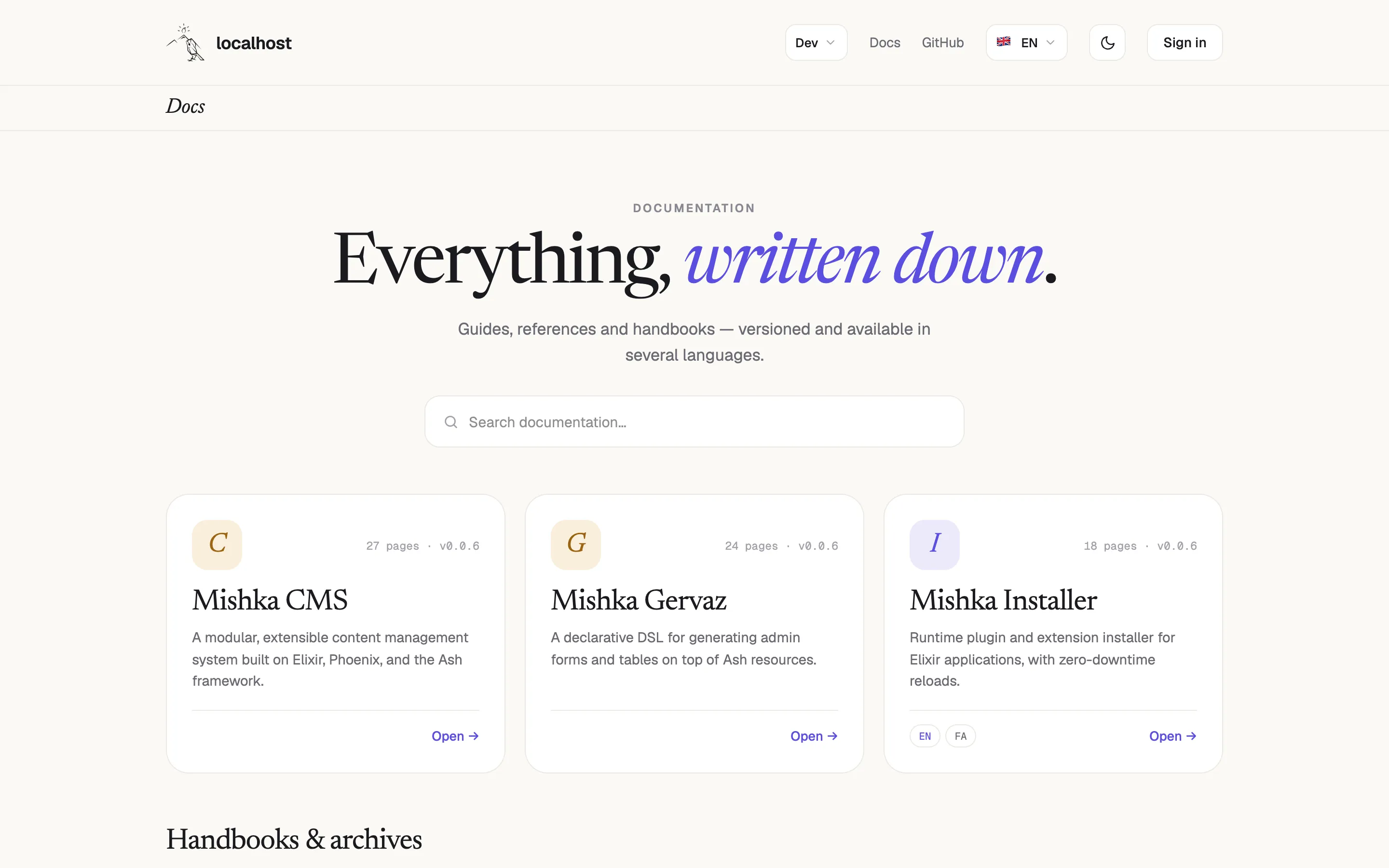
The documentation library of the sample set.
The two document pages share one layout between the site's header and footer:
- The site's header lists the languages the document, or the page, is written in. Each language leads to that edition at its own address. The header draws the list when there are two or more languages. Picking one opens that edition without a reload. See Changing language without a reload.
- A bar under the header shows Docs, which links to the library, then the document and the page as a trail. At its end, a menu lists the document's versions, and each leads to the same page in that version. The menu is the
doc-switcherblock. See Page frame: languages and the section bar. - Below the bar, the contents (
doc-sidebar) are a column at the start, the page (doc-section) is in the middle, and the ON THIS PAGE list (doc-toc) is beside the page. The list draws nothing for a page with fewer than two entries.
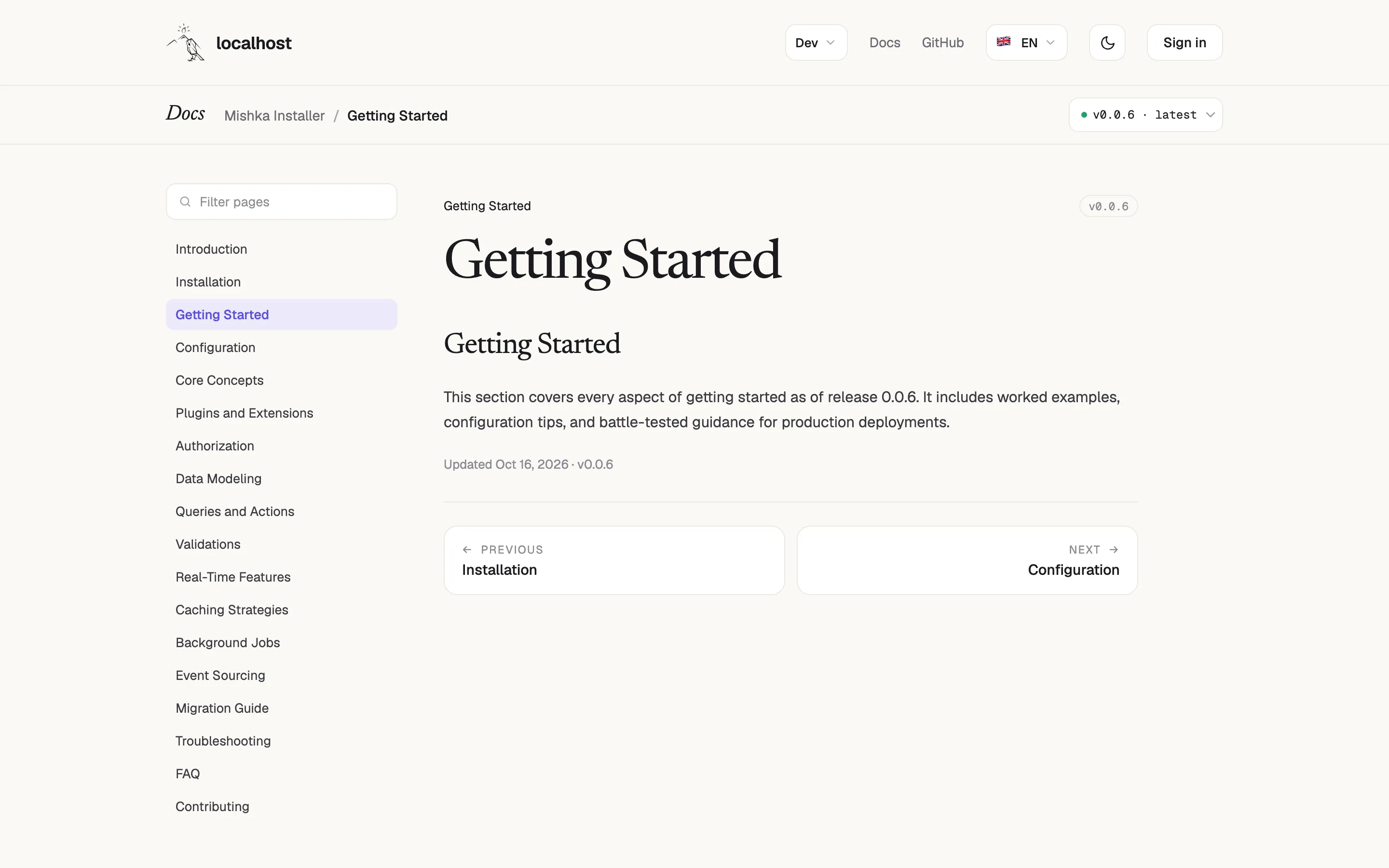
A page of a document, with the bar, the contents column and the page.
On a screen narrower than 880 pixels, the contents move above the page and close into a box named Pages. Press it to open the contents. Pressing a link inside it opens that page and closes the box again. From 880 pixels, the box is not drawn and the contents stay open in a column that sticks to the top as you scroll. A browser that cannot draw the contents without the box keeps the Pages summary at every width, so the contents stay within reach. The ON THIS PAGE list sits beside the page where there is room for it and below the page where there is not.
A document without an address of its own is read at /docs/<slug> on these pages, with the language code in front for a language the site prefixes, and a page of it at /docs/<slug>/<page address>.
Give a document its own address
Set the Address of the document, such as /handbook/docs. The CMS then writes two pages with the same layout, one at the address itself and one at the address followed by /*section, unless the site already has pages at both paths. The document is read there and no longer under /docs. See Create a document for the rules an address follows.
A page that serves one document at its address sets two attributes on each of its blocks: path, the address, and lang_param, empty, so the block never reads a language from the query string.
Build your own documentation page
Each block is a CMS component. In a HEEx page, place it with .component, naming the site whose component it draws. The index page of the sample set draws the list of documents like this:
<.component
  component_name="doc-workspace-list"
  site="your-site-name"
  id="doc-index"
  current_user={assigns[:current_user]}
  live_visit={assigns[:live_visit] == true}
  heading="Documentation"
  lang={@page.language}
  per_page={12}
  sort="order"
  show_description={true}
  show_details={true}
  doc_base="/:lang/docs"
  base={site_path("/:lang/docs", @page.language)}
  params={Map.drop(@query_params, ["lang"])}
  empty_text="Nothing is published here yet."
/>The page that reads one page of a document draws doc-section the same way:
<.component
  component_name="doc-section"
  site="your-site-name"
  id="doc-page"
  current_user={assigns[:current_user]}
  page_source={assigns[:page_source]}
  lang={@page.language}
  doc_base="/:lang/docs"
  params={Map.drop(@query_params, ["lang"])}
/>
These rules hold on any page you build:
- Give the page the path pattern the blocks read:
:workspacefor the document's slug and*sectionfor a page's address. Blocks find them inparams. - Pass
current_user={assigns[:current_user]}. A document or page locked to permissions the visitor does not hold is then left out. - Pass
page_source={assigns[:page_source]}todoc-section,doc-sidebaranddoc-toc. The page reads the document, its versions and the page once, and these blocks take those rows instead of reading them again. Writeassigns[:page_source]and not@page_source, because the editor's preview assigns no rows.doc-workspace-listtakes nopage_source. See Page source: read a page's rows once. - Pass
lang={@page.language}, and takelangout ofparams, as in the examples. This keeps a document of one language from being drawn inside a page of another. - Write the language into
doc_baseas:langon a site whose language is part of the path. Every link is then the address the site gives the language it leads to.
For the full list of attributes, see Blocks that read a document and Document list and card blocks.
Give a custom page the document's head
The sample pages carry a record kind, so each document and page gets its own title, description and structured data, the language list in the header, the bar under the header, and the rows it hands to its blocks as page_source. On a page you build, open the page settings and choose the kind in This page shows each: Workspace for a document's front page, or Section for one of its pages, both under Documents. A page without a kind has no bar, no document head and no rows, its blocks read for themselves, and the header offers languages as it does for any other page. See Titles, descriptions, sitemap and share cards.
Show the latest documents on another page
Setup also saves a page-builder snippet named Latest documents. It is a doc-workspace-list block with the heading Latest documentation, three documents with their details, sorted by the most recent change, with no pager and the link text Read the docs. Add it to a home page, or place doc-workspace-list yourself from the Components tab.
Next steps
- Review, status and who can read a page: lock a document or a page.
- Callouts, examples and the version placeholder: what an author places in the text.
- Page frame: languages and the section bar: how the header and the bar get their content.