Show the blog on your own pages
v0.0.1
The blog ships as seventeen components. Eleven are blocks that read posts, categories, tags, comments, bloggers and teams on their own, and six are small pieces the blocks share. Setting the blog up also writes nine sample pages that arrange them. This guide places a blog block on a page you build, links its posts to a post page, and makes a page that shows each post, category, tag, blogger or team.
Before you begin
- Set the blog up on your site. The components exist only on sites where it has been set up.
- Sign in with an account that can open the page builder. See Build a page in the visual editor.
- Publish at least one post, so the blocks have something to show.
To see the blocks at work first, open the sample blog page at /en/blog, with your site's language in place of en.
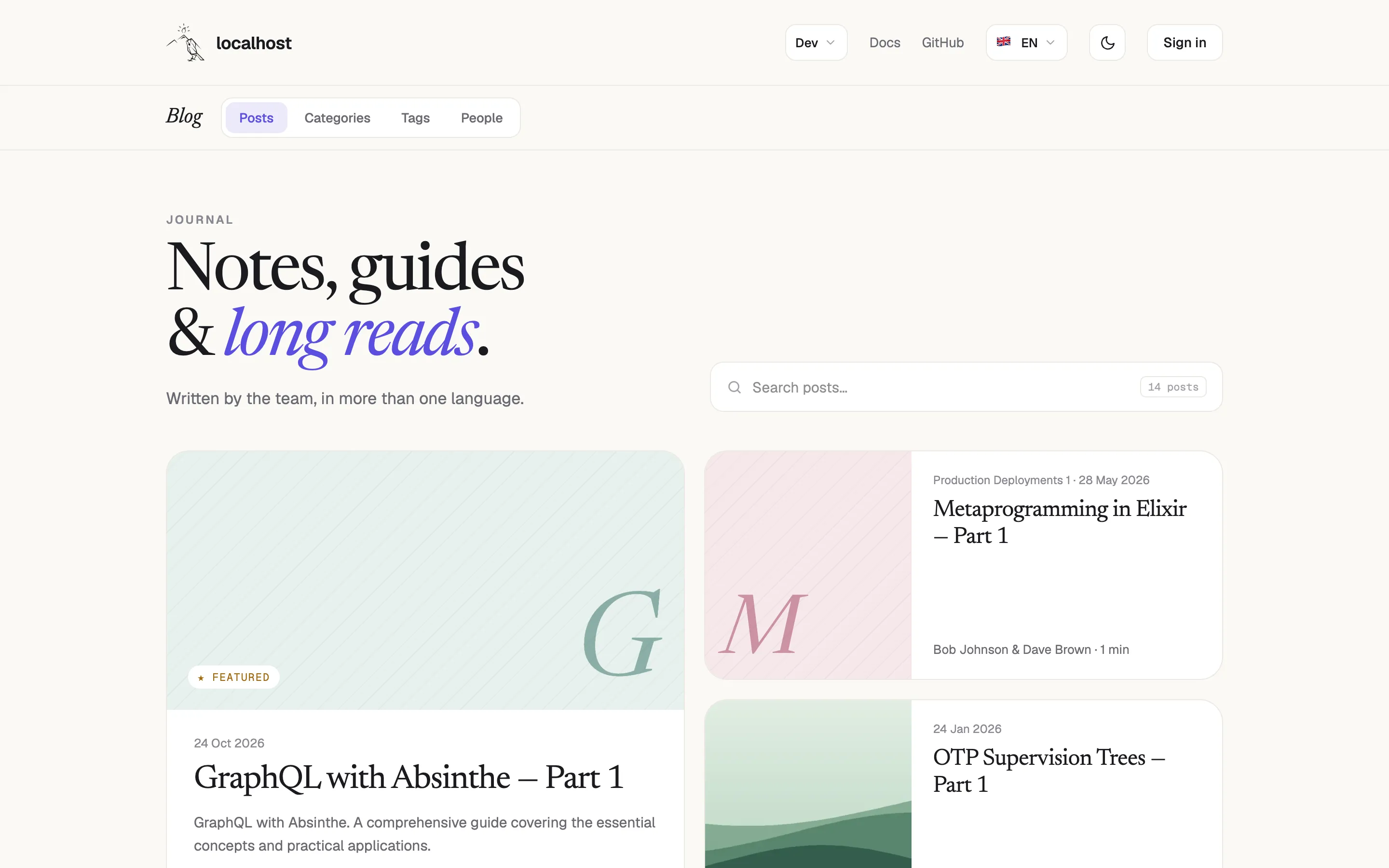
The sample Blog page draws the search bar, the featured strip and the post list, each one a block.
Add a blog block to a page
- Open a page in the visual editor, as in Build a page in the visual editor.
- In the left panel, open Components and type
blogin Search components…. The blog's components carry a T badge, because they belong to this site. - Drag
blog-post-listonto the canvas. - Select it and open the Inspector. Under Props, set
headingto the words above the list andper_pageto how many posts one page holds. - To list one category only, set
collectionto the category's slug. To list one tag only, settagto the tag's slug. - Publish the page.
The block reads its posts itself, so you do not wire any data to it. It shows the first page as soon as the page loads, and later pages and sorting load in the background. See Blog components and sample pages for every attribute.
Link the posts to a post page
A block can only link to a post when it knows where posts live. Set post_base to the path of your post pages, without the slug. For the sample pages it is /:lang/blog.
- Write
:langin the path. The block fills it with the language of the post it links to, so a link to a translation leads to that language's address. - Leave
post_baseempty andblog-post-listandblog-featured-postsopen the post beside the list instead, using thepost_paramquery key. Other blocks then write no link to a post.
The same rule applies to category_base, tag_base, author_base and team_base. A block with the matching base left empty draws categories, tags, bloggers or teams as plain words.
Make a page that shows each record
A page at /:lang/blog/:slug can show any post, because the address captures the slug. Tell the CMS what the slug names, and the blog fills in the page's title, description, image, structured data and permissions from the record.
- In the admin, open Pages and click the pencil icon, Edit, on the page's row, or add one. The dialog opens on its Configuration tab.
- Set Path to an address that captures the slug, such as
/:lang/blog/:slug. - In This page shows each, choose Post under Blog. The other choices are Collection, Tag, Blogger and Team. The default, Custom page: one page, one address, makes no link to a record.
- Save the page.
- Put the post block on the page, with
post_paramset toslugand thelanguageset to the page's language.
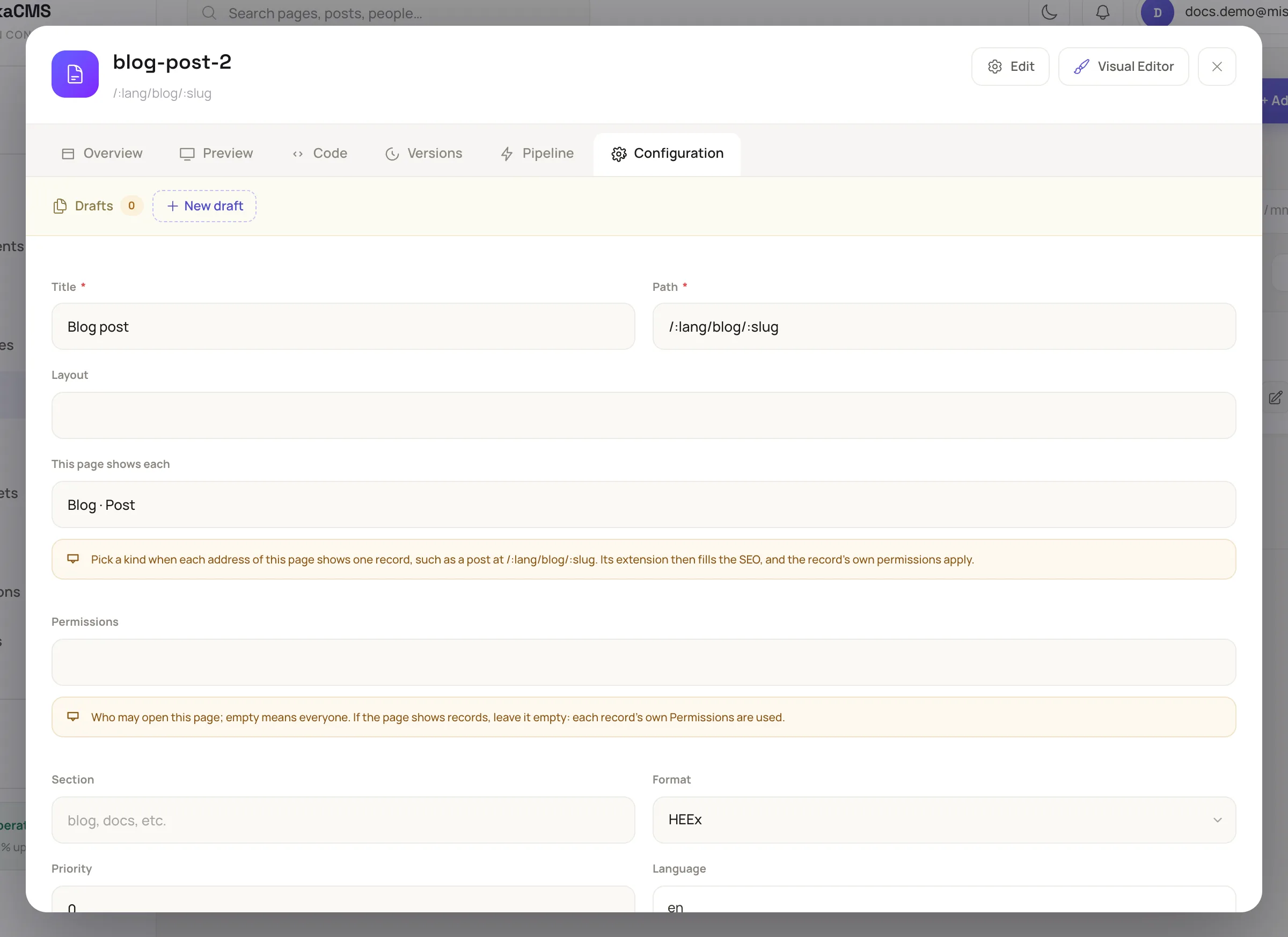
The choice under Blog tells the page which kind of record its slug names.
When you preview the page, it offers up to eight of the site's latest records of that kind to try the page with.
The sample post page is written in HEEx. These are its three blocks, with site set to the name of your site:
<.component
  component_name="blog-post-detail"
  site="my-site"
  id="blog-post"
  current_user={assigns[:current_user]}
  page_source={assigns[:page_source]}
  params={@query_params}
  post_param="slug"
  language={@page.language}
  post_base="/:lang/blog"
  category_base="/:lang/blog/category"
  tag_base="/:lang/blog/tag"
  author_base="/:lang/blog/author"
/>

<.component
  component_name="blog-post-comments"
  site="my-site"
  id="blog-post-comments"
  params={@query_params}
  post_param="slug"
  language={@page.language}
  current_user={assigns[:current_user]}
  page_source={assigns[:page_source]}
/>

<.component
  component_name="blog-related-posts"
  site="my-site"
  id="blog-post-related"
  current_user={assigns[:current_user]}
  page_source={assigns[:page_source]}
  params={@query_params}
  post_param="slug"
  language={@page.language}
  post_base="/:lang/blog"
/>Pass language to all three blocks, as the sample page does. A post belongs to one language, so /fa/blog/<english-slug> then finds nothing, instead of showing the English article and its comments on a Persian page. Pass current_user so that a post locked to a permission is hidden from readers who cannot open it.
Pass page_source={assigns[:page_source]} so the blocks take the post the page already read, instead of each reading it again. Write assigns[:page_source] and not @page_source, because the admin's preview assigns no rows. A block without it still works and reads for itself.
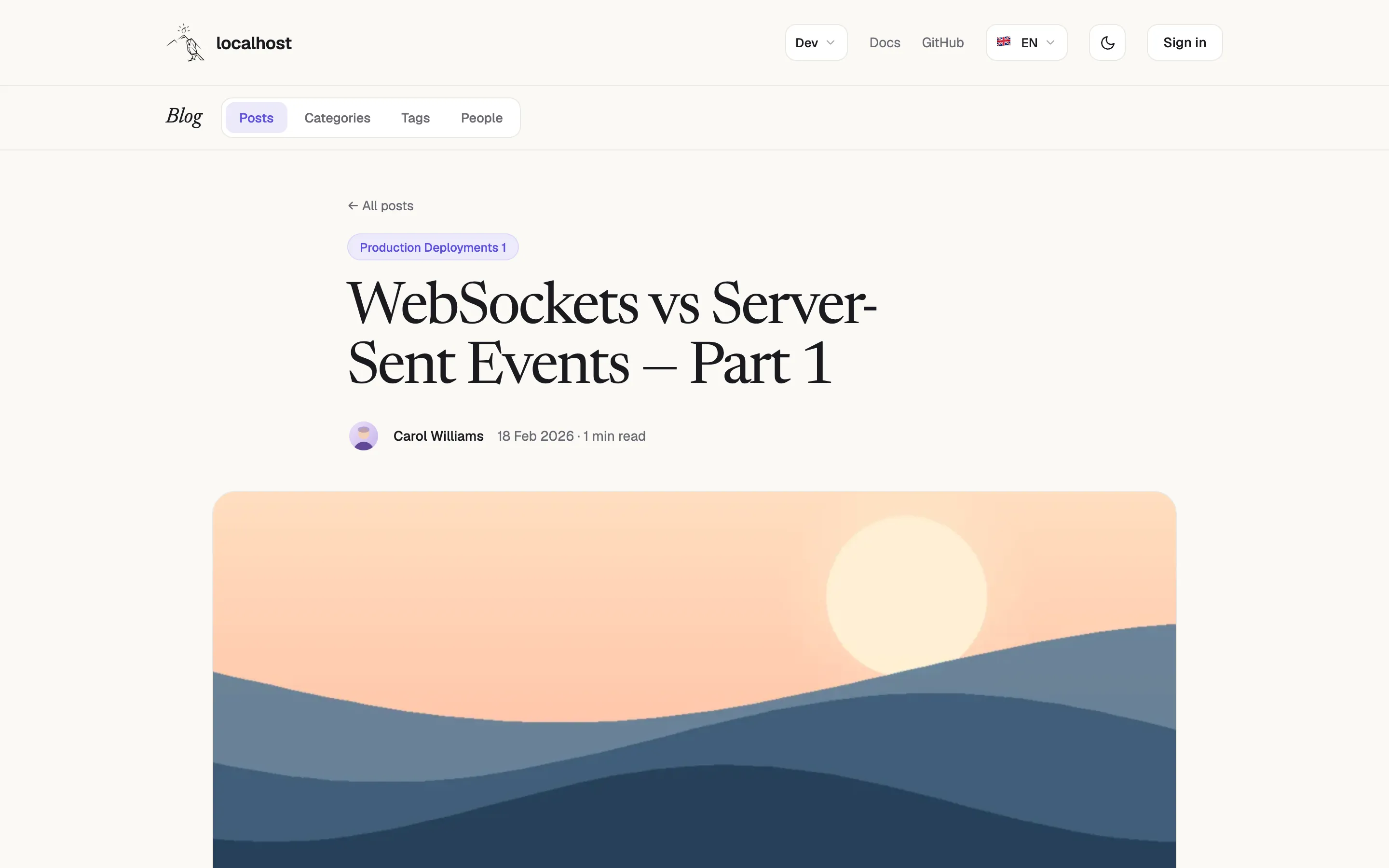
The sample post page draws the article, its comments and the posts to read next.
Next steps
- Blog components and sample pages: every attribute, and the nine sample pages.
- Set a post's SEO and share image.
- Page source: read a page's rows once: what
page_sourcecarries. - Start a blog: the whole path on the CMS side.