Set up the blog on a site
v0.0.1
A site has no blog until you set it up. Setting up adds the blog's permission names, its components, a stylesheet that colours code blocks, nine sample pages and a sidebar snippet. Until then, the blog's dashboard shows an installer instead of statistics. This guide sets up one site, shows how to resolve an address clash, and shows how to check and repair the blog later.
Before you begin
- Sign in with an account that holds
admin:dashboard:runtime:component,admin:dashboard:runtime:stylesheet,admin:dashboard:runtime:pageandadmin:dashboard:runtime:site, or a wildcard that covers all four, such asadmin:dashboard:runtime:*. An account that lacks one of them cannot set the site up. - The account also needs
admin:dashboard:blog:postoradmin:dashboard:blog:commentto see the Blog entry in the sidebar. The master account created during installation holds*, which covers everything. A master signs in at/auth?master_user=true. See the documentation. - If you are a master, know which site you are setting up. A site admin sets up its own site.
See How permissions work for how names and wildcards combine.
Set up from the Blog menu
- In the admin sidebar, under Plugins, click Blog. A site that has not been set up opens a screen titled The blog.
- If you are a master, choose the site in the dropdown beside the Set up button.
- Under Install it on this site, click Set up.
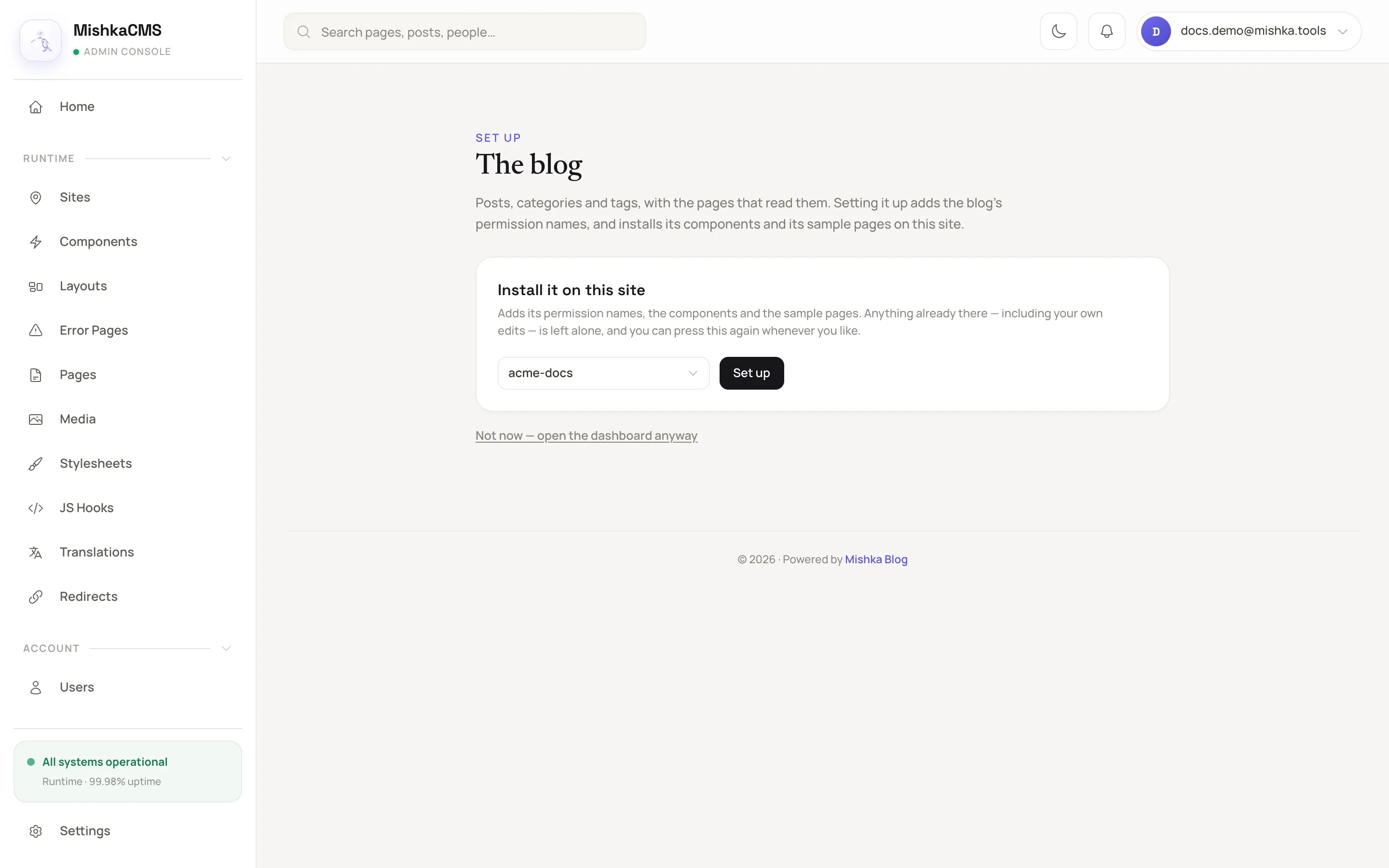
The first-run screen offers one thing to do.
When the run finishes, the blog dashboard replaces the set-up screen and a message says what was added. On the first site you set up, it reads Added 6 permissions, 17 components, 9 pages, 1 snippet. The message counts only what was written. The permission names are shared by every site, so a later site's message starts at the components.
If you click the link Not now — open the dashboard anyway instead, the dashboard opens with nothing in it. A Not set up badge in the header then brings the installer back. When the blog is already set up on the site you are signed in to, the screen does not open on its own. As a master, click the wrench icon, choose the other site in the dropdown and click Check for updates. The Not set up badge appears, and clicking it opens the screen.
Set up while installing Mishka CMS
The install wizard at /install has an Extensions module. Tick Blog, described as Posts, categories and tags, with the pages that read them. The wizard sets the blog up on the site it creates, in its step named Installing the extensions you chose.
What setting up adds
- Six permission names:
admin:dashboard:blog:*,admin:dashboard:blog:post,admin:dashboard:blog:comment,admin:api:blog:*,admin:api:blog:postandadmin:api:blog:comment. - Seventeen components for this site, eleven blocks and six pieces, listed in Blog components and sample pages.
- A stylesheet named
blog-code-highlightthat colours the code blocks in a post's body. - Nine sample pages under
/:lang/blog, drawn in the site'ssite-mainlayout and active as soon as they are written. - A snippet named Blog sidebar that you can place on any page in the page editor.
Setting up never updates a row that already exists. A component you archived stays archived.
Resolve an address clash
A sample page cannot take the name or the address of a page you already have.
- If only the name is taken, the sample page is written under the next free name. The report lists it under Created under another name.
- If your page holds the address, the sample page is not written. The report lists it under Left alone and shows a form. The report stays on the screen you opened from the Not set up badge. Otherwise open the check window and click Repair to see it.
To place the sample pages anyway:
- Type a new path in the field beside each clashing address, or type one prefix under Or move them all under, such as
/mish. - Click Set up again.
The second run writes what the first could not and changes nothing of yours.
Check and repair the blog
A wrench button titled Check and repair the blog on this site appears in the dashboard header of a site that is set up, for an account that may set the site up. It opens a window named The blog on this site.
- If you are a master, choose the site. Then click Check for updates. The window compares the site's components and sample pages with the ones this version ships.
- To update components, click the button under Ready to update, which carries the count, such as Update 3 components. Components you edited are listed under Edited here since install and change only when you click the second button, such as Update these 2 components too. What each one held is kept in the component's history.
- To bring sample pages up to date, click the button that carries the count, such as Create 2 drafts. Each page that is behind becomes a draft. Nothing readers see changes until you open the page in the builder and publish the draft.
- Click Repair to put back any component or page the site lost. It leaves everything that is already there alone.
- Click Redraw to draw every share image of the blog on this site again, one at a time, in the background.
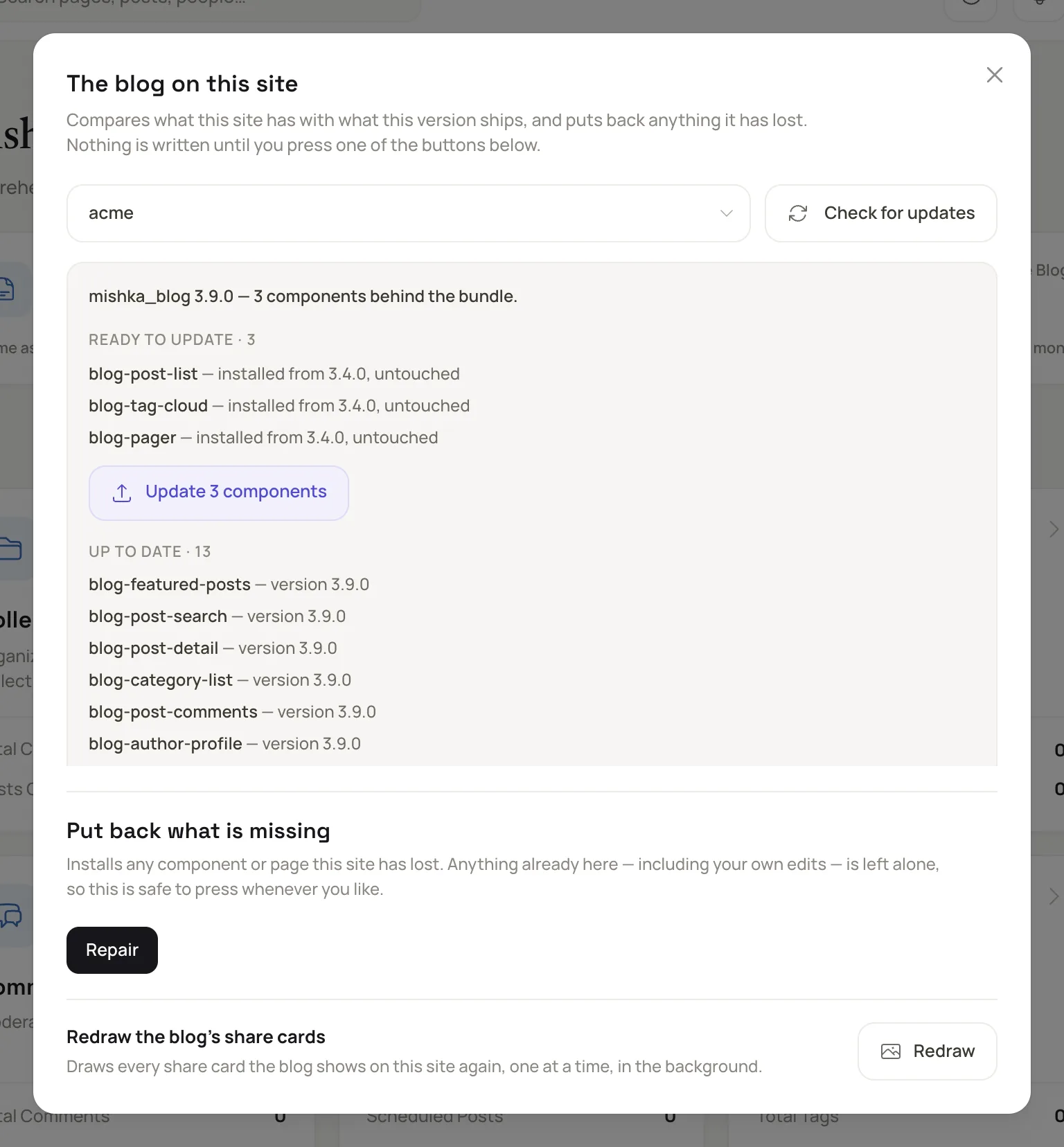
The window lists what is behind this version before anything is written.
Switch the blog off for a site
Open Settings and the Blog tab, at /admin/dashboard/settings?tab=blog. Turn off Active on this site. The blog's menu is hidden and its pages stop being served on that site. Nothing is deleted, and turning the switch back on brings everything back. You need admin:dashboard:setting to change it. The tab also shows Set up at version, which the installer writes and you cannot edit.