Moderate comments
v0.0.1
Signed-in readers can comment on a published post. Every comment they write starts as Pending and stays out of sight until a moderator approves it. This guide reviews pending comments, approves or rejects them, replies as a moderator and pins a comment to the top of a conversation.
Before you begin
- Set the blog up on your site.
- Sign in with an account that holds
admin:dashboard:blog:comment, or a wildcard that covers it. This is a separate permission from the one that manages posts, so a moderator does not need to edit posts. See Blog permissions. - Show comments on your post pages. The sample post page already includes the
blog-post-commentsblock. See Show the blog on your own pages.
Review pending comments
- In the admin sidebar, under Plugins, click Blog, then click the Comments card. The page is titled Comments Management.
- In the Status filter, choose Pending. The other statuses are Approved, Flagged and Spam.
- To read the comments on one post, choose it in the Post filter. You can also click the comment count on the post's card on the Posts page.
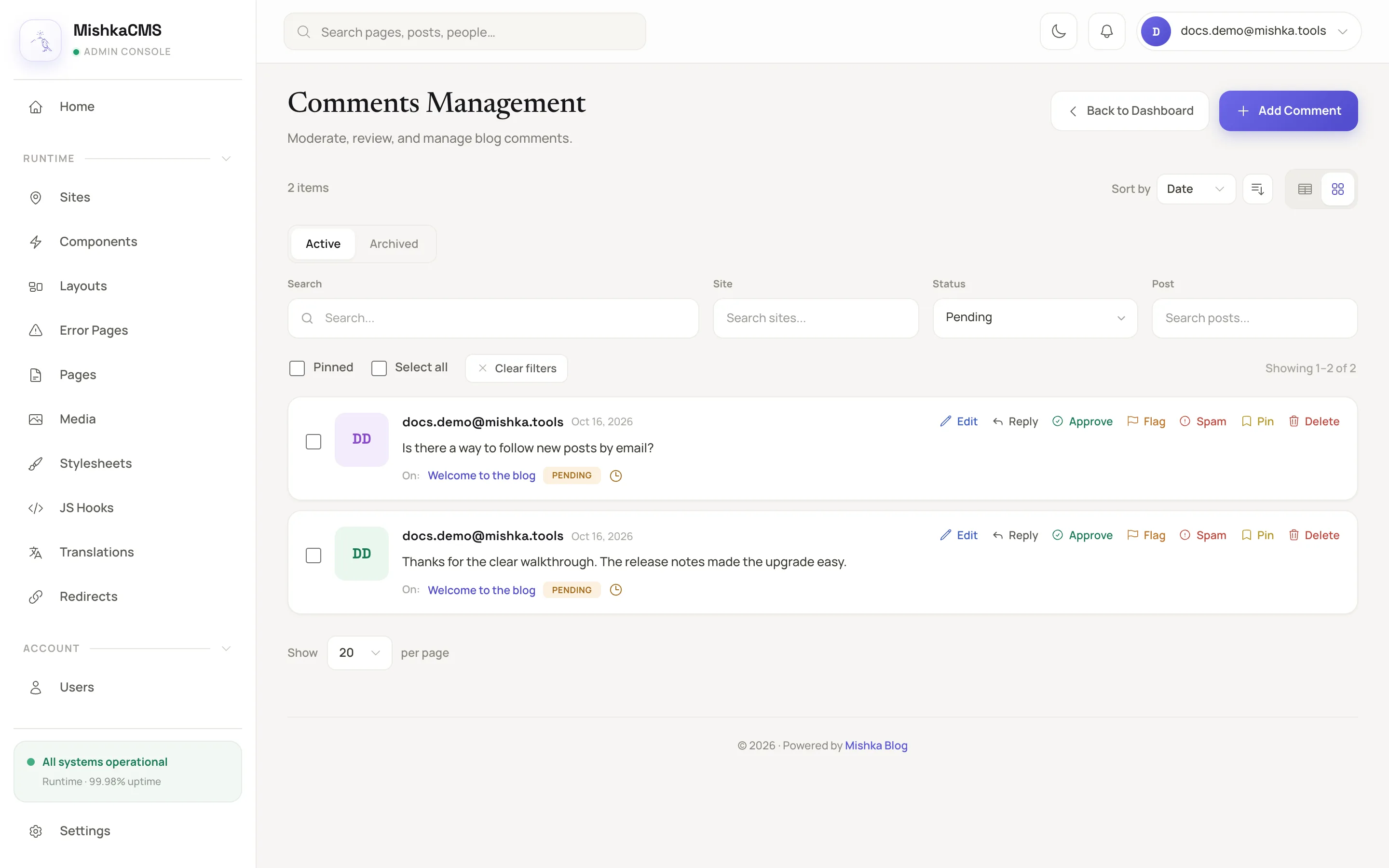
Each card shows the comment, its post and its status.
The Search filter looks in the text of the comments. The Pinned filter narrows the list to pinned comments.
Decide what to do with a comment
Use the buttons on a comment's card. In the table view, Edit, Approve and Delete are icon buttons and the rest are in the Actions menu.
| Button | What it does |
|---|---|
| Approve | Sets the status to Approved. Readers see the comment. |
| Flag | Sets the status to Flagged, to review it later. Readers do not see it. |
| Spam | Sets the status to Spam. Readers do not see it. |
| Pin and Unpin | Pins the comment so it carries a Pinned badge, or removes the pin. |
| Edit | Opens the comment's Content, Status, Pinned and Parent Comment in a form. |
| Delete | Archives the comment after you confirm. Restore and Delete forever appear under the Archived toggle. |
Readers see only Approved comments. A pinned comment shows a Pinned badge. Replies are listed under the comment they answer. A commenter who has a blogger profile on the site is shown by that profile's display name, and one without a profile is called Reader.
What readers can do
- Only a signed-in reader sees the comment box. A visitor who is not signed in sees a link to sign in.
- After a reader sends a comment, the box tells them that the comment is waiting for a moderator.
- On a post that is locked to a permission, only readers who can open the post can see or write comments. See How blog locks work.
- To close a conversation to new comments, set
allow_postingto off on theblog-post-commentsblock. The existing comments stay visible.
Next steps
- Blog admin screens: every filter and action on the Comments page.
- Blog components and sample pages: the attributes of
blog-post-comments. - Blog JSON:API: comment routes and votes.