Write and publish a post
v0.0.1
A post is the blog's main record. You write it in the admin, keep it as a draft while you work, and publish it when it is ready. Visitors see a post only while its status is Published. This guide creates a post, publishes it, and then shows how to take it down, review its history and archive it.
Before you begin
- Set the blog up on your site.
- Sign in with an account that holds
admin:dashboard:blog:post, or a wildcard that covers it. - Create the collections, tags and bloggers you want to attach, as in Add categories, tags, bloggers and teams. You can also attach them later by editing the post. A post names its authors through bloggers, so a post with no blogger shows no author.
Create the post
- In the admin sidebar, under Plugins, click Blog. Then click the Blog Posts card, or click New Post in the header. The page is titled Blog Posts Management.
- Click Add Post.
- Enter a Title. The Slug follows the title until you type your own.
- Leave Status on Draft. Check the Language, which is the post's language code, such as
en. - Under Collections, Bloggers / Authors and Tags, search and select the records the post belongs to.
- Write the body in Content, as described in the next section.
- Optionally fill in Subtitle, Excerpt and Featured Image, and turn on Featured.
- Click Create. The page confirms with Post created successfully.
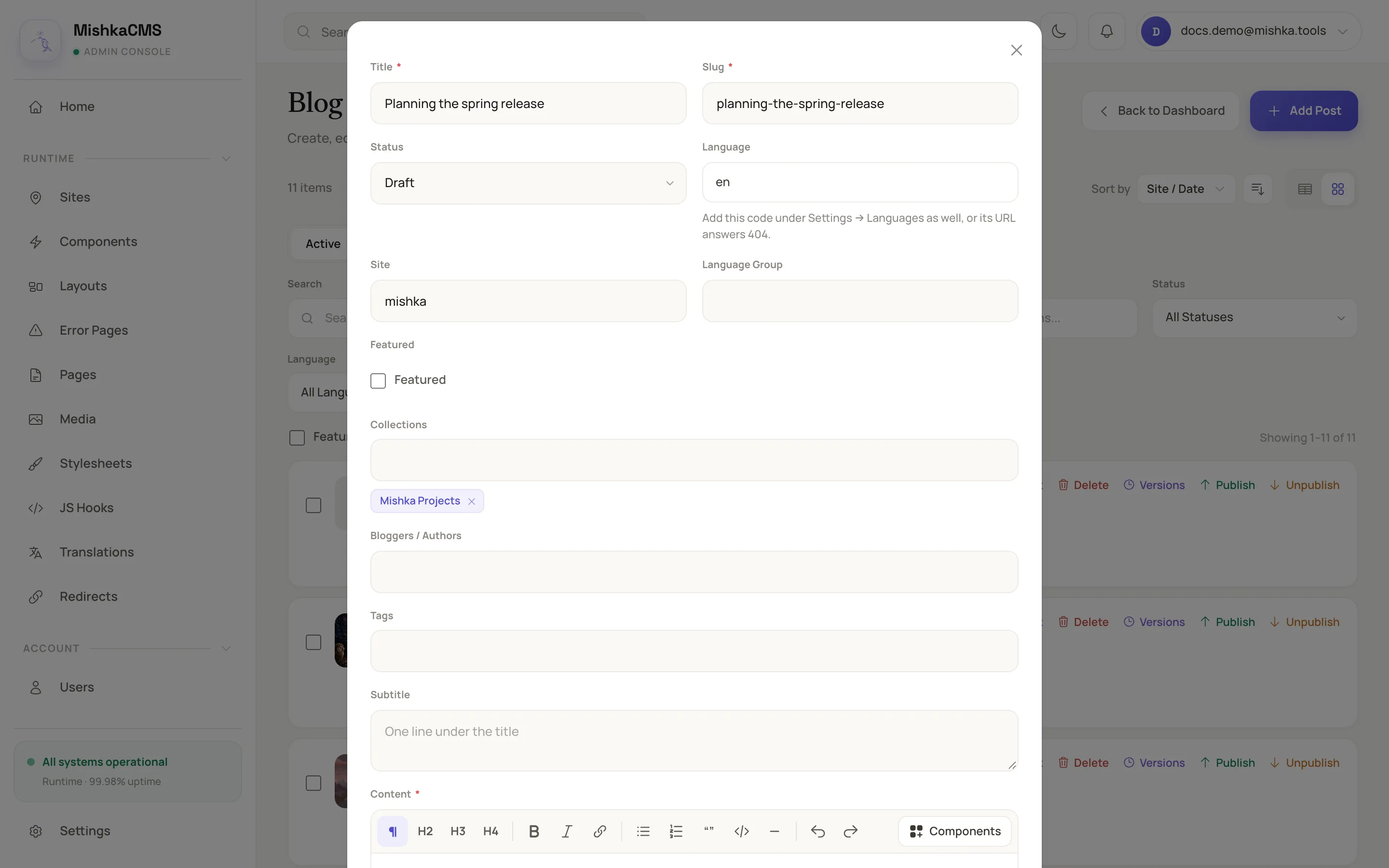
The post form keeps the relationships above the content.
A post needs a title, a slug, content, a status and a language. The slug must be unique on the site. See Blog record fields for every field and its limits.
Write the content
Content is a rich-text editor. Its toolbar has Paragraph, Heading 2 to Heading 4, Bold, Italic, Link, Bulleted list, Numbered list, Quote, Code block, Divider, Undo and Redo. The Components button opens a palette of your site's components, which you can place inside the text.
When you save, the blog does four things with the content:
- It cleans the HTML.
- It colours code blocks. A code block whose language is
elixir,heex,eex,erlang,html,json,diff,sql,javascript,typescriptorcssis highlighted. Pick the language with Code language. Other languages stay plain. - It works out the reading time, at 200 words a minute and never under one minute.
- It records which components, icons and classes the content uses, so the site's stylesheet carries them once the post is published.
Add a cover image
In Featured Image, drop a file, or choose one from the site's media library. Uploads are filed in a folder named blog. The field stores the picture's address.
Publish the post
- On the Blog Posts Management page, find the post's card.
- Click Publish. In the table view, the action is in the Actions menu.
The status chip changes to Published, and the post's publish date is set if it had none. The post now appears on the blog pages that list posts, and in the blog's search box. If its content uses a component or class the site did not use before, the site's stylesheet is rebuilt.
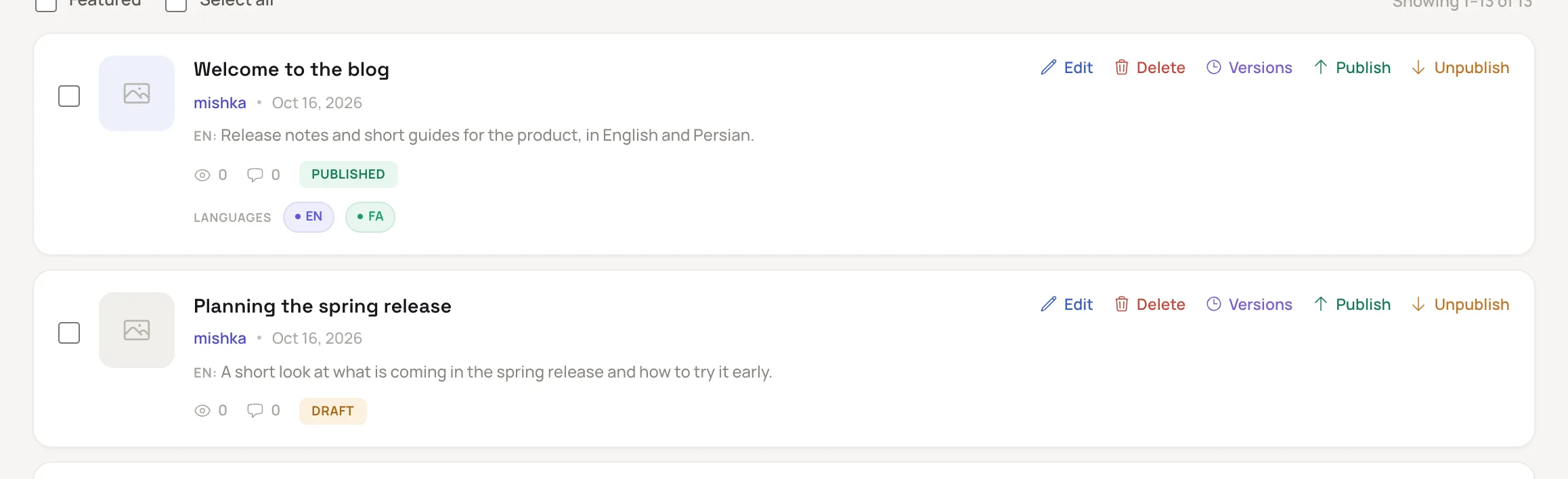
Every active card carries Publish and Unpublish.
Click Unpublish to take a post down. It returns to Draft and its publish date is cleared. You can also change Status in the edit form.
If the post, or a collection it is filed under, has a Permissions value, only readers who hold one of those permissions can open it. See How blog locks work and Lock a page or post to members.
Review and restore earlier versions
- Click Versions on the post. A window titled Version history lists every saved change, newest first.
- Each entry shows the time, the action, who made the change and the fields that changed. Click Show to read the changed values under Version changes, and Hide to close them.
- To go back, click Restore and confirm. The page confirms with Version restored successfully.
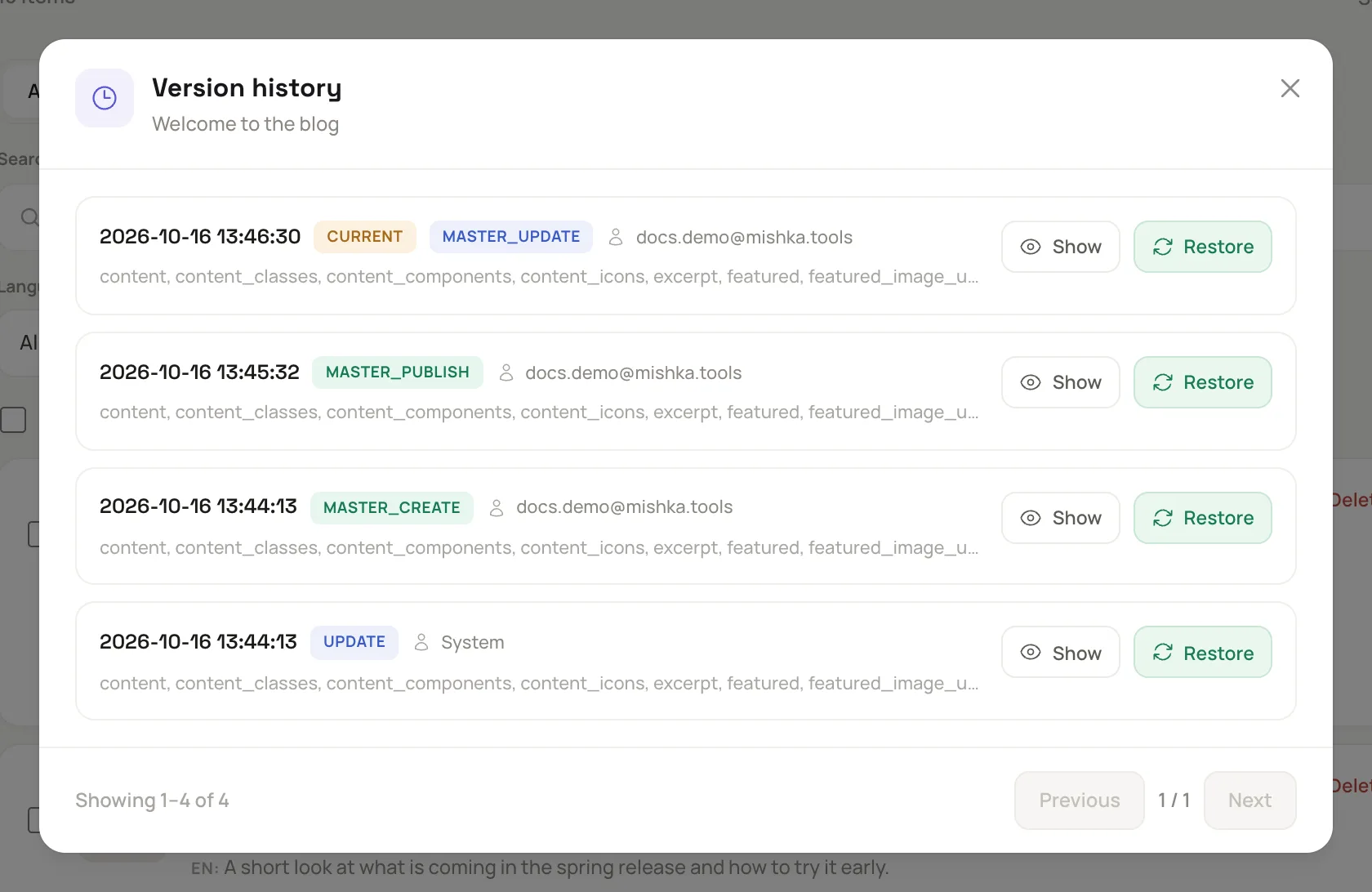
Restore copies the saved values back onto the post.
A restore copies back the post's own fields, such as the title, content, status and SEO tags. It does not change which collections, tags and authors the post has. A restored version is highlighted again and its reading time is worked out again. A post that is archived cannot be restored from a version until you restore it from the archive.
Archive and restore a post
- Click Delete on the card and confirm. The post is archived, not removed, and leaves the lists and the public pages.
- To bring it back, switch the list to Archived with the toggle beside Active, then click Restore. The post returns as a draft.
- To remove it for good, click Delete forever on an archived post. This cannot be undone.
An archived post cannot be edited. To archive or delete several posts at once, tick their cards and use the bulk bar. A post that is the original of live translations cannot be archived until its translations are. See Publish a post in more than one language.
Next steps
- Set a post's SEO and share image.
- Publish a post in more than one language.
- Blog admin screens: every filter and action on the Posts page.