Work on single items
v0.0.3
The Items page lists every item the site holds from a source, with what the last dry run would do with it and what the last import did. This guide uses it to leave an item out, bring it back, map a category or a tag to one you already have, decide one conflict, and import a few items without a full run. You finish able to correct a run item by item.
What it moves and how it works, on one page: Mishka CMS Migration.
Before you begin
- A run that is not running. Press the Items icon on its row on the Migration page.
- The run still holds what its source connects with. A run you cancelled does not, and its table says so.
Find the item
The table shows Kind, Title with its source id under it, Plan, Last import, CMS record and Updated. Plan is what the last dry run would do, or what it planned when an import met the item, as a pill with its reason in words. Last import is what the import did, or Not imported. CMS record links to the record the item became.
Search the title and the source id, and filter by Kind, Plan (Would create, Would update, Would skip, Would fail, Needs your decision, Decided) and Last import. Imported by this run narrows the table to what this run's import met last. The filters stay in the address, so you can share the view.
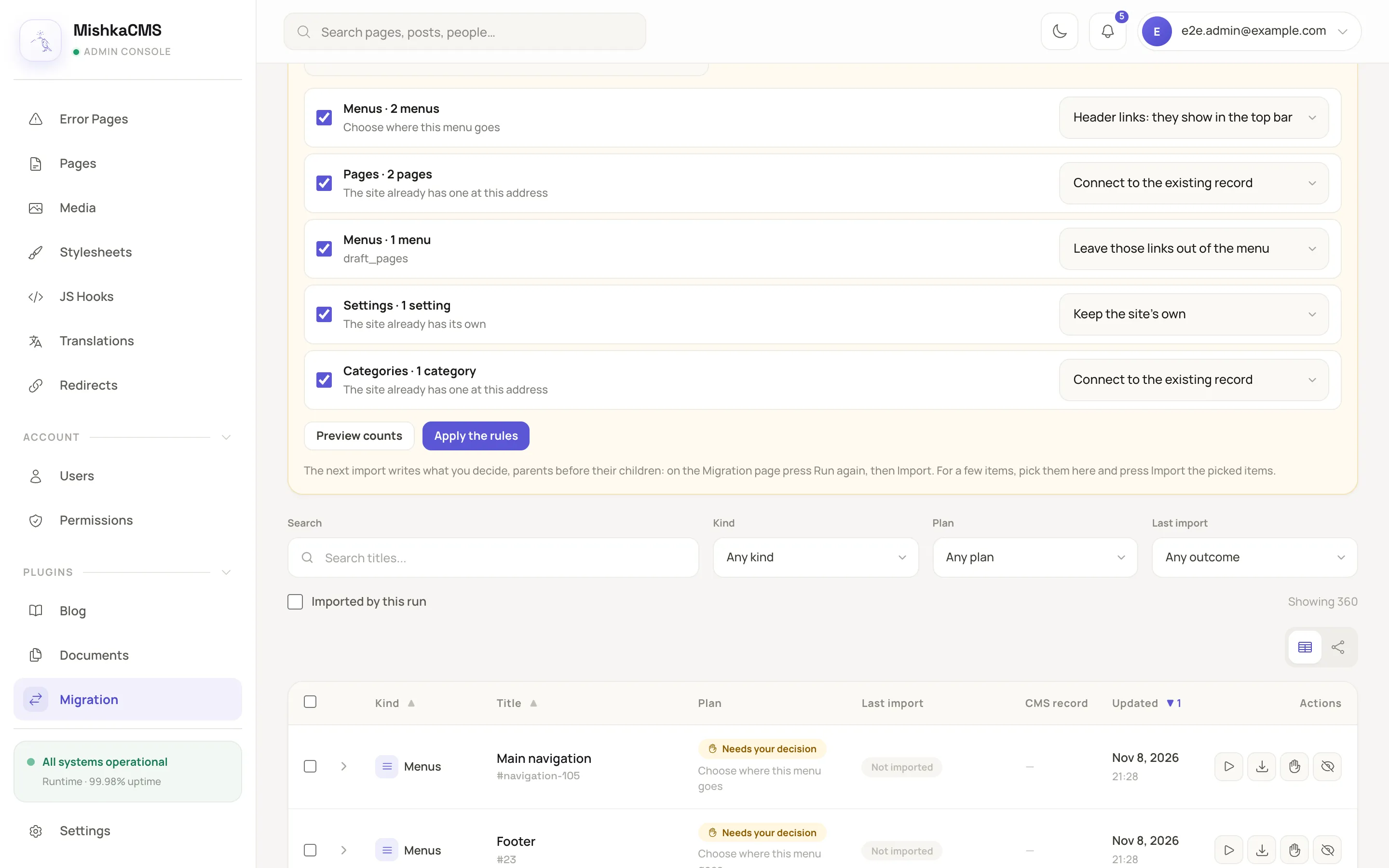
The Items page lists the items with their plan and what the last import did.
Leave an item out or bring it back
Press Leave out on a row, and the item is out of every later dry run and import, listed as Left out by you. Press Bring back to undo it. Pick several rows with the checkboxes to do the same for all of them. Leaving out several asks first how many it changes. Picking every row picks what your filters find.
Map a category or a tag
A category or a tag has Map to…. It opens a window with Map to, whose choices are Import as its own and the site's categories, or tags, in the language the site leads with. Press Save. The item is connected to the record you chose and the Plan cell says Mapped by you to its name.
Press Map categories in the page's head to see the categories as the source nests them. The table's switcher moves between the list and this Map view.
Decide one item
An item that needs your decision has Decide… in place of Map to…. It opens Your decision with the conflict's choices, under a notice that says why the item waits. Press Save, and a message says Decided. The next dry run and import follow your decision.
Pick several rows and press Keep the site as it is or Import anyway to decide them together. For two identical files they read Keep both and Use the original.
Import one item or a few
- Dry run this item and Import this item run the run's own job for that item alone. A message says what came of it, as the row says it.
- Import the picked items takes up to 100 rows that you picked one by one. A single message says what came of all of them once the job has settled the last one.
An item whose parent is not imported waits, and the import never brings the parent in for it. While a dry run or an import of the site is running, these buttons say so: Not started. An import of this run is running. Wait until it finishes, then try again.
See where an item sits
Press the arrow of a row with a parent. Where it sits draws the item under its parents, each with where it stands and what you can do there. Its buttons decide the conflict an item waits on, decide it for the whole branch, import one item or the branch, parents first, and Import anyway, without its parent. For the item of a user the import created, the row shows a warning that their password cannot be carried over. Technical details folds out what is kept of the item as JSON, with anything named like a secret hidden.
Next steps
- Settle what needs your decision: decide a whole group at once.
- How a migration works: what a re-run keeps.