Settle what needs your decision
v0.0.3
The import never picks for you when two answers are both reasonable. It marks the item Needs your decision and waits. This guide settles those items from the Decisions panel of a run's Items page. You finish with nothing waiting, ready for the import.
What it moves and how it works, on one page: Mishka CMS Migration.
Before you begin
- A run whose dry run is ready, with items under need your decision in its Result column. See Read a dry run.
- No dry run or import of the site is running. While one runs, the panel says A dry run or an import of this run is running. Decide once it is done. and its choices are off.
Open the Decisions panel
Press the Items icon on the run's row. The page lists every item the site holds from this source, and above the table the panel says N items need your decision. Decide a whole group at once. A decision holds for every later dry run and import, and imports nothing by itself.
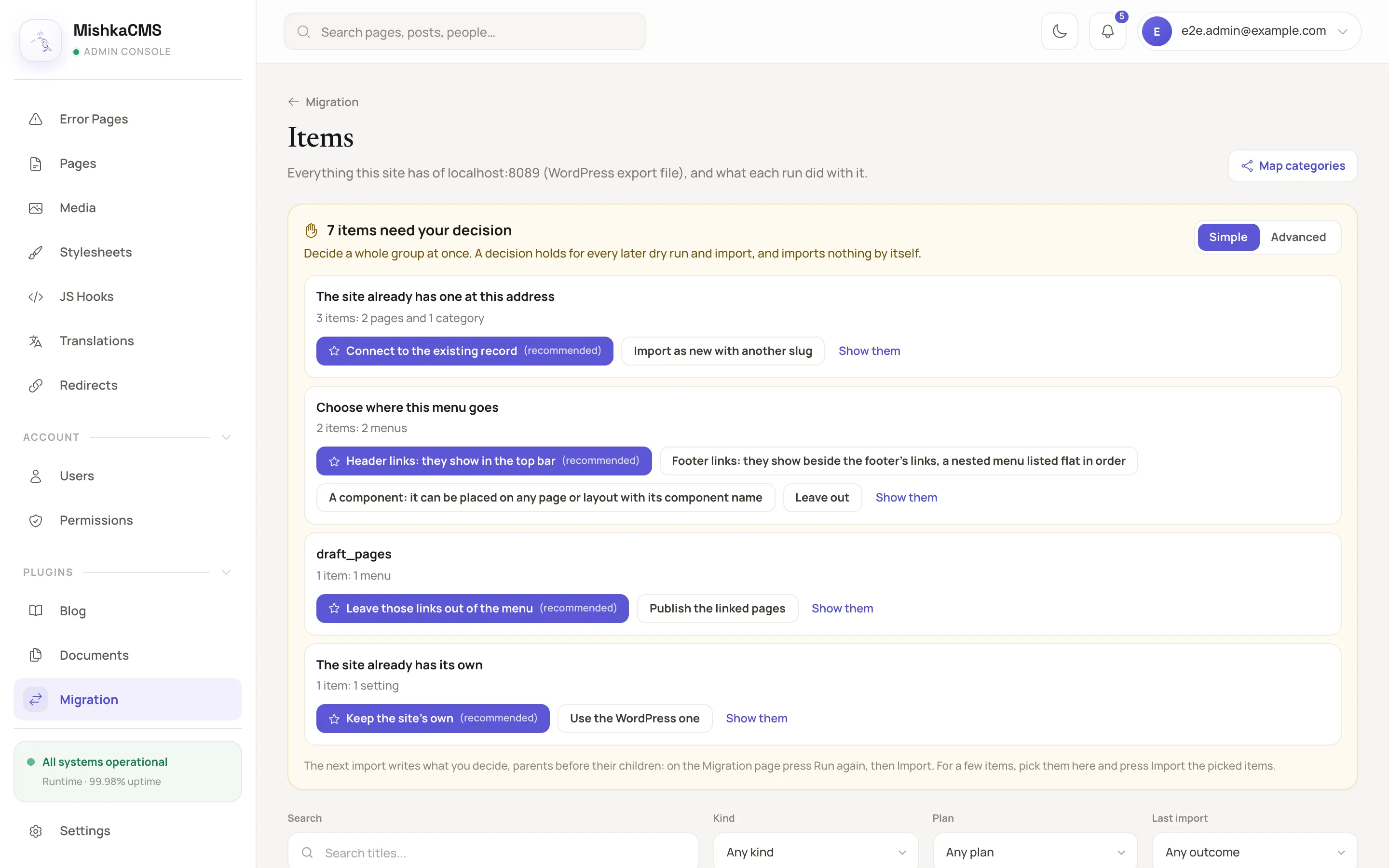
Each card is one conflict, with how many items wait for it and the choices.
Decide a group in Simple mode
Simple is the default. Each card names one conflict, such as Choose where this menu goes or The site already has one at this address. It says how many items wait and of which kinds, for example 4 items: 4 menus.
- Read the choices on the card. The recommended one comes first and carries a star and (recommended).
- Press Show them if you want to see the items first. It narrows the table to the items that wait.
- Press a choice. The page asks Answer N items with that choice, and when you confirm it decides all of them at once.
A message says how many items were decided, and the card goes away. Once nothing is left, the panel says Nothing needs your decision now.
Decide by rule in Advanced mode
Press Advanced to decide each kind of item with its own choice. You get one rule for each kind and conflict, a switch to include it, and a text field that narrows every rule to the items whose title holds the text or whose source id it is.
- Switch on the rules you want and pick a choice for each.
- Press Preview counts. It shows how many items each rule would decide, and the total. A rule that is off says off, not counted.
- Press Apply the rules and confirm. With no rule switched on, the page says Turn on a rule first.
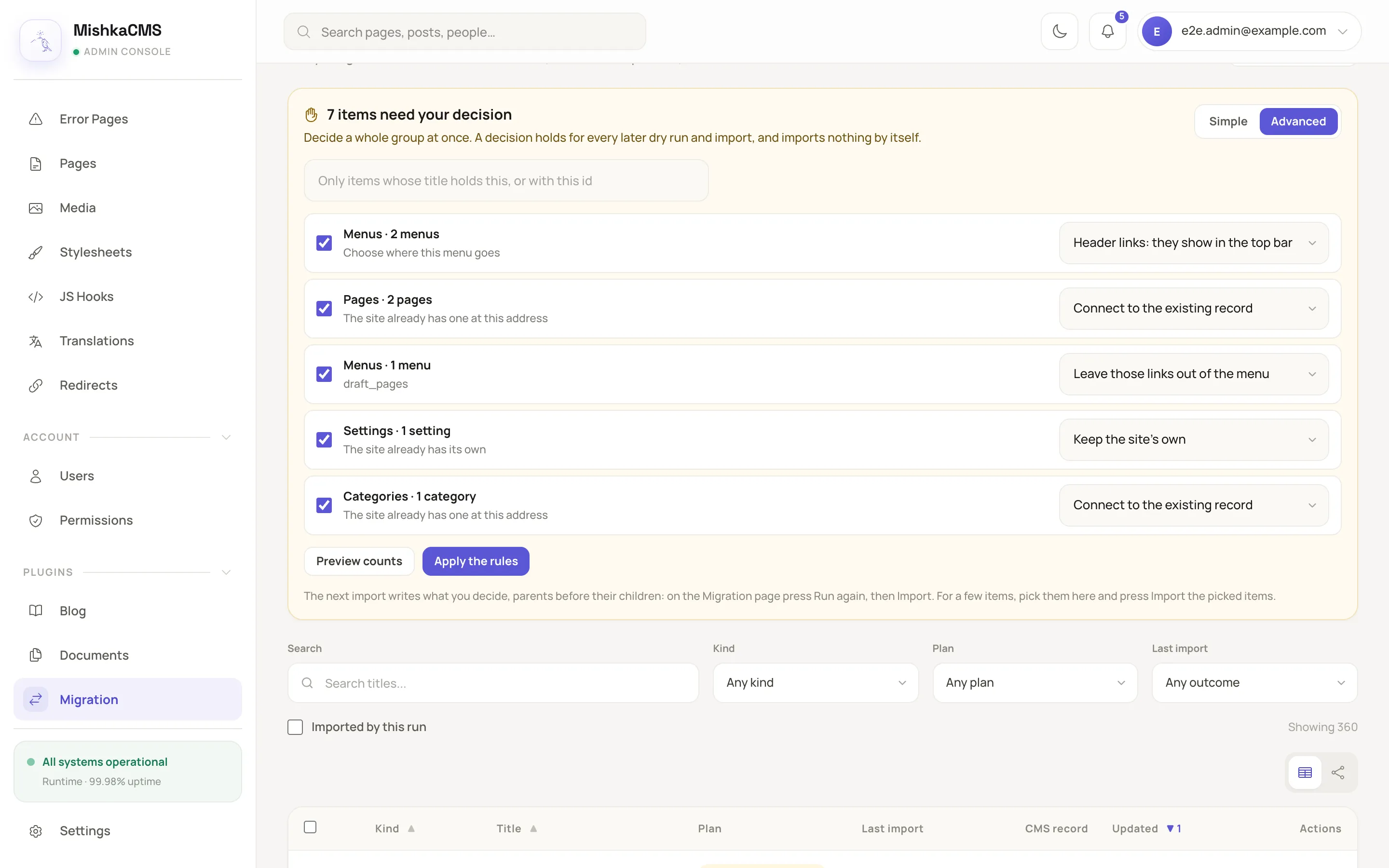
Advanced mode previews how many items each rule would decide before it applies them.
Write the decisions
A decision only records your answer. The import writes it:
- On the Migration page, press Run again on the run. A fresh dry run follows your decisions.
- Press Import and confirm.
The import writes parents before their children. To bring only a few items, pick them in the table and press Import the picked items. See Work on single items.
Know the common conflicts
A decision you make holds for every later dry run and import of the same item. The full list of conflicts and choices is in Statuses, results and messages. These are the ones you meet most often:
| The item says | What it means | Choices |
|---|---|---|
| The site already has one at this address | A category or a tag with the same slug, as the Blog stores it, exists. | Connect to the existing record or Import as new with another slug |
| Choose where this menu goes | A WordPress menu has no fixed place. | Header links, Footer links, A component or Leave out |
| Contains scripts or inline event handlers | The content has script the CMS would run. | Remove them or Keep them (I trust this content) |
| A page of the site is at this post's address | A page of yours holds the address the post is served at. | Import with another slug, so its address is free or Leave out |
| Same file as another | Two files are identical. | Keep both or Use the original |
| The source does not say its language | A REST source on a Polylang or WPML site gave no language. | Import it in the site's main language or Wait for the export file |
Next steps
- Work on single items: decide, map or leave out one item.
- How a migration works: why a decision holds for later runs.